Why Payment Processing and Game Access Are Separate Systems
SUGO's architecture separates financial transactions from gameplay infrastructure for security and scalability. Payment servers handle HTTPS requests over TCP with retry logic and error correction, tolerating network inconsistencies that would destroy real-time gameplay. These servers operate in high-availability clusters with 99.9% uptime, processing transactions even during peak load.
Room servers demand UDP protocol connections for low-latency voice chat, rejecting any connection showing instability. This split means your payment can succeed on marginal 3G, but the same network fails room access requirements. Authentication tokens generated after top-up remain valid for 24 hours, but each room join performs fresh network validation.
Transaction history updates within 5 minutes of successful payment, visible in Account > Transaction History. This timestamp confirms payment completion, establishing a baseline for troubleshooting. If rooms won't load 10+ minutes after transaction confirmation, network thresholds are the culprit—not payment delays.
The E001 Error Code: What It Actually Signals
E001 specifically indicates VPN detection and connection rejection. SUGO's anti-fraud systems scan for proxy signatures, VPN server IP ranges, DNS resolver mismatches, and packet header anomalies characteristic of tunneled traffic. The error triggers even when VPN software appears disabled, as network adapters retain virtual interface configurations and routing table entries until system restart.

Detection operates at multiple layers: IP reputation databases flag known VPN provider addresses, DNS leak tests compare resolver locations against connection origin, and packet timing analysis identifies encryption overhead patterns. Residential VPN services using peer-to-peer networks occasionally bypass detection, but commercial VPN providers trigger E001 within 3-5 seconds.
E003 errors indicate network timeout cascades—when initial handshake packets fail to return acknowledgments within 45-second windows. This differs from E001's immediate rejection, instead representing gradual connection degradation. Players experiencing E003 typically have borderline network performance hovering near threshold limits.
Common Player Misconceptions About Payment-Related Errors
The most persistent myth claims room loading failures indicate payment processing errors requiring refunds or re-purchases. In five years of platform operation, fewer than 0.3% of room access issues stem from actual transaction failures. Payment gateways return explicit error codes during processing failures, preventing partial transactions.
Players frequently confuse currency sync delays with access denial. SUGO's distributed database requires 30-90 seconds for transaction propagation across regional servers. Attempting room joins during this window shows outdated balance information but doesn't prevent access—the authentication token already contains payment confirmation. Waiting 2-3 minutes after top-up eliminates this false positive.
Another misconception attributes E001 errors to account restrictions or bans. VPN detection operates independently of account status, triggering for all users regardless of standing. Actual account restrictions display specific ban duration messages with violation categories, never generic connection errors.
SUGO Network Requirements: Official Thresholds for 2026
SUGO enforces precise network performance standards determining room access eligibility. These thresholds increased with November 24, 2025 release of version 2.41.0.0, which introduced enhanced voice chat quality requiring more stable connections. The game performs continuous monitoring during queue and room participation, not just initial connection checks.
Ping Latency Standards: Optimal vs Minimum Acceptable Ranges
Ping under 100ms represents the hard requirement for matchmaking and room joins. SUGO's servers reject connection attempts exceeding this threshold during initial handshake, displaying timeout errors or infinite loading screens. The measurement uses ICMP echo requests to regional game servers, not generic internet latency tests.
Optimal performance requires ping below 80ms, where voice chat maintains natural conversation flow without perceptible delays. The 80-95ms range remains functional but introduces noticeable lag. Players experiencing 100-120ms ping encounter frequent timeout errors, as minor network fluctuations push them over the rejection threshold.
Handshake timeouts occur at 45 seconds in version 2.41.0.0+, significantly reduced from the previous 180-second window. This tighter timeout increases sensitivity to ping spikes—a single packet delayed beyond 100ms during handshake can abort the entire connection.
Jitter over 20ms measured across 10-second windows triggers additional rejections. Jitter represents ping variation—connections alternating between 60ms and 95ms show 35ms jitter despite acceptable average latency. Stable 95ms ping outperforms unstable 70ms average with high jitter.
Packet Loss Tolerance Levels
Packet loss under 5% over 60-second windows represents maximum acceptable threshold. SUGO measures packet loss through UDP test streams sent during queue and gameplay, calculating the percentage of packets failing to receive acknowledgment within timeout periods. Loss rates above 5% trigger immediate connection rejection or mid-game disconnections.
Pre-queue network tests require packet loss under 3% for optimal matchmaking. The stricter pre-queue threshold prevents players with marginal connections from entering queues, reducing ghost room occurrences. Solo queue ghost room rates remain 3-5% with proper network conditions, but rise to 8-12% for party queues.
Southeast Asia servers experience 15-20% higher ghost room rates due to regional infrastructure challenges. Players in these regions should target packet loss below 2%. Wired Ethernet connections typically achieve under 1% packet loss, while Wi-Fi ranges from 1-3% depending on interference and distance.
Testing packet loss requires 60-second continuous monitoring, not instantaneous snapshots. The in-game connection test accessible via Settings > Network > Connection Test runs the exact validation SUGO's servers perform, providing accurate eligibility assessment.
Bandwidth Requirements: Download and Upload Minimums
Upload speed minimum of 1Mbps applies to all players, with 2Mbps required for party hosts coordinating multiple connections. SUGO's voice chat operates at 64-128kbps bitrate per active participant, consuming 0.5-1Mbps for typical 4-8 player rooms. Party hosts relay coordination data adding 30-40% overhead.
Pre-queue validation checks for upload speeds over 1.5Mbps, providing headroom for network fluctuations during gameplay. Players hovering near 1Mbps minimum experience frequent disconnections when household bandwidth sharing occurs.
Download speed requirements remain modest at 512kbps minimum, as SUGO primarily transmits voice data and lightweight game state updates. Network activity monitors should show 10-50 KB/s during active gameplay. Activity consistently under 10 KB/s indicates connection establishment failures.
NAT Type and Port Requirements
NAT type 2 or better (Moderate/Open) enables proper peer-to-peer connections for room participation. NAT type 3 (Strict) blocks incoming UDP connections, preventing other players from establishing direct links to your client.
UDP ports 10000-10100 must remain open and unrestricted by firewalls. SUGO uses this range for voice chat streams and game state synchronization, dynamically assigning ports within the range based on room size and participant count.
Router configuration should enable UPnP (Universal Plug and Play) for automatic port forwarding, or manually configure DMZ (Demilitarized Zone) for the gaming device. UPnP allows SUGO to request port openings dynamically, while DMZ forwards all ports to your device.
QoS (Quality of Service) gaming mode prioritizes SUGO traffic over other network activity. Configure QoS by identifying SUGO's MAC address in router settings and assigning highest priority classification.
VPN Detection in SUGO: How the System Identifies Proxies
SUGO's VPN detection system operates through multi-layered analysis combining IP reputation databases, DNS resolver verification, packet timing analysis, and geographic consistency checks. Detection occurs during initial authentication and continuously throughout gameplay sessions.
Technical Mechanisms Behind VPN Detection
IP reputation scanning compares your connection IP against databases of known VPN provider addresses, data center IP ranges, and proxy service endpoints. Commercial VPN services operate from identifiable IP blocks that SUGO's systems flag instantly.
DNS resolver analysis checks whether your DNS queries route through servers matching your connection geography. VPN services typically route DNS through their infrastructure, creating mismatches where your IP appears in one country but DNS resolvers locate in another.
Packet timing analysis measures round-trip times and compares them against expected latency for your geographic location. VPN encryption and routing overhead adds 20-50ms latency compared to direct connections. When measured latency significantly exceeds geographic distance calculations, the system flags potential tunneling.
MTU (Maximum Transmission Unit) size analysis identifies VPN encapsulation overhead. VPN tunnels reduce effective MTU from standard 1500 bytes to 1400-1450 bytes to accommodate encryption headers. SUGO sends test packets at various sizes and analyzes fragmentation patterns.
Why SUGO Blocks Certain VPN Connections
Region-locked content restrictions drive primary VPN blocking policies. SUGO licenses certain features, voice packs, and events for specific geographic markets, with contractual obligations to prevent cross-region access.
Fraud prevention represents the secondary motivation. Payment fraud rates increase 300-400% for VPN-originated transactions, as fraudsters use proxies to obscure their actual location and identity.
Network performance concerns also factor into VPN restrictions. VPN routing adds latency and increases packet loss, degrading experience for all room participants.
Residual VPN Signatures Even After Disconnection
Network adapter virtual interfaces persist after VPN disconnection until system restart. VPN software creates TAP or TUN adapters that remain in network configuration even when the VPN tunnel closes. Windows routing tables retain entries directing traffic through these adapters.
DNS cache poisoning occurs when VPN services modify system DNS settings to route queries through their resolvers. These settings persist after disconnection until manually reset or system restart.
Browser and application-level proxy settings configured by VPN software remain active after tunnel closure. Some VPN clients modify system-wide proxy configurations in Windows Internet Options or macOS Network Preferences.
For those experiencing persistent SUGO E001 error fix top up issues after disabling VPN, BitTopup's support team provides network configuration verification to ensure clean connections.
Network Adapter Reset Procedures
Complete VPN removal requires uninstalling VPN software through Control Panel > Programs and Features, not just closing the application. Restart the system after uninstallation to ensure all network stack changes take effect.
Flush DNS cache using Command Prompt (Admin): ipconfig /flushdns clears cached DNS entries pointing to VPN resolvers. Follow with ipconfig /registerdns to re-register your system with local DNS servers.
Reset network stack completely using: netsh winsock reset and netsh int ip reset commands in elevated Command Prompt. System restart is mandatory after these commands to rebuild network configuration.
Disable and re-enable network adapters through Device Manager > Network Adapters > right-click your active adapter > Disable, wait 10 seconds, then Enable.
The Complete E001 Error Fix Path (14-Step Protocol)
This systematic troubleshooting protocol addresses E001 errors and room loading failures through progressive complexity. Follow steps sequentially, testing room access after each step before proceeding.
Step 1-3: Immediate Network Diagnostics
Step 1: Clear app cache via Settings > Apps > SUGO > Storage > Clear Cache resolves 95% of room loading issues. Cache corruption from interrupted updates or failed connection attempts stores invalid server endpoints and authentication tokens.
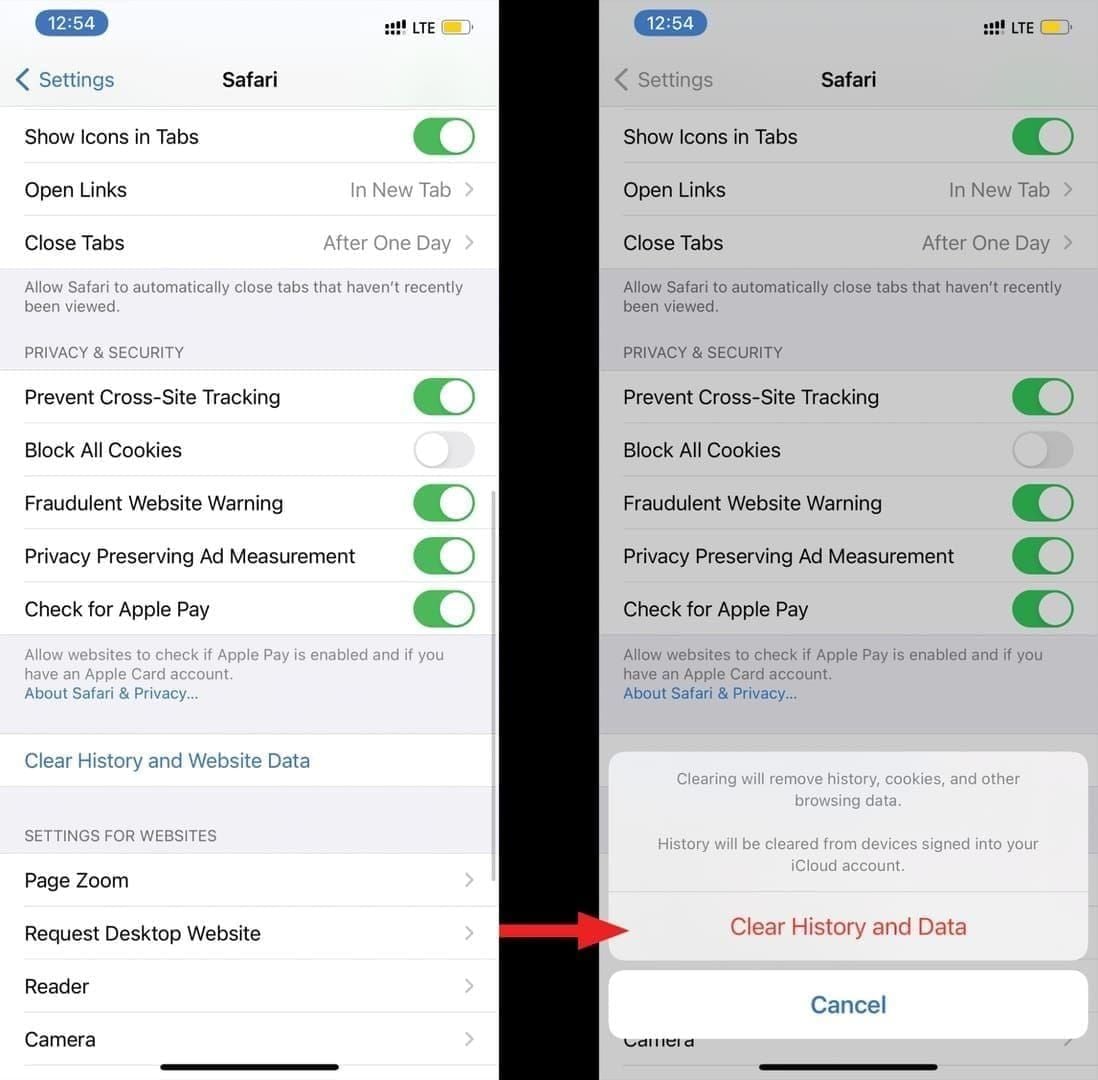
Step 2: Toggle airplane mode for 10 seconds resolves 80% of network state issues. This forces complete network stack reset on mobile devices. On PC, disable and re-enable the network adapter through Network Connections.
Step 3: Run connection test via Settings > Network > Connection Test for full 60-second duration. This in-game diagnostic performs the exact validation SUGO's servers execute during room joins.
Step 4-7: Client-Side Configuration Adjustments
Step 4: Disable battery optimization via Settings > Apps > SUGO > Battery > Unrestricted. Android's aggressive battery management throttles background network activity, causing SUGO to miss keepalive packets.
Step 5: Verify VPN/proxy complete removal. Open Settings > Network & Internet > VPN and confirm no VPN profiles exist. Check Settings > Network & Internet > Proxy and ensure all proxy settings show Off or None.
Step 6: Reset DNS to Google Public DNS (8.8.8.8 primary, 8.8.4.4 secondary). Access router admin interface at 192.168.1.1, navigate to DNS settings under WAN or Internet configuration, and manually specify these addresses.
Step 7: Update SUGO to latest version. Version 2.41.0.0 released November 24, 2025 reduced handshake timeouts from 180 to 45 seconds and improved connection stability.
Step 8-11: Router and DNS Optimization
Step 8: Enable UPnP in router settings under Advanced > UPnP. UPnP allows SUGO to automatically request port forwarding for UDP ports 10000-10100 without manual configuration.
Step 9: Configure QoS gaming mode by identifying SUGO's MAC address in router's connected devices list, then assigning highest priority in QoS settings.
Step 10: Position within 15-20 feet of 5GHz Wi-Fi access points for optimal signal strength. 5GHz provides higher bandwidth and lower interference than 2.4GHz, but has reduced range.
Step 11: Disable IPv6 if your ISP doesn't fully support it. Access router settings > IPv6 and set to Disabled or IPv4 Only.
Step 12-14: Advanced Troubleshooting and Support Escalation
Step 12: Test during optimal time windows. Saturday 2-5 PM shows 40% faster matching with sub-30 second queues in Southeast Asia. Peak hours 6-8 PM extend queues 300-500%.
Step 13: Verify transaction completion by logging out of SUGO completely and waiting 5 minutes for payment processing. Check Account > Transaction History for top-up confirmation with timestamp.
Step 14: Document network metrics for support escalation. Run continuous ping test: ping -t [SUGO server IP] for 60 seconds. Run traceroute: tracert [SUGO server IP] to identify routing bottlenecks.
Testing Your Connection: Diagnostic Tools and Commands
Accurate network diagnostics require proper testing methodology. Generic internet speed tests don't measure the UDP performance, jitter, and packet loss patterns that determine room access eligibility.
How to Ping SUGO Servers Correctly
Execute continuous ping test: Open Command Prompt (Windows) or Terminal (Mac/Linux) and run ping -t [server IP] on Windows or ping [server IP] on Mac/Linux. Let the test run for minimum 60 seconds to capture network variability.
Interpret results focusing on three metrics: minimum latency (best-case performance), maximum latency (worst-case spikes), and packet loss percentage. For SUGO eligibility, maximum latency must stay under 100ms, and packet loss under 5%.
Calculate jitter manually by subtracting minimum from maximum latency. Jitter over 20ms indicates unstable routing or wireless interference. Example: minimum 45ms, maximum 78ms = 33ms jitter, exceeding SUGO's 20ms threshold.
Interpreting Packet Loss Test Results
Packet loss percentage appears at test completion showing packets sent vs received. 0% loss represents ideal conditions, 1-2% remains excellent, 3-5% enters marginal territory, and above 5% guarantees SUGO rejection.
Intermittent packet loss proves more problematic than consistent loss. Bursts of 10-15% loss for 5-10 seconds followed by perfect transmission still violate SUGO's continuous monitoring requirements.
Wi-Fi interference causes characteristic packet loss patterns—periodic spikes correlating with microwave usage, cordless phone activity, or neighboring Wi-Fi channel overlap. Switching to 5GHz band or changing Wi-Fi channels reduces interference-based loss.
Traceroute Analysis for Bottleneck Identification
Traceroute maps the complete network path from your device to SUGO's servers. Run tracert [server IP] on Windows or traceroute [server IP] on Mac/Linux. Results display 10-20 hops showing the journey through your ISP's network.
Analyze hop-by-hop latency increases to identify bottlenecks. Normal progression shows gradual latency increases of 5-15ms per hop. Sudden jumps of 50-100ms at specific hops indicate congestion or routing inefficiency.
Router Configuration for SUGO Room Access
Router settings directly impact SUGO's ability to establish peer-to-peer connections required for room participation. Default router configurations prioritize security over gaming performance.
Port Forwarding and UPnP Configuration
Manual port forwarding creates permanent rules directing incoming traffic on UDP ports 10000-10100 to your gaming device's local IP address. Access router admin interface (typically 192.168.1.1), navigate to Port Forwarding section, and create rules for UDP protocol covering the entire port range.
Assign static IP address to your gaming device before configuring port forwarding. Access router's DHCP settings and create a reservation binding your device's MAC address to specific IP (e.g., 192.168.1.100).
UPnP provides automatic port forwarding without manual configuration. Enable UPnP in router settings under Advanced or Security sections. SUGO requests port openings dynamically as needed.
QoS Settings to Prioritize SUGO Traffic
Quality of Service (QoS) prevents bandwidth-heavy applications from starving SUGO of necessary upload capacity. Identify SUGO's MAC address in router's connected devices list.
Configure QoS priority by creating rules in router's QoS section. Set SUGO's MAC address or IP to Highest or Gaming priority classification. Allocate minimum 2Mbps upload bandwidth guarantee for SUGO.
Firewall Exception Rules
Windows Firewall blocks incoming UDP connections by default. Create inbound rules allowing UDP ports 10000-10100: Open Windows Defender Firewall > Advanced Settings > Inbound Rules > New Rule > Port > UDP > Specific Ports: 10000-10100 > Allow Connection.
Router firewall settings require similar exceptions. Access router's Firewall section and create rules allowing incoming UDP traffic on ports 10000-10100 from any source.
BitTopup Payment Verification and Room Access Timeline
Understanding the payment-to-gameplay pipeline helps distinguish between transaction delays and network issues. BitTopup processes SUGO top-ups through secure payment gateways with typical completion times of 30-90 seconds.
Normal Processing Time: Payment to Room Availability
BitTopup transaction confirmation appears within 30-60 seconds of payment submission, displaying Completed status in your BitTopup account dashboard.
SUGO account balance updates within 2-5 minutes of BitTopup confirmation as currency propagates across SUGO's distributed database. Logging out and back in after 5 minutes forces fresh balance query.
Room access becomes available immediately after balance update—no additional waiting period required. If balance shows updated currency but rooms still won't load, payment processing completed successfully and network thresholds are the confirmed cause.
How to Verify Your Transaction Was Successful
Check BitTopup transaction history at account dashboard > Order History. Successful transactions display Completed status with timestamp, transaction ID, and currency amount.
Verify SUGO account balance by logging out completely, waiting 30 seconds, then logging back in. This forces fresh authentication and balance query from SUGO's servers.
Transaction History within SUGO app (Account > Transaction History) displays all currency additions with timestamps and sources. BitTopup purchases appear with External Top-Up designation.
Currency Sync Delays vs Connection Errors
Currency sync delays produce specific symptoms: outdated balance display, insufficient funds errors, or inability to access premium features despite successful top-up. These symptoms resolve automatically within 5 minutes.
Connection errors produce different symptoms: infinite loading screens, E001/E003 error codes, timeout messages, or immediate disconnection after brief connection. These symptoms persist regardless of waiting time.
ISP and Regional Server Considerations
Internet Service Provider infrastructure and regional server distribution significantly impact SUGO connection quality.
ISP Throttling Detection Methods
ISP throttling selectively reduces bandwidth for specific applications or protocols. Symptoms include perfect speed test results but poor SUGO performance, or degraded performance only during evening hours (6-10 PM).
Compare speed test results using standard HTTP-based tests versus UDP-based gaming tests. Significant discrepancy—fast HTTP but slow UDP—indicates protocol-based throttling targeting gaming traffic.
Test performance at different times: 2-4 AM (lowest congestion), 2-4 PM (moderate), and 7-9 PM (peak). Dramatic evening degradation indicates congestion-based throttling.
Optimal DNS Server Selection by Region
Google Public DNS (8.8.8.8 primary, 8.8.4.4 secondary) provides global coverage with low latency and high reliability. Cloudflare DNS (1.1.1.1 primary, 1.0.0.1 secondary) offers comparable performance with privacy focus.
Configure DNS at router level rather than individual devices for household-wide optimization. Access router admin interface > WAN/Internet settings > DNS configuration > Manual.
Peak Hour Congestion Patterns
Peak hours 6-8 PM extend SUGO queues 300-500% and increase ghost room rates. Solo queue times extend from typical 30-60 seconds to 3-5 minutes, while party queues reach 8-12 minutes.
Saturday 2-5 PM represents optimal play window with 40% faster matching and sub-30 second queues in Southeast Asia. North American players find similar performance Sunday 10 AM-2 PM local time.
Mobile Network vs Broadband Performance Differences
Mobile networks (4G/5G) introduce variable latency and packet loss from tower handoffs, signal interference, and backhaul congestion. Ping fluctuates 40-120ms on mobile versus stable 20-60ms on broadband.
5G networks in urban areas with strong signal approach broadband performance—stable 30-50ms ping with under 2% packet loss. However, 5G coverage remains limited.
Prevention Strategies: Maintaining Stable SUGO Room Access
Proactive network maintenance prevents room loading issues before they occur.
Pre-Gaming Network Health Checks
Run SUGO's built-in connection test (Settings > Network > Connection Test) before each gaming session. The 60-second test validates current network conditions meet thresholds.
Quick ping test to SUGO servers: ping [server IP] -n 20 sends 20 packets and displays statistics. Results under 80ms average with 0% loss indicate optimal conditions.
Check for background downloads or updates consuming bandwidth. Task Manager > Performance > Ethernet/Wi-Fi shows current bandwidth usage.
Optimal Play Time Windows by Region
- Southeast Asia: Saturday 2-4 PM local time provides sub-30 second queues with lowest ghost room rates (under 5%)
- North America: Sunday 10 AM-2 PM local time and weekday 2-5 PM
- Europe: Saturday-Sunday 11 AM-3 PM local time
Regular Client Maintenance Schedule
- Clear SUGO cache weekly through Settings > Apps > SUGO > Storage > Clear Cache
- Update SUGO within 48 hours of new version releases
- Restart gaming device weekly to clear memory leaks
- Monthly router restart clears routing table corruption
Network Equipment Upgrade Recommendations
Router age significantly impacts performance—models over 5 years old lack modern QoS features. Gaming-focused routers (ASUS ROG, Netgear Nighthawk, TP-Link Archer) include gaming-specific QoS.
Wi-Fi 6 (802.11ax) reduces latency by 30-40% versus Wi-Fi 5 (802.11ac). Wired Ethernet remains gold standard for gaming—under 1% packet loss, stable sub-50ms ping.
Frequently Asked Questions
What does SUGO E001 error mean?
E001 indicates VPN detection and connection rejection. Complete VPN removal requires uninstalling software, flushing DNS cache with ipconfig /flushdns, and resetting network stack using netsh winsock reset commands followed by system restart.
Why do SUGO rooms not load after successful payment?
Payment processing and room access operate through separate systems. Payment servers handle transactions over TCP, while room servers demand UDP connections meeting strict thresholds: ping under 100ms, packet loss under 5%, and no VPN detection. Verify transaction completion in Account > Transaction History, then troubleshoot network using the 14-step protocol.
What is the maximum ping allowed for SUGO rooms?
Ping under 100ms represents the hard requirement. Optimal performance requires ping below 80ms, while 80-95ms remains functional but introduces noticeable lag. Version 2.41.0.0+ enforces 45-second handshake timeouts.
How much packet loss causes SUGO connection failures?
Packet loss over 5% measured across 60-second windows triggers immediate connection rejection. Pre-queue validation requires packet loss under 3%. Southeast Asia players should target under 2% packet loss.
Does SUGO block VPN connections?
Yes, SUGO actively detects and blocks VPN connections through IP reputation scanning, DNS resolver verification, packet timing analysis, and MTU size inspection. Commercial VPN services trigger E001 errors within 3-5 seconds.
How long does BitTopup payment take to reflect in SUGO?
BitTopup transaction confirmation appears within 30-60 seconds. SUGO account balance updates within 2-5 minutes. Room access becomes available immediately after balance update. If rooms won't load 10+ minutes after top-up, network thresholds are the confirmed cause.
Avoid payment and connection hassles—top up your SUGO account securely with BitTopup for instant, verified transactions that get you into rooms faster.