Why Echo Occurs in 10+ User Environments
Large party rooms create exponential audio complexity—each additional participant introduces new feedback loops. When 10+ speakers transmit simultaneously, default 70% BGM competes with voice frequencies, causing source separation struggles. Hardware-limited devices require BGM reduction to 25-30% to prevent voice cutoff risk at 20+ participants.
Auto-ducking activates at 50-100ms latency, reducing BGM by 15-25% when voice is detected. Without proper configuration, this automatic adjustment won't provide sufficient separation in conversation-heavy rooms where multiple users speak simultaneously. Network conditions below sub-100ms ping or exceeding 5% packet loss compound echo issues through audio desynchronization.
Impact on Match Quality and Team Performance
Audio feedback undermines team communication clarity, forcing players to repeat callouts and missing critical coordination moments. Voice-BGM separation scores below 60 (40-59 marginal, 0-39 poor) create listener fatigue reducing engagement. Optimal scores of 80-100 correlate with improved match performance as teams execute strategies without communication barriers.
Echo triggers psychological disengagement—participants mute themselves to avoid contributing to feedback loops, eliminating collaborative advantages. Performance spaces using 65-75% BGM with medium voice priority experience only 25-35% echo reduction, insufficient for rooms exceeding 15 active speakers. High voice priority becomes essential, delivering 40-50% echo reduction necessary for maintaining conversation flow.
How Jan 2026 Build Changed Audio Processing
December 2025 updates fundamentally restructured SUGO's audio engine to prioritize voice clarity over background music. Version 2.42.0.1's 25-85% echo reduction range reflects adaptive processing that scales intervention based on real-time room conditions. The system analyzes participant count, network stability, and voice activity patterns to dynamically adjust separation algorithms.
Auto-ducking improvements reduce BGM more aggressively during overlapping speech, dropping levels by the full 15-25% range within 50-100ms of detecting voice input. The diagnostic tool's 60-second packet loss monitoring provides hosts with actionable data to identify problematic connections before they degrade room-wide audio quality.
Quick Audio Quality Self-Assessment
Access your current voice-BGM separation score through the diagnostic tool to establish baseline before optimization:
- 80-100: Optimal separation, current settings work well
- 60-79: Acceptable performance with room for improvement
- 40-59: Marginal quality, configuration changes needed
- 0-39: Poor separation, immediate intervention required
Monitor ping latency alongside separation scores—readings consistently above 100ms indicate network issues that configuration alone can't resolve. A >15 point score drop or >20ms ping increase triggers troubleshooting protocols. Test during typical usage hours with representative participant counts to capture realistic performance data.
Setting #1: BGM Volume Configuration by Room Mode
BGM volume represents the most impactful single adjustment for echo reduction. The v2.42.0.1 update introduces mode-specific volume recommendations balancing atmosphere with clarity:
- Social Hangout Mode: 25-40% BGM (prioritizes conversation)
- Dance Floor Mode: 50-60% BGM (music as activity)
- DJ Mode: 70-85% BGM (performance-focused, requires high voice priority)
- Pure Listening Sessions: 60-75% BGM (music appreciation with occasional commentary)
- Conversation Rooms: 30-40% BGM (maximum 40-50% echo reduction)
Optimal Volume Values for Different Room Sizes
10-15 participants: Tolerate slightly higher BGM volumes. Social Hangout can use 35-40% without significant echo.
15-20+ users: Strict adherence to lower ranges required—25-30% for conversation-focused rooms becomes mandatory.
Hardware-limited devices: Must use 25-30% BGM regardless of participant count. Voice cutoff risk at 20+ participants makes conservative settings essential—even 5% increase from 30% to 35% can trigger intermittent voice dropouts.
Master volume should remain at 70-85% to preserve dynamic range while BGM-specific controls handle echo prevention.
Step-by-Step BGM Configuration
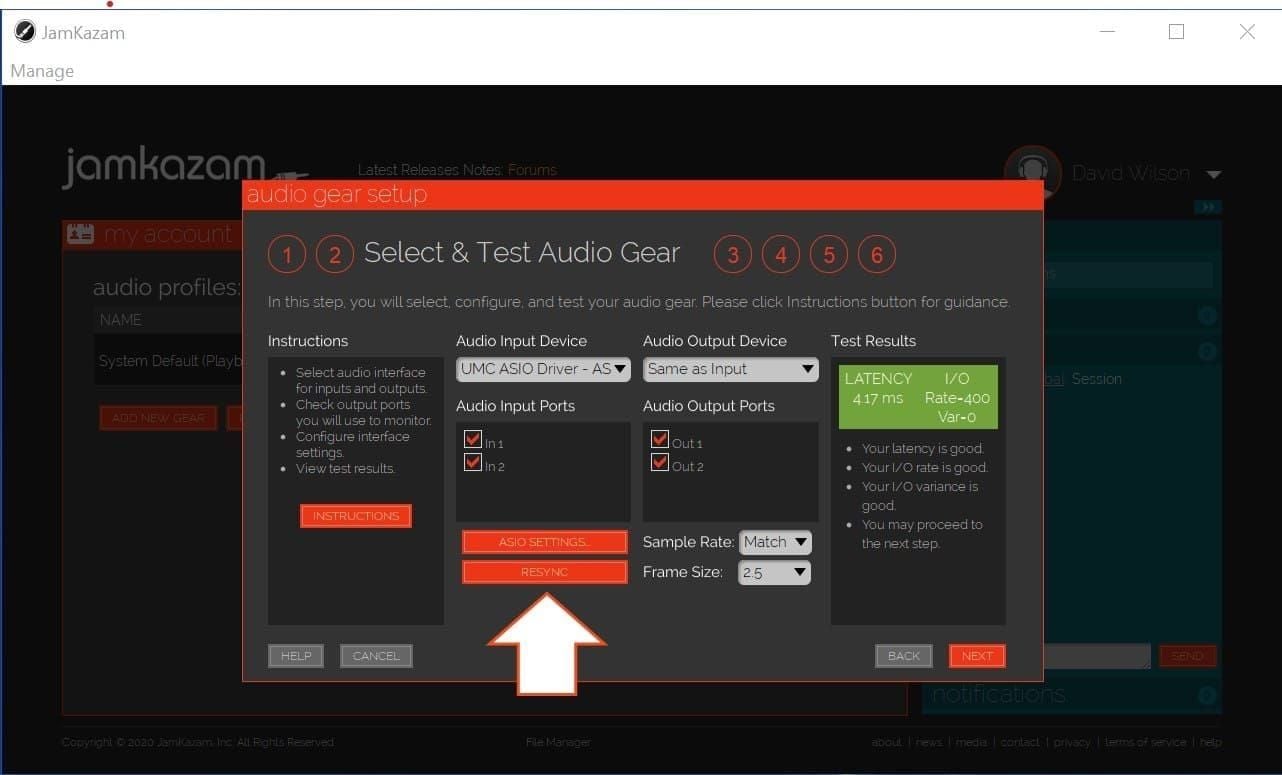
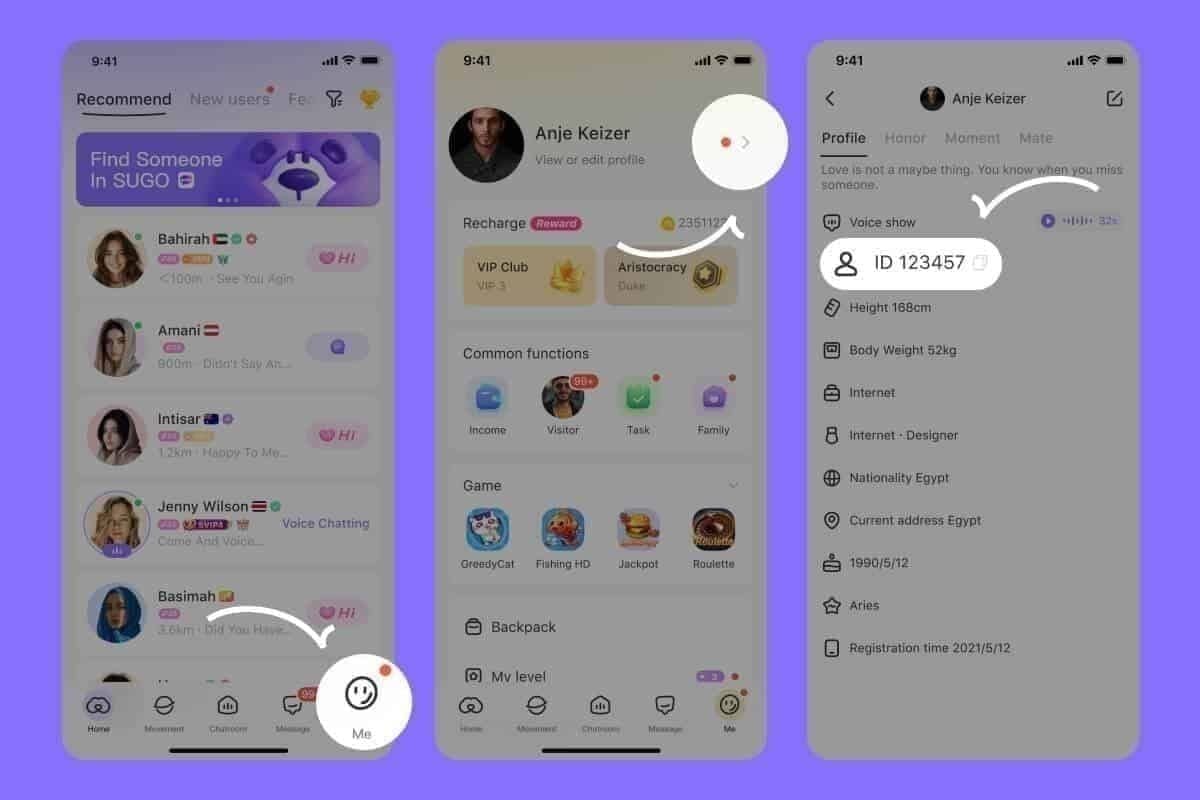
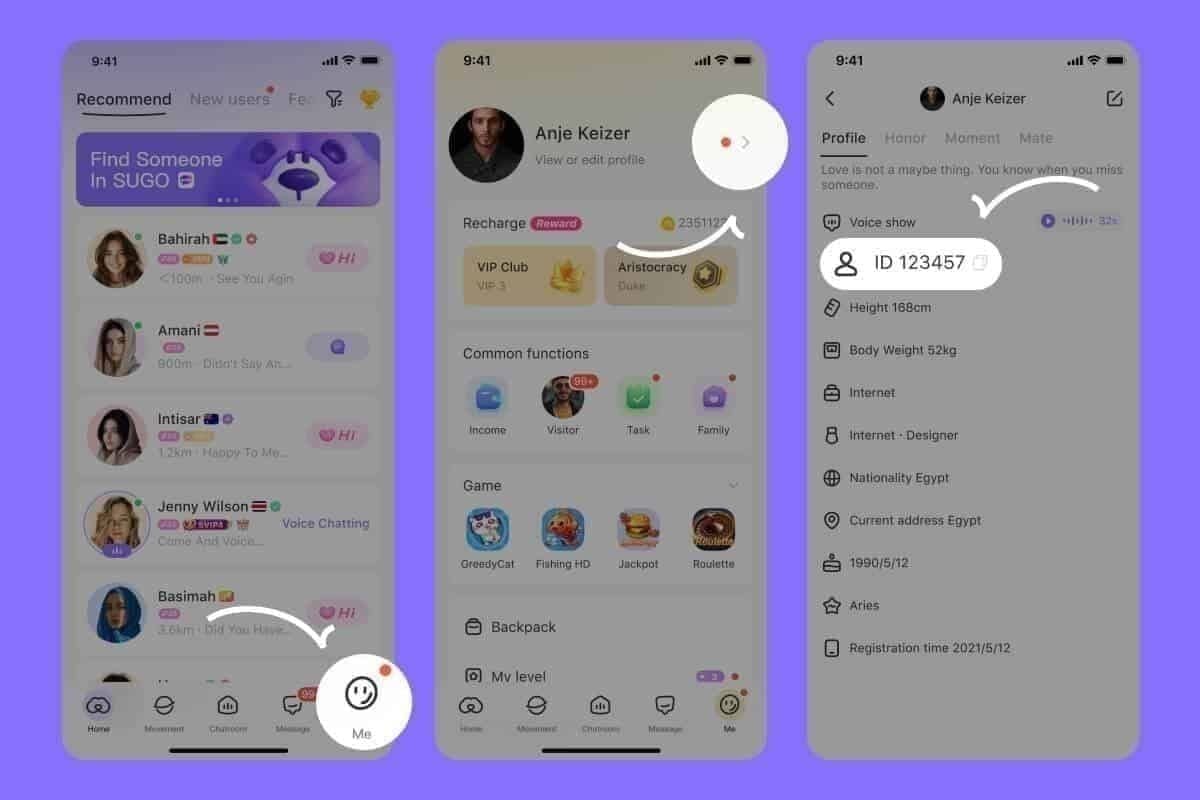
- Open SUGO and log into your account
- Tap 'Me' tab in bottom navigation
- Tap gear icon in upper-right corner
- Scroll to 'Audio & Voice' section
- Select 'Party Room Voice Settings'
- Locate BGM Volume slider under mode-specific settings
- Set volume according to primary room mode
- Test settings in live room with representative participant count
The interface displays real-time voice-BGM separation scores as you adjust volume. Aim for scores consistently above 80 during test sessions with 10+ participants. If scores fluctuate below 70, reduce BGM by 5% increments until stable optimal separation is achieved.
Common BGM Configuration Mistakes
Setting identical BGM across all modes: Ignores fundamental purpose differences. DJ Mode configuration applied to conversation room creates 40-55% unnecessary echo.
Failing to account for participant count scaling: Settings that work for 5-8 users generate severe echo when rooms fill to capacity. Always configure for maximum expected participant count.
Neglecting hardware limitations: Hosts with older devices attempting 60%+ BGM volumes their systems can't process cleanly create worse echo than higher-spec devices would experience.
Setting #2: Voice Priority Level Selection
Voice priority determines how aggressively SUGO's audio engine suppresses background elements when voice is detected:
- High Priority: 40-50% echo reduction, designed for 10+ active speakers
- Medium Priority: 25-35% echo reduction, suitable for 2-4 person sessions with turn-taking dialogue
Matching Priority Levels to Room Dynamics
Conversation rooms: Require high voice priority regardless of participant count.
Performance spaces: Can use medium priority when single performer addresses audience. Switch to high priority for interactive Q&A or group discussion.
Social Hangout Mode: Demands high voice priority due to unpredictable, overlapping casual conversation.
Dance Floor Mode: If primarily shared music listening with minimal talk, medium priority preserves music quality. Most Dance Floor rooms involve significant social interaction, making high priority the safer default.
Configuring Voice Priority Settings
Access voice priority controls through Party Room Voice Settings menu. The interface presents three options:
- Low: Not recommended for party rooms
- Medium: 2-4 participants or performance scenarios
- High: 10+ active speakers or conversation-focused rooms
The system displays estimated echo reduction percentages next to each option based on current room configuration. Monitor your voice-BGM separation score after changing priority levels—a jump of 15+ points confirms the new setting better matches your room dynamics.
Voice Priority and Auto-Ducking Interaction
High voice priority enhances auto-ducking effectiveness by triggering 15-25% BGM reduction more aggressively and sustaining it longer during speech. The 50-100ms activation latency applies to initial detection, but high priority extends ducking duration to cover brief pauses within a speaker's turn.
Medium priority allows faster BGM recovery after speech ends, which works well for turn-taking conversations but creates jarring volume swings during overlapping dialogue. The combination of high voice priority with conversation room BGM volumes (30-40%) produces maximum possible echo reduction—the 40-50% from priority settings compounds with 25-40% reduction from low BGM volume for total echo suppression exceeding 65-90%.
Setting #3: Network Optimization for Audio Quality
Audio quality depends critically on network performance meeting three thresholds:
- Sub-100ms ping: Latency above 100ms delays voice transmission so auto-ducking activates after echo has begun
- 1Mbps minimum upload speed: Below this causes voice data compression introducing echo-like artifacts
- Under 5% packet loss: Exceeding 5% creates gaps filled with interpolated audio, generating hollow, reverberant quality
The diagnostic tool displays ping latency and packet loss rate over 60 seconds. Version 2.42.0's 15-20ms average ping reduction helps marginal connections meet the sub-100ms requirement.
Testing Your Network Performance
Run the built-in diagnostic tool during peak usage hours—evening and weekend measurements provide more realistic data than midday weekday tests. The 60-second monitoring window captures temporary spikes that shorter tests miss.
Ping readings: Should remain consistently below 80ms with minimal variation. Fluctuating latency disrupts auto-ducking timing even when average values meet requirements.
Packet loss: Should register 0-1% during entire 60-second test period. Even brief spikes to 3-4% indicate network instability that will manifest as audio quality degradation.
Upload speed: Requires external tools, but symptoms of insufficient bandwidth include voice cutting out during high participant activity or quality degrading when multiple users speak simultaneously.
Optimizing Network Settings for SUGO
Close bandwidth-intensive applications: Video streaming, large downloads, or cloud backup services consume upload capacity. SUGO's 1Mbps minimum assumes dedicated bandwidth.
Prioritize SUGO traffic: Use router Quality of Service (QoS) settings if your network equipment supports this feature.
Switch to wired Ethernet: Wireless interference introduces packet loss and latency spikes that wired connections avoid. If wireless is unavoidable, use 5GHz bands rather than 2.4GHz.
Position within strong signal range: Weak Wi-Fi signals increase packet loss even when speed tests show adequate bandwidth.
Network-Related Echo Troubleshooting
When voice-BGM separation scores drop >15 points or ping increases >20ms during active sessions, network degradation is likely causing perceived echo rather than configuration issues. The diagnostic tool's real-time monitoring helps distinguish between network problems (fluctuating ping, rising packet loss) and configuration problems (stable network metrics with poor separation scores).
If persistent network issues prevent meeting requirements, consider accessing premium features through SUGO voice chat coins recharge that may include priority routing or enhanced codec options for improved performance on marginal connections.
Setting #4: Auto-Ducking Parameter Optimization
Auto-ducking automatically reduces BGM by 15-25% when voice activity is detected, activating within 50-100ms of speech onset. The v2.42.0.1 update refined ducking algorithms to respond faster and more smoothly.
The 15-25% reduction range adapts based on voice intensity and participant count:
- Quiet speech in small groups: Minimum 15% reduction
- Loud overlapping dialogue in 15+ user rooms: Full 25% suppression
Configuring Auto-Ducking Sensitivity
High sensitivity: Activates ducking for quieter speech and background conversation. Essential for 10+ user rooms to capture all voice activity.
Medium sensitivity: Requires louder, more deliberate speech to activate ducking. Suitable for smaller 2-4 person sessions to reduce unnecessary ducking during pauses.
The sensitivity setting appears in Party Room Voice Settings under Auto-Ducking section, with real-time visualization showing current ducking activity as you speak.
Ducking Timing and Recovery Settings
Activation latency: 50-100ms delay between voice detection and BGM reduction onset. Default 75ms timing balances responsiveness with accuracy.
Recovery timing: Controls how quickly BGM returns to normal levels after speech ends.
- Fast recovery (200-400ms): Performance spaces, restores full music volume immediately after announcements
- Slow recovery (600-800ms): Conversation rooms, maintains BGM suppression during brief pauses within speaker's turn
Auto-Ducking and Voice Priority Synergy
High voice priority extends auto-ducking duration and increases reduction depth beyond standard 15-25% range, applying up to 30-35% suppression during intense overlapping dialogue. This synergy explains why high priority delivers 40-50% echo reduction.
Rooms using high voice priority with conversation-optimized BGM volumes (30-40%) experience most dramatic ducking effects, as already-low BGM drops to 15-25% during speech. This creates near-total music suppression maximizing voice clarity but may feel too aggressive for rooms wanting to maintain musical atmosphere.
Setting #5: Diagnostic Monitoring and Continuous Optimization
The diagnostic tool provides real-time monitoring of three critical metrics:

- Ping latency: Should remain stable below 80ms
- Packet loss rate: Over 60 seconds, should stay 0-1%
- Voice-BGM separation scores: 0-100 scale
- 80-100: Optimal configuration
- 60-79: Acceptable performance
- 40-59: Marginal quality
- 0-39: Poor separation, immediate intervention required
Interpreting Diagnostic Data
Ping latency: Should remain stable below 80ms with variation under 10ms between measurements. Readings fluctuating from 60ms to 95ms indicate network instability even though both values individually meet sub-100ms requirement.
Packet loss: Should consistently register 0-1% with no spikes above 2%. When ping increases >20ms from baseline or packet loss exceeds 3%, network issues are degrading audio quality regardless of configuration.
Voice-BGM separation scores: Reflect combined effectiveness of all settings. A >15 point score drop during sessions triggers troubleshooting to identify which factor changed.
Establishing Performance Baselines
Record diagnostic measurements during your first optimized session to establish baseline performance expectations. Note separation scores, ping latency, and packet loss under various conditions:
- 10 participants
- 15 participants
- High conversation activity
- Quiet listening periods
Compare performance across different times of day and days of week to identify patterns related to network congestion or participant behavior.
Proactive Monitoring Protocols
Check diagnostic metrics: At session start, mid-session, and end to capture performance evolution as rooms fill and network conditions change.
Set alert thresholds: For automatic notification when separation scores drop below 70 or ping exceeds 90ms.
Designate co-host: To monitor diagnostics while managing room activities, ensuring technical oversight doesn't distract from participant engagement.
Complete Configuration Workflow: Step-by-Step Implementation
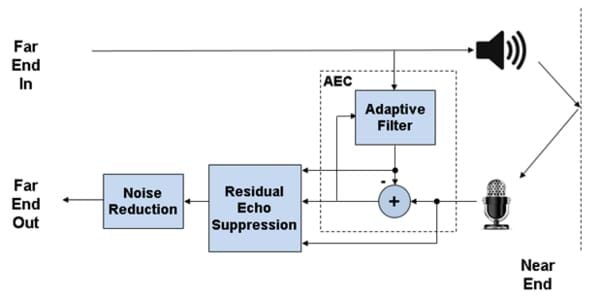
Implement all five settings in correct sequence:
- Verify network performance: Run diagnostic tool's 60-second test to confirm sub-100ms ping, 1Mbps upload speed, under 5% packet loss
- Configure BGM volume: Select mode-specific volume based on primary room purpose
- Set voice priority: Choose High for 10+ active speakers, Medium for 2-4 person sessions
- Configure auto-ducking sensitivity: Use High for 10+ user rooms, Medium for smaller sessions
- Establish diagnostic monitoring: Record baseline measurements and set alert thresholds
- Test complete configuration: With representative participant counts and activity levels
- Fine-tune individual settings: If separation scores remain below 80
The entire workflow takes 15-20 minutes initially but becomes a 5-minute routine once you understand your optimal configuration.
Pre-Configuration Audio Assessment
Document current audio quality before optimization:
- Record 2-minute session with typical participant count
- Note subjective echo severity and participant complaints
- Run diagnostic measurements to capture baseline separation scores, ping latency, packet loss
Survey participants about current audio quality:
- Do you hear your own voice echoed back?
- Can you understand speakers when 3+ people talk simultaneously?
- Does background music interfere with conversation?
Verifying Configuration Effectiveness
Post-optimization testing requires same participant count and activity level as pre-configuration assessment. Record another 2-minute session and measure separation scores, ping latency, packet loss under new settings.
Expected improvement: Scores should improve by 30-50 points from baseline, reaching 80-100 optimal range.
Compare pre- and post-optimization recordings side-by-side. The improvement should be immediately obvious—voices sound clearer, BGM no longer competes with speech, overlapping dialogue remains intelligible.
Advanced Troubleshooting and Pro Tips
Solving Persistent Echo Despite Optimal Settings
Echo that survives proper configuration typically originates from participants using speakers instead of headphones. Establish headphones-required policy for rooms exceeding 10 participants—even one user on speakers can degrade audio quality for all 15+ attendees.
Hardware-limited devices: Hosting large rooms may lack processing power to execute real-time echo cancellation for 15+ simultaneous audio streams. Symptoms include:
- Echo worsens as participant count increases
- Voice cutting out during peak activity
- Separation scores drop from 85 to 60 when rooms fill to capacity
Solution requires either limiting participant count to match hardware capability or upgrading to devices meeting SUGO's recommended specifications.
Regional Server Audio Processing Differences
Some regional servers implement more aggressive audio compression to accommodate lower average network speeds, trading quality for accessibility. This compression can introduce artifacts resembling echo even when no feedback loop exists.
Server selection also affects ping latency—connecting to distant servers may push latency above sub-100ms requirement. Choose geographically closest server that maintains sub-100ms ping to optimize audio quality.
Hardware Upgrades That Make the Biggest Difference
Dedicated microphones: Upgrading from built-in device microphones to dedicated USB or XLR microphones with hardware echo cancellation eliminates most common source of feedback. Quality microphones include directional pickup patterns that reject off-axis sound (speakers, room noise) while capturing on-axis voice clearly.
Network infrastructure: Switching from Wi-Fi to wired Ethernet eliminates wireless interference and packet loss. Upgrading to gigabit internet service provides headroom above 1Mbps minimum upload requirement. Router upgrades to models supporting QoS enable traffic prioritization.
Community Best Practices from Top SUGO Hosts
Create room-specific configuration profiles: Save optimal settings for different scenarios—competitive match profile (30% BGM, high priority), social hangout profile (35% BGM, high priority), music listening profile (65% BGM, medium priority).
Establish pre-session audio checks: Verify diagnostic metrics and test separation scores before participants join, catching issues proactively.
Designate co-host: To monitor diagnostics during sessions, enabling primary host to focus on participant engagement while maintaining technical oversight.
FAQ
What causes echo in SUGO Party Rooms with 10+ users?
Echo occurs when audio output from participants' speakers feeds back into microphones, creating delayed repetition that multiplies across multiple users. The 300-3400 Hz voice frequency range overlaps with BGM output, causing interference that worsens as participant count increases.
How do I access mic settings in SUGO Jan 2026 build?
Open SUGO → tap 'Me' tab → tap gear icon → scroll to 'Audio & Voice' → select 'Party Room Voice Settings'. This menu contains BGM volume controls, voice priority selection, auto-ducking sensitivity, and diagnostic monitoring tools.
Does SUGO Party Rooms have automatic echo cancellation?
Yes, v2.42.0.1 includes automatic echo cancellation reducing feedback by 25-85% depending on configuration. The system uses auto-ducking that reduces BGM by 15-25% within 50-100ms of detecting voice activity, combined with voice-BGM separation algorithms achieving 0-100 separation scores.
What mic sensitivity setting works best for SUGO competitive matches?
Competitive matches require high voice priority with auto-ducking sensitivity set to High. BGM volume should be 30-40% for conversation-focused coordination. This configuration delivers 40-50% echo reduction and separation scores of 80-100.
Can I adjust other players' audio settings as a SUGO room host?
Hosts can adjust individual participant volumes and mute disruptive users through the participant list during active sessions, but can't modify other users' mic settings or voice priority levels. These controls enable real-time intervention when specific participants contribute disproportionately to echo.
Optimize your SUGO Party Rooms experience with premium features from BitTopup. Access exclusive audio enhancements, priority server connections, and advanced hosting tools that complement the five critical mic settings covered in this guide. BitTopup provides competitive pricing, fast delivery, and secure transactions for SUGO voice chat coins recharge. Visit BitTopup today to elevate your party room hosting to professional levels with excellent customer service supporting your journey to crystal-clear communication in 10+ user environments.