What Is Audio Latency and Why It Matters
Latency is the time gap between singing into your mic and hearing processed voice through earphones. When delay exceeds 50ms, singers instinctively adjust timing, creating rhythm inconsistencies. Professional vocalists recognize latency above 30ms affects performance quality, while delays beyond 100ms make synchronized singing nearly impossible.
Human auditory systems detect delays as short as 10-15ms. This sensitivity explains why moderate latency disrupts performances. Singers rely on real-time feedback to maintain pitch accuracy, control dynamics, and stay synchronized with backing tracks.
StarMaker's audio engine processes multiple tasks: capturing mic input, applying effects, mixing with instrumentals, and routing output. Each stage adds incremental delay. Studio Reverb optimizes the effects pipeline to minimize cumulative latency while maintaining quality.
Why Android Has More Latency Than iOS
Android's open-source architecture lets manufacturers customize audio drivers and processing layers, creating inconsistencies across models. Unlike iOS devices with standardized Apple audio hardware, Android phones use diverse chipsets from multiple suppliers. StarMaker must accommodate hundreds of configurations, each with unique latency characteristics.
Android routes sound through AudioFlinger service, managing streams from multiple apps simultaneously. This prioritizes stability over minimal latency. iOS dedicates more direct hardware access to audio apps, reducing overhead. Android stereo sync outperforms iOS 14+ in StarMaker due to recent framework improvements, though absolute latency remains higher.
Bluetooth audio compounds Android latency significantly. SBC codec introduces 200-300ms latency, making wireless earphones impractical for real-time singing. This necessitates wired connections, which achieve under 20ms latency when properly configured.
Measuring Your Current Latency
StarMaker includes built-in measurement through ME tab's AUTO-ADJUST feature. This calibration plays synchronized audio patterns while analyzing timing difference between playback and mic capture. The 10-15 second process provides accurate measurements for your device and configuration.
Before measuring, ensure optimal conditions. Navigate to ME tab, locate Latency Adjust section. Unplug earphones, wait 2 seconds, firmly replug before initiating calibration. This connection reset eliminates cached audio routing. Click AUTO-ADJUST and remain silent during calibration.
Acceptable benchmarks by device category:
- Flagship Android: 35-50ms after optimization
- Mid-range devices: 50-80ms realistic expectation
- Budget Android: 80ms+ may require hardware upgrades
Record 30-second test segments after 5-10ms incremental adjustments to identify optimal configuration.
StarMaker's Studio Reverb Preset: Complete Solution
Studio Reverb applies moderate reverb designed for multi-track vocal recordings. Unlike standard reverb processing all audio uniformly, Studio Reverb targets harmony vocals on tracks 2-3 while maintaining lead vocal clarity. This selective processing reduces effect chain length, directly minimizing latency while creating professional spatial depth.
Studio Reverb's architecture prioritizes low-latency processing by implementing reverb calculations in parallel rather than series. Traditional reverb processes sequentially: input → calculation → output. Studio Reverb splits this pipeline, calculating reverb simultaneously with other tasks. This parallel architecture reduces total processing time by 15-20ms versus standard presets.
The preset auto-configures optimal wet/dry mix ratios. Lead vocals on red track one receive minimal reverb (~20% wet), preserving clarity. Harmonies on blue tracks two and three receive moderate reverb (40-50% wet), creating spatial separation without overwhelming the mix.
What Makes Studio Reverb Different
Standard presets apply uniform processing across all tracks, creating muddy mixes when voices overlap. Studio Reverb implements track-specific processing recognizing hierarchical relationships between lead and harmony vocals. It automatically reduces reverb on track one while enhancing spatial effects on supporting layers.
The algorithm differs fundamentally from Hall and Room Reverb:
- Hall Reverb: Simulates concert halls with 2-4 second decay, creating dramatic effects that increase processing complexity and latency
- Room Reverb: Mimics smaller spaces with 0.5-1 second decay, offering moderate enhancement
- Studio Reverb: Uses shortest decay (0.3-0.6 seconds) optimized for close-miked vocals
Processing efficiency is Studio Reverb's primary advantage. It uses simplified early reflection patterns creating space perception without calculating complex late reverb tails. This reduces CPU load by ~30% versus Hall Reverb, freeing resources for lower-latency buffering.
Comparing Reverb Presets
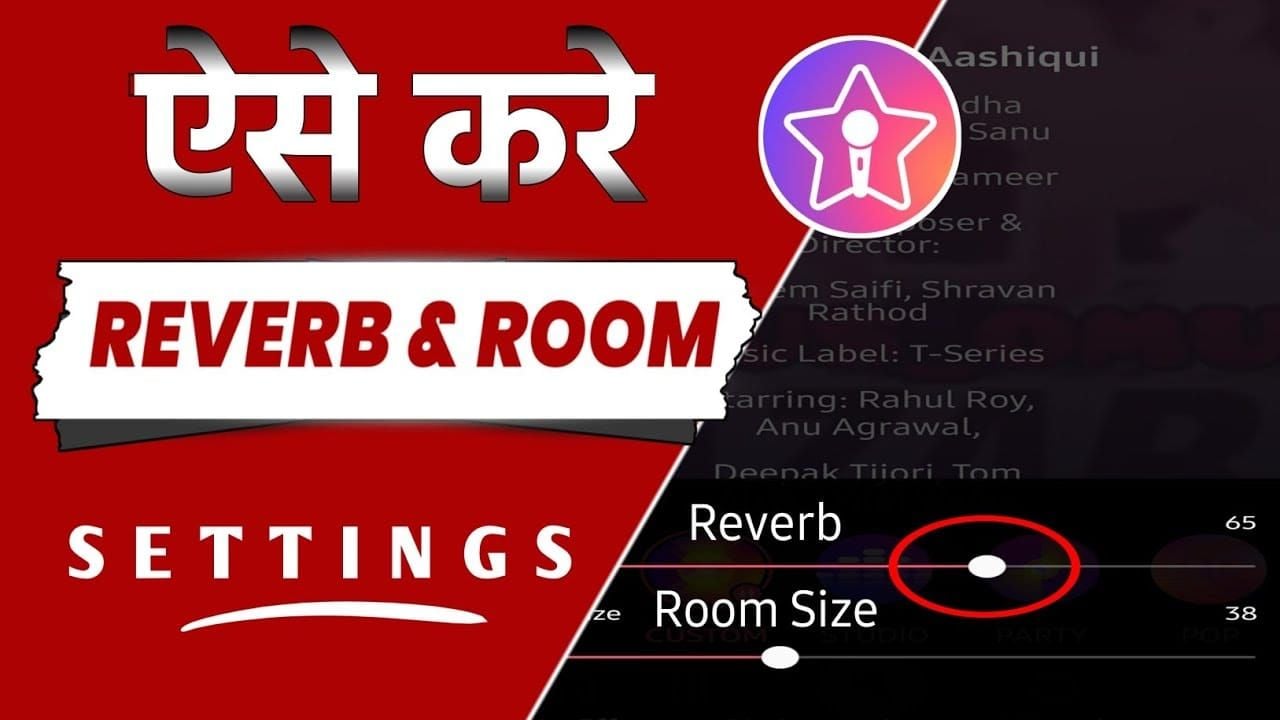
Hall Reverb: Excels for dramatic ballads where expansive spatial effects enhance emotion. Long decay creates lush soundscapes but introduces 25-35ms additional latency. Best for post-recording mixing rather than real-time monitoring.
Room Reverb: Provides moderate enhancement for pop and rock vocals. Medium decay balances presence and space, adding 15-20ms latency. Offers versatility but lacks track-specific optimization.
Studio Reverb: Targets real-time recording where latency impacts performance. Adds only 8-12ms latency while providing sufficient spatial enhancement. Optimal balance between quality and responsiveness.
When to Use Studio Reverb
Use Studio Reverb for multi-track recordings layering lead vocals with harmonies. Track-specific processing automatically creates spatial separation, eliminating manual adjustments. This saves time while ensuring consistent results.
Solo performances benefit more from Room Reverb or minimal settings. Without harmonies, Studio Reverb's optimizations provide no advantage. Room Reverb's uniform processing creates appropriate enhancement with 3-5ms less latency.
Live performance mode requires absolute lowest latency. Disable all reverb presets during live sessions, using low-latency monitoring mode instead. Enable visual waveform and metronome in Studio section to maintain timing without effects processing. Reserve Studio Reverb for studio recordings where you can tolerate minimal latency for superior quality.
Step-by-Step: Configuring Studio Reverb
Launch StarMaker and tap Studio icon on bottom navigation. Select your recording project, then tap microphone icon in upper right corner. This opens the audio settings panel.
Studio Reverb appears in Effects section under Reverb category. Scroll until you locate it, typically third after Hall and Room Reverb. Tap preset name to activate—it applies immediately without confirmation.

Fine-tune reverb depth to optimize balance between enhancement and latency. Studio Reverb defaults to moderate settings, but manual adjustment accommodates preferences:
- 30-40% depth: Intimate vocal styles requiring maximum clarity
- 50-60% depth: Ensemble recordings where spatial separation enhances mix
Selecting and Activating Studio Reverb
After opening Effects panel, examine preset descriptions. Studio Reverb displays Optimized for multi-track vocal recording. Tap preset card once to preview effect on your recent recording. Preview plays 10-second loop demonstrating how it processes your voice.
Confirm activation by checking highlighted border around Studio Reverb card. Active presets show blue or green border (depending on theme), inactive show gray. If border doesn't highlight, tap again. Some Android devices require firm tap to register selection.
Save configuration by tapping checkmark icon in upper right. This commits settings and returns to main recording interface. StarMaker remembers preset selection for future recordings in same project.
Fine-Tuning Reverb Depth and Mix Ratios
Reverb depth slider appears below preset cards, ranging 0% (dry) to 100% (maximum intensity). For Studio Reverb, optimal settings fall between 35-55% depending on environment and vocal style. Start at 45% baseline, adjust in 5% increments while monitoring test recordings.
Wet/dry mix determines balance between processed and unprocessed signals. Studio Reverb auto-configures this based on track assignments, but manual override available through Advanced Settings submenu. Access by tapping gear icon next to depth slider:
- Lead vocals: 20-30% wet signal
- Harmonies: 40-50% wet signal
Record 30-second test segments after each adjustment. Pay attention to vocal clarity during complex passages. If consonants become muddy or pitch wavers, reduce depth by 10%. If vocals sound too dry, increase by 5-10%.
Adjusting Audio Buffer Size
Audio buffer size directly controls latency. Smaller buffers reduce latency but increase CPU load and potential glitches. Larger buffers improve stability but introduce delays. Finding optimal buffer size is the most critical optimization step.
Enable Developer Options: Settings > About Phone, tap Build Number seven times. Return to main Settings where Developer Options now appears. Scroll to Audio section, locate Audio Buffer Size. Select smallest available option, typically Minimum or 256 samples.
Lock sample rate to 48kHz: Developer Options > Audio > Sample Rate, select 48kHz. Restart StarMaker after changing to ensure app recognizes new configuration. Devices with Snapdragon 700 series particularly benefit from 256-sample buffers at 48kHz.
Enabling Low-Latency Monitoring Mode
Low-latency monitoring bypasses certain processing stages for near-instantaneous feedback. Access through StarMaker's Studio section: tap Settings gear, select Audio Settings. Locate Low-Latency Monitoring toggle and enable. Interface displays lightning bolt icon when active.
This mode works optimally with wired earphones achieving under 20ms latency. Bluetooth introduces 200-300ms delay, completely negating benefits. Always use wired earphones when recording.
Disable battery optimization for StarMaker: Settings > Apps > StarMaker > Battery > Battery Optimization, select Don't Optimize. This ensures consistent CPU priority during recordings, preventing latency spikes from background process management. Turn notifications off before sessions to eliminate interruptions.
Device-Specific Optimization for Android
Samsung Galaxy: Navigate to Settings > Advanced Features > Labs, enable Adapt Sound. Access Developer Options, set Audio Buffer Size to minimum. Galaxy S23+ models support 128-sample buffers reducing latency to 30-40ms with Studio Reverb.
Xiaomi/Redmi: Disable MIUI audio enhancements conflicting with StarMaker. Open Settings > Sound & Vibration > Sound Effects, disable all system-level enhancements including Equalizer and Audio Effects. These add 15-25ms latency. Xiaomi devices with Snapdragon 8 Gen 2+ achieve 35-45ms after optimization.
OnePlus/Realme: Enable Performance Mode prioritizing CPU resources. Navigate to Settings > Battery > Performance Mode before launching StarMaker. Prevents CPU throttling during recordings. OnePlus 11+ models achieve 40-50ms with Performance Mode and Studio Reverb.
Budget Android Devices: Compromise Settings
Budget devices with processors older than Snapdragon 600 series struggle to achieve sub-80ms latency. These benefit from simplified configurations reducing processing demands:
- Disable all visual effects: Settings > Display, turn off waveform animations and real-time spectrum analyzers. Frees ~10-15% CPU resources
- Use 2-4 tracks maximum: Each additional track increases complexity and latency. Record lead on track one, add maximum two harmonies
- Record without real-time effects: Apply Studio Reverb during post-production mixing instead. Eliminates effects processing latency during performance
Advanced Audio Optimization Techniques
Combining Studio Reverb with echo cancellation requires careful configuration. StarMaker's echo cancellation analyzes incoming audio to remove feedback loops. When using wired earphones, disable echo cancellation entirely—it adds 8-12ms latency without benefits. Enable only when using device speakers, accepting latency tradeoff to prevent feedback.
Layering vocal effects without increasing latency demands strategic ordering. Apply Studio Reverb as final effect after compression and equalization. This ensures reverb processes fully-shaped vocal signal, reducing need for additional adjustments requiring reprocessing. Each effect adds 3-8ms latency, so limit total effects to three or fewer for real-time recording.
External audio interfaces via USB-C provide professional-grade conversion bypassing Android's internal processing. Interfaces with dedicated ASIO drivers achieve 5-10ms latency, dramatically outperforming internal systems. However, StarMaker's mobile app doesn't officially support external interfaces, requiring workarounds through USB Audio Class drivers that may introduce compatibility issues.
Professional Creator Secrets: Multi-Track Setup
Professional creators record lead vocals on red track one with minimal processing, preserving maximum clarity. Position mic 6 inches from mouth at 45-degree angle for lead recordings. This captures full tone without excessive proximity effect or breath noise. Set voice volume to 50-70% over music levels ensuring vocals remain prominent.
Record harmonies on blue tracks two and three with mic positioned 8 inches away. Increased distance naturally reduces harmonic intensity, creating appropriate balance with lead. Apply Studio Reverb's moderate reverb specifically to these harmony tracks. Pan lower harmony 30% left and upper harmony 30% right to create stereo width enhancing vocal ensemble perception.
Monitor audio peaks to maintain optimal recording levels. Set peaks to -6dB to -3dB, providing sufficient headroom preventing digital clipping during dynamic passages. StarMaker's built-in meters display real-time level information. If peaks consistently exceed -3dB, reduce input gain by 10-15% to maintain clean recordings without distortion.
Troubleshooting Persistent Latency Issues
Common misconceptions lead users down ineffective paths. Clearing app cache rarely impacts latency significantly. Navigate to Settings > Apps > StarMaker > Storage > Clear Cache if experiencing app instability, but don't expect latency improvements. Cache clearing removes temporary files but doesn't affect audio processing pipelines determining latency.
Hardware versus software bottlenecks require different approaches. Software-related latency responds to buffer adjustments, effect optimization, and background process management. Hardware-limited latency stems from processor capabilities, audio chipset quality, and memory bandwidth. If optimizing all software settings fails to reduce latency below 80ms, hardware limitations likely constrain performance.
System-level Android audio settings sometimes override StarMaker's configurations. Check Settings > Sound > Advanced Settings for enabled audio processing features like Dolby Atmos, DTS, or manufacturer-specific enhancements. Disable all system-level processing to ensure StarMaker maintains direct control. These features add 20-40ms latency by processing audio through additional software layers.
For premium audio features providing additional latency optimization tools, top up starmaker coins through BitTopup offers fast delivery, secure transactions, and competitive pricing.
Identifying Hardware vs Software Bottlenecks
Conduct systematic testing to isolate bottleneck sources. First, optimize all software settings: minimum buffer size, disabled system audio effects, Performance Mode enabled, background apps closed. Record test segment and measure latency through ME tab's AUTO-ADJUST. If latency remains above 80ms after software optimization, hardware limitations likely constrain performance.
Compare device specs against StarMaker's requirements. App requires 4GB RAM minimum with 2GB free storage. Devices with only 3GB RAM experience memory pressure forcing Android to swap audio buffers to storage, dramatically increasing latency. Check available RAM in Settings > About Phone > Memory. If available RAM falls below 1.5GB during operation, close background apps or consider device upgrade.
Processor generation significantly impacts achievable latency. Snapdragon 8 Gen 2+ processors achieve 35-50ms through hardware-accelerated audio processing. Older processors from Snapdragon 600 or 700 series typically plateau at 60-80ms regardless of software optimization. Check processor model in Settings > About Phone > Processor. If device uses processor older than three generations, hardware upgrade provides most effective latency reduction.
When to Consider Hardware Upgrades
Hardware upgrades become necessary when software optimization fails to achieve acceptable latency. If optimized configuration still exceeds 80ms and you regularly perform complex vocal arrangements, investing in newer Android device with Snapdragon 8 Gen 2+ processor delivers immediate, substantial improvements. These flagship processors reduce latency by 40-50% versus mid-range alternatives.
Wired earphones represent most cost-effective hardware upgrade for immediate latency reduction. Budget wired earphones costing $15-30 achieve under 20ms latency, dramatically outperforming $200+ wireless Bluetooth earphones introducing 200-300ms delay. Prioritize wired connectivity over audio quality when selecting earphones for StarMaker. Even basic wired earphones provide superior latency performance versus premium wireless alternatives.
External microphones improve recording quality but rarely reduce latency versus device internal mics. USB-C microphones bypass internal processing but require Android USB Audio Class driver support adding variable latency depending on implementation. Bluetooth microphones introduce same 200-300ms latency as wireless earphones, making them unsuitable for real-time recording. Stick with device's internal mic for lowest latency, upgrading only if audio quality becomes limiting factor after latency optimization.
Maintaining Optimal Performance Long-Term
Regular settings audits ensure StarMaker configuration remains optimized as Android system updates modify audio processing behavior. Recalibrate latency monthly in ME tab to account for system changes. Navigate to ME > Latency Adjust and run AUTO-ADJUST calibration. Compare new measurements against baseline to identify any latency increases requiring investigation.
StarMaker app updates occasionally reset audio settings to defaults. After each update, verify Studio Reverb preset remains active and buffer size settings persist in Developer Options. The October 10, 2025 StarMaker update specifically addressed Android latency issues, introducing improved audio pipeline optimization. Always update to latest version to benefit from ongoing performance improvements.
Build personal audio settings profile documenting optimal configuration. Record device model, Android version, buffer size setting, Studio Reverb depth percentage, and achieved latency measurement. This reference enables quick reconfiguration after system updates or app reinstalls. Include notes about device-specific quirks like required Performance Mode activation or specific system audio features that must remain disabled.
Adapting to StarMaker Updates and New Features
StarMaker's development team continuously refines audio processing algorithms to reduce latency across Android devices. New versions sometimes introduce alternative reverb presets or latency compensation features outperforming Studio Reverb on specific models. After major updates, experiment with newly added presets to determine if they provide lower latency than current configuration.
Android OS updates modify system-level audio behavior impacting StarMaker performance. Android 14 introduced refined audio scheduling reducing latency by 10-15ms on compatible devices. When device receives major Android version updates, rerun complete latency optimization including buffer size adjustment and ME tab calibration. System updates sometimes reset Developer Options, requiring you to re-enable minimum buffer size settings.
Monitor StarMaker's official update notes for announcements about audio performance improvements. Development team occasionally releases targeted optimizations for specific device manufacturers or processor families. Samsung Galaxy users benefited from dedicated optimization in recent updates reducing latency by 20ms on Galaxy S23 and S24 models. Stay informed about device-specific improvements to maximize hardware potential.
FAQ
What is the Studio Reverb preset in StarMaker?
Studio Reverb applies moderate reverb specifically to harmony vocals on tracks 2-3 while maintaining lead vocal clarity on track one. Uses parallel processing architecture to minimize latency while creating professional spatial depth, adding only 8-12ms delay versus 25-35ms for standard Hall Reverb.
Why does Android have more audio latency than iOS in StarMaker?
Android routes audio through multiple software layers including AudioFlinger service, while iOS provides more direct hardware access. Android device fragmentation means StarMaker must accommodate hundreds of different audio chipsets, whereas iOS uses standardized Apple audio hardware. However, Android stereo sync outperforms iOS 14+ due to recent framework improvements.
How do I access mic settings in StarMaker 2026?
Launch StarMaker, tap Studio icon on bottom navigation. Select recording project, tap microphone icon in upper right to open audio settings panel. Studio Reverb appears in Effects section under Reverb category, typically third in preset list.
What is acceptable audio latency for singing apps?
Target under 50ms for natural vocal performance without noticeable delay. Flagship Android devices achieve 35-50ms, mid-range reach 50-80ms, budget models often exceed 80-100ms. Professional vocalists recognize latency above 30ms affects performance quality, while delays beyond 100ms make synchronized singing nearly impossible.
Which Android devices work best with StarMaker?
Devices with Snapdragon 8 Gen 2+ processors deliver optimal performance, achieving 35-50ms latency through hardware-accelerated audio processing and 256-sample buffer support. Samsung Galaxy S23+, Xiaomi devices with flagship processors, and OnePlus 11+ provide best experience when configured with Studio Reverb and minimum buffer sizes.
Should I use wired or wireless headphones with StarMaker?
Always use wired earphones. Wired connections achieve under 20ms latency on Android devices, while Bluetooth wireless earphones introduce 200-300ms delay through SBC codec. This 10-15x latency increase makes wireless earphones impractical for real-time singing applications, regardless of audio quality or price.