What Happens When You Switch Payment Methods
Selecting a different payment method during checkout triggers validation against existing profiles. If residual data from your previous method remains in cache, validation encounters contradictory information. Error messages include Payment Authorization Failed,Transaction Cannot Be Processed, or loops back to payment selection without explanation.
This intensifies when switching between different payment architectures. PayPal uses OAuth authentication; Google Pay integrates with device-level credentials. Authentication protocols differ significantly, and StarMaker's gateway struggles to reconcile incompatible session management when cached data persists.
Technical Root Cause: Payment Token Conflicts
Authorization tokens verify your identity and payment validity. After successful PayPal purchases, StarMaker stores a PayPal-specific token with expiration timestamp. This token remains in local storage even after switching to Google Pay. During next purchase, the system detects both old PayPal token and new Google Pay request, creating validation deadlock.
iOS stores tokens in Keychain, persisting across sessions and surviving reinstalls if iCloud Keychain syncs. Android caches in app-specific storage and Google Play Services, requiring multi-layer clearing. This platform-specific behavior explains why fixes succeed on one device type but fail on another.
Why This Affects Coin Purchases Specifically
Coin purchases involve real-time processing with immediate delivery, requiring stricter validation than subscriptions. The gateway performs multiple checks: payment validity, account standing, regional currency matching, fraud screening. Token conflicts trigger failures at initial validation, preventing transactions from reaching actual processing.
Coin packages often involve promotional pricing and limited offers, adding conditional logic to payment flow. When the system detects cached data not matching current promotional parameters, it rejects transactions to prevent pricing discrepancies.
Identifying Your Specific Failure Scenario
Accurately diagnosing your error type saves time. Payment failures after switching fall into three categories: payment loops, authorization failures, and transaction declines.
Error Messages Indicating Switching Conflicts

Payment Authorization Failed: Billing system detects conflicting tokens. Gateway receives valid credentials from new method but finds incompatible cached data, causing automatic rejection.
Transaction Cannot Be Completed: Generic error masking token conflicts. When processor can't reconcile multiple authorization signals, it defaults to this message.
Payment Method Not Supported: Despite general compatibility, indicates regional or session-specific validation failures. Switching methods triggers region detection mismatches if previous method was registered in different country.
Session Expired - Please Try Again: Cached session tokens timed out while conflicting with active authentication. System recognizes valid credentials but can't establish fresh session due to residual data.
Symptoms: Loop vs Authorization Failure vs Decline
Payment Loop: Select package, choose method, complete authentication, but app returns to payment selection. Loop repeats indefinitely because system detects token conflict at final validation.
Authorization Failure: Process advances further—you complete authentication and see processing indicator—then receives explicit failure. Gateway attempted processing but rejected upon detecting cached credential conflicts.
Transaction Decline: Payment provider shows pending/completed transaction, but StarMaker never credits coins. Payment left your account but receipt validation failed due to mismatched transaction metadata.
Quick Diagnostic Checklist
Verify Payment Status: Check bank app to confirm if amount was debited, pending, or failed. Note transaction ID, date, exact amount.
Check App Version: Outdated versions account for 12% of failures. Verify you're running latest StarMaker (v9.22.5 as of Dec 23rd).
Confirm Account Region: Profile → Settings—verify registered country matches payment method's region.
Review Payment History: Check for pending transactions. Multiple pending creates additional conflicts; wait 24-72 hours for auto-cancellation.
Complete 5-Step Fix
This systematic approach clears cached payment data and establishes fresh authentication. Takes 10-15 minutes, resolves 65% of cases within 24 hours.
Step 1: Force Close and Clear Payment Cache
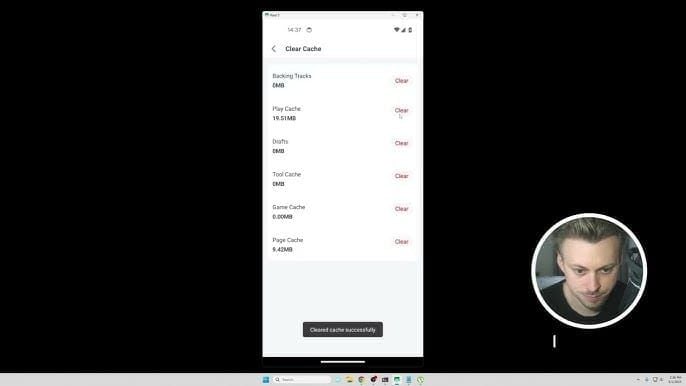
iOS: Double-tap home (or swipe up) → swipe StarMaker up to close. Settings → General → iPhone Storage → StarMaker → Offload App. Removes app while preserving data but clears cached tokens.
Android: Settings → Apps → StarMaker → Force Stop → Storage → Clear Cache (not Clear Data). Also: Settings → Apps → Google Play Services → Storage → Manage Space → Clear All Data.
Restart device completely to release background processes and reinitialize payment services.
Step 2: Remove All Payment Methods
Profile → Settings → Payment Methods → tap each method → Remove/Delete. Clears server-side payment profiles, not just local cache.
If no Payment Methods section: iOS - device Settings → [Your Name] → Payment & Shipping → locate StarMaker → remove methods. Android - Google Play Store → Menu → Payment Methods → More Payment Settings → find StarMaker entries → delete.
Wait 5-10 minutes for servers to process deletions.
Step 3: Clear Store Cache
iOS: Tap any App Store bottom tab 10 times rapidly to trigger cache reset. Or sign out of Apple ID (Settings → [Your Name] → Sign Out), restart, sign back in.
Google Play Store: Settings → Apps → Google Play Store → Storage → Clear Cache and Clear Data. After clearing, open Play Store, sign in, allow full sync.
Critical because in-app purchases route through platform stores. Cached data at store level perpetuates conflicts even after clearing StarMaker cache.
Step 4: Re-Add Preferred Payment Method
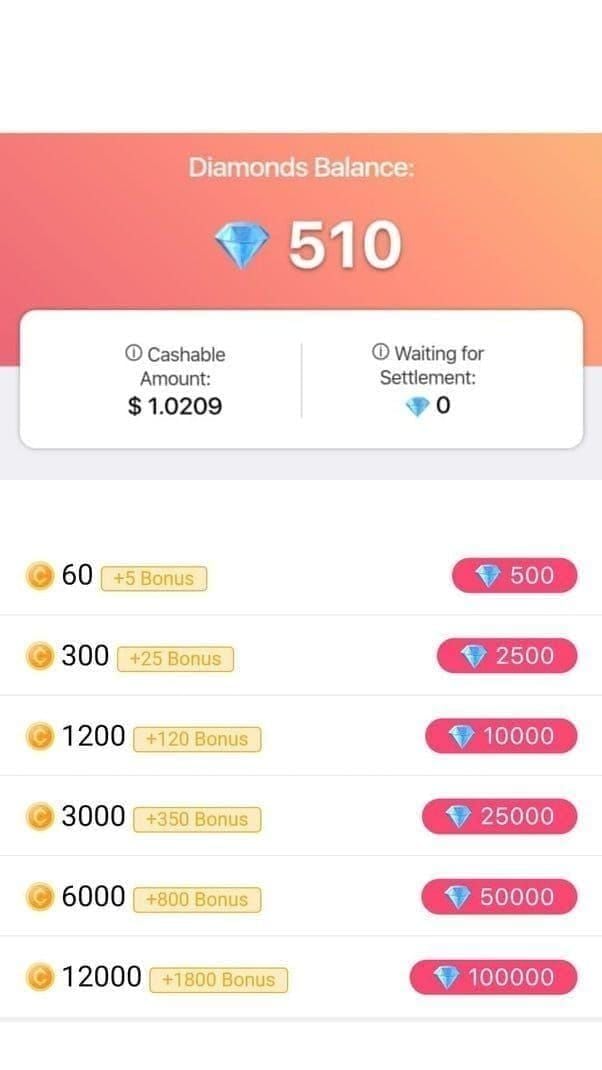
Open StarMaker → coin purchase → select any package → choose preferred method (commit to using only one consistently).
PayPal: Redirected to login → enter credentials → approve billing agreement. After authorization, PayPal returns you with fresh token.
Google Pay: Request access to saved methods → select card/bank → authenticate with fingerprint/face/PIN. Establishes new payment profile.
Verify method appears correctly before purchasing. If errors occur, wait 30 minutes and repeat Steps 1-3.
Step 5: Test with Smallest Package

Select smallest coin bundle for test transaction. Minimizes risk if issues remain.
Complete full flow: select package, confirm method, authenticate, wait for processing. Coins appear instantly after successful UPI payment; other methods may take 30 minutes to 24 hours, extending to 72 hours during peak events.
After delivery, pull-to-refresh and verify coins in wallet. If test succeeds, proceed with larger purchases. If fails, see advanced troubleshooting.
Advanced Troubleshooting
Account Re-verification
If failures persist, account may require re-verification. Profile → Settings → Account Security → verify email and phone show as confirmed. Unverified accounts face payment restrictions.
Request new verification email/SMS → complete process → log out → wait 15 minutes → log back in. Forces server to reload account status.
For social login accounts, consider linking direct email and password. Social accounts sometimes encounter limitations due to incomplete profile data.
'Payment Method Not Supported' After Switch
Indicates regional restrictions or currency mismatches. StarMaker enforces regional policies preventing cross-border transactions in certain markets.
Check Profile → Settings → Country/Region. If doesn't match payment method's country, change account region (may require support) or use payment method from account's registered country.
Alternatively, buy StarMaker coins online through BitTopup, which bypasses regional restrictions with independent processing.
Region/Currency Mismatch
Occurs when payment method's default currency differs from StarMaker's pricing currency. Check payment method's currency in bank app. Add method matching StarMaker account's primary currency.
If changing currency isn't feasible, contact support to request manual currency preference updates (24-48 hours).
Transactions Pending 24+ Hours
Bank shows pending but StarMaker hasn't credited coins after 24 hours—receipt validation failure, not processing problem.
Profile → Settings → Help & Support → Recharge / Payment Issue → submit email/username, transaction ID, payment screenshot, exact date/time. Resolves within 24-72 hours with complete documentation.
Refunds process within 3-5 business days for UPI/wallets, 5-7 days for cards/net banking.
Why Switching Breaks StarMaker's System
How Payment Gateway Stores Tokens
Billing system generates unique authorization tokens for each payment method. Tokens include metadata: payment type, issuing institution, amount limits, expiration timestamps.
During purchase, gateway retrieves stored token and submits to processor for validation. Processor verifies authenticity, checks expiration, confirms method validity and funds.
StarMaker caches tokens locally for performance—faster than requesting from servers. When switching methods, app should invalidate old tokens but cache persistence retains outdated ones, creating conflicts.
PayPal vs Google Pay Session Management
PayPal uses OAuth 2.0 with long-lived tokens (often 180 days) unless revoked. Google Pay uses tokenized credentials with shorter validity and device-specific binding. Each transaction generates unique cryptogram valid only for that purchase.
Switching from PayPal to Google Pay retains long-lived OAuth token while processing Google Pay's single-use cryptogram. Gateway receives both, recognizes conflict, rejects transaction.
Platform Differences: iOS vs Android
iOS integrates through StoreKit with strict separation between app requests and system authorization. Switching methods communicates to StoreKit, but internal cache may not immediately update.
Android routes through Google Play Billing Library with tighter coupling. Cached data exists in StarMaker app, Google Play Services, and Play Store—requires clearing all three. Android devices with manufacturer overlays (Samsung Pay, Huawei Wallet) introduce additional caching layers.
Common Misconceptions
Myth: Freely Switch Without Consequences
StarMaker's architecture requires deliberate cache management when changing sources. Switching without proper clearing creates token conflicts. Frequent switching compounds risk exponentially.
Myth: Uninstalling Resets Payment Issues
Uninstalling clears local cache but not server-side profiles or device-level payment cache. After reinstalling, StarMaker syncs account data including payment profiles. Conflicting tokens restore during sync.
Myth: Problems Auto-Resolve After 24 Hours
Conflicting tokens persist indefinitely without intervention, remaining valid within expiration windows (30-180 days). 24-hour resolution applies to cases with active support tickets, not passive waiting.
Prevention Best Practices
Stick to One Primary Method
Designate single payment source for all purchases. Eliminates switching conflicts, simplifies tracking. Choose based on reliability, fees, preference. UPI incurs no fees with instant delivery; PayPal offers buyer protection; Google Pay provides Android integration.
Safely Add Backup Options
Add backups during non-urgent periods. Follow complete cache clearing before adding each new method. Test with minimal purchase, wait 24 hours before relying on it.
When using backup, first remove primary (Step 2), wait 10 minutes, proceed with backup.
When It's Safe to Switch
Switch when no pending transactions, no expiring promotions, sufficient time for full procedure without urgency. Ideally during periods not needing purchases for 48 hours.
Verify new method is functional elsewhere first. Break top-ups into $100-300 chunks to avoid daily caps on new methods.
Monitor Payment History
Review Profile → Settings → Purchase History against bank statements. Discrepancies indicate emerging profile issues.
Increasing processing times suggest developing desynchronization. Proactively clear cache when noticing slowdowns.
Set transaction notifications in payment app for immediate alerts.
Alternative: BitTopup for Hassle-Free Purchases
Why Third-Party Platforms Avoid Switching Issues
BitTopup processes through independent gateway, not StarMaker's billing. You buy from BitTopup using their infrastructure; they deliver coins via API or manual methods.
Payment interactions occur within BitTopup's system without token caching mechanisms causing StarMaker conflicts. Switch between PayPal, cards, crypto without authorization conflicts.
BitTopup handles regional currency conversions and compatibility checks before processing, preventing region/currency mismatches. Broader payment support includes options unavailable through StarMaker directly.
Stable, Reliable Delivery
Automated systems deliver within 2-5 minutes for standard packages. Uses StarMaker's official APIs when available. Dedicated support specializes exclusively in payment/delivery matters.
Purchasing Through BitTopup
- Navigate to BitTopup's StarMaker section, browse packages with real-time currency conversion
- Select package (e.g., 48,000 Coins at $649.08 with 40% off from $908.72)
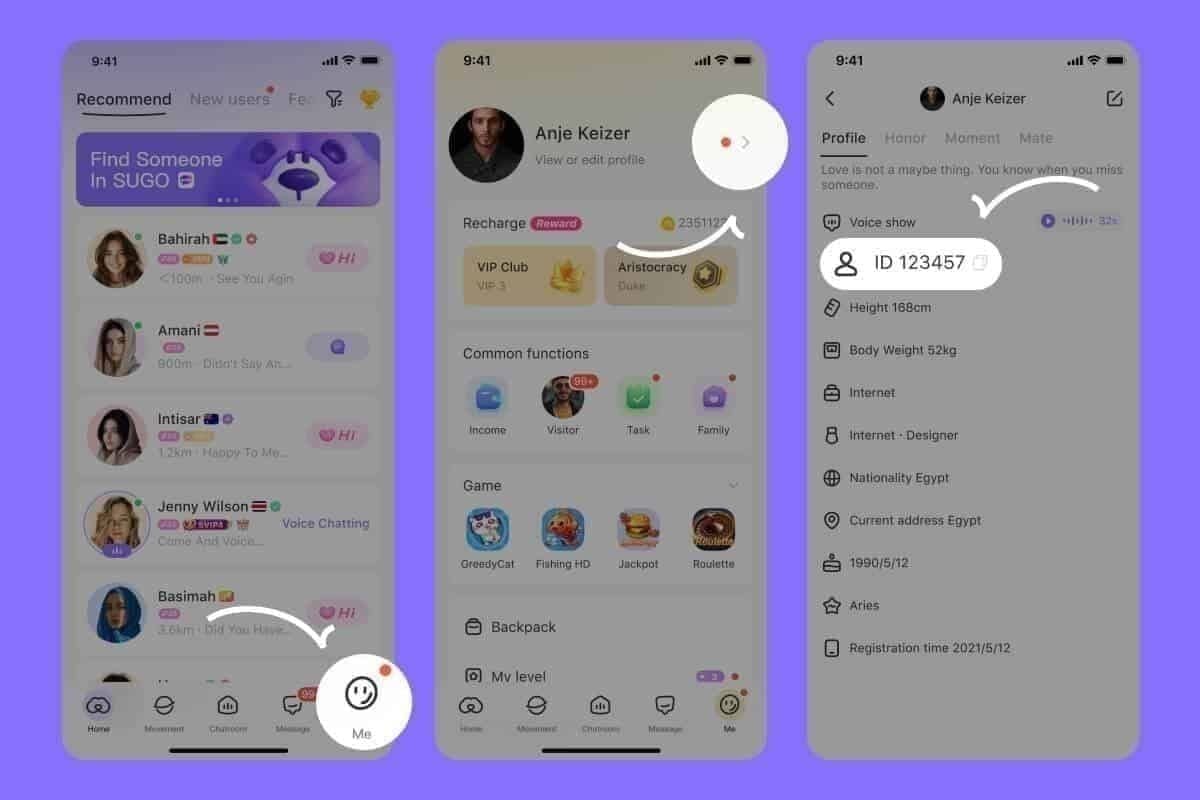
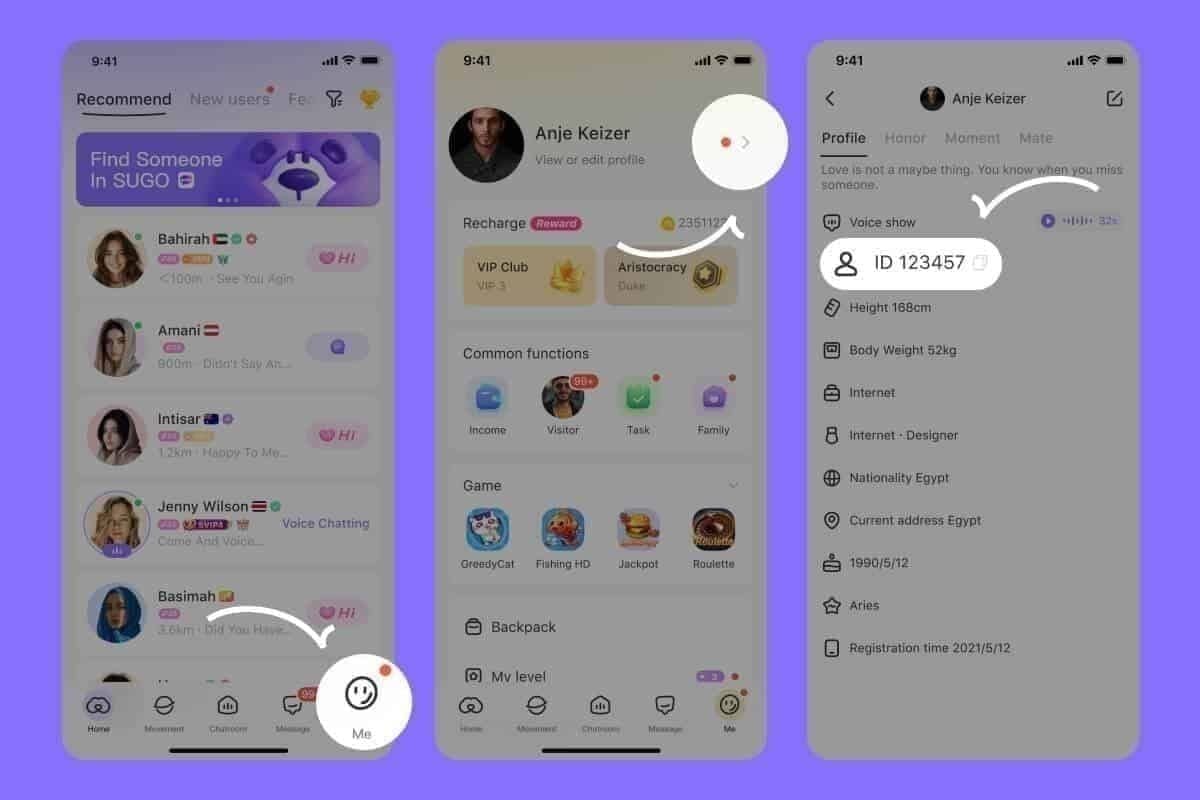
- Enter StarMaker SID (10-digit number at bottom-right of Me tab)
- Select payment method from cards, PayPal, crypto, regional options
- Complete secure checkout, receive order confirmation
- Verify delivery in StarMaker (pull-to-refresh or re-log)
Security and Speed Benefits
Industry-standard encryption, PCI DSS compliance, SSL transmission. Streamlined architecture reduces validation steps vs StarMaker's multi-layer system (app → store → processor → servers).
High user ratings reflect consistent delivery and responsive service. Successful transactions even with persistent native failures.
Real User Cases
Case 1: PayPal to Google Pay - 48-Hour Resolution
User switched for cashback, experienced payment loops. Followed 5-step fix, test succeeded. Original 10,000 coin purchase failed again; resolved by breaking into three smaller packages with 10-minute intervals, avoiding fraud prevention limits on newly authenticated methods.
Case 2: Multiple Failed Transactions
Switched between PayPal, Google Pay, card within 24 hours during 40% discount. Each failed differently; three pending transactions totaling $600+. Waited 72 hours for auto-cancellation, performed complete cache clearing, selected single primary method (PayPal), test succeeded immediately.
Case 3: Switching to BitTopup
User in region with cross-border restrictions got Payment Method Not Supported despite local methods. Account region (registered during travel) didn't match current payment country. After unsuccessful region change attempts (7-10 days processing), switched to BitTopup. Consistent success over six months, 3-minute average delivery, zero failures.
FAQ
Why does payment fail after switching PayPal to Google Pay?
Cached authorization tokens from previous method conflict with new method. Gateway receives incompatible signals and rejects to prevent security violations. Clear cache and re-authenticate to establish fresh tokens.
How long to fix payment errors?
5-step procedure takes 10-15 minutes; test purchases succeed within 30 minutes. With pending transactions, wait 24-72 hours for auto-cancellation. Support cases resolve within 24-72 hours with complete documentation.
Can I use both PayPal and Google Pay?
Technically yes, but interchangeable use creates conflicts. Designate one primary method. Add backups during non-urgent periods, test before relying. Always follow cache clearing when switching.
What happens to pending transactions when switching?
Pending remains in processing regardless of changes. Provider completes charge (coins credited within 24-72 hours) or auto-cancels (refunds in 3-7 days). Switching while pending creates additional conflicts.
Is BitTopup safe?
Yes. Uses official APIs or verified manual processes. Industry-standard security: encryption, PCI DSS compliance. High ratings, consistent delivery. Coins function identically to native purchases.
How to contact StarMaker support?
Profile → Settings → Help & Support → Recharge / Payment Issue → submit email/username, transaction ID, payment screenshot, date/time, SID. Responds within 24 hours, resolves within 24-72 hours.
Skip payment headaches—get StarMaker Coins instantly through BitTopup. Reliable, secure delivery in under 2 minutes with zero conflicts. Visit BitTopup now!