Google Play Games control settings reside directly inside the Google Play Games on PC client rather than the mobile store interface. Players can remap keyboard inputs on unoptimized games by pressing Shift + Tab in fullscreen mode (or clicking the Game controls icon in windowed mode) to open the built-in Controls Editor, while store account menus strictly handle purchase verification and security options rather than mouse sensitivity or gameplay binds.
Digital vouchers like a Google Play Gift Card (UK) provide a prepaid method to add British Pounds to an account balance, but they feature no interactive software interface, HUD, or sensitivity toggles. Balance redemptions do not alter gameplay controls; physical input mapping is handled exclusively through the desktop client or inside specific game settings.

Controls Editor vs Account Settings: Where Keybinds Reside
A common misunderstanding involves conflating Google Play Store control settings with desktop emulator keybindings.
- Google Play Store settings: Found in mobile and web account menus. These govern authentication, device screen locks, and biometric purchase approvals according to Google Play Help documentation. They offer zero in-game HUD adjustments or keybind options.
- Google Play Games PC emulator client: The software where actual gameplay controls live. It houses screen-mapping tools, keyboard overlays, display resolutions, and framerate locks.
Titles that already ship with native developer-optimized PC control schemes bypass the custom mapping overlay. For those games, the custom Controls Editor remains unavailable, and any rebinds must be adjusted through the dedicated Game Controls settings page or the title's internal options menu as confirmed by Google's PC Controls Editor documentation.
Step-by-Step: Remapping Controls in Google Play Games on PC
For unoptimized titles running on the desktop platform, players can map on-screen touch targets to physical keyboard keys using the built-in editor.
- Launch your game: Open the desired game within the Google Play Games PC client.
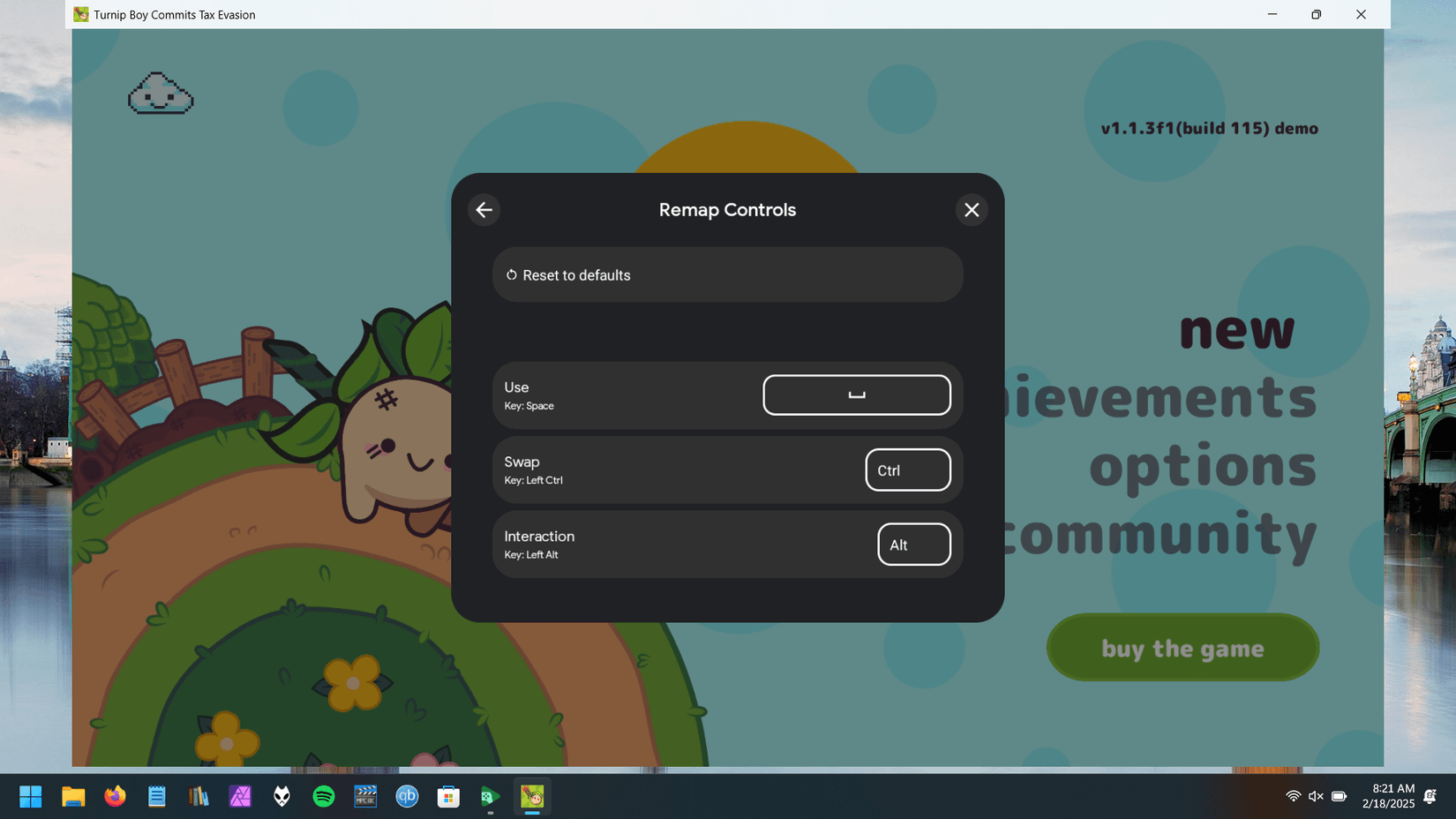
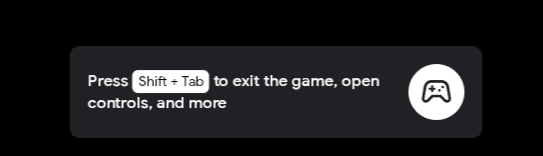
- Open the editor: In fullscreen mode, press Shift + Tab and choose Remap Controls. In windowed mode, click the Game controls icon on the left border of the application window.
- Select Edit: Click the Edit option to modify the current layout.
- Add directional movement: Choose Joystick. The first joystick pre-populates with WASD keys. If a game requires a secondary stick, adding another joystick automatically defaults to the keyboard arrow keys.
- Add on-screen buttons: Select Tap. Drag the circular marker over the virtual button on your screen. Press any keyboard key (for example, Space for Jump or J and K for primary actions) and type an optional label.
- Resize and position: Drag the control overlays to match the exact placement of touch buttons on your display.
- Save the configuration: Click Save to activate your customized scheme.
Managing the Keyboard Mapping Overlay and Sharing Configs
Once keys are assigned, an on-screen display shows which physical keys correspond to touch areas. This keyboard mapping overlay can clutter the screen during gameplay.
- Show or hide bindings: Press F12 on your keyboard to instantly toggle all control labels on or off. Alternatively, toggle Control labels from the left sidebar.
- Exporting schemes: Advanced players can export their mapped configuration as a text string file to share setups with other players according to Google's control sharing guidelines.
- Importing schemes: If another player supplies a layout string, you can import that text string directly into the Controls Editor to load their configuration instantly.
Gamepad and Controller Compatibility
Players who prefer physical gamepads instead of keyboard bindings have native options. Google Play Games Beta on PC supports 4 major console controllers, as reported by XDA Developers:
- Xbox One wireless controller
- Xbox Series S and Xbox Series X controllers
- PS4 DualShock game controller
- PS5 DualSense controller
Controller support remains game-dependent rather than universal. Physical controllers function only on specific titles flagged as compatible by Google, including games like Asphalt 9: Legends and BADLAND. Titles without native gamepad programming will not receive automatic controller translation through the desktop client.
Recommended Display, Framerate, and HUD Profile
Beyond basic inputs, Google Play Games on PC allows per-game performance and interface tweaks through the Shift + Tab overlay.
Display Resolution: Up to 4K (match your desktop monitor native resolution)
Target Framerate: 60 FPS (or 120Hz for high-refresh panels)
HUD Screen Area: Under 20% of total display
Control Labels: Hidden (F12) once muscle memory is established
When to Deviate from This Profile
- Drop from 120Hz to 60 FPS: If an intensive title stutters or pushes your system too hard, open the Shift + Tab visual preferences to lock the framerate at 60 FPS. As detailed by Yahoo Tech, this frees up processing headroom and ensures smooth frame delivery.
- Lower resolution on integrated graphics: If playing on a laptop without a dedicated graphics card, reduce rendering from 4K to standard 1080p within visual settings.
- Interface size:Android Developer guidelines advise developers and players to scale UI components so that on-screen HUDs occupy no more than 20% of the display area. On wide 16:9 displays, keeping control overlays compact ensures maximum visibility.
Accessing Advanced Client Developer Settings
For advanced diagnostics and deeper platform adjustments, Google Play Games on PC includes a hidden configuration panel, outlined in Google Play Help:
- Open the Google Play Games client on your PC.
- Click your Gamer name in the top right corner.
- Select Settings.
- Scroll down to the About section.
- Click the App version number 7 consecutive times.
- Select Continue on the prompt.
- Use the newly unlocked Advanced Settings menu to review system-level options.
Securing Balance and In-Game Purchases on PC
Account control settings also govern payment authorization, preventing accidental clicks or keypresses from approving transactions during a play session.
To manage purchase verification for PC gaming:
- Open your Google Play Store profile on your mobile device or web browser.
- Go to Payments & subscriptions, then Purchase verification.
- Configure authentication to require a password, biometric prompt, or screen lock for every transaction.
- When transacting inside Google Play Games on PC, Google sends verification prompts to your trusted, paired device where you are already signed in, as detailed in Google's transaction security documentation.
Google Play Games PC Settings Reference
| Feature | Shortcut or Location | Notes | Source |
|---|
| Controls Editor (Keybinds) | Shift + Tab > Remap Controls | Available on unoptimized games; left sidebar icon in windowed mode | Google Support |
| Toggle Keybind HUD Labels | F12 key | Shows or hides virtual key overlays during gameplay | Google Support |
| Gamepad Controller Support | Plug-and-play USB/Bluetooth | Supports Xbox One, Series S/X, PS4 DualShock, PS5 DualSense on select titles | XDA Developers |
| Framerate / Resolution | Shift + Tab > Visual settings | Supports 60 FPS / 120Hz toggles and resolutions up to 4K | Yahoo Tech |
| Advanced Settings Panel | Click App version 7 times | Located under Settings > About | Google Support |
| Purchase Verification | Play Store > Payments & subscriptions | Sends prompts to paired devices for PC store transactions | Google Support |
Frequently Asked Questions
How do I open the key remapping menu in Google Play Games on PC?
Press Shift + Tab while in fullscreen mode and select Remap Controls, or click the Game controls icon on the left sidebar when playing in windowed mode as documented by Google Play Support.
Can I use an Xbox or PlayStation controller with Google Play Games on PC?
Google Play Games PC beta supports Xbox One, Xbox Series X/S, PS4 DualShock, and PS5 DualSense controllers. Support is restricted to select compatible titles such as Asphalt 9: Legends and BADLAND according to XDA Developers.
How do I hide the on-screen keyboard shortcut labels while playing?
Press F12 on your keyboard or toggle the Control labels option in the left sidebar to hide the overlay prompts per Google Play Help.
Do Google Play Store account settings let me change game controls or mouse sensitivity?
No. Google Play Store account settings govern account security, parental controls, and purchase verification. Gameplay keybindings and sensitivity must be configured within the Google Play Games PC client or the individual game's settings menu according to Google Play Help.