PUBG crashes on launch with black screen Steam errors can ruin your match night. Follow this systematic diagnostic sequence to restore your game client fast.
Clicking Play on Steam only to watch your status switch to "Running" before hitting an unresponsive black window or a crash reporter means an initialization fault occurred. PUBG: BATTLEGROUNDS relies on kernel-level anti-cheat modules, boot video playback, and graphics API handshakes. A single corrupted config or hooking conflict halts this entire sequence.
Do not sit through a 40 GB re-download right away. Startup failures usually trace back to corrupted intro media, graphics backend conflicts, or software overlays. Follow these diagnostic steps in order.
Why PUBG Crashes on Startup with a Blank Display
When you launch PUBG on Steam, the game executes a precise series of handshakes before rendering the main lobby. First, the Steam client verifies ownership tokens and initializes BattlEye (BEService.exe). Next, Windows loads TslGame.exe and calls graphics APIs while streaming intro video assets from your storage drive. Finally, the game connects to backend servers and renders the 3D lobby.
A breakdown anywhere along this chain produces a black screen or an instant desktop crash. If the video decoder hangs, the screen remains pitch black while background ambient music continues playing. If BattlEye fails to verify system integrity, the process stalls on a grey smoke screen or triggers a tslgame.exe crash report. If third-party software injects an overlay into DirectX before the engine initializes, the display driver resets and terminates the application.
Hardware Baseline and Initialization Requirements
Before adjusting configuration files, verify that your PC satisfies the technical requirements needed to boot PUBG's engine without memory exhaustion. Running below the baseline memory or VRAM threshold frequently triggers memory-read errors on startup.
The following table outlines the minimum and recommended hardware specifications for running the Steam client stably:
| Specification Component | Minimum Baseline | Recommended Target | Diagnostic Impact on Startup |
|---|
| Operating System | Windows 10 64-bit | Windows 10 / 11 64-bit | 32-bit OS cannot allocate required memory pools. |
| Processor (CPU) | Intel Core i5-4430 / AMD FX-6300 | Intel Core i5-6600K / AMD Ryzen 5 1600 | Insufficient instruction sets stall shader compilation. |
| System Memory (RAM) | 8 GB RAM | 16 GB RAM | Sub-8 GB configurations trigger out-of-memory crash popups. |
| Graphics Card (GPU) | NVIDIA GTX 960 (2 GB) / AMD R7 370 (2 GB) | NVIDIA GTX 1060 (3 GB) / AMD RX 580 (4 GB) | Less than 2 GB VRAM causes DXGI device initialization drops. |
| DirectX Target | Version 11 Feature Level | Version 11 / Enhanced | Missing runtime libraries cause immediate launch termination. |
| Storage Overhead | 40 GB available space | 50 GB available space (SSD) | Insufficient drive space corrupts patch staging and asset unpacking. |
Meeting the minimum specification guarantees that the game engine can reserve necessary memory buffers during its boot sequence. If your hardware meets these standards, the failure is software-related.
Step 1: Bypass Intro Videos by Renaming the Movies Folder
A corrupted splash video file or a hung Bink Video decoder is the primary cause of a black screen with audio playing in the background. You can bypass startup videos entirely by renaming the media directory.
- Open Steam and navigate to your Library.
- Right-click PUBG: BATTLEGROUNDS, select Manage, and click Browse local files.
- Open the TslGame folder, then open the Content folder.
- Locate the folder named Movies.
- Right-click the Movies folder and rename it to
Movies.bak (or open it and delete all .mp4 / video files inside). - Launch the game from Steam.
When the client cannot find the video files, it skips media playback and boots straight into the lobby connection screen. Once you make it past the black screen and land safely in the main lobby, you can top up PUBG G-Coin to unlock current season passes and weapon skins without leaving your desk.
Step 2: Force DirectX 11 in Steam Launch Options
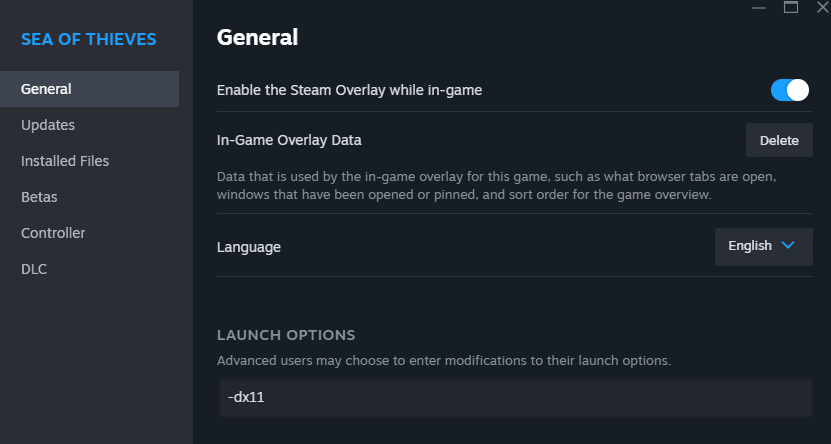
Experimental graphics rendering modes or corrupted shader pipelines can crash your GPU driver on startup. Forcing standard DirectX 11 provides the most stable graphics environment.
- Open your Steam Library.
- Right-click PUBG: BATTLEGROUNDS and select Properties.
- Stay on the General tab and locate the Launch Options field at the bottom.
- Type
-dx11 into the text box. - Close the Properties window and start the game.
This flag forces Unreal Engine to bypass DirectX 12 or DirectX 11 Enhanced caching pipelines that often fail on hybrid graphics setups and older GPUs.
Step 3: Clear Stale Configuration Files in AppData
Corrupted local display configurations can force the game to attempt rendering at unsupported resolutions or refresh rates, resulting in a black screen.
- Press
Windows Key + R to open the Run dialogue box. - Type
%localappdata%\TslGame\Saved\Config and press Enter. - Locate the folder named WindowsNoEditor.
- Delete the entire WindowsNoEditor folder (or move it to your Desktop as a backup).
- Relaunch PUBG through Steam.
Deleting this folder clears damaged .ini files—including GameUserSettings.ini—and forces PUBG to generate clean, default graphic profiles upon boot.
Step 4: Clear Steam Appcache and Verify Game Files
Steam sometimes caches invalid authentication tokens or fails to finish patching binary files after an update. A quick cache purge and integrity scan will repair broken binaries.
- Fully close Steam (right-click the Steam icon in your system tray and select Exit).
- Navigate to your primary Steam installation directory (typically
C:\Program Files (x86)\Steam). - Locate and delete the appcache folder.
- Restart Steam, open your Library, right-click PUBG: BATTLEGROUNDS, and choose Properties.
- Click Installed Files in the left menu, then click Verify integrity of game files.
- Allow Steam to scan and replace missing or corrupted game assets.
Verification Flow:
[Steam Client] -> [Scan SHA Hashes] -> [Detect Broken Binaries] -> [Replace Corrupt Blocks] -> [Clean Boot]
Step 5: Fix BattlEye Anti-Cheat Service Deadlocks
If PUBG freezes on a grey smoke screen or terminates without an error message, BattlEye failed to initialize. Antivirus utilities can also block anti-cheat binaries.
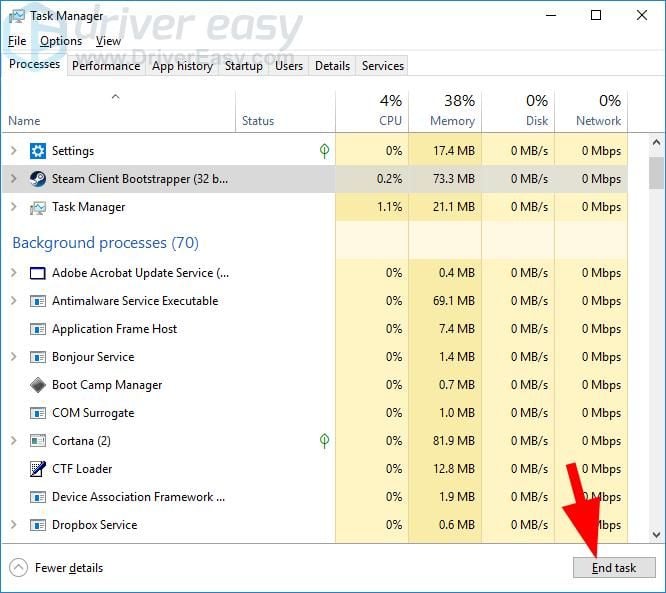
Restart the BattlEye Service
- Press
Ctrl + Shift + Esc to open Task Manager. - Switch to the Services tab.
- Locate BEService (BattlEye Service).
- Right-click BEService and click Restart (or Start if it is stopped).
Add Security Exclusions
Security suites can mistake PUBG binaries for intrusive processes. Add the following executables to your antivirus and Windows Security exclusion lists:
* TslGame.exe (located in SteamApps\common\PUBG\TslGame\Binaries\Win64)
* TslGame_BE.exe (located in the same Win64 directory)
* BEService.exe (located in C:\Program Files (x86)\Common Files\BattlEye)
If you recently adjusted CPU or BIOS overclock profiles and encounter blue or black screens citing BEDaisy.sys, revert CPU/RAM overclocks to base clock speeds. Unstable memory timings corrupt BattlEye driver execution.
Step 6: Expand Windows Virtual Memory Paging Allocation
A common cause of the TslGame.exe - Application Error: The memory could not be read crash on startup is an exhausted Windows paging file. PUBG loads extensive texture packages into virtual memory during startup.
- Press
Windows Key + Pause/Break (or open Settings > System > About > Advanced system settings). - Under the Advanced tab, click Settings in the Performance section.
- Click the Advanced tab in the Performance Options window, then click Change under Virtual memory.
- Uncheck Automatically manage paging file size for all drives.
- Select your fastest drive (preferably an SSD where Windows or PUBG is installed) and select Custom size.
- Set the Initial size (MB) to
1.5 times your physical RAM (for example, 12288 MB for 8 GB RAM, or 24576 MB for 16 GB RAM). - Set the Maximum size (MB) to
3 times your physical RAM. - Click Set, then click OK, and restart your PC.
If your client is stable and you plan to grab the latest crate cosmetics, you can buy PUBG G-Coin CDK codes through trusted direct redemption.
The Windows Registry Debate
Some community guides recommend modifying Windows Registry keys under HKEY_LOCAL_MACHINE\SYSTEM\CurrentControlSet\Control\Session Manager\Memory Management by setting PoolUsageMaximum to 60 (Decimal) and PagedPoolSize to ffffffff (Hexadecimal). Manual registry pool tampering is unnecessary for most systems and introduces operating system instability. Stick to expanding the Virtual Memory paging file and repairing runtime libraries instead.
Step 7: Repair Visual C++ Redistributable Runtimes
Missing or broken dynamic link libraries (.dll) from the Microsoft Visual C++ redistributables cause the game executable to terminate instantly when clicked.
- Press
Windows Key + R, type appwiz.cpl, and hit Enter. - Scroll through the installed software list to find Microsoft Visual C++ 2015-2022 Redistributable (x64) and (x86).
- Right-click each version, select Change, and click Repair.
- If the Repair option is missing, download a fresh copy of
vc_redist.x64.exe directly from Microsoft's official portal, install it, and restart your computer.
Step 8: Disable In-Game Overlays and Display Optimizations
Third-party applications hook directly into the DirectX rendering pipeline. When multiple overlays try to grab the display hook simultaneously, PUBG crashes before rendering the first frame.
Disable overlays across these applications:
* Steam Overlay: Go to Steam Settings > In-Game > Uncheck Enable the Steam Overlay while in-game.
* Discord: Go to User Settings > Game Overlay > Turn off Enable in-game overlay.
* NVIDIA App / GeForce Experience: Open Settings > General > Turn off In-Game Overlay / Share.
* AMD Radeon Software: Open Settings > Preferences > Turn off In-Game Overlay.
* Xbox Game Bar: Open Windows Settings > Gaming > Xbox Game Bar > Toggle to Off.
Disable Fullscreen Optimizations
Windows Desktop Window Manager (DWM) fullscreen optimizations can cause display negotiation freezes.
- Navigate to
SteamApps\common\PUBG\TslGame\Binaries\Win64. - Right-click
TslGame.exe and select Properties. - Switch to the Compatibility tab.
- Check the box for Disable fullscreen optimizations.
- Click Apply and OK.
Note on Compatibility Modes: Some older forum posts suggest running TslGame.exe in Windows 7 or Windows 8 compatibility mode. Do not do this. Forcing legacy compatibility breaks modern Windows scheduler handshakes and anti-cheat hooks on Windows 10 and 11. Leave compatibility mode unchecked and only toggle Disable fullscreen optimizations.
Operating Environment and Startup Diagnostic Profiles
Understanding how different software configurations impact PUBG startup behavior helps isolate stubborn issues. The table below outlines how specific system environments react to common startup bottlenecks:
| System Environment State | Typical Startup Symptom | Primary Failure Cause | Recommended Resolution |
|---|
| Default Multi-Overlay Setup | Instant CTD (Crash to Desktop) after anti-cheat banner. | Hook collision between Discord, Steam, and GPU software. | Disable all third-party overlay toggles in client settings. |
| Post-Patch Broken Media Cache | Infinite black screen with working background music. | Bink video playback stall in TslGame\Content\Movies. | Rename Movies directory to Movies.bak. |
| Corrupted Graphic Shader Cache | Black screen followed by DXGI_ERROR_DEVICE_REMOVED. | Corrupted DirectX 12/Enhanced shader pipeline. | Add -dx11 to Steam Launch Options. |
| Insufficient Virtual Memory | TslGame.exe - memory could not be read popup. | Windows paging file too small for asset uncompression. | Set custom paging file to 1.5x physical RAM. |
| Missing Visual C++ Libraries | Silent failure; process closes within 2 seconds. | Missing runtime .dll files in Windows System32. | Run Repair on Microsoft Visual C++ 2015-2022 x64. |
| Unplugged / Idle Audio Endpoint | Hangs on black screen before splash screen renders. | Sound engine stalls searching for default playback device. | Ensure default Windows playback device is connected and active. |
This breakdown confirms that distinct error symptoms correspond to specific system layers. Addressing the exact failure point saves you from unnecessary troubleshooting steps.
Troubleshooting Matrix by Error Type
Use this summary table to match your specific launch symptom with the exact solution steps outlined above:
| Error Message or Launch Behavior | Root Cause | Action Step |
|---|
| Black screen with lobby music playing | Intro video hang | Rename Movies folder to Movies.bak. |
| Instant Crash Reporter window on launch | Graphics API or overlay clash | Apply -dx11 launch option and disable Discord/Steam overlays. |
| Stuck on grey smoke loading screen | Anti-cheat service stall | Restart BEService in Task Manager and whitelist TslGame.exe. |
Memory could not be read error popup | Virtual memory allocation limit | Increase Windows Paging File size to 1.5x system RAM. |
| Silent launch failure (Play button resets) | Missing runtime dependencies | Repair Visual C++ 2015-2022 x64 redistributables. |
Display driver crash or blue screen (BEDaisy.sys) | Driver corruption / unstable clocks | Perform a clean GPU driver install with DDU; revert CPU overclocks. |
Referencing this matrix ensures you apply the exact fix required for your specific error state.
Additional System Maintenance Steps
If you have tried the steps above and still encounter startup issues, two deeper system checks can resolve underlying Windows file corruption and driver conflicts.
1. Perform a Clean GPU Driver Reinstallation
Display drivers can become corrupted after multiple Windows updates or driver upgrades over time. Use Display Driver Uninstaller (DDU) in Windows Safe Mode to wipe existing display driver remnants, then install the latest WHQL driver from NVIDIA or AMD.
2. Run Windows System File Repair
Damaged operating system files can prevent game services from launching smoothly. Open an elevated Command Prompt (Run as Administrator) and execute the following commands in order:
sfc /scannow
DISM /Online /Cleanup-Image /RestoreHealth
Restart your computer once the operations complete to ensure repaired system binaries are loaded.
FAQ
Why does PUBG launch to a black screen with background sound on Steam?
This issue occurs when the intro video files fail to render or when an overlay clashes with the game's display hooks. You can bypass the problem by renaming the TslGame\Content\Movies folder to Movies.bak or adding -dx11 to your Steam launch options.
What does the TslGame.exe memory could not be read error mean on launch?
This error indicates that the game ran out of allocated virtual memory while initializing startup assets. Increasing your Windows virtual memory paging file size to 1.5 times your physical RAM and repairing the Visual C++ 2015-2022 runtimes resolves it.
How do I bypass the PUBG intro video files on startup?
Open your Steam Library, right-click PUBG: BATTLEGROUNDS, select Manage, and click Browse local files. Open the TslGame\Content directory and rename the Movies folder to Movies.bak to boot directly into the game.
Can third-party overlays cause PUBG to crash immediately when clicking Play?
Yes. Overlays from Discord, Steam, NVIDIA App, and Xbox Game Bar attempt to hook into the DirectX pipeline at the same time, triggering driver crashes. Disabling these overlays stops the hooking conflict.
How does forcing DirectX 11 help fix PUBG startup crashes?
Adding -dx11 into Steam launch options forces PUBG to use standard DirectX 11 initialization routines. This bypasses broken DirectX 12 shader caches and driver-level rendering incompatibilities.
What should I do if BattlEye triggers a BEDaisy.sys blue or black screen on launch?
Restart the BEService in Windows Services, verify game file integrity in Steam, and revert any unstable CPU or memory overclocks. Also ensure that both TslGame.exe and tslgame_BE.exe are added to your antivirus exclusion list.
Final Diagnostic Verdict
Fixing startup crashes in PUBG on Steam is straightforward once you isolate the failure point. In most cases, renaming the Movies folder to skip broken intro videos, forcing -dx11 in Steam Launch Options, and deleting the corrupted WindowsNoEditor configuration folder will get you back into the lobby within minutes.
Avoid reinstalling the entire 40 GB game client or applying risky registry tweaks until you have verified your Visual C++ runtimes, expanded your paging file, and disabled competing background overlays. Keep your graphics hooks minimal, back up your clean configuration, and whenever you want to upgrade your inventory, get discounted PUBG G-Coins securely to load up your loadout.