Tired of lag on Tokyo lobbies? Discover how to lower PS5 ping Japan servers using targeted routing, optimal DNS, MTU tuning, and local network adjustments.
Connecting to Tokyo-hosted lobbies from outside Japan—or optimizing a regional connection from within the country—runs into hard networking hurdles. Physical distance, subsea routing hops, and unoptimized console configurations create delayed hit registration and rubber-banding. When queuing against regional competition, every millisecond counts.
Optimizing your connection requires addressing the full packet pipeline. This guide covers the physical and software adjustments needed to secure the lowest attainable ping on your PlayStation 5.
The Reality of Routing to Tokyo: Distance, IPoE, and Latency Baselines
Base ping is bound by physics. Fiber optic signals travel through undersea cables at roughly two-thirds the speed of light in a vacuum. Packets sent to Tokyo from North America, Europe, or Southeast Asia must cross thousands of miles and pass through dozens of carrier exchanges.
Domestic fiber in Japan relies heavily on IPoE (IP over Ethernet) architecture. This setup avoids the evening peak congestion typical of legacy PPPoE connections, scaling bandwidth up to 10 Gbps. If you connect internationally, your Internet Service Provider (ISP) determines whether your traffic takes a direct oceanic path or bounces through inefficient secondary peering nodes.
Multiplayer networking demands consistent packet delivery over raw bandwidth. Basic online play functions on 25 Mbps download speeds. A household connection of 100 Mbps or higher provides enough headroom so background downloads do not interrupt matches.
Latency tiers dictate actual match quality:
* Under 15 ms to 25 ms: The competitive sweet spot. Inputs register immediately, and hit detection remains clean.
* Under 50 ms: Stable for casual multiplayer. Frame pacing remains consistent with minimal perceived delay.
* 50 ms to 100 ms: Playable for cooperative and turn-based titles, with clear disadvantages in twitch shooters.
* Over 100 ms: Severe latency. Rubber-banding, ghost bullets, and desynchronization occur regularly.
Wired Ethernet vs 5 GHz Wi-Fi: Eliminating Wireless Packet Jitter
Radio frequency interference makes Wi-Fi unreliable for latency-sensitive play. Even with high rated speeds, walls, household appliances, and competing smart home devices produce packet micro-bursts that disrupt timing.
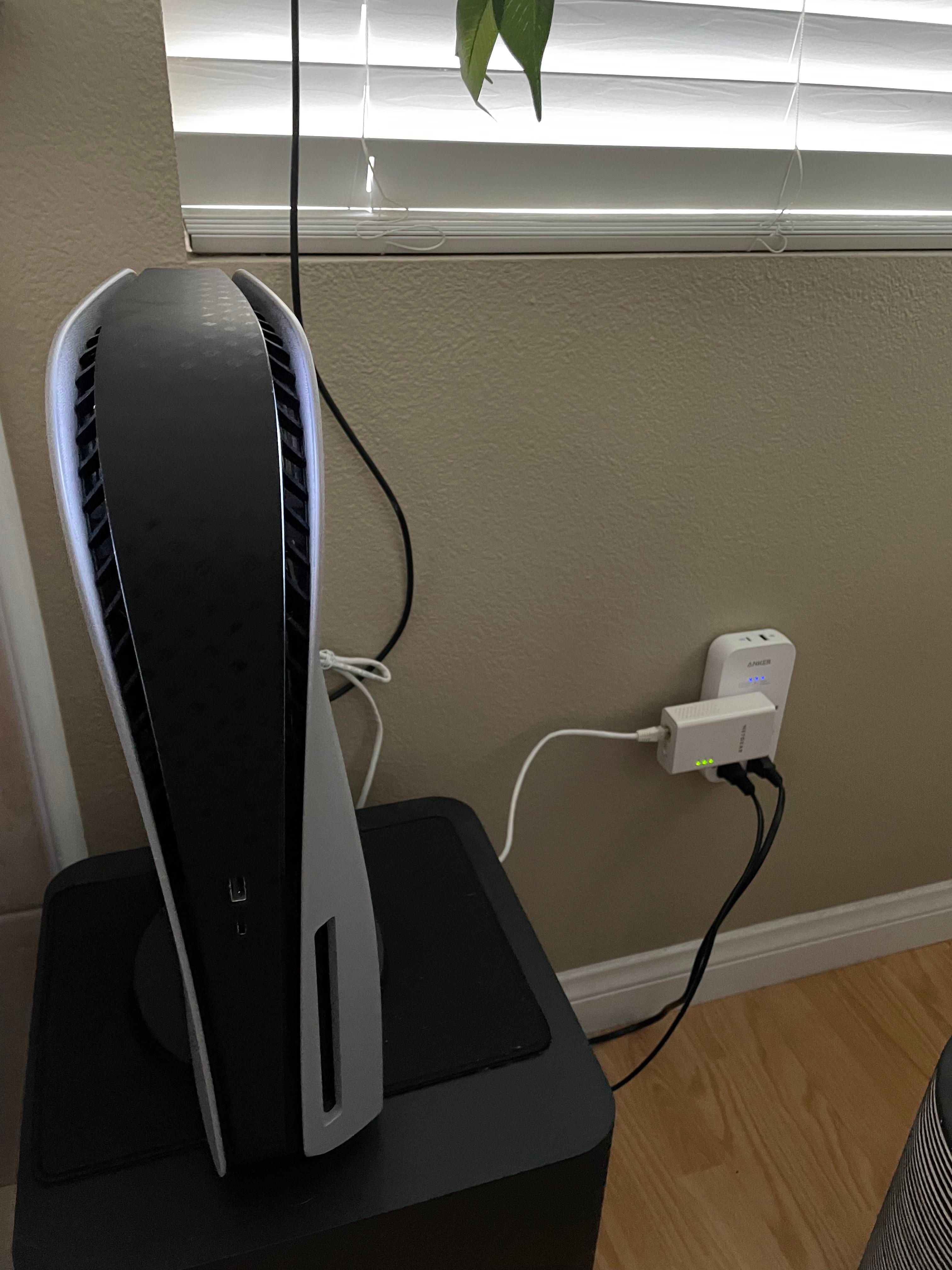
Direct cabling remains the baseline standard. Moving from Wi-Fi to a Cat 5e or Cat 6 Ethernet cable stabilizes packet flow and removes wireless transmission spikes. If running a line along baseboards, use a short, direct Cat 6 run rather than a coiled line to prevent signal attenuation.
The following table outlines throughput and stability differences recorded across various PS5 connection configurations.
| Connection Method | Data Throughput | Performance Impact |
|---|
| Plug In an Ethernet Cord | 414.8 Mbps | Top throughput achieved on PS5, reducing 90 GB game download time by 34.9% compared to Wi-Fi |
| Connect to 5 GHz Wi-Fi | 351.3 Mbps | Substantial improvement over congested 2.4 GHz band (67.8 Mbps) by reducing channel interference |
| Manage Connected Wi-Fi Devices | 309.0 Mbps | Disconnecting active background mobile and PC devices improved baseline throughput from 205.5 Mbps |
| Place Modem/Router Closer to PS5 | 304.5 Mbps | Reducing physical wall and cabinet obstructions increased wireless speed from 254.8 Mbps baseline |
Wired Ethernet delivers the highest throughput, cuts 90 GB download times by 34.9%, and eliminates packet jitter entirely.
If physical cabling is not an option, force your PS5 onto the 5 GHz Wi-Fi band. The default Automatic setting frequently drops the console back onto the congested 2.4 GHz spectrum. In testing, 5 GHz Wi-Fi achieved 315.5 Mbps to 351.3 Mbps, while 2.4 GHz stalled at 67.8 Mbps.
Players picking up digital Japanese releases frequently use a PlayStation Network Card (JP) balance top-up to download regional exclusives and verify server matchmaking directly without waiting for physical import deliveries.
Custom DNS Tuning: Matchmaking Resolution vs Active Gameplay
DNS resolvers are frequently misunderstood in console optimization. Setting a custom DNS on your PS5 does not change the physical routing of gameplay packets once connected to a dedicated host. Your ISP determines that route.
A fast DNS resolver speeds up domain name lookups for matchmaking handshakes, party lobbies, and PSN store browsing. If your ISP maintains sluggish DNS nodes, switching to public resolvers prevents handshake timeouts and lobby disconnects.
Regional benchmarking reveals notable differences in DNS lookup response times across Asia.
| DNS Provider | Primary / Secondary IP | Average Asia Response Time | Primary Benefit |
|---|
| Cloudflare | 1.1.1.1 / 1.0.0.1 | 13.93 ms | Lowest query latency across Asian exchange nodes |
| Quad9 | 9.9.9.9 / 149.112.112.112 | 14.70 ms | Fast lookup speeds paired with malicious domain filtering |
| Google Public DNS | 8.8.8.8 / 8.8.4.4 | 47.54 ms | Broad global infrastructure with high uptime reliability |
| OpenDNS | 208.67.222.222 / 208.67.220.220 | 62.54 ms | Standard resolution with content filtering features |
Cloudflare and Quad9 deliver the lowest query latency across Asian hubs, reducing response times by more than half compared to legacy resolvers.
Configurations differ on whether to mix providers. Some setups pair Cloudflare (1.1.1.1) as Primary with Google (8.8.8.8) as Secondary for redundancy. Another method uses matched pairs (such as 1.1.1.1 and 1.0.0.1) to avoid secondary resolver latency variations during lookup failovers. Sticking to matched Cloudflare pairs provides the lowest lookup times; shift to Google DNS only if you encounter regional domain resolution errors.
Router-Level Fixes: SQM Bufferbloat Control and NAT Traversal
Simultaneous uploads and downloads saturate router memory queues. This causes bufferbloat, leaving real-time gaming packets queued behind video streams or background system updates and creating in-game ping spikes.
To fix bufferbloat, open your router administration panel and enable Smart Queue Management (SQM), often labeled FQ-CoDel or Cake QoS. Set SQM upload and download limits to 90-95% of your measured line speed. This 5-10% buffer prevents modem saturation, allowing gaming packets to bypass heavy background transfers.
NAT Types and Port Forwarding
Your NAT (Network Address Translation) type controls how your PS5 communicates with remote peers and matchmaking servers:
* NAT Type 1 (Open): Connected directly to the internet without a firewall. Rare and insecure.
* NAT Type 2 (Moderate): Connected behind a router with configured port traversal. The recommended standard.
* NAT Type 3 (Strict): Firewalls block inbound ports, triggering matchmaking failures and party chat drops.
To establish NAT Type 2, assign your PS5 a static DHCP reservation in your router settings and forward the necessary PlayStation Network ports to that IP.
While basic PSN traffic uses TCP 3478-3480 and UDP 3478-3479, Japanese multiplayer lobbies require the expanded rule set:
* TCP Ports: 80, 443, 1935, 3478, 3479, 3480
* UDP Ports: 3478, 3479, 3658
Forwarding these ports prevents your router from dropping incoming handshake packets from Tokyo peer hosts.
Recommended PS5 Network Optimization Profile
Apply this network configuration profile to maximize console stability:
- Connect via Cat 6 LAN: Insert an Ethernet cable into the rear LAN port of the PS5 and connect it to your router.
- Open Network Settings: Go to Settings > Network > Settings > Set Up Internet Connection.
- Lock Wi-Fi Band (if on wireless): If running a cable is not possible, highlight your Wi-Fi network, press the controller Options button, select Wi-Fi Frequency Bands, and change from Automatic to 5 GHz.
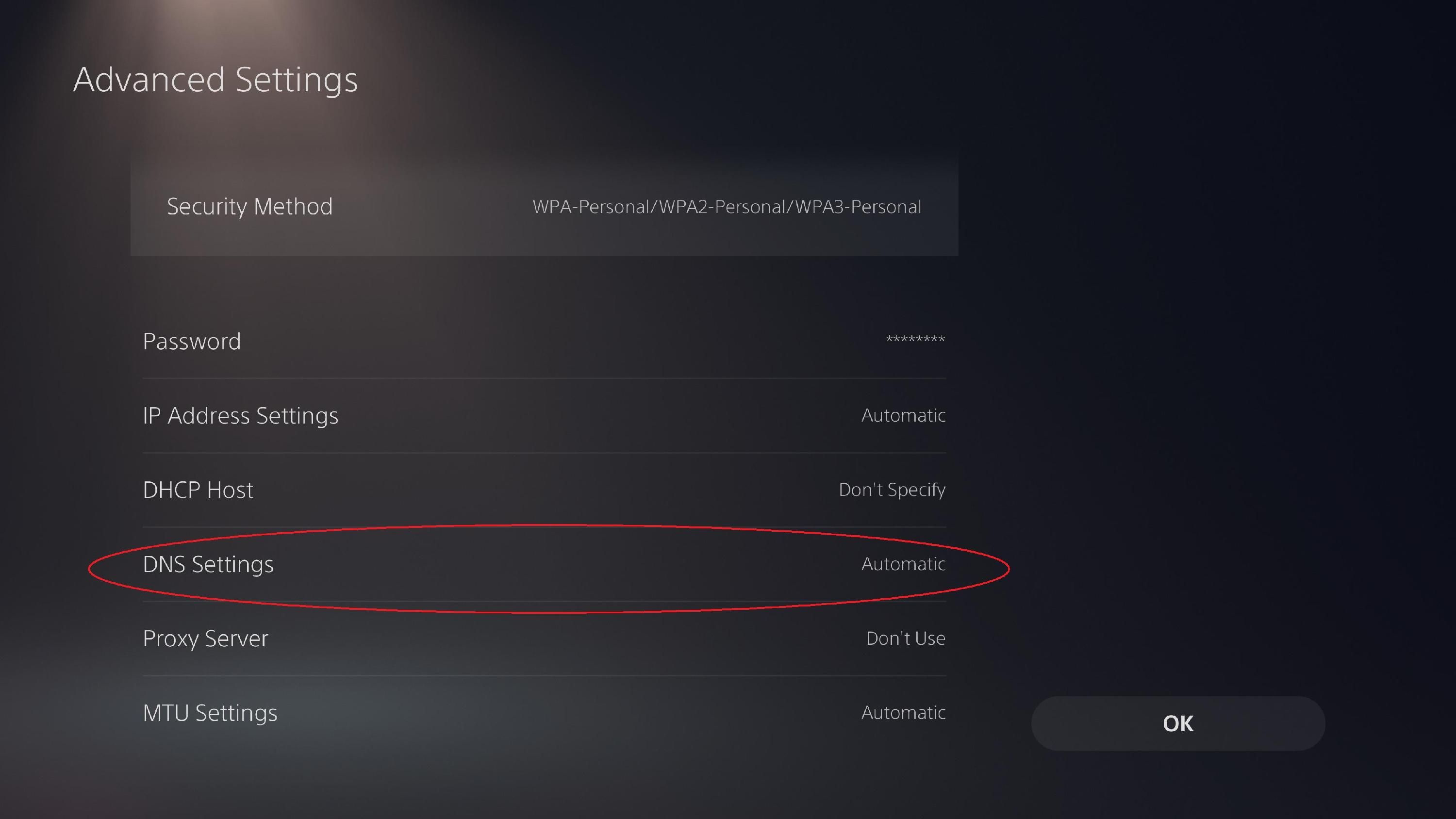
- Open Advanced Settings: Highlight the active connection, press Options, and select Advanced Settings.
- Configure IP Settings: Select IP Address Settings and set to Manual if entering your static DHCP reservation, or leave on Automatic if assigning by MAC address in your router.
- Set Primary and Secondary DNS: Change DNS Settings to Manual. Enter
1.1.1.1 as the Primary DNS and 1.0.0.1 as the Secondary DNS. - Adjust MTU Settings: Set MTU Settings to Automatic (1500 default). If your ISP uses PPPoE fragmentation, set manually to
1472 or 1450. - Disable Proxy Server: Confirm Proxy Server is set to Do Not Use.
- Test Internet Connection: Run the console diagnostic test to verify throughput and NAT Type 2 status.
Deviate from these settings only if your ISP requires proprietary IPv6 tunneling with dynamic MTU or specific gateway configurations.
Maintaining active Japanese accounts often involves managing regional wallet funds. Securing Japanese PSN account cards lets you buy regional patches, season passes, and digital software directly through the Tokyo storefront without payment errors.
Frame Rendering vs Network Delay: PS5 Performance Mode and Display Setup
Display input lag and network latency produce distinctly different symptoms. Network lag creates rubber-banding, delayed server ticks, and missing hit markers. Display lag delays controller response across all software, including offline system menus.
Adjust your display and rendering settings to remove local hardware delays:
- Enable TV Game Mode: Standard TV processing adds 50 ms to 100 ms of display delay. Game Mode bypasses these filters, dropping display latency below 10 ms.
- Enable 120Hz Output and VRR: In PS5 Screen and Video settings, set 120Hz Output to Automatic and enable Variable Refresh Rate (VRR) on HDMI 2.1 displays to improve frame-time response.
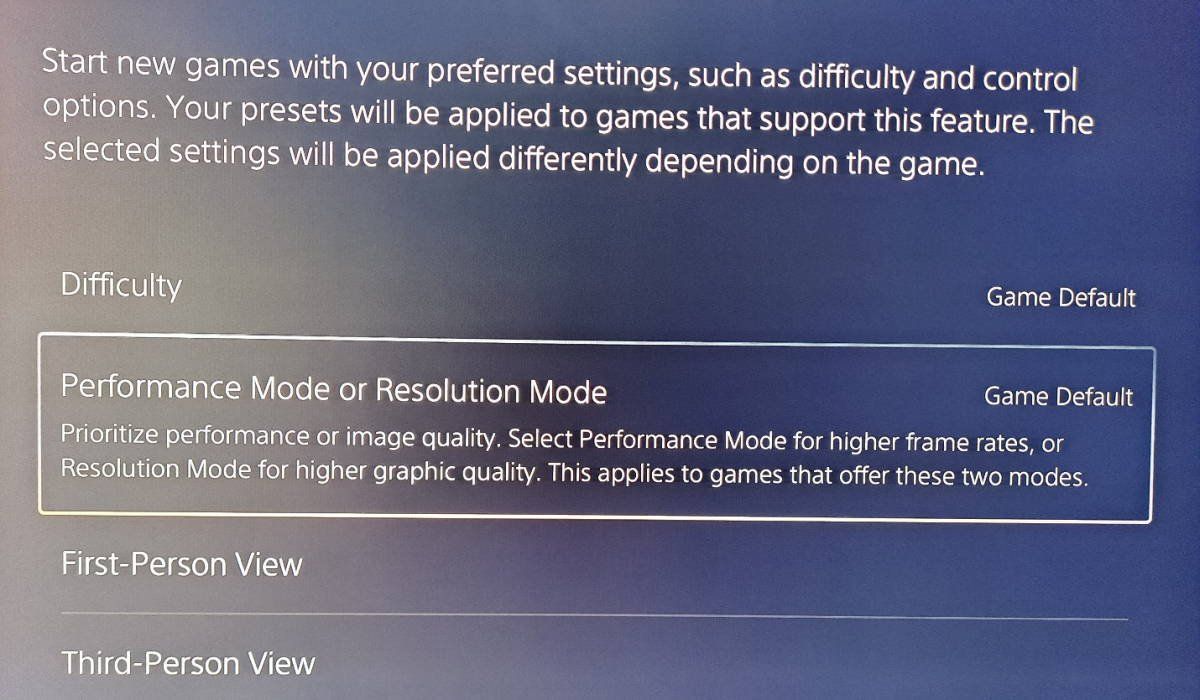
- Prioritize Performance Mode: Go to Settings > Saved Data and Game/App Settings > Game Presets, and select Performance Mode.
Performance Mode targets 60 FPS or 120 FPS by scaling resolution dynamically to 1080p. Higher frame rates cut rendering latency compared to 30 FPS fidelity modes, ensuring local inputs register before the next server synchronization tick.
Network Routing Across Platforms: PS5 vs PC vs Previous Gen
Hardware generations handle packet processing differently. The PS5 features Wi-Fi 6 and updated network interface controllers over older consoles, though it lacks the operating system-level routing controls available on PC.
The table below outlines the core networking capabilities across gaming platforms.
| Feature / Optimization | PlayStation 5 | PlayStation 4 | Gaming PC |
|---|
| Network Interface | Wi-Fi 6 / 1 Gbps Ethernet | Wi-Fi 4 or 5 / 1 Gbps Ethernet | Multi-Gigabit Ethernet / Wi-Fi 6E/7 |
| High Frame Rate Support | 120 FPS at 1080p | 30 to 60 FPS | Uncapped Frame Rates |
| Network Routing Configuration | Console DNS, MTU, Port Rules | Basic DNS, MTU Settings | OS-level IP Tables, Split Tunneling |
| Latency Mitigation Engine | Hardware Frame Pacing & Performance Mode | Standard Display Output | Driver Anti-Lag & Custom Kernel Queues |
| Traffic Management | Router-based SQM / QoS | Router-based SQM / QoS | Software-based Packet Prioritization |
The PS5 provides improved frame pacing and modern Wi-Fi 6 hardware compared to the PS4, relying on router-level SQM rather than software packet prioritization.
PC players often use specialized gaming VPNs that split-tunnel matchmaking handshakes while leaving primary game data unencrypted to prevent VPN overhead. Because the PS5 does not support native VPN clients, routing adjustments must be configured at the router gateway.
If you play import titles on PS5, managing account funds cleanly is essential. Grabbing a PlayStation Network Card (JP) gives you immediate access to the Tokyo digital catalog without dealing with regional credit card rejections.
Troubleshooting Persistent Server Spikes
If latency remains high after completing console and router configuration, the bottleneck sits upstream with your ISP's routing paths.
Some providers route international traffic through lower-cost peering agreements rather than direct subsea fiber lines. A packet traveling from Singapore to Tokyo, for instance, may route through North America before reaching Japan on poor transit tables.
To diagnose this:
* Contact ISP tier-2 support to check whether they maintain direct peering to Tokyo exchanges like JPNAP or BBIX.
* Test during off-peak hours (early morning) to isolate local node congestion from fixed physical latency.
* Confirm your home connection meets the 25 Mbps baseline and is not saturated by unmanaged upstream traffic.
FAQ
Does changing DNS lower my in-game ping to Japan servers?
No, changing your DNS resolver does not reduce latency during active gameplay. It only speeds up domain name lookups for matchmaking handshakes, store navigation, and patch initialization. Once a match begins, your connection routes directly via IP addresses handled by your ISP.
What is considered a good ping when playing on Japanese PS5 servers?
A ping under 25 ms is optimal for competitive multiplayer, while under 50 ms provides a smooth casual experience. Latencies over 100 ms will result in visible rubber-banding, delayed hit registration, and matchmaking disadvantages.
How do I force my PS5 to connect to the 5 GHz Wi-Fi band?
Go to Settings > Network > Settings > Set Up Internet Connection, highlight your network, press the Options button, and change Wi-Fi Frequency Bands to 5 GHz. This bypasses congested 2.4 GHz wireless frequencies and delivers substantially higher throughput.
Which router ports should I forward for PlayStation Network?
Forward TCP ports 80, 443, 1935, 3478-3480 and UDP ports 3478, 3479, 3658 to your PS5's static IP address. This establishes open inbound communication channels and secures an unrestricted NAT Type 2 connection.
How does bufferbloat cause lag spikes during online play?
Bufferbloat occurs when unmanaged household uploads or downloads fill your router queue, delaying real-time gaming packets. Implementing Smart Queue Management (SQM) on your router at 90-95% throughput mitigates this issue by keeping traffic moving freely.
Why should I switch my PS5 game settings to Performance Mode?
Performance Mode targets 60 FPS or 120 FPS by dynamically scaling resolution to 1080p, which substantially reduces frame rendering delay. This lowers input lag during competitive online multiplayer matches and sharpens controller responsiveness.
Can a gaming VPN lower my ping to Tokyo servers?
A specialized gaming VPN can only lower ping if your ISP uses inefficient international routing hops to reach Japan. Standard VPNs add heavy encryption overhead and extra server hops that usually increase your latency.
Final Tactical Assessment
Tuning a PS5 for Tokyo servers comes down to separating real networking mechanics from placebo fixes. DNS changes accelerate lobby handshakes and downloads, but they cannot shorten physical transit distances.
Focus on factors within your direct control. Run a Cat 6 Ethernet cable to remove packet jitter. Configure SQM on your router to manage bufferbloat. Forward required PSN ports to maintain NAT Type 2, and set console presets to Performance Mode to reduce input latency.
Addressing these local and gateway bottlenecks ensures your console reaches the lowest latency achievable on your ISP connection.