Optimize Tru Tien 3D best settings for locked 60 FPS and low battery drain. Stop guild PK stutter across Android, iOS, and PC emulator setups right now.
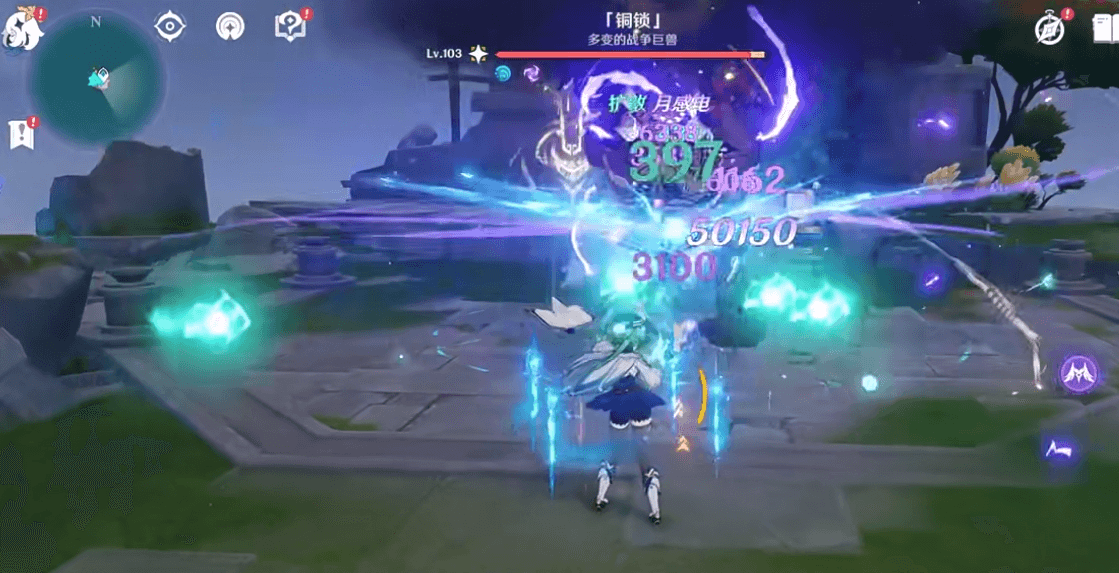
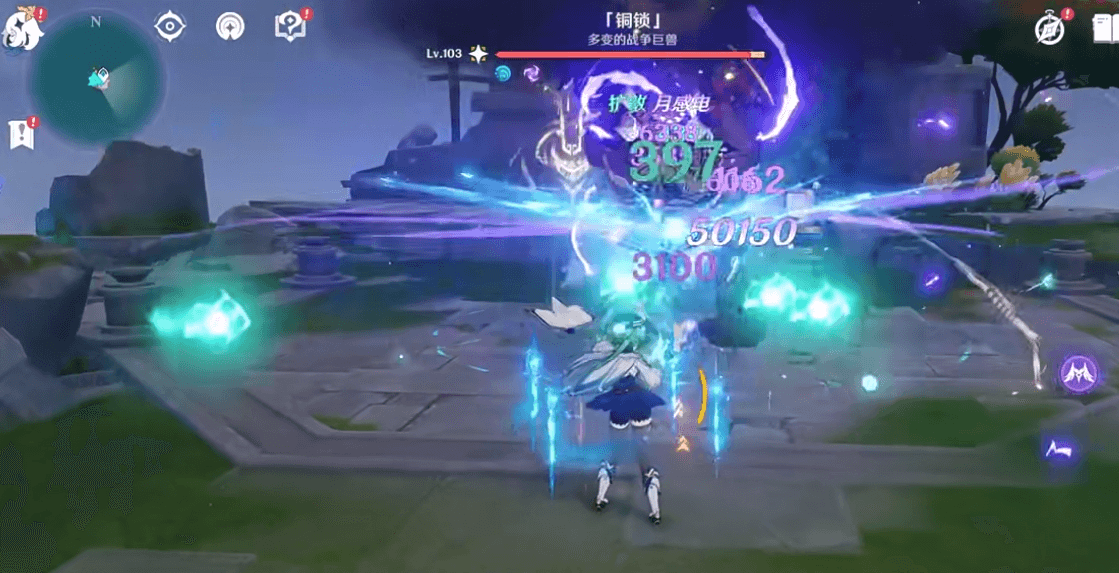
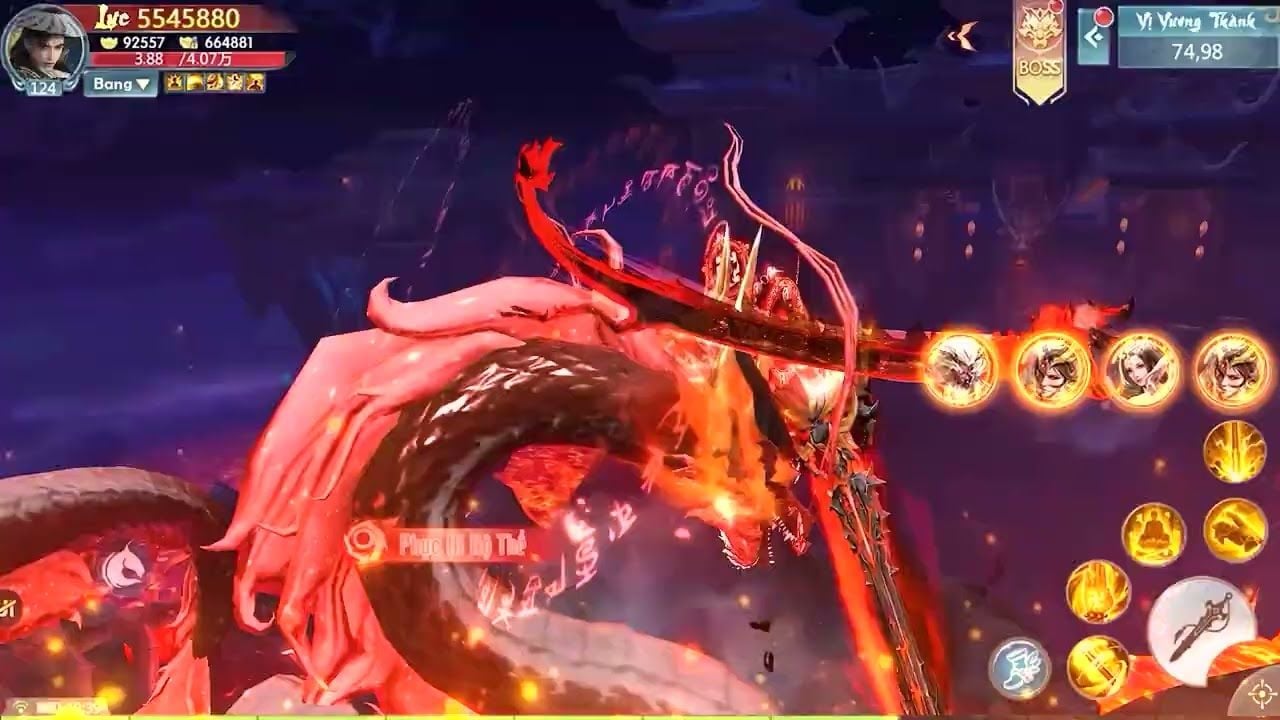
Lining up a lethal combo only to watch your screen lock into a slideshow is infuriating. You tap your sect skills, your flying sword hitches mid-cast, and your character collapses before the frame buffer updates. Perfect World built Tru Tien 3D (Thanh Van Chi) with an ambitious visual engine, and Gamota delivers massive battles where dozens of spell effects collide simultaneously. Unoptimized settings cause Tuyet Anh burst combinations and wide AoE strikes to cook your processor, trigger aggressive thermal throttling, and empty your battery in under an hour.
Locking in 60 frames per second does not require a thousand-dollar flagship phone. It requires understanding which visual toggles cost processing power without offering tactical value. Tested across budget hardware, modern flagships, and desktop emulators, these Tru Tien 3D settings ensure responsive controls, clear visual telegraphs for incoming burst damage, and stable battery temperatures during long grinding sessions.
Why Default Visuals Crush Frame Rates During Guild Wars
Tru Tien 3D packs 12 sects, elaborate flying sword animations, and combat scaling from 1v1 duels to sprawling guild territories. In peaceful faction hubs, the Ultra HD preset looks impressive: water reflections glisten, cloaks react to physics, and dynamic lights cast soft shadows across temple walls.
Territory wars break that smooth experience immediately. In large guild battles, your device must track and render movement coordinates, skill animations, health bars, and equipment auras for dozens of active players at once. Forcing the client to calculate individual dynamic shadows and ambient occlusion passes on top of that load triggers an instant hardware bottleneck.
Massive Combat Bottleneck Flow:
High Player Count -> Uncapped Shadows & Models -> CPU Draw Call Saturation -> GPU Fill-Rate Collapse -> Thermal Throttling -> Severe FPS Drop (78 FPS -> 55 FPS or worse)
Two rendering tasks cause almost all performance drops: uncapped player character models and dynamic shadows. In multi-character encounters, dense model geometry and real-time shadow passes bury the CPU in draw calls. Unculled scenes cause severe frame pacing spikes, crashing smooth 78 FPS gameplay down to 55 FPS or worse in milliseconds. Stripping away heavy ambient clutter while keeping combat cues crisp ensures your frame rate stays flat when full alliances collide.
Slider by Slider: The Ideal Balanced Configuration
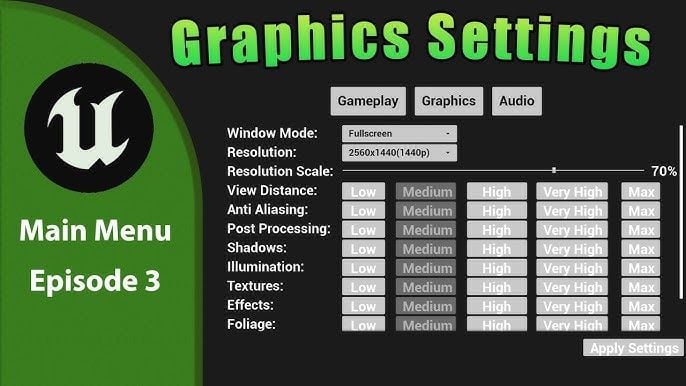
To achieve responsive input timing, sharp visual clarity, and sustained frame pacing, configure your system options menu with the following values:
- Frame Rate (FPS Cap): Set directly to High (60 FPS). Capping at 30 FPS introduces noticeable input lag during fast PvP reactions, while pushing beyond 60 Hz causes aggressive thermal buildup on mobile chips.
- Display Resolution: Select Medium (720p / 1280x720 internal rendering). Running native scaling on modern 1080p or 1440p mobile panels chokes mid-range GPUs. Dropping your rendering buffer down to 1280x720 keeps UI text crisp while cutting 3D fill-rate pressure in half.
- Player Display Limit (Character Culling): Drop to Low or Medium (10–15 Players). This is the single most critical setting for guild battles, preventing the engine from rendering high-poly armor models for distant characters.
- Shadow Quality: Toggle to Off or Low. Shadows offer zero tactical utility in PK encounters. Turning them off eliminates the CPU overhead needed to calculate dynamic lighting from dozens of moving players.
- Skill Effect Quality: Set to Medium or High. Never turn this completely off. You must clearly see telegraph circles, crowd control zones, and sect-specific animations like Tuyet Anh strikes to dodge incoming burst damage.
- Post-Processing (Bloom & Depth of Field): Set to Off. Bloom creates blinding light halos around bright skills, obscuring enemy animations and consuming valuable GPU memory bandwidth.
- Anti-Aliasing: Toggle to Off. While edge smoothing softens jagged lines, it increases render latency and blurs fine details in fast-motion combat.
- View Distance / Scene Detail: Set to Medium. Far terrain detail does not help you spot incoming enemy flankers in open-world Tien Hiep zones.
When preparing for massive guild events, you need uninterrupted performance. If you plan on recharging Appota game credits to secure essential guild war consumables and combat elixirs, configuring these visual sliders first ensures your investment is backed by smooth, responsive execution on the battlefield.
Three Tested Performance Profiles for Tru Tien 3D
Grinding overnight demands a completely different profile than defending an altar in a territory siege. Adjusting your visual toggles based on the activity keeps hardware cool without sacrificing competitive performance.
| Profile Name | Target Frame Rate | Resolution Scale | Character Limit | Shadow Quality | Skill Effects | Primary Use Case |
|---|
| Smooth PK / Guild War | 60 FPS Locked | Medium (720p) | Low (10 Players) | Off | High | Guild Wars, 5v5 Arenas, World Bosses |
| Battery Saver / Auto-Farm | 30 FPS Cap | Low / Medium | Lowest (5 Players) | Off | Low | Overnight Grinding, Daily Quests, Travel |
| PC Emulator High-Fidelity | 60 FPS Locked | High (1080p) | High (30+ Players) | Medium | High | Streaming, Story Quests, Solo Play |
Switching presets takes seconds in the options menu. When auto-cultivating away from an outlet, lock to 30 FPS on the Battery Saver preset to cut hardware load in half. On raid nights, flip to the Smooth PK profile for zero-delay dodges and rock-solid frame delivery.
Resolving the PC Emulator Renderer Debate: OpenGL vs DirectX
Running Tru Tien 3D on desktop emulators like BlueStacks allows for custom hotkeys and widescreen visibility, but setup guides often contradict each other. Some sources claim DirectX is mandatory for discrete graphics cards, while technical documentation shows OpenGL offers superior stability for Android MMORPG emulation.
Resolve the conflict based on your specific PC hardware:
- Integrated Graphics or Budget Systems: Select OpenGL. Its translation layer processes mobile shaders cleanly. Running at 1280x720 locked at 30 or 60 FPS on OpenGL prevents shader micro-stutters and relieves GPU strain.
- Modern Dedicated GPUs (NVIDIA/AMD): Test DirectX only if OpenGL causes audio desync or asset-streaming stutters. DirectX allocates video memory more aggressively, but Perfect World engines occasionally stutter under it during sudden skill bursts.
Recommended Emulator Engine Allocations:
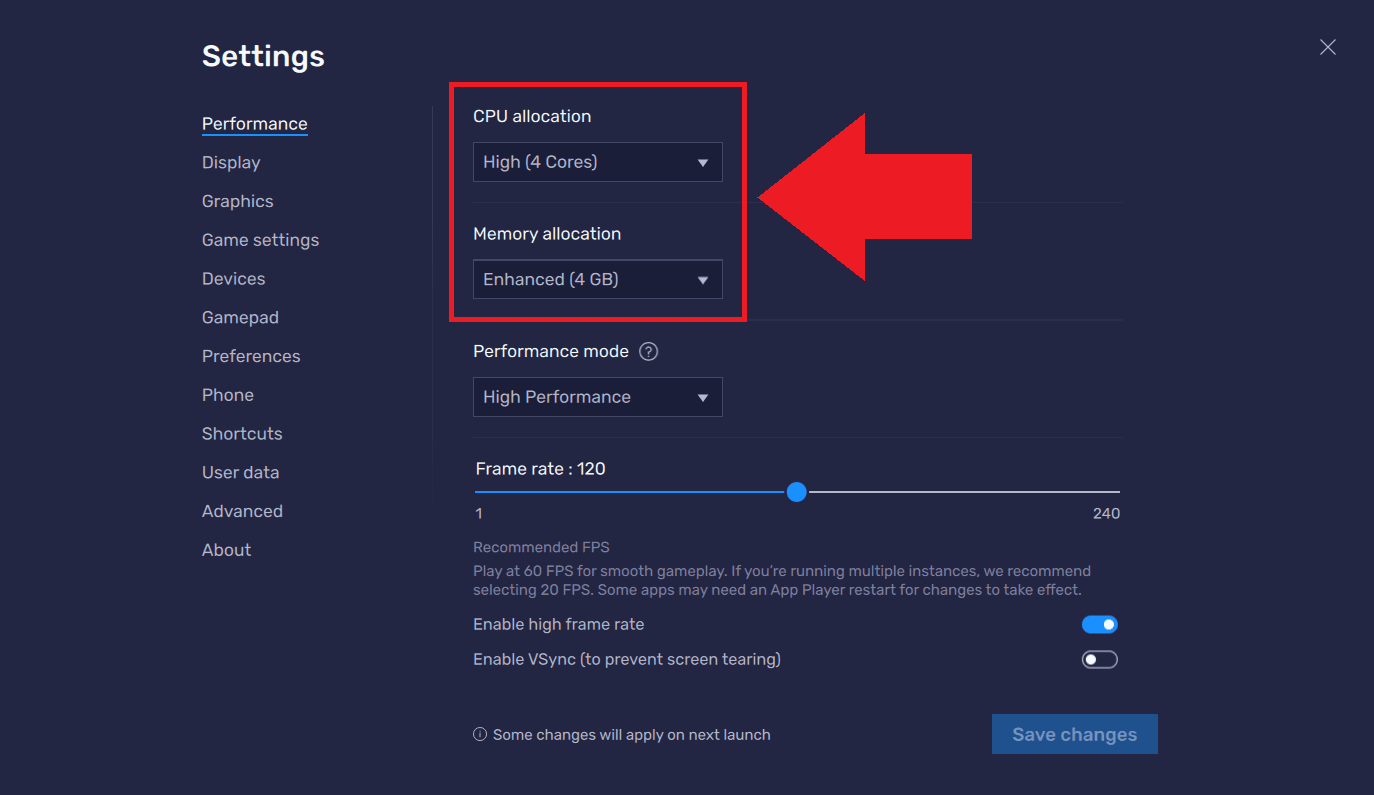
- CPU Cores: 4 Cores (prevents background thread starvation)
- Memory Allocation: 4GB RAM (prevents texture cache swapping)
- Display Resolution: 1280x720 (balances clarity and fill-rate)
- Power Profile: Windows High Performance Mode
Allocate 4 CPU cores and 4GB of RAM in your emulator settings, and pair them with the Windows High Performance power profile. On gaming laptops, watch out for utilities like NVIDIA Battery Boost. On battery power, these utilities forcefully restrict frame rates to 30 or 60 FPS and clamp GPU power budgets down to 18W, causing violent stutter until plugged back into the wall.
Battery Preservation: Capping Displays and Stopping Thermal Drain
Fast 90 Hz, 120 Hz, and 144 Hz smartphone screens deliver fluid OS scrolling, but leaving refresh rates uncapped in 3D MMORPGs drains batteries rapidly.
Display benchmarks show that jumping from a standard 60 Hz refresh rate to a 120 Hz or 144 Hz panel introduces an additional 10% to 30% system power draw. During crowded combat, uncapped 120 Hz rendering roughly doubles power usage compared to a 60 FPS cap. The mobile GPU works twice as hard to draw frames that blur together anyway in a fast-moving teamfight.
Power & Thermal Scaling:
- 120 Hz Uncapped Mode: 100% Power Draw -> High Heat -> Thermal Throttle at ~15 Mins
- 60 FPS Target: ~70% Power Draw -> Moderate Heat -> Stable Performance
- 30 FPS Cap (Game Mode): ~50% GPU Reduction -> Minimal Heat -> 4+ Hours Playtime
Android Game Mode throttling data demonstrates that enforcing frame rate limits (such as locking a 60 Hz or 120 Hz panel to 30 or 60 FPS) cuts GPU power draw by up to 50% and whole-system consumption by 20%.
If you are away from a charger during double-experience hours, drop straight to 30 FPS. It keeps chassis temperatures low and prevents the thermal tripwires that tank processor clocks.
Staying competitive during extended server wars requires steady resources. Stocking up on essential consumables with Appota cards online gives your sect an edge, but that edge evaporates if your phone runs out of juice right before the final fortress gate falls.
Platform Comparison: Mobile Hardware vs Virtualized Android
Configuring Tru Tien 3D requires different priorities depending on whether your client runs on an Apple device, an Android handset, or a PC desktop environment. Each environment presents distinct hardware bottlenecks.
| Platform | Optimal Rendering API | Target Resolution | Recommended Background Policy | Primary Performance Bottleneck |
|---|
| Android (Mid/High) | Native / Vulkan Path | 720p Scaled (Medium) | Let native OS manage background tasks | GPU thermal throttling over extended sessions |
| iOS (iPhone/iPad) | Metal Engine Layer | Device Native Scaled | Close heavy non-system background apps | Dynamic brightness and thermal clock throttling |
| PC (BlueStacks/Low-End) | OpenGL | 1280x720 | Assign High Task Priority in Windows | CPU core scheduling and draw-call translation |
| PC (BlueStacks/High-End) | DirectX / OpenGL | 1920x1080 | Allocate 4 Cores and 4GB RAM | Emulator virtualization cache overhead |
Operating system architecture dictates how the game behaves under heavy load.
On iOS, thermal management is your main adversary. Once an iPhone heats up, iOS dims the screen and drops clock speeds to protect battery health. On Android, aggressive thermal governors drop frame rates straight from 60 to 30 FPS without warning. On PC, the bottleneck is almost always virtualization overhead, which proper CPU core assignment resolves.
System-Level OS Tweaks That Prevent Device Throttling
In-game toggles are only half the battle. Tuning your phone's operating system keeps background processes from sabotaging your frame pacing.
The Memory Cleaner Myth
A persistent misconception on mobile gaming forums claims that third-party task killers improve frame rates. Modern operating system kernel documentation reveals the exact opposite: aggressive background task killing tools degrade mobile battery efficiency instead of enhancing it.
When a cleaner app forces background services closed, the mobile operating system immediately restarts essential framework processes. This creates a perpetual cycle of CPU wakeups, spiking processor utilization and generating excess heat. Let your native operating system scheduler handle memory. Never run third-party cleaner tools while gaming.
Developer Options Optimization
Android users can strip out UI overhead by unlocking Developer Options:
- Animation Scales: Scroll down to Window animation scale, Transition animation scale, and Animator duration scale. Change all three from 1.0x to 0.5x. This halves system animation latency, making menu transitions and app switching significantly snappier.
- Android 15 Frame Rate Override: If your device runs Android 15, explore the experimental developer toggle labeled "disable default frame rate for games". This system setting modifies low-level properties to allow titles to bypass restrictive vendor-imposed 60 Hz Game Mode caps on supported high-refresh panels.
OS Maintenance Best Practices:
- Free Internal Storage: Keep 20% to 30% available space to avoid write throttling.
- Thermal Management: Remove thick protective phone cases during PvP.
- Charging Discipline: Avoid heavy 60 FPS guild combat while fast-charging.
Finally, check your device storage. Modern mobile operating systems utilize high-speed solid-state flash memory that requires open space for wear leveling and temporary cache allocation. Maintaining 20% to 30% free device storage prevents internal read/write throttling, ensuring game textures and character models stream into memory without stuttering.
Network Stability and Combat Cue Visibility During Mass PK
Many players confuse network latency with hardware frame drops. If you press a skill button and your character pauses before executing the strike, or if enemy players suddenly teleport across the screen, you are dealing with network lag rather than a GPU bottleneck.
| Setting / Factor | Rendering Cost | Impact on Combat Clarity | Recommended Competitive Choice |
|---|
| Player Model Limit | Extreme (CPU heavy) | High (Shows nearby threats) | Low (10-15): Enough to see immediate targets |
| Shadow Rendering | High (GPU fill-rate) | None (Pure cosmetic eye-candy) | Off: Saves massive processing headroom |
| Skill Special Effects | Medium (GPU/VRAM) | Critical (Telegraphs enemy burst) | High: Necessary for dodging crowd control |
| Post-Processing Bloom | Medium (GPU fill-rate) | Negative (Blinds view in battles) | Off: Clears screen of visual noise |
| 5 GHz Wi-Fi Connection | Zero (Network) | Critical (Prevents rubberbanding) | Mandatory: Drops packet loss during PK |
Connection stability matters far more than raw speed. You do not need a gigabit connection to run Tru Tien 3D smoothly; you need low jitter and zero packet loss. Always play competitive PvP over a clean 5 GHz Wi-Fi network or a stable multi-path connection. Microwave ovens, thick concrete walls, and crowded 2.4 GHz bands introduce severe packet drops that make high-speed dodging impossible.
Make sure your visual settings complement your network setup. Keeping skill special effects on High while turning off Bloom, Shadows, and Anti-Aliasing gives you the cleanest visual pipeline possible. You will instantly recognize enemy cast circles and faction telegraphs without overwhelming your phone's processor.
Before jumping into weekly cross-server guild competitions, make sure your character is fully prepped. Completing an Appota top up beforehand ensures you have all the recovery pills, teleport scrolls, and buff charms ready in your inventory so you never have to scramble mid-battle.
FAQ
What in-game settings should I lower first to eliminate lag during guild PK?
Lower your on-screen character model limit to Low (10–15 players) and disable dynamic shadows entirely. These two settings cause the heaviest CPU draw call bottlenecks and GPU fill-rate strain when dozens of players cast skills simultaneously.
Why does my phone overheat and drop from 60 FPS down to 30 FPS in Tru Tien 3D?
Your phone is engaging thermal throttling to protect internal hardware from heat damage. High resolution scaling, uncapped display refresh rates, and heavy post-processing generate excess heat; lowering resolution to Medium (720p) and turning off bloom prevents thermal caps from kicking in.
Is running Tru Tien 3D at 60 FPS better than 30 FPS for battery life?
No, running at 30 FPS consumes substantially less power than 60 FPS. Locking your client to 30 FPS cuts GPU power consumption by up to 50%, making it the ideal setting when grinding auto-combat away from a charger.
What are the recommended BlueStacks emulator settings for Tru Tien 3D on a low-end PC?
Configure the emulator to use 4 CPU cores, 4GB of RAM, and a display resolution of 1280x720 using the OpenGL graphics renderer. In Windows, set your emulator process priority to High to prevent frame pacing stutter during large battles.
Should I keep skill effects turned off during competitive PvP?
No, keep skill effects set to Medium or High so you can react to opponent attack telegraphs, stun circles, and sect-specific burst skills. Instead, turn off non-combat visual eye candy like shadows, bloom, and edge smoothing to gain performance.
Does gaming while charging improve Tru Tien 3D performance on mobile?
No, playing while charging introduces severe battery heat that triggers aggressive hardware throttling much faster. If you must charge while playing, remove your phone case and use a cooling fan to keep surface temperatures low.
My Final Take on Competitive Visual Tuning
Maxing out graphic presets in a competitive mobile MMORPG is a vanity trap. Tru Tien 3D looks gorgeous with every toggle maxed out, but the moment a guild war breaks out, those visual flourishes will drag your performance down into unplayable territory. Competitive players do not care about soft foliage shadows or atmospheric light bloom; they care about seeing enemy positioning, tracking spell telegraphs, and landing their skills without frame drops.
Lock your game to 60 FPS, set your resolution to 720p, limit your visible character models to 10 or 15, and turn off shadows completely. This setup eliminates thermal throttling, keeps your device responsive through extended fights, and ensures your hardware never costs you a victory.