What Data SUGO Collects Through Location Services
Collection extends beyond GPS coordinates. SUGO automatically captures:
- Region settings from device configurations
- IP address from network connections
- Device ID, model, OS version
- Language preferences
- Network carrier and connection type
Public profiles and photos become visible platform-wide by default, creating privacy exposure when combined with location data. The app stores information on global servers including US facilities, meaning your location data crosses international boundaries.
Verification adds another layer. Phone numbers get collected during setup, confirmed via SMS. Streamers undergo facial data processing for certification, though SUGO states video footage isn't retained after verification.
Why Public Room Users Should Disable Location Tracking
Public rooms present unique privacy risks—content and participant information become visible platform-wide. When location tracking remains enabled, strangers can correlate your voice chat participation with approximate geographic positioning.
The combination of public profile visibility, location data, and real-time chat creates a digital footprint extending beyond immediate conversation. Users frequently joining public rooms without location restrictions may inadvertently reveal patterns about daily routines, home/work locations, and travel habits.
Location-based matching algorithms prioritize showing you to nearby users and vice versa. While this enhances local community building, it narrows down your physical location for anyone analyzing room participant patterns. Disabling location tracking breaks this geographic correlation, allowing truly anonymous participation.
Device-Level vs App-Level Permissions
Device-level permissions control what data SUGO can access from your phone's hardware and OS. These settings exist in iPhone or Android system preferences, completely outside the SUGO app. When you deny location access at this level, the app cannot retrieve GPS coordinates regardless of internal settings.
App-level permissions refer to privacy controls within SUGO's settings menu. These determine how the platform uses already-collected data and what gets shared with other users. Even with restrictive app-level settings, SUGO still receives coarse location through IP address analysis unless you use additional privacy tools.
Critical distinction: device-level permissions prevent data collection at source, while app-level settings only control data usage and sharing. Comprehensive protection requires configuring both layers.
How Location Tracking Works in SUGO Public Rooms
Location tracking activates through multiple triggers during normal usage. Initial permission request appears during first launch, asking for location services access. This prompt specifically requests GPS permission, falling under Position data collected with explicit authorization.
The app distinguishes between foreground and background access. Foreground tracking occurs only when SUGO is actively open, while background tracking continues after you close the app. This persistent background collection enables location-based notifications and automatic nearby user updates but represents the most privacy-invasive mode.
Room matching algorithms process location data real-time to populate nearby sections and prioritize showing public rooms with geographically proximate participants. The system combines GPS precision (when granted) with coarse IP-based positioning to create tiered proximity rankings.
GPS Permission Requests During First Launch
First-time setup includes system-level permission dialog asking for location access. On iOS, this appears as standard Apple permission prompt with Allow While Using App,Allow Once, or Don't Allow. Android presents Allow all the time,Allow only while using the app, or Deny.
Many users instinctively tap Allow during rapid onboarding without considering long-term implications. This single decision grants SUGO continuous access to precise GPS coordinates, which the platform combines with other data like device ID and phone number to create comprehensive user profiles.
The request mentions location-based features like finding nearby users and regional room recommendations but doesn't detail how long data gets retained, how it's shared, or whether it's used beyond stated features.
How SUGO Uses Location Data for Room Matching
Location-based room discovery operates through proximity algorithms calculating distances between users and active public rooms. When browsing available rooms, the platform prioritizes displaying options where participants share your approximate region. This creates localized communities but reveals your general area to room administrators and active participants.
The nearby feature leverages GPS precision when available, falling back to IP-based coarse location when GPS access is denied. Network type information supplements this to estimate whether you're stationary or mobile, potentially indicating home versus commute locations.
Regional content filtering also depends on location data. SUGO automatically adjusts room suggestions based on detected region, showing language-appropriate options and culturally relevant content.
Real-Time Location Sharing vs Background Tracking
Real-time sharing occurs during active voice chat sessions when you've joined a public room. The platform can display proximity indicators to other participants, showing relative distances without revealing exact addresses.
Background tracking represents more invasive collection. Even when SUGO isn't actively open, the app can continue monitoring GPS position if you granted Always Allow permission. This persistent tracking enables features like location-based push notifications but creates continuous location history logs.
Disabling background access while permitting foreground-only tracking offers middle ground—you can use location features when actively engaging but prevent passive position monitoring during daily activities.
Step-by-Step: Disable Location Tracking on iPhone
iOS provides granular location permission controls through Settings app, allowing complete revocation of SUGO's GPS access. These system-level restrictions override any in-app settings.
Accessing iOS Privacy Settings for SUGO
- Open Settings app from home screen
- Scroll down and tap Privacy & Security
- Select Location Services at top of privacy menu
- Scroll through app list and tap SUGO
The SUGO location settings screen displays current permission level and provides modification options. You'll see when the app last accessed your location and whether it requested background tracking privileges.
Changing Location Access to 'Never'
On SUGO location settings screen, you'll find four options:
- Never: Completely blocks all location access
- Ask Next Time Or When I Share: Prompts for permission each session
- While Using the App: Allows access only when SUGO is open
- Always: Permits continuous background tracking
Tap Never to completely disable location tracking. This prevents SUGO from accessing GPS coordinates, though the app still collects coarse location through IP address analysis.
Confirmation dialog may warn that some features will be limited. Tap Change to Never to confirm. Setting takes effect immediately without requiring app restart.
Verifying Location Services Are Disabled
Return to main Location Services menu in iOS Settings. Apps with active location access show purple arrow icon next to names. SUGO should display no arrow indicator after setting permissions to Never.
Open SUGO and navigate to location-based features like Nearby Users or regional room recommendations. The app should display generic content without geographic customization or show prompt requesting location permission. Don't re-enable access if this prompt appears.
Check location permission status periodically, especially after SUGO app updates. Some applications attempt to reset permissions during major version upgrades.
Step-by-Step: Disable Location Tracking on Android
Android's permission management offers similar controls to iOS but with slightly different navigation depending on device manufacturer and Android version. These instructions apply to stock Android 11 and newer.
Navigating Android App Permissions Menu
- Open Settings from app drawer or notification shade
- Tap Apps or Applications
- Select See all apps or App info
- Scroll to find SUGO and tap to open app details
- Tap Permissions to view all granted access categories
Permissions screen lists all data categories SUGO has requested, including Location, Camera, Microphone, Storage, and Phone. Each shows whether access is Allowed or Denied.
Revoking Location Access for SUGO
Tap Location permission entry to open detailed controls. Android presents three options:
- Allow all the time: Continuous background tracking
- Allow only while using the app: Foreground access only
- Don't allow: Complete location blocking
Select Don't allow to prevent all GPS access. Android may display warning that SUGO won't work properly without this permission. This warning is generic—core voice chat functionality continues working.
For enhanced privacy, check Remove permissions if app isn't used toggle at bottom of permissions screen. This automatically revokes permissions if you don't open SUGO for several months.
Using Android Privacy Dashboard for Monitoring
Android 12 and newer include Privacy Dashboard showing which apps accessed sensitive permissions in last 24 hours. Access through:
- Settings > Privacy > Privacy Dashboard
- Tap Location tile to see recent access logs
- Verify SUGO doesn't appear in timeline
Dashboard displays exact timestamps when apps accessed location data, helping detect unauthorized tracking. If SUGO appears after you've denied permissions, it indicates the app is using alternative location detection methods like IP address analysis, which device permissions cannot block.
Set calendar reminder to check Privacy Dashboard weekly during first month after disabling location tracking.
Configuring In-App SUGO Privacy Settings
Device-level permissions prevent GPS collection, but SUGO's internal privacy controls determine how the platform uses information still collected through IP addresses and Wi-Fi networks. Configuring these app-level settings adds second privacy layer.
For users maintaining premium features while protecting privacy, top up sugo app credits through BitTopup enables secure transactions without exposing additional personal information.
Accessing SUGO Privacy Control Panel
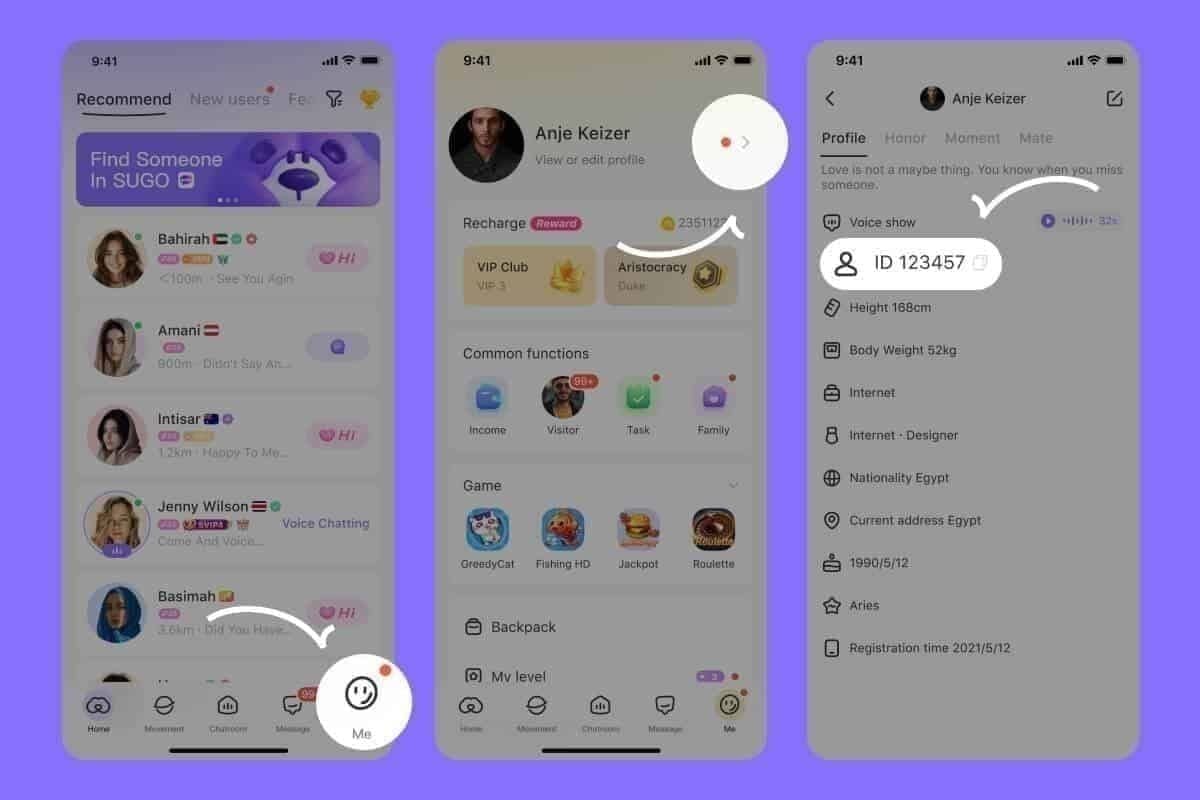
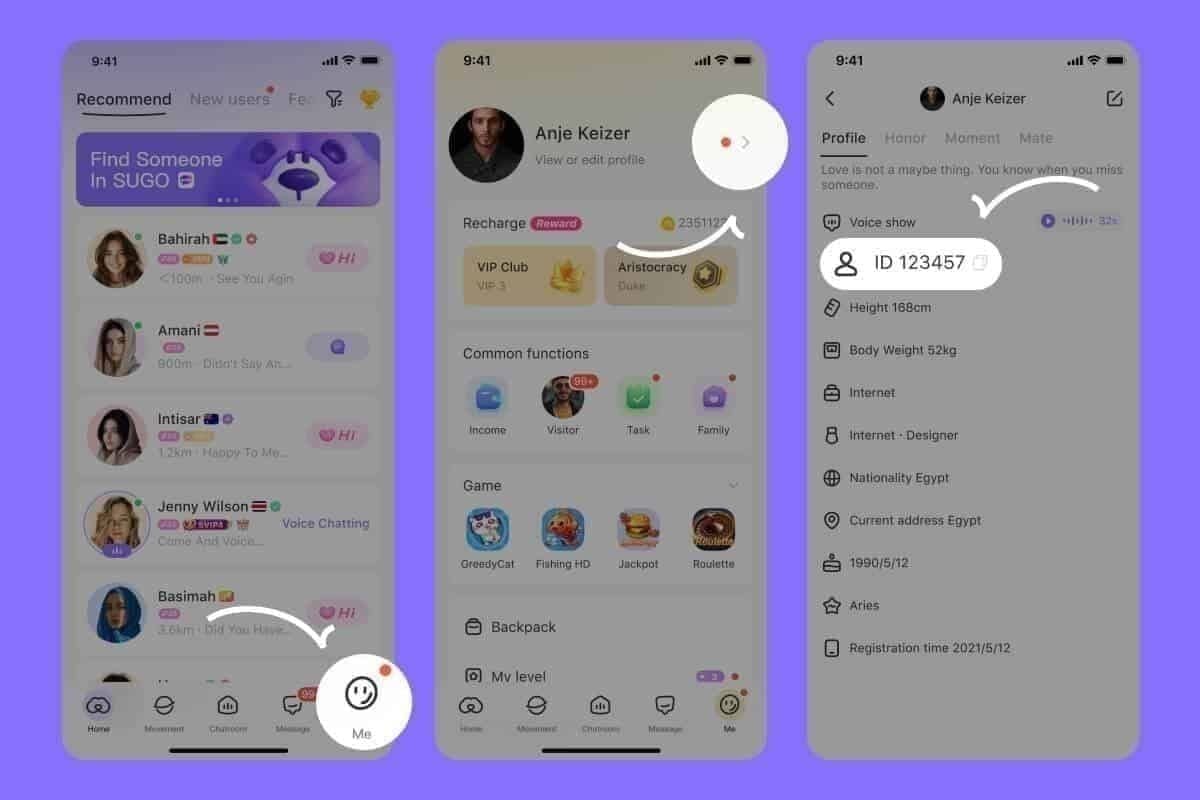
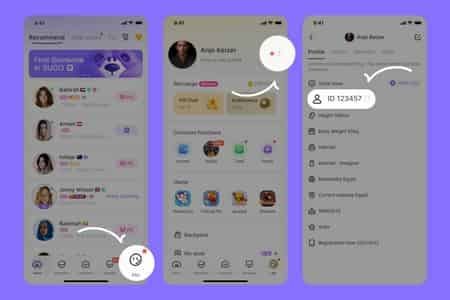
- Open SUGO app and tap Me in bottom navigation
- Tap Settings gear icon in top-right corner
- Scroll down to find Privacy or Privacy Settings
- Review all available privacy toggles and visibility controls
Privacy menu contains multiple sections controlling different aspects of data sharing. Settings are organized by feature category rather than data type, requiring individual section review.
Disabling Location-Based Room Suggestions
Within privacy settings, look for discovery and recommendation options:
- Show me in nearby suggestions: Toggle OFF
- Location-based room matching: Toggle OFF
- Regional content preferences: Set to Global instead of Local
These settings don't prevent SUGO from collecting location data but instruct the platform not to use that data for matching you with nearby users or rooms. Your profile won't appear in other users' nearby lists.
Note that even with these disabled, SUGO still collects coarse location through IP addresses for technical purposes like server routing and content delivery.
Setting Profile Visibility to Anonymous Mode
Public profiles and photos remain visible platform-wide by default. Restrict this visibility through:
- Navigate to Settings > Privacy > Profile Visibility
- Change from Public to Friends Only or Private
- Review Photo Visibility settings separately
- Disable Show Online Status to prevent activity tracking
Privacy documentation confirms public room content remains visible platform-wide regardless of profile settings. However, restricting profile visibility prevents users from accessing your personal information and photo gallery when they encounter you in public rooms.
Consider creating separate public room persona with minimal profile information if you frequently participate in open discussions.
Common Mistakes When Disabling Location Tracking
Privacy protection fails when users implement incomplete measures, leaving gaps that continue exposing location data.
Only Changing In-App Settings Without Device Permissions
Most frequent mistake involves adjusting SUGO's internal privacy toggles while leaving device-level location permissions enabled. This fails because the app continues collecting GPS data at system level, regardless of how it claims to use that data.
In-app settings control data usage and sharing policies, not data collection itself. SUGO's privacy toggles determine whether your location appears to other users, but the platform still gathers and stores position data on servers when device permissions allow access.
Effective protection requires two-step approach: first deny location access through iOS or Android system settings, then configure in-app privacy controls to restrict usage of coarse location data SUGO still collects through IP addresses.
Forgetting to Disable Background Location Access
Many users select While Using App permission thinking it provides adequate protection, not realizing this still allows location tracking whenever SUGO runs in background. The app can remain active for hours after you close it, continuing to log GPS coordinates.
Background location tracking creates most comprehensive location history because it captures movements throughout the day, not just during active chat sessions. This data reveals home and work addresses, daily routines, frequently visited locations, and travel patterns.
The only permission setting that completely prevents GPS tracking is Never on iOS or Don't allow on Android. Intermediate options still permit substantial location data collection.
Assuming VPN Alone Protects Location Privacy
VPN services mask your IP address, preventing SUGO from determining coarse location through network analysis. However, VPNs don't block GPS access—if you've granted location permissions, the app still retrieves precise coordinates directly from device's GPS hardware.
This creates false security where users believe their VPN provides complete anonymity while SUGO simultaneously accesses exact GPS positioning through granted permissions. The app receives two location data streams: masked IP geolocation (showing VPN server location) and accurate GPS coordinates (showing real position).
Comprehensive protection requires both VPN usage for IP masking and denied location permissions for GPS blocking. Neither solution alone provides complete privacy.
Verifying Your Location Privacy Is Protected
Configuration alone doesn't guarantee protection. Verification testing confirms privacy settings work as intended and haven't been reset by app updates or system changes.
Testing Location Status in SUGO Settings
Open SUGO and navigate to features that typically use location data:
- Nearby Users: Should show Location access required message or display users from random regions instead of proximity-based results
- Room Recommendations: Should present generic popular rooms rather than regionally customized suggestions
- Profile Location: Should show no city/region information or display generic Unknown Location
If these features continue showing location-specific content after you've denied permissions, the app is using IP-based geolocation as fallback. This coarse positioning is less precise than GPS but still reveals approximate city or neighborhood.
Test immediately after changing settings, then retest 24 hours later to confirm configuration persists.
Checking Device Permission Logs
iOS and Android maintain permission access logs showing when apps use sensitive data:
iOS: Settings > Privacy & Security > Location Services > Scroll to bottom > System Services > Significant Locations
Android: Settings > Privacy > Privacy Dashboard > Location (shows 24-hour access timeline)
SUGO should not appear in these logs after you've denied location permissions. If the app shows recent access timestamps, either permissions weren't properly saved or SUGO is exploiting system vulnerability to bypass restrictions.
Document any unauthorized access with screenshots and report through official support channels.
Signs That Location Tracking Is Still Active
Several indicators suggest location tracking remains active:
- Room recommendations consistently show venues in your actual city
- Nearby users displays profiles from immediate geographic area
- Other users in public rooms reference your approximate location
- Battery drain increases significantly (GPS tracking consumes substantial power)
- Location services icon appears in status bar when SUGO is open
Cross-reference these signs with permission logs. If symptoms suggest active tracking but logs show no access, SUGO is likely using IP-based coarse location, which device permissions cannot block. This requires additional privacy measures like VPN usage.
Impact on SUGO Features After Disabling Location
Location tracking powers several platform features. Disabling it creates functional changes in how you experience SUGO.
How Room Discovery Changes Without Location Data
The Nearby section becomes non-functional or displays random rooms from various regions instead of proximity-based results. Room recommendations shift from geographically relevant suggestions to popularity-based rankings, showing most active rooms regardless of participant locations.
This change expands your social exposure beyond local communities. Without location filtering, you encounter diverse participants from different regions, cultures, and time zones. Many privacy-focused users prefer this global discovery approach.
Search functionality remains fully operational. You can still find specific rooms by name, topic, or language preference. The only limitation affects automatic recommendations and dedicated nearby discovery section.
Alternative Methods for Finding Relevant Public Rooms
Without location-based discovery, adopt these strategies:
- Topic-based search: Use keywords related to your interests
- Language filters: Select preferred language to find culturally relevant rooms
- Popularity rankings: Browse Trending or Most Active sections
- Friend recommendations: Ask contacts to share room links
- Time-based browsing: Check room activity during your typical usage hours
These alternative discovery methods often surface higher-quality communities than simple geographic proximity.
Features That Continue Working Normally
Core SUGO functionality operates independently of location data:
- Voice chat quality
- Text messaging
- Profile customization
- Friend connections
- Virtual gifts
- Room creation
- Account management
Privacy documentation confirms location data specifically supports nearby discovery features and regional content filtering. All other functionality operates through network connectivity and account authentication.
Advanced Privacy Tips for SUGO Public Room Users
Experienced privacy-conscious users implement layered protection strategies combining multiple techniques for comprehensive anonymity.
Combining Multiple Privacy Features for Maximum Protection
Layer these privacy measures:
- Device permissions: Deny location access through iOS/Android settings
- VPN service: Mask IP address to prevent coarse location detection
- In-app privacy: Restrict profile visibility and disable location-based features
- Separate email: Use dedicated email not linked to real identity
- Burner phone number: Consider virtual phone numbers for SMS verification
- Payment privacy: Use privacy-focused payment methods for coin purchases
Each layer addresses different tracking vectors. Device permissions block GPS, VPNs mask IP geolocation, in-app settings control data sharing, and identity separation prevents cross-platform correlation.
BitTopup's secure transaction processing supports this privacy-layered approach by minimizing personal data requirements during SUGO coin purchases.
Creating Separate Accounts for Public vs Private Interactions
Compartmentalization strategy involves maintaining two distinct SUGO accounts:
Public Account: Used exclusively for open room participation with minimal profile information, restricted photos, generic username, and maximum privacy settings. This account assumes all activity is publicly visible.
Private Account: Reserved for trusted friend connections with more personal information, real photos, and identifiable username. Location features can remain enabled since you only interact with known contacts.
This separation prevents privacy breaches in public rooms from exposing your private social network.
Regular Privacy Audits and Settings Reviews
Establish quarterly privacy review routine:
Every 3 months:
- Verify device location permissions remain set to Never/Don't allow
- Review SUGO in-app privacy settings for changes after updates
- Check permission access logs for unauthorized location tracking
- Update VPN configuration and verify connection stability
- Review friend list and remove inactive or unknown contacts
- Audit public room participation history
App updates frequently reset privacy settings to defaults or introduce new data collection features with opt-out requirements. Regular audits catch these changes before they accumulate significant privacy exposure.
Troubleshooting Location Permission Issues
Configuration problems occasionally prevent proper privacy settings implementation.
SUGO Won't Open After Disabling Location
Some app versions display errors or refuse to launch when location access is denied.
Solution approaches:
- Force close and restart: Completely quit SUGO, wait 30 seconds, then reopen
- Clear app cache: iOS users reinstall app; Android users clear cache through Settings > Apps > SUGO > Storage > Clear Cache
- Temporary permission grant: Enable location briefly to open app, then immediately disable after reaching main screen
- Contact support: Report issue to support@sugo.com or customer@sugo.com
If SUGO consistently refuses to operate without location permissions, this indicates problematic app design prioritizing data collection over user privacy.
Location Toggle Keeps Resetting to Enabled
Permissions that automatically re-enable suggest either app bugs or intentional circumvention of user privacy choices.
Diagnostic steps:
- Check for app updates: Install latest SUGO version
- Verify OS version: Ensure iOS or Android is updated to latest version
- Test in airplane mode: Disable network connectivity, change location settings, verify they persist after reconnecting
- Review device management: Check if employer MDM profiles or parental controls override settings
Document issue with screen recordings showing permission reverting to enabled. Submit evidence to SUGO support and request explanation.
App Crashes When Changing Privacy Settings
Stability issues during privacy configuration suggest software bugs or conflicts with device security features.
Troubleshooting sequence:
- Update SUGO: Install latest app version
- Restart device: Power cycle phone to clear temporary system conflicts
- Free storage space: Ensure at least 1GB free storage
- Disable other privacy tools: Temporarily turn off VPNs, ad blockers, or security apps
- Reinstall SUGO: Delete and reinstall app (note: this erases local data)
If crashes persist, report problem through official support channels with device model, OS version, and exact steps triggering crash.
Maintaining Privacy While Enjoying SUGO Features
Privacy protection doesn't require abandoning platform features. Strategic configuration allows participation in public rooms while maintaining anonymity.
Using SUGO Coins and Premium Features Anonymously
Premium features enhance voice chat experience without requiring additional personal data exposure. Virtual gifts, room decorations, and profile customization operate independently of location tracking.
When purchasing SUGO coins, payment method selection impacts privacy. Credit cards link transactions to real identity, while privacy-focused payment platforms offer greater anonymity.
Monitor transaction history through Settings > Account and Safety to verify purchases process correctly without exposing unnecessary personal information.
How BitTopup Supports Secure Transactions Without Location Data
BitTopup's streamlined recharge process minimizes data collection during SUGO coin purchases. The platform's competitive pricing, fast delivery, and secure transaction infrastructure enable access to premium features without compromising privacy through excessive personal information sharing.
The service's high user ratings reflect commitment to customer privacy and transaction security. By specializing in gaming platform recharges, BitTopup maintains expertise in secure payment processing that respects user anonymity while ensuring reliable coin delivery.
Balancing Social Features with Privacy Protection
Effective privacy management involves strategic feature selection:
Enable for trusted interactions:
- Private rooms with verified friends
- One-on-one voice calls with known contacts
- Direct messaging with established connections
Disable for public participation:
- Open room browsing and participation
- Nearby user discovery
- Location-based room recommendations
- Profile visibility to strangers
This selective approach maximizes privacy protection in high-risk scenarios while maintaining convenience in low-risk contexts.
Withdrawing Consent and Exercising Data Rights
Beyond preventing future tracking, you can request deletion of previously collected location data through formal consent withdrawal and data rights procedures.
The platform's privacy framework allows users to withdraw previously granted consent by contacting support@sugo.com or customer@sugo.com. This process requires identity verification to confirm you're the legitimate account holder.
To exercise data rights including access, correction, or deletion of collected information, send formal request to privacy support emails after completing identity verification.
For complete data removal, account deletion offers most comprehensive solution. Navigate to Me > Settings > Account and Safety > Delete account > Request deletion. This initiates 7-day withdrawal window during which you can cancel. After this period expires, permanent account deletion removes all associated identity information, content, benefits, history, friend connections, and chat logs.
Account deactivation provides reversible alternative, allowing restoration within 30 days. Photos get deleted within 14 days following deactivation period.
FAQ
Does SUGO track your location in public rooms?
Yes, SUGO collects coarse geolocation automatically through IP addresses and Wi-Fi networks, plus GPS location if you've granted explicit permission. Public room participation doesn't disable this tracking—you must manually revoke location permissions through device settings to prevent GPS access.
How do I turn off location services for SUGO?
On iPhone: Settings > Privacy & Security > Location Services > SUGO > Never. On Android: Settings > Apps > SUGO > Permissions > Location > Don't allow. These device-level settings prevent GPS tracking, though SUGO still collects approximate location through IP address analysis.
Can other users see my location in SUGO voice chat?
Not your exact address, but location-based features may reveal your approximate region. When location tracking is enabled, you appear in other users' nearby lists, and room matching algorithms prioritize connecting you with geographically proximate participants. Disable location permissions and in-app nearby features to prevent this exposure.
What happens when I disable location tracking in SUGO?
Core features like voice chat, messaging, and friend connections work normally. Location-based features stop functioning: nearby user discovery shows random results instead of proximity matches, room recommendations shift from regional to popularity-based, and your profile won't appear in other users' nearby lists.
Can SUGO still collect location data if permissions are off?
Yes, through IP address analysis. Device permissions only block GPS access—SUGO still determines your approximate city or region from your internet connection's IP address. Complete location privacy requires combining denied permissions with VPN usage to mask your IP address.
How to check if SUGO is accessing my location?
iOS: Settings > Privacy & Security > Location Services (purple arrow next to SUGO indicates active access). Android: Settings > Privacy > Privacy Dashboard > Location (shows 24-hour access timeline). SUGO should not appear in these logs after you've denied location permissions.
Protect your privacy and enhance your SUGO experience! Get SUGO coins securely through BitTopup without sharing unnecessary personal data. Enjoy premium features while maintaining complete anonymity in public rooms with competitive pricing, fast delivery, and secure transactions that respect your privacy choices.