Understanding MICO Live App Crashes on iPhone 14
MICO Live crashes represent 7.1% of platform issues, with 10 documented problems from 4 user reports. The app requires iOS 15.0+ and occupies 323.5 MB in version 9.0.61. iPhone 14 users face specific challenges from app resource demands and iOS system management interaction.
Reports from February 14, 2025 (Sochi, Russia), November 3, 2025 (Rheine, Germany), and September 20, 2025 (Caguas, Puerto Rico) document recurring crash patterns during active streaming. Common characteristics: sudden termination, unresponsive interface, device temperature increases during extended use.
For uninterrupted streaming, mico live coins top up through BitTopup provides secure transactions with competitive pricing and fast delivery.
Primary Crash Causes
Resource Conflicts: The 323.5 MB app contains extensive multimedia processing demanding consistent system resources. When iOS 15.0+ manages background processes alongside real-time streaming, resource allocation conflicts trigger stability problems.
Network Issues: Unstable connections force repeated buffering, creating memory management challenges that cause crashes. VPN configurations add processing overhead and interfere with connection protocols.
Version Mismatches: Software gaps between iOS builds and MICO version 9.0.61 create compatibility issues. Deprecated API calls and outdated libraries become crash triggers during routine operations.
Verified Step-by-Step Solutions
Immediate App-Level Fixes
Step 1: Force Close and Restart
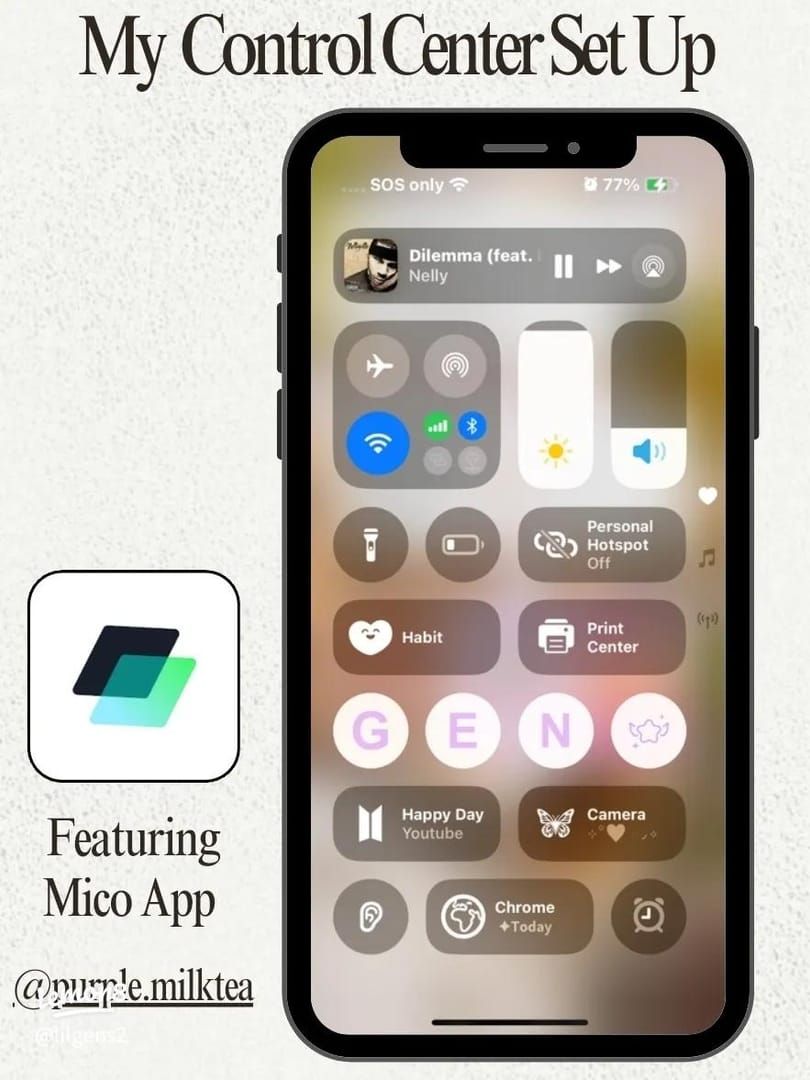
Swipe up from screen bottom (or double-click home button) to access app switcher. Locate MICO Live and swipe upward to terminate. Wait 10 seconds before reopening. This clears temporary memory allocations and resets corrupted connection states.
Step 2: Update to Latest Version
Open App Store, search MICO Live. If version 9.0.61+ shows Update button, install immediately. Updates contain critical bug fixes, performance optimizations, and iOS compatibility patches.
Step 3: Reinstall App
Press and hold MICO icon > Remove App > Delete App. This removes local data, cached files, corrupted preferences. Download fresh copy from App Store and log in. Eliminates accumulated data corruption that updates can't resolve.
System-Level Optimization
Step 4: Update iOS
Settings > General > Software Update. Install pending updates for framework improvements, security patches, compatibility enhancements. Maintain 50%+ battery or connect to power during update.
Step 5: Reset Network Settings
Settings > General > Reset > Reset Network Settings. Clears Wi-Fi passwords, cellular configs, VPN settings, APN profiles to factory defaults. After restart, reconnect to Wi-Fi and test. Resolves connection-related crashes from corrupted network profiles.
Step 6: Disable VPN
Settings > General > VPN, toggle off active connections. VPN encryption conflicts with MICO's streaming architecture, causing timeout errors and connection drops. Test without VPN first.
Advanced Troubleshooting
Diagnostic Considerations
Crash Pattern Analysis: Do failures occur during specific activities (sending gifts, joining crowded rooms, switching streams)? Activity-specific crashes indicate feature-level bugs. Document exact action sequences preceding crashes.
Storage Check: MICO's 323.5 MB installation expands with cached video, downloaded stickers, temporary files. Maintain 2GB+ free storage for runtime operations.
iOS Compatibility: While MICO supports iOS 15.0+, optimal performance requires the most recent major iOS version. Users on iOS 15.x should upgrade to iOS 16/17 if device supports it.
Performance Optimization for iPhone 14
Battery and Thermal Management
Extended streaming generates heat from video decoding, network communication, interface rendering. Position iPhone to allow airflow around all edges. Reduce screen brightness to 60-70% during long sessions—display backlighting contributes substantially to thermal load.
Enable Low Power Mode during passive viewing when not actively gifting. This reduces background activity and processor speed while maintaining adequate playback performance.
Network Configuration
MICO performs best on stable Wi-Fi with minimum 10 Mbps download speeds. On cellular, ensure strong 4G LTE or 5G signal. Weak signals force constant quality adjustments, creating processing overhead triggering crashes.
Disable automatic app updates and background refresh for non-essential apps while streaming. Reserves bandwidth and processing resources for MICO Live.
Managing MICO Live Coins
Active gifting requires adequate coin balances. Buy mico coins online through BitTopup for secure transactions with excellent customer service and high user ratings.
Account Safety During Troubleshooting
All troubleshooting steps preserve account data and SVIP status. Uninstalling removes only local files—account info, coin balance, level progress, membership benefits remain on MICO's servers. After reinstalling, log in to restore full access.
Settings resets and iOS updates don't affect MICO account standing. These system changes operate independently of app-specific data, preserving gifter level, follower lists, purchase history.
Regional Performance Variations
Crash reports from Sochi (Feb 14, 2025), Rheine (Nov 3, 2025), and Caguas (Sep 20, 2025) suggest regional server load variations. Users in these areas may experience heightened crashes during peak hours.
If crashes correlate with specific times, adjust streaming schedule to off-peak hours when server load decreases. Won't resolve device issues but mitigates server-side performance bottlenecks.
Long-Term Stability Maintenance
Monthly Cache Clearing: Uninstall and reinstall MICO monthly to prevent accumulated temporary files from degrading performance.
iOS Update Monitoring: Install iOS updates within two weeks of release for optimal compatibility.
Quarterly App Review: Remove unused applications to free storage and reduce background process competition.
Monitoring App Health
Watch for subtle changes preceding crashes: increased loading times, delayed responses, momentary freezes. These indicate developing problems that restarts or reinstallations can resolve before escalation.
Track battery health in Settings > Battery > Battery Health. Degraded batteries (below 80% capacity) struggle to deliver peak power during demanding tasks, causing unexpected shutdowns appearing as app crashes. Consider replacement if health declines significantly.
FAQ
Why does MICO Live crash on iPhone 14?
Crashes stem from network instability, outdated app versions, iOS compatibility issues, or VPN conflicts. App requires iOS 15.0+ and performs best with version 9.0.61. Follow six-step troubleshooting: app restart, update, reinstall, iOS update, network reset, VPN disable.
How do I update MICO Live?
App Store > profile icon > scroll to updates > select Update next to MICO Live if version 9.0.61+ appears. Enable automatic updates in Settings > App Store > App Updates.
Does resetting network settings delete my account?
No. Only clears Wi-Fi passwords, cellular configs, VPN profiles. MICO account data (coins, level, SVIP status) remains on servers and syncs when you log in.
Can VPN cause crashes?
Yes. VPN encryption conflicts with MICO's streaming architecture, causing timeouts and crashes. Disable via Settings > General > VPN before launching MICO.
What iOS version works best?
MICO requires iOS 15.0+, but optimal performance occurs on the most recent iOS version your iPhone supports. Newer releases contain framework improvements enhancing streaming app stability.
Where can I safely recharge coins?
BitTopup provides secure MICO Live coin recharges with competitive pricing, fast delivery, excellent customer service, and high user ratings.
Keep MICO Live smooth and uninterrupted! Need to recharge after optimizing settings? Visit BitTopup for instant, secure top-ups with best rates and 24/7 support!