



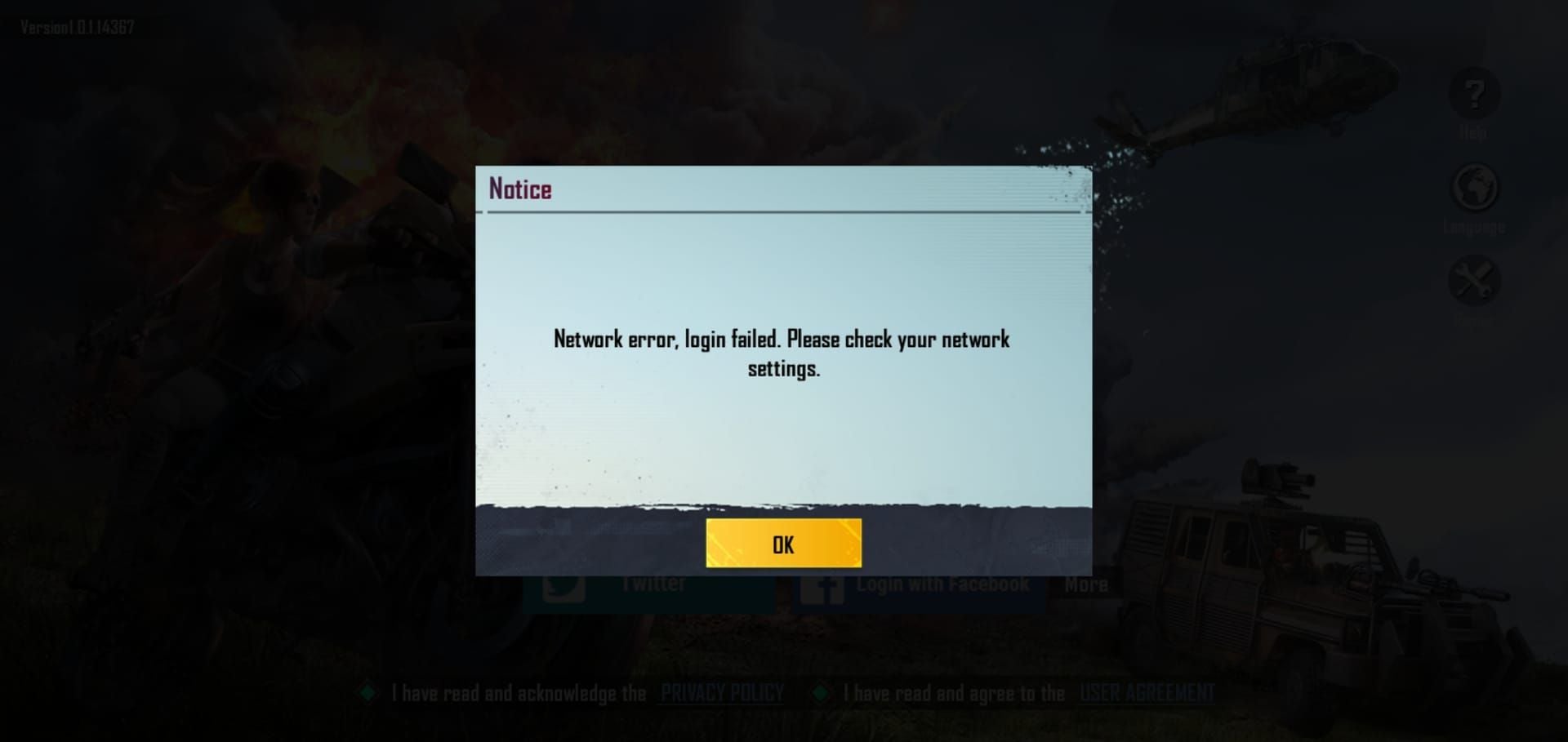
Fix PUBG Mobile Prime Plus Collection Failed Error (7 Ways)
The Prime Plus 'Collection Failed' error on iOS blocks players from claiming daily and weekly subscription rewards despite active subscriptions. This guide provides seven proven fixes, from force refreshes to reinstallation. Most errors stem from server sync delays, iOS payment conflicts, or corrupted cache. Solutions range from immediate fixes to system-level troubleshooting.







What the Error Means
'Collection Failed' appears when PUBG Mobile's reward system can't complete transactions between your active Prime Plus subscription and in-game inventory. Your subscription stays active and billing continues, but rewards can't sync to your visible inventory. The error appears after tapping claim or as a persistent notification blocking the rewards panel.
Players often buy pubg uc cheap through BitTopup to maximize gaming experience when subscription rewards face claiming issues.
How Prime Plus Works on iOS
Prime Plus launched July 22, 2020, with three tiers: $8.99 monthly, $52.99 semi-annual, $99.99 yearly. Auto-renews each cycle and distributes rewards through two-tier structure requiring active game access.
Daily rewards accumulate in a holding queue accessible through Prime Plus interface. Weekly rewards unlock on seven-day intervals. Both require manual claiming—no auto-deposit. This creates vulnerability points for sync errors.
iOS implementation connects three systems: App Store subscription management, PUBG Mobile's reward database, and your device's game client. Collection failures occur when these fall out of sync.
Common Error Scenarios
Failures most frequently occur within 24 hours after subscription renewal when payment verification delays create mismatches between App Store records and game server data.
Network transitions trigger errors. Switching WiFi to cellular mid-claim or connection drops interrupt the server handshake required for reward distribution.
iOS updates and PUBG Mobile client updates create compatibility windows where claiming becomes unstable. The 48-hour period following major iOS releases sees elevated error rates.
Temporary Glitches vs Persistent Bugs
Temporary glitches resolve within 15-30 minutes without intervention, affecting single claim attempts. These occur during server maintenance, brief network interruptions, or momentary App Store verification delays.
Persistent bugs continue across multiple attempts spanning hours or days, indicating corrupted cache files, account-level sync problems, or iOS conflicts requiring active troubleshooting.
Root Causes
Server Synchronization Delays
PUBG Mobile's reward distribution relies on real-time communication between payment verification and game content servers. When latency exceeds timeout thresholds (10-15 seconds), claiming aborts to prevent duplicate rewards.
Peak usage periods—after daily reset or during events—overload verification servers, creating queue backlogs. Your claim enters pending state but times out before processing completes.
iOS Payment Verification Conflicts
Error 1138 represents payment verification failure where App Store flags transactions as security risks. This cancels claims when Apple's fraud detection identifies unusual patterns: rapid subscription changes, payment updates, or geographic location mismatches.
The same Apple ID can't hold duplicate Prime Plus subscriptions. Attempting purchase while existing subscription remains active creates verification conflicts blocking all claiming until duplicate resolves.
Corrupted Cache Files
iOS game clients store temporary reward data in local cache that occasionally corrupts through incomplete downloads, forced closures during data writes, or storage constraints. Corrupted cache contains malformed reward records the claiming system can't process.
Cache corruption affects the synchronization manifest—a file tracking claimed versus available rewards. Manifest corruption causes the system to lose track of claim status.
Network Connectivity Issues
Unstable connections interrupt the multi-step verification sequence. Claiming requires sustained connectivity for: authentication, subscription check, inventory confirmation, and reward delivery. Interruptions at any stage abort the transaction.
VPN usage introduces failure points. Many VPN configurations interfere with App Store communication protocols, preventing payment verification handshake. The system interprets VPN delays as verification failures.
iOS Version Compatibility
PUBG Mobile requires iOS 13.0+, but specific versions introduce compatibility issues with in-app purchases. Major iOS releases occasionally change App Store API behaviors, creating temporary incompatibilities until PUBG Mobile updates.
Background App Refresh restrictions limit PUBG Mobile's ability to maintain persistent server connections. When the system suspends background processes, claiming sessions terminate prematurely.
Pre-Troubleshooting: Verify Subscription Status
Check Active Subscription
Navigate to Settings > [Your Name] > Subscriptions to view active App Store subscriptions. Prime Plus should show renewal date and active status. Verify tier matches intended purchase.
Check subscription start date against first claim attempt. Subscriptions require 15-60 minutes after purchase for full system propagation.
Confirm auto-renewal shows enabled. Disabled auto-renewal sometimes triggers early benefit suspension in final 48 hours before expiration.
Confirm Payment Processing
Access Settings > [Your Name] > Media & Purchases > Purchase History to verify Prime Plus charges completed. Failed or pending payments prevent reward distribution even if subscription appears active.
Check for duplicate charge entries indicating multiple subscription attempts. Duplicate charges often correlate with account restrictions preventing proper activation.
Understand Renewal Cycles
Prime Plus renews automatically monthly on anniversary date of initial purchase. Rewards reset at daily UTC 00:00 and weekly intervals aligned with subscription start.
The 24-hour window following renewal represents highest-risk period for collection errors. Payment verification, status updates, and reward pool refreshes all occur during this window.
Subscription expiration terminates all benefits immediately. No grace periods—expired subscriptions block all claims instantly.
Identify Error Scope
Test claims across different reward types (daily vs weekly) to determine error scope. Claim-specific errors affect only certain categories. Account-wide errors block all types.
Attempt other in-game purchases to verify general payment system functionality. Successful alternative transactions isolate problem to Prime Plus claiming specifically.
Method 1: Force Refresh Rewards Interface
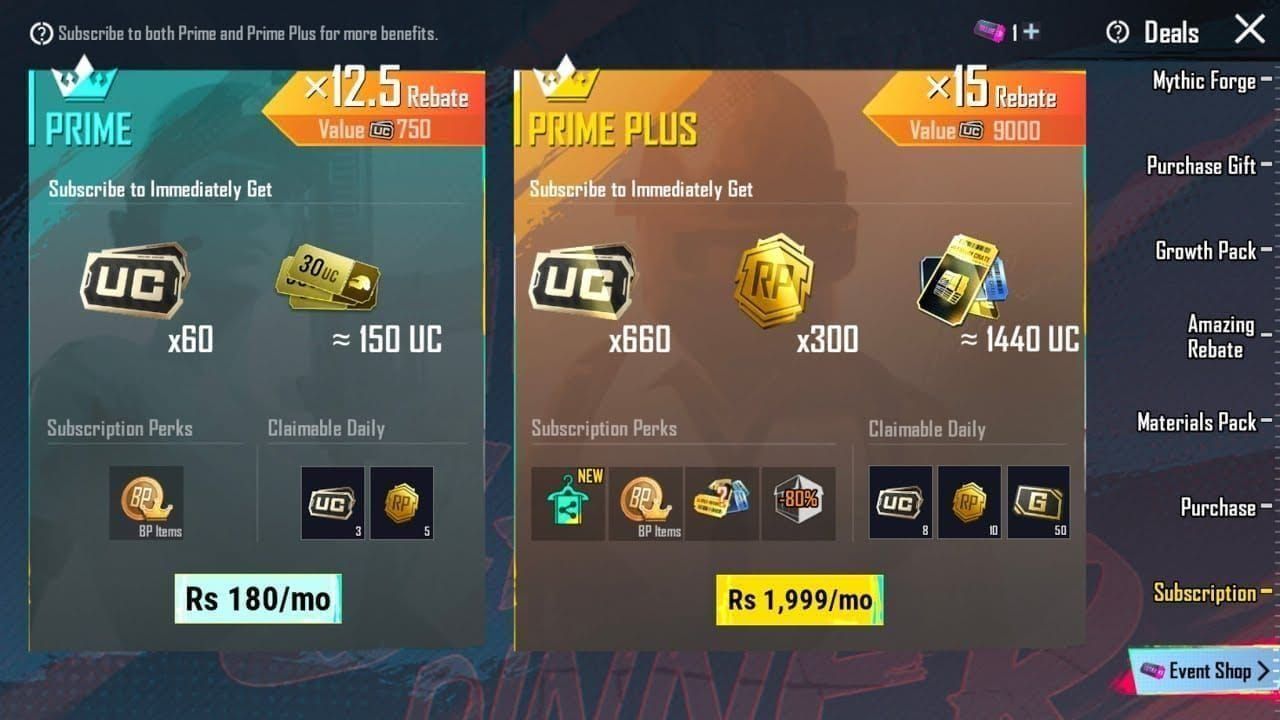
Force Refresh Process
- Close PUBG Mobile completely by swiping up and swiping app preview upward
- Wait 30 seconds for background processes to terminate
- Disable WiFi and enable cellular data (or vice versa)
- Reopen PUBG Mobile and allow complete login
- Navigate to Prime Plus rewards without tapping claim
- Wait 10 seconds for interface to fully load
- Attempt claim with stable connection maintained
This forces the client to re-establish server connections and reload reward data from fresh sources.
Optimal Timing
Claim during off-peak hours (02:00-06:00 UTC) when server loads reach minimum. Lower concurrent users reduce verification queue lengths.
Avoid claiming within first hour after daily reset (00:00-01:00 UTC) when millions simultaneously access reward systems.
Wait at least 2 hours after subscription renewal before first claims for complete propagation.
Success Rate
Force refresh resolves ~40% of temporary failures, particularly from stale cache or brief network interruptions. Resolution occurs immediately upon successful claim.
If force refresh fails after three attempts with 10-minute intervals, error likely stems from deeper issues requiring advanced methods.
Method 2: Clear Cache on iOS
Safe Cache Clearing
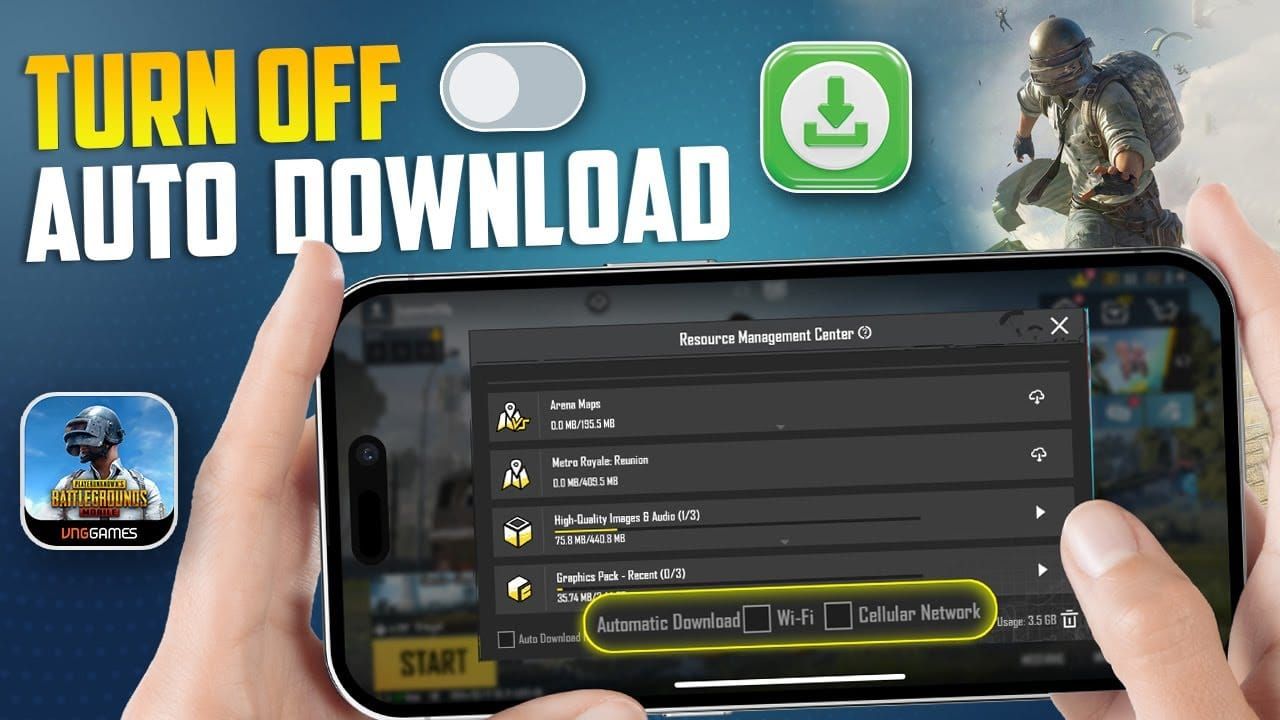
iOS doesn't provide native cache clearing for individual apps. Workaround: Settings > General > iPhone Storage > PUBG Mobile > Offload App. This removes app while preserving documents and data.
After offloading, tap Reinstall App to download fresh client. Reinstallation uses preserved account data, maintaining progress, purchases, and settings while clearing corrupted cache.
Alternatively, delete and reinstall completely, but ensure account links to Game Center, Facebook, or recovery method before deletion.
Cache Management Steps
- Open Settings > General > iPhone Storage
- Scroll to PUBG Mobile and tap
- Note Documents & Data size—over 5GB indicates cache bloat
- Tap Offload App and confirm
- Wait for offload completion (icon grays out)
- Tap Reinstall App and wait for download
- Launch and complete login verification
Takes 10-15 minutes depending on download speeds and 2-3GB data if not on WiFi.
Preserved Data
Account credentials, friend lists, clan memberships, and purchased items remain intact. Game settings including sensitivity, controls, and graphics persist in iCloud backups if enabled.
Active subscriptions including Prime Plus continue unaffected—subscription data resides in App Store records. Post-reinstall, game auto-detects and restores subscription benefits within 5-10 minutes.
Post-Clear Login
After reinstallation, Game Center must be enabled for iOS recovery. Navigate to Settings > Game Center and ensure it's activated with Apple ID.
First login after cache clearing triggers extended verification—2-3 minutes vs normal 30 seconds. System rebuilds local cache and synchronizes server data.
Attempt claims 10 minutes after successful login to allow complete cache rebuilding.
Method 3: Network Optimization
Switch Connection Types
Network environment changes force new server connections, bypassing corrupted network sessions. Switch from WiFi to cellular (or reverse) immediately before claims.
Some ISPs or WiFi networks implement aggressive firewall rules blocking specific game server ports. Cellular data typically provides more permissive network policies.
DNS Configuration
iOS allows custom DNS through Settings > WiFi > [Your Network] > Configure DNS > Manual. Replace default DNS with Google DNS (8.8.8.8, 8.8.4.4) or Cloudflare DNS (1.1.1.1, 1.0.0.1).
Custom DNS servers often provide faster resolution times for game server addresses, reducing connection delays contributing to claim timeouts.
After DNS changes, toggle WiFi off and on to force new connections. Attempt claims within 5 minutes while new DNS cache remains fresh.
VPN Considerations
VPN services introduce encryption overhead and routing delays extending claim transaction times beyond acceptable limits. Disable VPN completely before claims.
VPN usage conflicts with App Store payment verification protocols. Apple's servers may reject verification requests from VPN IP addresses flagged as high-risk.
Test Connection Stability
Run stability tests through Settings > WiFi > [Network] > Info to check signal strength. Weak signals (below -70 dBm) or unstable connections correlate with higher failure rates.
Close bandwidth-intensive background apps—streaming, downloads, cloud backups—before claims. Competing bandwidth demands introduce packet loss or latency spikes.
Method 4: App Store Re-Authentication
Sign Out and Back In
Navigate to Settings > [Your Name] > Media & Purchases > Sign Out to disconnect App Store session. This clears corrupted or expired authentication tokens preventing subscription verification.
Wait 60 seconds after signing out before signing back in for complete session termination on Apple's servers.
Sign back in through Settings > [Your Name] > Media & Purchases > Sign In. Fresh authentication session rebuilds verification tokens required for claim processing.
Refresh Payment Method
Access Settings > [Your Name] > Payment & Shipping to review stored payment methods. Remove and re-add primary payment method to refresh verification status.
Outdated payment verification—even with valid cards—sometimes blocks subscription transactions. Re-adding forces Apple to re-verify card with your bank.
After payment updates, wait 15 minutes before attempting claims for complete synchronization.
Resolve Subscription Recognition
If Prime Plus appears in Subscriptions but claims fail, tap subscription entry and select Cancel Subscription, then immediately resubscribe. This forces complete subscription refresh.
Cancellation followed by immediate resubscription may result in brief benefit interruption (5-10 minutes) while new subscription activates.
For persistent recognition issues, contact Apple Support through Settings > [Your Name] > Subscriptions > [Prime Plus] > Report a Problem.
Method 5: App Reinstallation
When Reinstallation is Necessary
Reinstallation becomes necessary when cache clearing, network optimization, and authentication refreshes all fail across 24+ hours. Persistent errors surviving simpler fixes indicate deep client corruption.
Specific indicators: reward interface failing to load entirely, app crashes when accessing Prime Plus sections, or error messages referencing corrupted game files.
Before reinstalling, verify problem isn't server-side by checking community forums for widespread outage reports.
Backup Checklist
- Verify Game Center connection: Settings > Game Center shows Apple ID linked
- Screenshot Player ID from in-game profile
- Note current season tier, RP level, and UC balance
- Confirm active subscriptions appear in App Store
- Check email and phone link to account through in-game settings
- Document clan name and friend list
Game Center linkage is critical—unlinked accounts can't be recovered after deletion.
Clean Installation
- Press and hold PUBG Mobile icon until it jiggles
- Tap X or minus icon and confirm deletion
- Restart iPhone completely (power off and on)
- Open App Store and search PUBG Mobile
- Download and install fresh client (2.5-3GB)
- Launch and select Game Center login
- Allow complete resource download before accessing Prime Plus
Post-installation resource download takes 10-20 minutes. Interrupting can recreate corruption issues.
Account Recovery
After installation, Game Center automatically authenticates account, restoring all progress and purchases. First login takes 3-5 minutes as system synchronizes server data.
Prime Plus benefits restore automatically within 10 minutes. Subscription status syncs from App Store records—no manual reactivation required.
Attempt claims 15-20 minutes after successful login and complete resource download.
Method 6: iOS System Troubleshooting
Check Storage Space
PUBG Mobile requires minimum 4GB free storage for stable operation, 6GB+ recommended. Insufficient storage prevents proper cache file creation, causing claiming failures.
Check available storage through Settings > General > iPhone Storage. If below 5GB, delete unused apps, clear photos, or offload large apps.
iOS Update Compatibility
Verify iOS version through Settings > General > About > Software Version. Cross-reference against PUBG Mobile's App Store minimum requirements (iOS 13.0+).
Recent iOS updates (within 7 days) sometimes introduce temporary incompatibilities until PUBG Mobile releases compatibility patches. Check App Store for pending updates.
If running iOS beta versions, claiming issues are expected. Beta releases lack full App Store integration. Downgrade to stable releases.
Device Restart
Standard restart: Hold power button until slide to power off appears, slide, wait 30 seconds, power on. Clears temporary system memory and resets network stacks.
Hard reset for persistent problems: Press and quickly release volume up, press and quickly release volume down, then press and hold power until Apple logo appears.
After restart, wait 2-3 minutes before launching PUBG Mobile for complete iOS initialization.
Background App Refresh
Enable Background App Refresh for PUBG Mobile through Settings > General > Background App Refresh > PUBG Mobile. Allows app to maintain server connections and sync subscription data when not actively open.
Disabled refresh forces complete session re-establishment each time you open app, increasing authentication overhead and timeout risks.
Method 7: Server-Side Issues and Wait Strategy
Identify Maintenance Periods
PUBG Mobile conducts regular maintenance typically Tuesdays (UTC), lasting 2-8 hours. During maintenance, all claiming becomes unavailable. Check official social media for announcements before extensive troubleshooting.
Unannounced emergency maintenance occurs during critical bug fixes, lasting 30 minutes to 2 hours. Community forums quickly fill with reports during these events.
Server-side issues show consistent failure patterns across all troubleshooting methods and affect multiple players simultaneously.
Expected Resolution Times
Scheduled maintenance resolves at announced completion times with 90%+ reliability. Claiming typically restores within 15 minutes of maintenance end.
Emergency server-side bugs receive priority fixes within 4-12 hours of widespread reports. Development team deploys hotfixes without full maintenance windows for critical failures.
Compensation for extended outages (24+ hours) typically arrives 3-7 days after resolution through in-game mail.
Monitor Official Announcements
Follow PUBG Mobile's official social media for real-time maintenance and issue updates. Announcements appear 2-4 hours before scheduled maintenance and within 30 minutes of identifying emergency issues.
In-game notices appear on login screen during active server issues, providing estimated resolution times.
Community forums aggregate player reports, helping distinguish individual account issues from widespread server problems.
Preventing Future Errors
Best Claiming Practices
Establish consistent claiming routines during off-peak hours (02:00-06:00 UTC) when server loads minimize.
Claim on stable WiFi rather than cellular when possible. WiFi provides more consistent bandwidth and lower latency.
Avoid claiming immediately after app or iOS updates. Allow 24-hour stabilization periods after major updates.
Maintain Optimal Versions
Enable automatic updates for PUBG Mobile through App Store > Account > Automatic Downloads > App Updates.
Update iOS during off-season periods or between major events. Major iOS updates sometimes introduce temporary incompatibilities.
Check App Store weekly for pending updates even with auto-update enabled.
Network Stability
Use 5GHz WiFi bands instead of 2.4GHz when available for reduced interference and higher bandwidth.
Position within strong signal range (same room as router) during claims. Weak signals increase packet loss and retransmission delays.
Disable VPN, proxy services, and network optimization apps during PUBG Mobile sessions.
Regular Maintenance
Perform monthly cache clearing through app offload/reinstall to prevent gradual corruption accumulation.
Review and clean iPhone storage monthly, maintaining 6GB+ free space.
Restart iPhone weekly to clear system-level memory leaks and reset network stacks.
Unclaimed Rewards During Errors
Reward Expiration Policies
Daily Prime Plus rewards don't accumulate—each day's rewards expire at next daily reset (00:00 UTC) regardless of claim status. Unclaimed daily rewards disappear permanently.
Weekly rewards follow same non-accumulation pattern, expiring at next weekly reset aligned with subscription start date.
This strict expiration means extended collection errors directly reduce subscription value. A 7-day error period loses 7 daily rewards and 1 weekly reward with no compensation.
Grace Period
PUBG Mobile provides no official grace period for delayed claims due to technical errors. System treats all unclaimed rewards identically at reset time.
However, rewards remain claimable until exact reset moment. If you resolve errors 23 hours after daily reset, you can still claim in remaining 1-hour window.
Compensation Mechanisms
PUBG Mobile provides compensation only for confirmed server-side outages affecting large player populations. Individual account issues typically receive no compensation.
Compensation for qualifying outages arrives through in-game mail 3-7 days after resolution. Usually matches or slightly exceeds missed reward value.
To qualify: outage must affect 10,000+ players, last 24+ hours, and receive official acknowledgment.
When to Contact Support
Error Patterns Requiring Support
Contact support when errors persist beyond 48 hours despite completing all seven troubleshooting methods. Extended failures indicate account-level issues requiring backend intervention.
Specific error codes (like Error 1138) appearing consistently warrant immediate support contact. These indicate payment system flags requiring manual review.
If subscription shows active in App Store but PUBG Mobile displays no subscription status, contact both Apple Support and PUBG Mobile support.
Documentation Needed
Gather before contacting support:
- Screenshots of error message with visible timestamps
- App Store subscription confirmation showing active Prime Plus
- Purchase receipts from email confirming payment processing
- Player ID from in-game profile
- Device model and iOS version from Settings > General > About
- List of troubleshooting steps attempted with dates
Detailed documentation accelerates response times and increases resolution success rates.
Expected Response Times
In-game customer service responds within 24-48 hours for Prime Plus issues. Access through PUBG Mobile Settings > Customer Service > Contact Us.
Apple Support handles subscription and payment issues with 12-24 hour response through Settings > [Your Name] > Subscriptions > Report a Problem.
Resolution timelines vary: simple account refreshes complete within hours, payment verification issues may require 3-5 business days. Complex cases involving both Apple and PUBG Mobile can extend to 7-10 days.
Maximizing Prime Plus Value During Issues
Alternative Benefits Access
While reward claiming remains blocked, other Prime Plus benefits continue: exclusive chat effects, lobby animations, profile frames, and nameplate designs.
Prime Plus discounts on store items remain active regardless of claiming status. Take advantage of exclusive deals and reduced prices on UC purchases.
Coordinate with clan members to maximize team-based benefits like shared RP boosts. These function independently of individual reward claiming.
Ensure UC Through Reliable Platforms
When subscription rewards face issues, maintaining UC reserves through reliable top-up services becomes crucial. For secure and instant pubg mobile uc recharge, BitTopup offers competitive pricing with 24/7 customer support, ensuring access to premium content during subscription complications.
BitTopup provides fast delivery, secure transactions, and excellent ratings, making it the preferred platform for reliable UC access. Wide game coverage and responsive customer service ensure smooth transactions when in-game systems face difficulties.
Subscription Management
Consider canceling auto-renewal if errors persist beyond one billing cycle. Paying for second month of non-functional rewards wastes money—cancel, resolve issues, then resubscribe.
Document all missed rewards during error periods for potential compensation requests. While individual compensation rarely occurs, comprehensive records strengthen support tickets.
If errors coincide with renewal dates, contact Apple Support to request refunds for affected billing period. Apple typically grants refunds for subscriptions with documented technical issues.
FAQ
Why does Prime Plus show collection failed on my iPhone? Collection failures occur due to server sync delays between Apple's payment systems and PUBG Mobile's reward servers, corrupted local cache, network interruptions during claiming, or iOS payment verification conflicts. The error indicates reward distribution can't complete the transaction between your active subscription and in-game inventory.
Will I lose Prime Plus rewards if collection fails? Yes, unclaimed rewards expire permanently at daily reset (00:00 UTC) or weekly reset intervals. PUBG Mobile doesn't accumulate unclaimed rewards or provide grace periods. Each day's rewards must be claimed before next reset or they disappear permanently.
How long does it take to fix Prime Plus collection error on iOS? Simple fixes like force refresh or network switching resolve immediately when successful. Cache clearing and app reinstallation require 15-30 minutes including download time. Account-level issues requiring support take 24-48 hours for initial response and 3-10 days for complete resolution. Server-side issues resolve within 4-12 hours typically.
Can I claim Prime Plus rewards on another device if iOS fails? Yes, Prime Plus subscriptions purchased through iOS App Store can be accessed on Android devices or emulators using the same PUBG Mobile account. Log into your account on alternative device and attempt claims there. However, subscription remains tied to Apple ID and must be managed through iOS App Store settings.
Does reinstalling PUBG Mobile fix Prime Plus collection failed error? Reinstallation resolves ~70% of persistent collection errors caused by corrupted app files or cache data. It's the most effective fix for errors surviving simpler troubleshooting. However, reinstallation can't fix server-side issues, account-level payment flags, or subscription sync problems requiring support intervention.
What happens to my subscription if I contact Apple Support for refund? Requesting refunds through Apple Support typically results in immediate subscription cancellation and removal of all Prime Plus benefits. Apple processes refunds by reversing the subscription transaction, terminating the service. Only request refunds if you're willing to lose remaining subscription time and benefits for affected billing period.
Recommended News




Recommend products


Table of Contents
- Understanding the Collection Failed Error
- What the Error Means
- How Prime Plus Works on iOS
- Common Error Scenarios
- Temporary Glitches vs Persistent Bugs
- Root Causes
- Server Synchronization Delays
- iOS Payment Verification Conflicts
- Corrupted Cache Files
- Network Connectivity Issues
- iOS Version Compatibility
- Pre-Troubleshooting: Verify Subscription Status
- Check Active Subscription
- Confirm Payment Processing
- Understand Renewal Cycles
- Identify Error Scope
- Method 1: Force Refresh Rewards Interface
- Force Refresh Process
- Optimal Timing
- Success Rate
- Method 2: Clear Cache on iOS
- Safe Cache Clearing
- Cache Management Steps
- Preserved Data
- Post-Clear Login
- Method 3: Network Optimization
- Switch Connection Types
- DNS Configuration
- VPN Considerations
- Test Connection Stability
- Method 4: App Store Re-Authentication
- Sign Out and Back In
- Refresh Payment Method
- Resolve Subscription Recognition
- Method 5: App Reinstallation
- When Reinstallation is Necessary
- Backup Checklist
- Clean Installation
- Account Recovery
- Method 6: iOS System Troubleshooting
- Check Storage Space
- iOS Update Compatibility
- Device Restart
- Background App Refresh
- Method 7: Server-Side Issues and Wait Strategy
- Identify Maintenance Periods
- Expected Resolution Times
- Monitor Official Announcements
- Preventing Future Errors
- Best Claiming Practices
- Maintain Optimal Versions
- Network Stability
- Regular Maintenance
- Unclaimed Rewards During Errors
- Reward Expiration Policies
- Grace Period
- Compensation Mechanisms
- When to Contact Support
- Error Patterns Requiring Support
- Documentation Needed
- Expected Response Times
- Maximizing Prime Plus Value During Issues
- Alternative Benefits Access
- Ensure UC Through Reliable Platforms
- Subscription Management
- FAQ
Recommend products


Recommended News

Free Fire Event 2026 Stage Missions: Complete Every Step Fast
MangaToon UID vs In-App Top-Up: Which Saves You More in 2026?

Lineage M Best Settings Guide for 60 FPS and 24/7 Battery

Cheapest Ways to Buy PUBG G-Coin in 2026 Without Overpaying

How to Fix Steam Wallet Code Currency Mismatch on Your Account
The Best TWD Survivors Gathering Route for Fast Resources in 2026

Fix: PUBG Crashes on Launch with Black Screen Steam (2026 Guide)

Nintendo eShop Sale 2026 Dates: Brazil Deals and Savings Guide




























































































