Understanding Genshin Impact 5.3 Pre-Install Storage Crisis
The 5.3 update launches January 1, 2025. Pre-installation opens December 30, 2025—a narrow preparation window.
Storage Requirements:
- PC: 100 GB minimum (150 GB first-time install), 8 GB pre-install
- Mobile: 2.5 GB pre-install (Android: 34.16 GB full/21.83 GB basic; iOS: 51.77 GB)
- PS5: 100-120 GB maintained free space
These are compressed sizes—actual installation needs double during unpacking.
For seamless gameplay after installation, Genshin Impact Primogem Top Up through BitTopup offers instant delivery and competitive pricing.
Common Pre-Install Error Messages
Insufficient Storage: Device lacks required space. The 8 GB PC pre-install actually needs ~16 GB during installation.
Permission Errors (PC): HoYoPlay Launcher can't access installation directories.
iOS Limitations: 51.77 GB total pushes device capacity limits without optimization options available on other platforms.
What is Past Quest Resource Management?
HoYoverse's official solution to storage bloat. Targets completed quest content—cutscenes, voice-overs, environmental assets.
How It Works:
- Removes high-resolution assets from finished quests
- Frees ~6 GB storage
- Preserves quest completion status, rewards, achievements
- Allows automatic redownload for replays
Resource Types Managed:
- Cutscenes: Pre-rendered cinematics (largest portion)
- Audio: Character voice-overs in all downloaded languages (4-5 GB per language)
- Quest Assets: Unique locations, character models, special effects
vs. Cache Clearing:
- Cache clearing: 500 MB-2 GB temporary files, requires repetition
- Quest Resource Management: 6 GB permanent content, one-time removal
Accessing Past Quest Resource Management
PC Method
- Press ESC → Paimon menu
- Click Settings (gear icon, bottom-right)
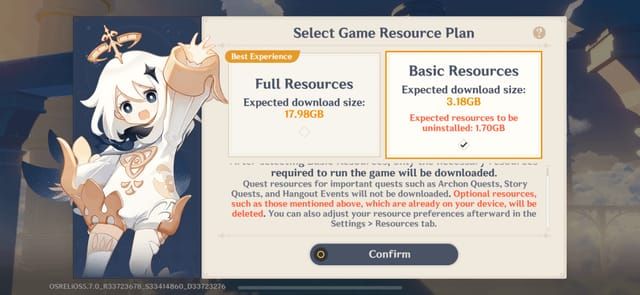
- Select Resources tab (left panel)
- Click Past Quest Resources Management
- Wait 10-30 seconds for scan
Mobile Method
- Tap Paimon icon (upper-left)
- Settings → Resources tab
- Tap Past Quest Resources Management
- Grant storage permissions if prompted (Android)
Launcher Method (PC Alternative)
- Open HoYoPlay Launcher
- Three-dot menu → Game Settings
- Click Manage Resources
- Less precise than in-game but shows detailed size breakdowns
Deleting Quest Resources: Step-by-Step
Selecting Categories
Archon Quests (3-4 GB):
Main storyline through Mondstadt, Liyue, Inazuma, Sumeru, Fontaine, Natlan. Highest production values, most storage.
Story Quests (2-3 GB):
Character backstories. Average 200-400 MB each. Five-star characters: 280-320 MB; four-star: 150-200 MB.
Hangout Events (1-2 GB):
Branching narratives with multiple endings. Allows selective deletion.
Storage Savings Per Quest
- Sumeru Archon Quest: 800 MB-1.2 GB (largest single package)
- Fontaine/Natlan quests: Higher than early regions due to production quality
- Early Mondstadt/Liyue: Smaller but safe deletion targets
Confirmation Process
- Select quests for deletion
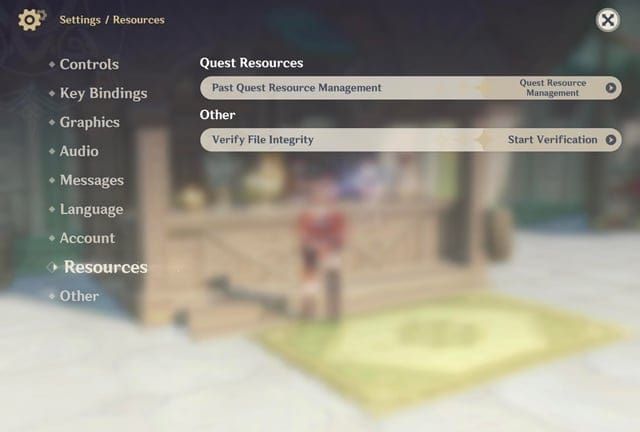
- Click Uninstall
- Review confirmation dialog (total storage + progress preservation notice)
- Check I understand deleted resources can be redownloaded
- Click Confirm
- Progress bar shows real-time status (30-60 seconds total)
Deletion Speed:
- SSD: 20-40 seconds
- HDD: 60-90 seconds
Which Quest Resources to Delete?
Safe to Delete
Completed Archon Quests from fully explored regions:
- Linear narratives, rarely replayed
- Prioritize older regions (Mondstadt, Liyue)
- If finished Fontaine and moved to Natlan, delete Fontaine resources
Consider Keeping
- Favorite character Story Quests
- Recently completed quests (past month)
- Hangout Events with unexplored endings
Priority Deletion List (Maximum Savings)
- All completed Archon Quests from explored regions: 3-4 GB
- Story Quests for unused/disliked characters: 1.5-2 GB
- Completed Hangout Events (all endings seen): 800 MB-1.2 GB
- Early tutorial quests: 300-500 MB
Total: 6-8 GB
Cannot Be Deleted
- Active/incomplete quests
- World Quests (use shared assets)
- Event-exclusive limited-time content
Real Storage Savings Numbers
Archon Quests:
- PC (single language): 3.2-3.8 GB
- PC (multiple languages): 4.2-4.6 GB
- Mobile: 2.8-3.4 GB
- Sumeru + Fontaine only: 1.8-2.1 GB
Story Quests:
- PC: 2.1-2.7 GB
- Mobile: 1.8-2.3 GB
- Selective (10-15 quests): 2-3 GB
Other Quest Resources:
- World exploration content: 1.2-1.8 GB
Language Packs (Separate Management):
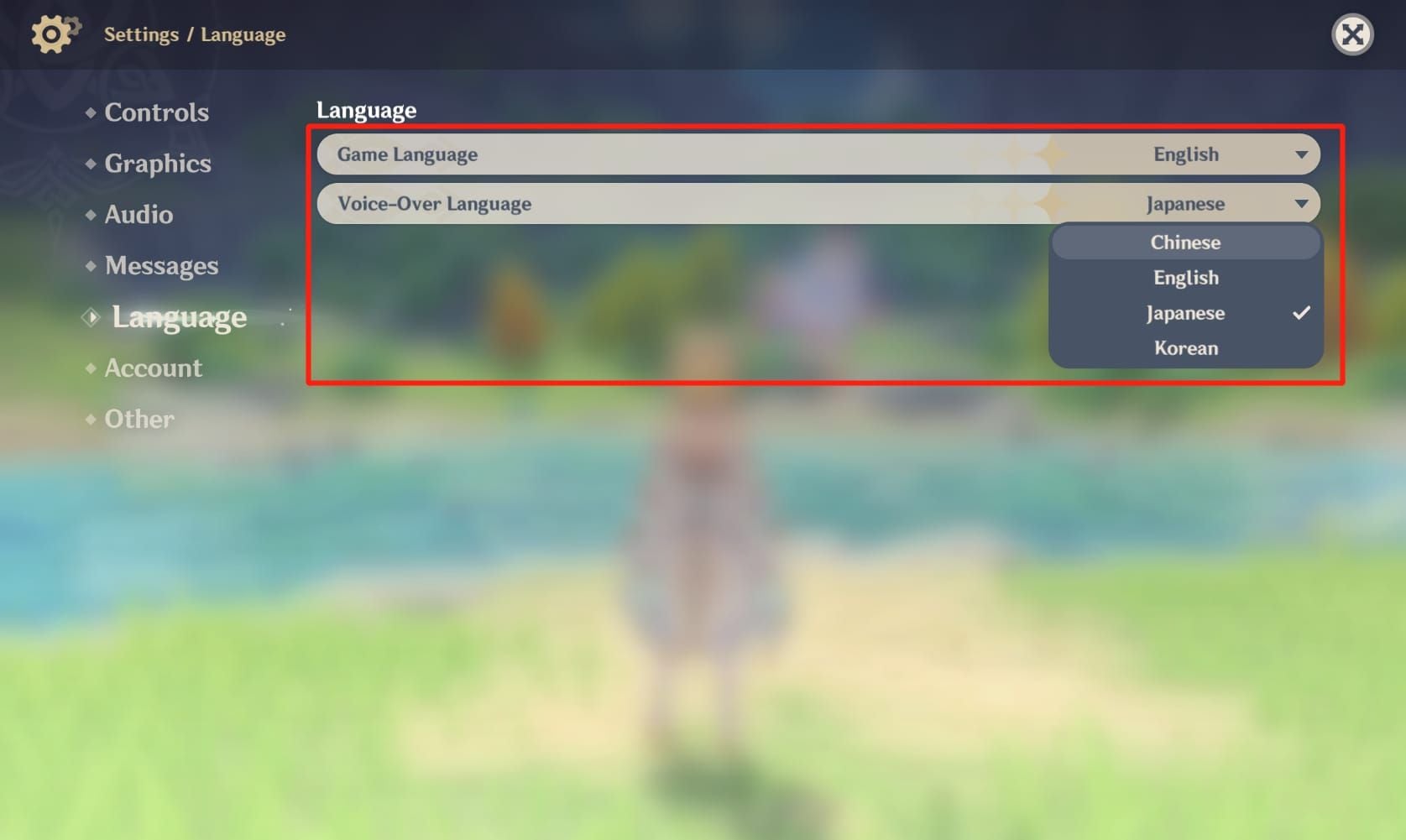
- Each language: 4-5 GB
- Settings → Language → Manage Voice-Over Files
Combined Optimization: 10-11 GB (6 GB quests + 4-5 GB redundant languages)
Common Misconceptions
Myth: You'll lose quest progress
✅ Truth: Completion status, rewards, achievements stored on HoYoverse servers. Only local multimedia files deleted.
Myth: Content can't be redownloaded
✅ Truth: Download Resources Again option available. Automatic redownload when replaying deleted quests (2-5 minutes per quest).
Myth: Performance will suffer
✅ Truth: Smaller installations = faster loading times. Mobile devices see system-wide performance improvements.
What Actually Happens:
- Quest completion stays 100%
- Primogem/reward history intact
- Achievements continue tracking
- Character development persists
- Multi-device: Deletion on one device doesn't affect others
Troubleshooting Failed Deletion
Insufficient Permissions Error
Solution 1: Run launcher as administrator (right-click → Run as administrator)
Solution 2: Verify folder permissions
- Navigate to installation folder
- Right-click → Properties → Security
- Ensure user account has Full Control
Solution 3: Temporarily disable antivirus during deletion
Deletion Stuck/Frozen
Common freeze points: 33%, 66%, 99%
Fixes:
- Close background apps (Discord, GeForce Experience, streaming software)
- Force-close via Task Manager (Ctrl+Shift+Esc)
- Wait 30 seconds, restart game
- Verify file integrity through launcher repair
Pre-Install Still Failing
Advanced Solutions:
- Clear download cache: Settings → Resources → Clear Download Cache
- Run disk defragmentation (HDD) or optimization (SSD)
- Ensure 20% overhead: 8 GB pre-install needs ~10 GB free space
Platform-Specific:
- iOS: Restart device to force storage recalculation
- Android SD card: Check write-protection and card health
- PC multi-drive: Verify correct installation path in Settings
For efficient gaming budget management, Genshin Impact Mobile Top Up through BitTopup provides secure transactions and competitive rates.
Alternative Storage Optimization
Language Pack Management
Each pack: 4-5 GB. Remove unused languages:
- Settings → Language → Manage Voice-Over Files
- Select unused languages → Uninstall
- Completes in 15-30 seconds
- Redownload anytime (10-20 minutes)
Cache Clearing
Settings → Resources → Clear Cache
- Recovers: 500 MB-1.5 GB
- No impact on progress/settings
- Mobile Android: Settings → Apps → Genshin Impact → Storage → Clear Cache
- Schedule: Monthly (first day of version update)
External Storage (Android)
- Use UHS-I/UHS-II SD cards (256 GB-1 TB)
- Settings → Apps → Genshin Impact → Storage → Change → SD Card
- Transfer time: 15-30 minutes
- Requires 60+ GB free on card
Maintenance Schedule
Monthly:
- Clear game cache
- Uninstall unused language packs
- Check installation size
Quarterly (Each Version):
- Delete newly completed quest resources
- Verify storage device health
- Clear download cache before pre-install
Annual:
- Complete storage audit
- Consider external storage upgrades
Redownloading Deleted Resources
Automatic Redownload
When replaying deleted quests:
- Game detects missing files
- Download prompt shows size, estimated time
- Confirm to proceed
- Cannot launch until download completes
Manual Redownload
Settings → Resources → Past Quest Resources Management → Download Resources Again
- Select desired quests
- Click Download
- Background download allows continued gameplay
Bandwidth Considerations
Download Times (50 Mbps connection):
- Individual quests: 2-5 minutes (150-800 MB)
- Complete Archon chain: 15-25 minutes
Mobile data warning: Full Archon chain = 800 MB-1.2 GB
Pro tip: Schedule large redownloads during off-peak hours for faster speeds.
Maximizing Your Genshin Experience
Performance Benefits
- Faster game launch (5-15 seconds improvement)
- Mobile: System-wide responsiveness boost
- Extended SSD lifespan (reduced write cycles)
Best Practices for Updates
- Major versions (X.0): Larger downloads than minor (X.1, X.2)
- Pre-install pattern: 1-2 days before release (consistent)
- Maintain buffer: 20 GB PC, 10 GB mobile
- Subscribe to official announcements for advance warning
When to Use Quest Resource Management
Immediate Use:
- Pre-install storage errors
- Device storage warnings
- Preparing for major updates
- Installing additional games
Periodic Maintenance:
- After completing story arcs
- Following Story Quest binges
- Installation exceeds 120 GB PC/45 GB mobile
- Before extended breaks
Avoid When:
- Frequently replay content
- Create content showcasing quests
- Abundant free storage (30+ GB)
- Slow internet (redownloads impractical)
FAQ
How much space does Genshin 5.3 require?
8 GB PC, 2.5 GB mobile (pre-install). Total: 100-150 GB PC, 35-52 GB mobile. Needs double stated size during installation.
What is Past Quest Resource Management?
Feature since Version 3.1 that deletes completed quest multimedia files (cutscenes, voice-overs, assets). Frees ~6 GB. Preserves completion status, rewards, achievements. Allows redownload.
Can I replay quests after deleting resources?
Yes. Automatic redownload prompt when replaying (2-5 minutes). Manual option: Settings → Resources → Download Resources Again.
How to fix 5.3 pre-install insufficient storage error?
Delete quest resources (6 GB) + unused language packs (4-5 GB each) + clear cache (1-2 GB). Ensure 20% more free space than stated pre-install size.
Is it safe to delete past quest resources?
Completely safe. Only removes local files. Progression stored on HoYoverse servers. Fully reversible via redownload.
Does deleting quest resources affect game progress?
No. Quest completion, achievements, character unlocks, rewards remain intact. Data stored on cloud servers, independent of local files.
Need Genesis Crystals or Welkin Moon? BitTopup offers instant top-ups with exclusive discounts. Secure payments, 24/7 support, best rates guaranteed. Visit BitTopup now!