The Critical Role of UID in Delivery
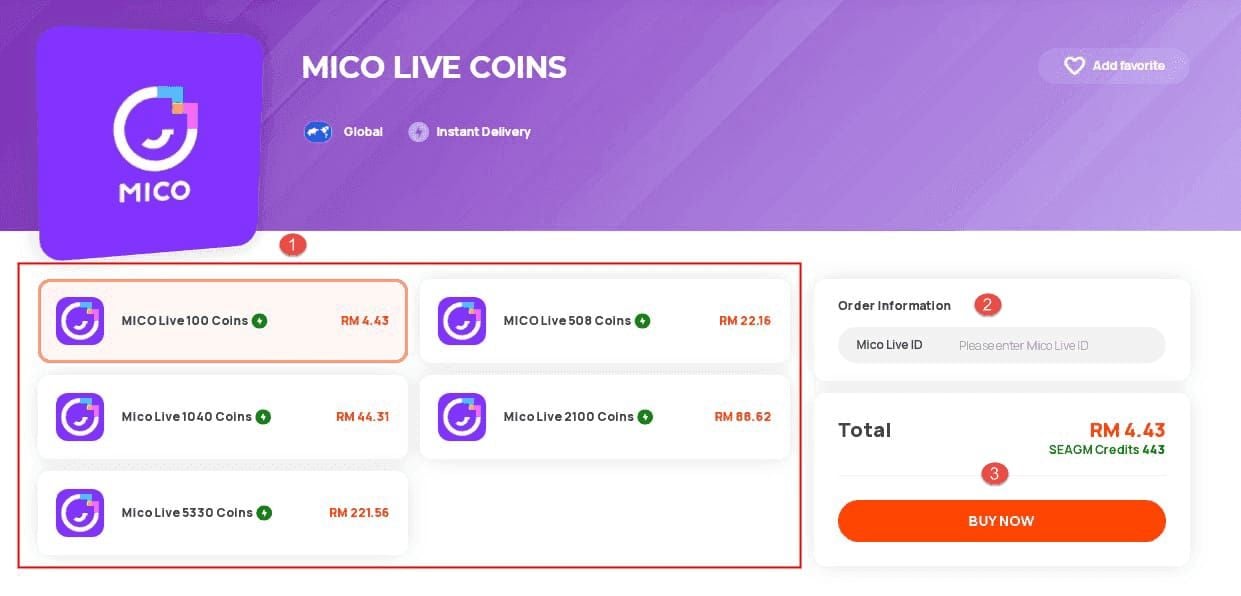
Your MICO UID functions as the delivery address for all coin purchases. This permanent numeric string contains continuous digits without spaces, letters, or special characters. Even a single incorrect digit redirects coins to a different account—or causes transaction failure.
Common UID entry mistakes:
- Confusing similar characters (0 vs O, 1 vs I, 8 vs B, 5 vs S)
- Including spaces when copying
- Entering username or display name instead of numeric UID
- Typing from memory instead of copying directly
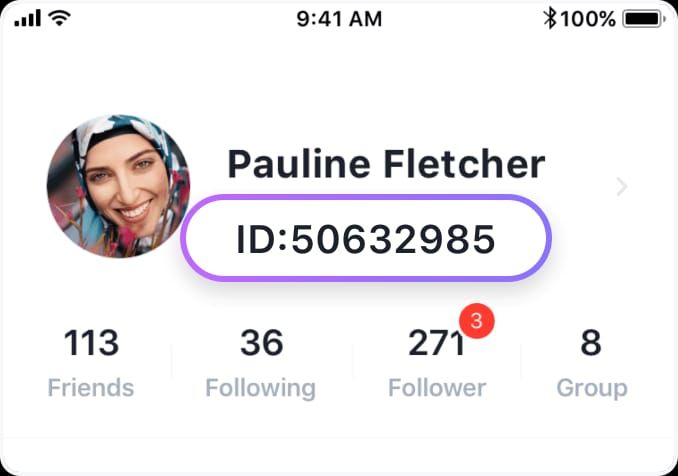
Pro tip: Open MICO Live, tap profile icon (bottom right), then long-press the UID under your username to copy it directly. This eliminates transcription errors.
How Region Settings Control Top-Up Eligibility
MICO implements region-based coin pricing and delivery. Your account region determines which packages you can purchase and exchange rates applied. Global region yields 110 coins per dollar, while MENA provides 143 coins per dollar—a 30% difference.
Region mismatch occurs when your payment method's registered country differs from your MICO account region. The system rejects these transactions to prevent regional pricing arbitrage.
To check your region: tap profile icon (top-left) > Account Settings > Region. Changing regions requires government ID, proof of residence from last three months, and SMS verification—processing takes 24-48 hours.
Account Type Requirements: Guest vs Registered
Guest accounts (created without email/phone registration) face limitations on receiving purchased coins. Registered accounts provide the security framework necessary for coin delivery.
Converting guest to registered requires:
- Linking valid email or phone number
- Completing SMS or email verification
- Setting secure password
- Agreeing to MICO's terms
This one-time process takes 5-10 minutes and enables full top-up access.
What Is MICO Live UID and Why It Matters
UID Definition: Your Unique Account Identifier
MICO UID (User ID) is your account's permanent identification number. Unlike usernames that can change, your UID remains constant from account creation. This numeric string typically contains 8-12 digits and appears in your profile section.
UID vs Username vs Display Name
Three distinct identifiers:
- UID: Permanent numeric string, never changes, used for all transactions
- Username: Alphanumeric login credential, may contain letters/numbers, sometimes modifiable
- Display Name: Public nickname shown to users, freely changeable, not unique
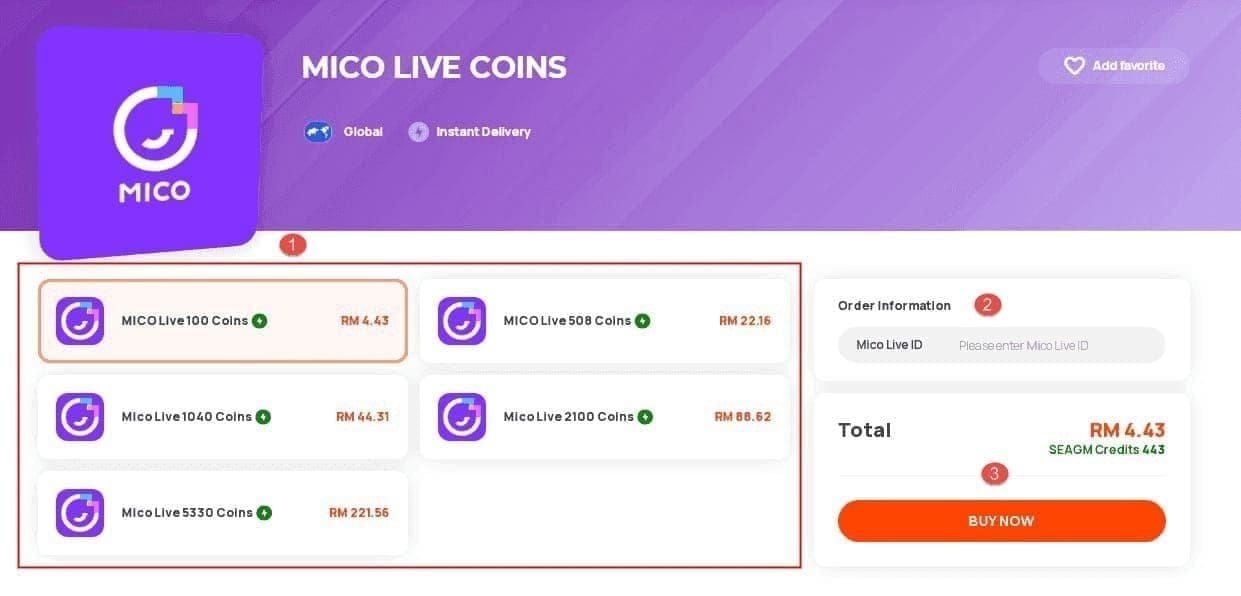
Only UID guarantees accurate coin delivery. Entering username or display name results in transaction failure.
How Top-Up Systems Use UID
Transaction delivery pathway:
- Payment processor confirms payment, generates order ID
- Top-up system receives order with your UID and coin amount
- System queries MICO's API to verify UID exists and account is active
- Upon verification, system sends credit request to MICO's servers
- MICO's backend adds coins to wallet associated with that UID
- Your in-app balance updates
Card and wallet payments deliver 95% within 5 minutes, 100% within 30 minutes. Peak periods (7-11 PM) add 15-30 minutes.
How to Find Your MICO Live UID (Step-by-Step)
Method 1: Profile Settings
- Open MICO Live, tap profile icon (bottom right)

- Your profile displays picture, username, and UID below
- Long-press UID to copy to clipboard
- Paste into top-up platform's UID field without modification
Method 2: Account Information Section
- Tap profile icon (top-left)
- Navigate to Account Settings > Account Information
- Scroll to User ID/UID field
- Use copy button or long-press to copy
Method 3: App Navigation
- While browsing, swipe right to open navigation drawer
- Profile summary shows at top with UID beneath username
- Tap UID to copy directly
Device-Specific Display
iOS: UID appears in gray text below username, 60% of username font size. Copy activates with 2-second press.
Android: UID displays in lighter text beneath username. Small copy icon may appear on newer versions.
Understanding Region Lock and Country Settings
What Is Region Lock
Region lock implements geographic restrictions on content access and purchasing. MICO divides users into regional markets—Global, MENA, Southeast Asia—each with distinct coin pricing and features.
When purchasing, MICO verifies your payment method's country matches your account's region. Mismatches trigger automatic rejection.
How to Check Your Region
- Open MICO Live, tap profile icon (top-left)
- Navigate to Account Settings > Region
- Current region displays with country flag and name
- Note this before purchasing
Why Payment Region Must Match Account Region
MICO enforces region matching to maintain pricing integrity. When payment country differs from account region:
- Payment processes successfully
- MICO's delivery system receives credit request
- Region verification detects mismatch
- System flags transaction as potentially fraudulent
- Coin delivery blocked pending manual review
Support tickets resolve in 24-72 hours, with 90% requiring refund or region change.
Common Mismatch Scenarios
- Traveling Abroad: Using local payment in different country
- VPN Usage: Connecting through VPN servers in different countries
- Relocated Accounts: Moving without updating MICO region
- Gift Purchases: Buying for friend in different region
Disable VPNs before purchases and ensure payment method's country matches MICO account region.
Pre-Purchase Verification: 5 Essential Checks
Check 1: Verify Exact UID (No Typos)
- Copy UID from MICO Live using long-press
- Paste into notes app for clear viewing
- Enter UID into top-up platform
- Before confirming, compare each digit
- Pay attention to: 0 vs O, 1 vs I, 8 vs B, 5 vs S
Check 2: Confirm Region Matches
- Check MICO account region in Account Settings
- Review top-up platform's supported regions
- Ensure payment method registered in compatible country
- Verify package displays pricing in your region's currency
Check 3: Ensure Registered Account
- Navigate to Account Settings
- Check for verified email or phone linked
- If you see Guest Account or Link Account, complete registration first
- Verify confirmed contact method displays
Check 4: Verify Not Banned/Restricted
- Check for notification banners when opening MICO Live
- Verify access to all app features including in-app store
- Confirm no pending violations or restrictions
- Test normal message sending and content interaction
Check 5: Check Current Balance
- Navigate to Profile > Wallet
- Record current coin balance (screenshot recommended)
- Note timestamp
- After purchasing, compare new balance against expected total
Common Missing Coins Scenarios and Solutions
Scenario 1: Wrong UID Entered (45% of Cases)
What happens: Coins deliver to account matching entered UID, not yours.
Solution:
- Check purchase receipt for UID entered
- Compare digit-by-digit against actual UID
- If discrepancy found, contact support within 4 hours
- Provide payment confirmation, incorrect UID, and correct UID
Prevention: Always copy UID directly, never type from memory.
Scenario 2: Region Mismatch (30%)
What happens: Payment processes but delivery blocked due to region incompatibility.
Solution:
- Verify MICO account region
- Check payment method's registered country
- If different, contact support with both details
- Request refund or region change (requires documentation)
- Wait 24-72 hours for resolution
Prevention: Confirm payment country matches MICO region before purchasing.
Scenario 3: Guest Account Limitations (10%)
What happens: Coins held pending until account converted to registered status.
Solution:
- Navigate to Account Settings
- Select Link Account or Register Account
- Provide valid email or phone
- Complete verification (SMS/email code)
- Coins auto-deliver within 15-30 minutes after verification
Prevention: Convert to registered before purchasing.
Scenario 4: Server Delay vs Missing Coins (5%)
Distinguishing:
- Server Delay: Payment confirmed, UID correct, region matches, coins arrive within 30 minutes to 4 hours
- Missing Coins: Payment confirmed but UID incorrect or region mismatched, coins never arrive without support
Solution:
- Wait 30 minutes after payment
- Pull down wallet screen to refresh
- Close MICO completely, wait 15 seconds, reopen
- Check Profile > Wallet > History for pending transactions
- If no coins within 4 hours, contact support
Prevention: Avoid peak periods (7-11 PM). Maintain stable internet.
Scenario 5: Other Technical Issues
Less common scenarios:
- Insufficient device storage (requires 500MB+ free)
- Outdated app version
- Network interruption during delivery
- Chargeback initiation (triggers account ban)
- Multiple simultaneous purchases
Standard troubleshooting: update app, ensure stable connectivity, free up storage, wait 30 minutes.
What to Do When Coins Don't Arrive
First 10 Minutes: Immediate Steps
- Set 30-minute timer (95% deliver within 5 minutes, 100% within 30)
- Refresh wallet by pulling down screen
- Verify payment confirmation in email/payment app
- Confirm you're checking correct account
- Check for app notifications
Checking Transaction History
- Navigate to Profile > Wallet > History
- Look for entries matching purchase amount and timestamp
- Check status: Completed = successful, Pending = processing
- If pending, wait additional 30 minutes
- If no transaction after 1 hour, delivery system may not have received order
Verifying Payment and Order Status
- Locate payment confirmation email/receipt
- Note order ID, transaction ID, timestamp
- Check top-up platform's order tracking
- Verify status shows Completed or Delivered
- Compare UID on order against actual MICO UID
When to Wait vs Contact Support
Wait if:
- Less than 30 minutes since payment
- Transaction shows Pending in wallet history
- Order status shows Processing
- Purchased during peak hours
- Used cryptocurrency or bank transfer
Contact support if:
- 4+ hours passed with no delivery
- Confirmed incorrect UID entered
- Discovered region mismatch
- Payment charged but no order in platform history
- No pending/completed entry in MICO history
Provide when contacting:
- Correct MICO UID
- Payment confirmation screenshot/transaction ID
- Order number from top-up platform
- Purchase timestamp
- Amount paid and expected coins
Submit to contact@micous.com for MICO issues, or top-up platform support if order never reached MICO.
How BitTopup Ensures Safe Delivery
UID Verification System
BitTopup performs real-time validation:
- Format verification (numeric digits only)
- Length validation (8-12 digits)
- Account existence check via MICO's API
- Double-entry confirmation to catch typos
Prevents 90% of UID failures before payment.
Region Compatibility Checks
- You enter MICO UID at checkout
- BitTopup queries MICO's API for account region
- Platform filters packages to show only compatible ones
- Pricing displays in your region's currency
- Payment methods limited to region-compatible options
Eliminates region mismatch scenarios.
Order Tracking Features
- Real-time status updates
- Estimated delivery time based on payment method
- Delivery confirmation notification
- Transaction history archive with order IDs and timestamps
Customer Support
- 24/7 availability (2-4 hour response)
- MICO platform expertise
- Direct MICO coordination for complex cases
- Refund processing within 24-48 hours if needed
Preventing Future Delivery Issues
Personal Verification Checklist
Before every purchase:
During checkout:
After payment:
Saving Your UID Securely
Recommended:
- Password manager (1Password, LastPass, Bitwarden)
- Encrypted notes app with password protection
- Encrypted cloud storage (iCloud, Google Drive with 2FA)
- Physical backup on paper
Avoid:
- Unencrypted text files
- Screenshots in photo library
- Shared documents
- Email drafts or messaging apps
Best Practices
Timing:
- Purchase during off-peak hours (early morning/mid-afternoon)
- Avoid major MICO events
- Allow 4+ hours during evening peaks
Account maintenance:
- Keep MICO updated to latest version
- Maintain registered status
- Verify region settings after traveling
- Keep 500MB+ free storage
Platform selection:
- Use established platforms like BitTopup
- Verify region support before purchasing
- Check user reviews for delivery success
- Confirm order tracking availability
Payment methods:
- Cards/digital wallets fastest (95% within 5 minutes)
- Avoid crypto for urgent purchases (up to 30 minutes)
- Bank transfers require 1-4 hours
- Ensure payment country matches MICO region
Expert Tips
The 5-Second Rule
Before confirming purchase:
- After pasting UID, stop
- Count to five while comparing entered vs copied UID
- Check for: missing digits, extra spaces, transposed numbers
- Verify digit count matches
- Only then proceed to payment
Prevents 45% of missing coins cases.
Screenshot Before Every Purchase
Capture:
- Profile page showing UID
- Region settings page
- Current wallet balance
- Account settings showing registered status
Store in dated folder. Provides evidence if support needed.
Why Trusted Platforms Matter
Indicators of trustworthy platforms:
- Built-in UID format validation
- Region compatibility checks
- Real-time order tracking
- Responsive support with MICO expertise
- High user ratings for MICO deliveries
- Secure payment processing
Avoid platforms that:
- Request username instead of numeric UID
- Don't verify region compatibility
- Lack order tracking
- Show numerous missing coins complaints
- Offer prices significantly below market
FAQ
How long should I wait for MICO Coins after payment?
Wait 30 minutes for card/digital wallet payments (95% within 5 minutes, 100% within 30). Cryptocurrency requires up to 30 minutes. Bank transfers take 1-4 hours. Peak periods add 15-30 minutes. Contact support only if coins haven't arrived 4 hours after payment.
Can I change UID after purchase if I made a mistake?
No. Coins deliver to whichever account matches entered UID. If you entered incorrect UID, immediately contact support with payment confirmation and correct UID. They may recall undelivered coins or initiate refund, but success depends on whether coins already credited to wrong account.
What information do I need to report missing coins?
Provide: correct MICO UID, payment confirmation screenshot/transaction ID, order number, exact timestamp, amount paid, expected coin quantity. Include screenshots of wallet showing no delivery and region settings. If wrong UID entered, provide both wrong and correct UIDs.
Are MICO Coins refundable if delivery fails?
Depends on failure cause. If incorrect UID on your part, refunds not guaranteed—coins may have delivered to wrong account. If platform errors, region restrictions, or technical issues, most platforms refund within 24-48 hours. Never initiate chargeback—triggers automatic account ban.
How do I verify my MICO account before buying coins?
Open MICO Live, tap profile (bottom right), long-press UID to copy. Check Account Settings > Region for registered country. Verify account shows verified email/phone (registered, not guest). Screenshot wallet balance. Ensure 500MB+ free storage, disable VPNs. Takes 2-3 minutes, prevents 90% of failures.
What's the difference between server delay and missing coins?
Server delay: UID and region correct, coins arrive within 30 minutes to 4 hours without intervention. Missing coins: incorrect UID or region mismatch, coins never arrive without support. If payment confirmed, UID correct, region matches—wait 4 hours. If UID wrong or region mismatched—contact support immediately.
Avoid missing coins—buy MICO Live coins online with BitTopup's verified UID and region checking. Get instant delivery with our secure platform!