Studio vs Standard Recording Mode
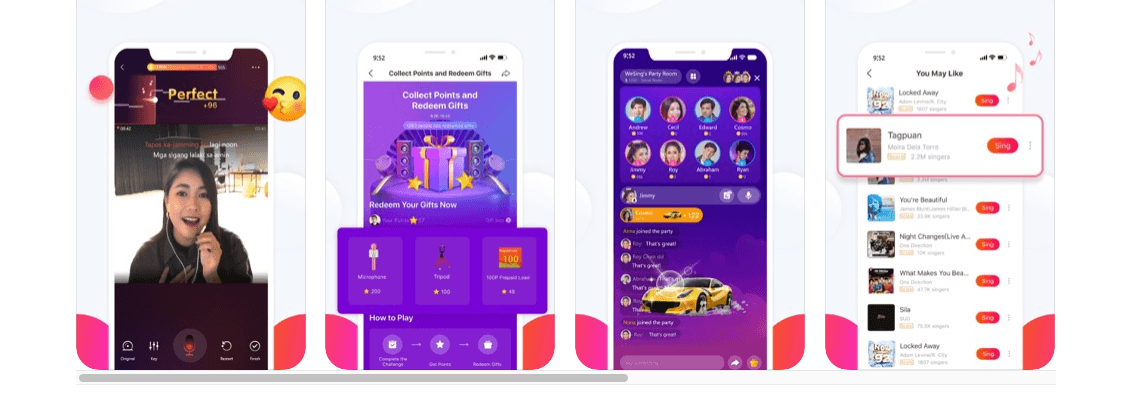
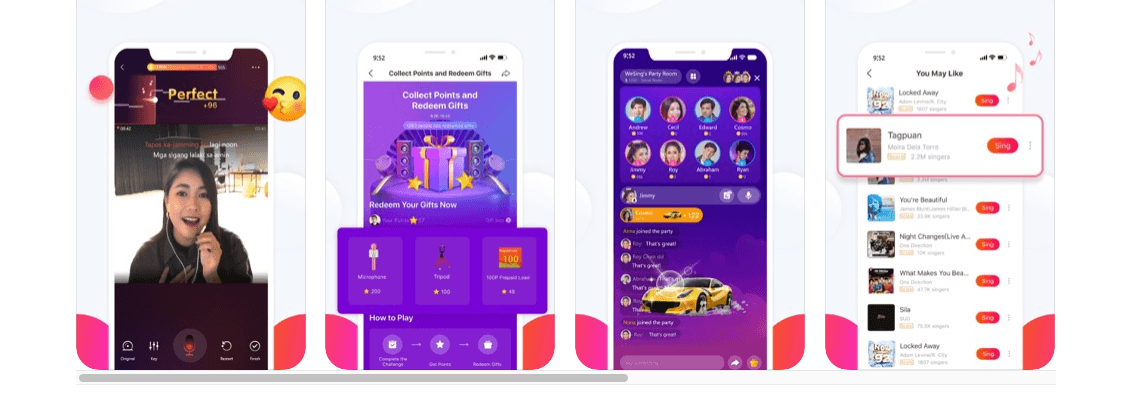
Standard mode captures single vocal performances with real-time pitch feedback and scrolling lyrics. Studio mode unlocks layered recording—build compositions track by track like professional sessions.
Studio includes dedicated voice effects: Karaoke, Studio, Superstar, Gig, and Pop, each optimized for multi-track applications. Standard mode applies effects globally; Studio mode allows per-track customization. Apply reverb only to background vocals while keeping lead vocals dry and present.
Upgraded recording quality and optimized in-ear monitoring provide the technical foundation for precise multi-track work. Real-time pitch feedback remains active across all tracks, ensuring harmonic accuracy when stacked.
Multi-Track Recording Capabilities
Multi-track recording separates individual vocal elements into discrete layers for independent adjustment, mixing, and processing. Record lead vocal on track one, add harmony vocals on tracks two and three, layer background elements on track four, stack ad-libs on track five—all with complete control over each element's volume, panning, and effects.
Radar Chart Analysis provides visual feedback on vocal performance across multiple dimensions, identifying which tracks need re-recording for consistency.
Studio mode supports unlimited playback iterations during recording, allowing you to reference previously recorded tracks while adding new layers—mirroring professional studio practices.
Why Creators Switch to Studio Workflow in 2026
Mobile recording technology has reached parity with entry-level desktop solutions for vocal production. Latest version 9.23.1, following updates from 9.22.5 (23/12/2025), 9.22.1 (19/12/2025), 9.22.0 (16/12/2025), and 9.21.2 (12/12/2025), demonstrates continuous improvement.
Multi-track capabilities enable competitive differentiation. Simple single-take covers compete with thousands of similar recordings, while thoughtfully layered multi-track arrangements showcase production skills that attract followers and engagement.
Convenience factor: record professional-quality multi-track covers during commutes, lunch breaks, or late-night sessions without desktop equipment. iOS app size of 434.4 MB includes comprehensive Studio features without additional downloads.
Essential Prerequisites: Setup for Multi-Track Success
Device Requirements and Compatibility
StarMaker Studio requires:
- iOS 13.0+ for iPhone
- iPadOS 13.0+ for iPad
- macOS 13.0+ with Apple M1 chip+ for Mac
- visionOS 1.0+ for spatial recording
Test your device by recording a four-track session with effects enabled. If playback remains smooth without stuttering or dropouts, your hardware handles Studio demands.
Maintain at least 2GB free storage for comfortable Studio workflow.
Recommended Audio Equipment
While StarMaker functions with built-in microphones, external equipment dramatically improves quality:
- USB-C or Lightning-compatible condenser microphones capture vocal detail internal mics miss
- Closed-back headphones prevent audio bleed where backing tracks leak into your microphone
- Pop filter or foam windscreen reduces plosive sounds (hard p and b consonants)
App Settings Optimization
Navigate to audio settings and select highest available recording quality. Higher quality increases file sizes, but multi-track work demands maximum fidelity to prevent cumulative degradation.
Enable optimized in-ear monitoring to minimize latency between your live voice and headphone monitoring. Excessive delay disrupts timing and pitch accuracy.
Adjust lyrics font size for comfortable reading. Squinting creates physical tension affecting vocal performance.
StarMaker Coins and Diamond Requirements
Studio mode access and advanced effects require StarMaker Coins:
- 60 Coins: $0.99
- 420 Coins: $6.99
Subscription options provide unlimited access:
- 1 Week: $7.99
- 1 Month: $14.99
- 1 Year: $59.99
Heavy Studio users find monthly or annual subscriptions more economical than per-use purchases.
For seamless premium access, buy StarMaker coin recharge for VIP through BitTopup's secure platform with fast delivery and competitive pricing.
Complete 2026 StarMaker Studio Workflow (Step-by-Step)
Step 1: Accessing Studio and Selecting Your Song
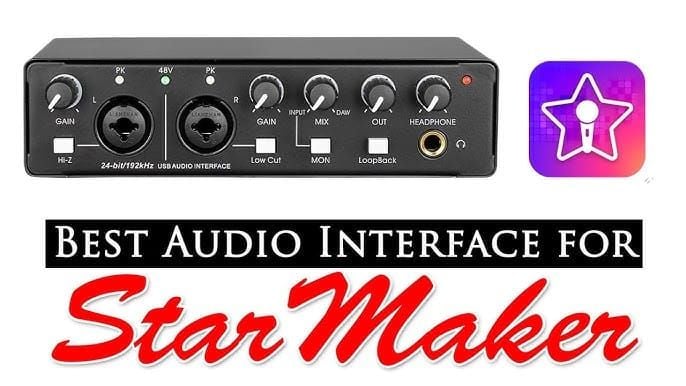
Launch StarMaker and navigate to Studio section. Browse 14M+ songs using genre filters, trending charts, or direct search. Preview songs to confirm key suitability—attempting multi-track harmonies in uncomfortable vocal range guarantees poor results.
Select songs with clear instrumental separation where backing vocals won't compete with busy arrangements. Acoustic versions provide ideal canvases for showcasing multi-track vocal production.
Review song structure before recording. Identify verses, choruses, bridges, and instrumental breaks where you'll add different vocal layers.
Step 2: Recording Foundation Track (Lead Vocals)
Your lead vocal establishes the reference for all subsequent tracks. Record with full commitment and energy—tentative lead vocals undermine the entire structure.
Use scrolling lyrics and instant pitch feedback to maintain accuracy. Studio mode preserves these guidance features across all tracks.
Record multiple complete takes. Listen back critically and select the take with best overall pitch accuracy, emotional delivery, and consistent volume levels.
Step 3: Adding Harmony Layers and Background Vocals
Sing harmony parts with slightly less volume and intensity than lead, creating space in the mix rather than competing.
Record harmony parts one at a time. Layer lower third harmony first, then add upper fifth harmony, building complexity gradually.
Use mute and solo functions to isolate specific tracks. Solo your lead vocal while recording harmonies to ensure accurate pitch relationships.
Step 4: Recording Additional Instrumental or Acapella Tracks
Studio mode enables creative layering: vocal percussion, breath effects, whispered doubles, and rhythmic vocal elements.
Record experimental tracks without self-censorship—you can always mute or delete unsuccessful experiments. The Clip feature allows extracting and reusing successful moments.
Layer subtle vocal pads by recording sustained ooh or ahh sounds at low volume beneath verses for professional polish.
Step 5: Real-Time Monitoring and Playback Review
After recording each track, play back the full arrangement while critically listening for balance issues, timing problems, or pitch discrepancies.
Use headphones for detailed analysis, then check on device speakers to simulate how most listeners will experience your recording.
Upgraded recording quality ensures playback accurately represents your performances without unexpected artifacts.
Mastering Vocal Layering Techniques
Creating Professional Harmony Stacks
Three-part harmony stacks (root, third, fifth) provide full, rich arrangements without overcrowding. Record root harmony first as strongest harmonic foundation, then add third for warmth, and fifth for brightness.
Vary vocal tone slightly between harmony parts. Identical tone creates phase interference and muddy results. Adjust vocal placement—slightly more nasal for upper harmonies, more chest voice for lower harmonies.
Pan harmony parts strategically: center lead vocal, pan lower harmony slightly left, upper harmony slightly right. This spatial arrangement creates width and dimension.
Doubling Techniques for Fuller Sound
Vocal doubling involves recording the same part twice and layering takes together. This adds thickness and presence without harmonic complexity.
Record doubles with natural variation rather than perfect replication. Slight timing and pitch differences create the chorusing effect that makes doubling effective.
Apply doubling selectively to choruses and key phrases rather than entire songs. Strategic doubling on important lyrics creates emphasis and impact.
Strategic Placement of Ad-libs and Background Elements
Ad-libs fill empty spaces and add personality. Record after completing main vocal parts so you can identify specific moments that benefit from additional interest.
Place ad-libs in instrumental breaks, at phrase ends, or during sustained notes in lead vocal. Avoid cluttering busy sections.
Background vocal elements like yeah,oh, and rhythmic hits require restraint. One well-placed element creates impact; five simultaneous elements create chaos.
Avoiding Phase Issues and Muddy Mix Problems
Phase issues occur when similar frequencies from multiple tracks interact destructively, causing thin, hollow sound. Prevent by varying microphone distance between takes—record lead vocals 6 inches from mic, harmonies at 8 inches, backgrounds at 10 inches.
Muddy mixes result from excessive low-frequency content across multiple tracks. Maintain consistent distance and use high-pass filtering during mixing.
Monitor your mix at low volume levels. Problems with frequency masking and muddiness become obvious at quiet listening levels.
Track Management and Organization
Naming and Color-Coding Tracks

Assign descriptive names immediately: Lead Vocal,Harmony Low,Harmony High,Ad-libs Chorus,Background Verse 2. Generic names become meaningless in sessions with eight+ tracks.
Color-code related tracks: blue for lead vocals, green for harmonies, yellow for backgrounds, red for ad-libs. Visual organization enables instant recognition.
Maintain consistent naming conventions across all projects to accelerate workflow.
Managing Track Timeline and Synchronization
Studio mode displays track waveforms on timeline, enabling visual confirmation of synchronization. Zoom in when recording rhythmically precise parts to ensure tight alignment.
Use metronome feature if timing inconsistency appears. Visual and audible click reference helps maintain consistent timing when layering complex rhythmic parts.
Mark important song sections (verse, chorus, bridge) on timeline for quick navigation.
Muting, Soloing, and Isolating Tracks
Mute function silences specific tracks without deleting them. Mute all harmony tracks to hear lead vocal in isolation, then unmute harmonies one at a time.
Solo function isolates individual tracks, muting all others automatically. Use solo when recording new tracks that harmonize with specific existing elements.
Create multiple versions of key sections by recording alternative approaches on separate tracks, then mute/unmute to compare options.
Saving and Backing Up Projects
Studio mode auto-saves periodically, but manually save after completing each track. Save before attempting experimental recording.
Export work-in-progress versions as backup insurance. While intermediate exports lack individual track access, they preserve arrangement progress if project files corrupt.
Maintain organized project libraries with clear naming including song title and date: Amazing Grace 2026-01-15.
Mobile Mixing Console: Balancing Your Multi-Track Cover
Understanding Volume Levels and Track Balance
Start mixing with all track faders at zero, then bring up lead vocal to comfortable listening level. Add backing track next, balancing slightly quieter than lead so lyrics remain intelligible. Build mix by adding tracks one at a time.
Maintain headroom by keeping master output below clipping threshold. Mobile devices have limited dynamic range, making headroom management critical.
Record tracks at consistent levels and make broad volume adjustments during mixing.
Panning Techniques for Spatial Depth
Center lead vocal and backing track for maximum impact and clarity.
Pan harmony vocals and background elements to create stereo width. Place lower harmonies 30% left, upper harmonies 30% right, creating space without extreme hard-panning.
Keep low-frequency elements (bass vocals, chest voice parts) centered to maintain low-end power.
Applying Effects to Individual Tracks
Studio feature provides 30+ AI-enhanced personalized audio effects applicable to individual tracks. Apply subtle reverb to harmony vocals for depth while keeping lead vocals relatively dry.
Use Superstar effect on lead vocals during choruses for polish and radio-ready sheen. Apply Gig effect to background vocals for raw, energetic character.
Avoid applying heavy effects to all tracks simultaneously. Strategic effect application on specific elements creates professional contrast.
Final Mix-Down Strategies
Reference your mix against professional recordings in similar genres. Play a commercial track, then your mix, noting differences in vocal balance, effect levels, and overall clarity.
Take breaks during mixing sessions. Ear fatigue causes poor mix decisions. Return after several hours with fresh ears.
Export multiple mix versions with slight variations in vocal level, effect intensity, and overall brightness.
Audio Quality Optimization
Choosing Right Recording Quality Settings
Select maximum available recording quality despite larger file sizes. Multi-track work compounds quality losses from compression.
Upgraded recording quality in version 9.23.1 provides improved frequency response and dynamic range. Update to latest version before important projects.
Avoid recording in environments with background noise even if you plan noise reduction. Noise reduction algorithms degrade vocal quality.
Microphone Positioning and Distance
Maintain consistent microphone distance across all takes of same vocal part. Varying distance creates volume and tonal inconsistencies.
Position microphone slightly off-axis (aimed at mouth from 45-degree angle) rather than directly in front to reduce plosive impact and breath noise.
Record in same physical location for all tracks in a project. Room acoustics significantly affect vocal tone.
Reducing Background Noise and Environmental Interference
Record in small, acoustically dead spaces like closets filled with clothing. These environments minimize room reflections and ambient noise.
Disable device notifications and enable airplane mode during recording to prevent interference from incoming calls, messages, and app notifications.
Record during quiet times when environmental noise (traffic, neighbors, HVAC systems) reaches minimum levels.
Headphone Monitoring vs Speaker Playback
Monitor through headphones during recording to hear subtle details and maintain isolation. Optimized in-ear monitoring minimizes latency.
Check mixes on device speakers to simulate typical listener playback conditions. Most StarMaker users experience content through smartphone speakers or basic earbuds.
Test final mixes on multiple playback systems before publishing. Aim for mixes that translate acceptably across various playback scenarios.
Common Multi-Track Recording Mistakes
Misconception: Mobile Can't Match Professional Quality
Modern mobile recording produces results indistinguishable from entry-level desktop recording for vocal production. The limitation lies in user technique and knowledge, not hardware.
Professional recordings distinguish themselves through performance quality, arrangement decisions, and mixing skill rather than equipment specifications.
Focus on developing fundamental skills—pitch accuracy, timing consistency, microphone technique, and arrangement taste.
Avoiding Timing and Synchronization Issues
Enable visual waveform display during recording to confirm timing alignment. Vocal attacks should align vertically across tracks when properly synchronized.
Record with backing track metronome or click enabled if timing inconsistency appears. External timing reference prevents cumulative timing drift.
Re-record tracks with obvious timing problems rather than attempting to fix them in mixing.
Preventing Audio Clipping and Distortion
Monitor input levels during recording to ensure peaks remain below clipping threshold. Clipped audio contains permanent distortion.
Record with conservative input levels, leaving headroom for unexpected loud passages. You can increase volume of quiet recordings during mixing.
Use Radar Chart Analysis to identify recordings with technical problems. Re-record problematic tracks immediately.
Troubleshooting Latency and Lag
Latency disrupts timing and pitch accuracy. Reduce by closing background apps that consume processing power.
Enable low-latency monitoring mode in audio settings if available. This prioritizes real-time monitoring over other audio processing.
Restart device before important recording sessions to clear memory and ensure maximum processing resources.
Advanced Creator Workflow Optimization
Time-Saving Recording Shortcuts
Learn touch gestures for common functions like mute, solo, and track selection. Navigating through menus wastes time and disrupts creative flow.
Create template projects with standard track configurations for your typical recording style.
Use punch-in recording to fix small mistakes rather than re-recording entire tracks.
Batch Recording Multiple Takes Efficiently
Record multiple complete takes consecutively while voice remains warmed up and performance energy stays high.
Label takes sequentially (Take 1, Take 2, Take 3) and record brief voice notes describing each take's strengths and weaknesses.
Comp the best sections from multiple takes into a single perfect performance.
Using Reference Tracks for Consistent Quality
Import reference recordings of professional artists performing similar material. Compare your vocal tone, pitch accuracy, and arrangement density.
Match your overall vocal level to reference tracks to ensure competitive loudness without over-compression.
Analyze reference track arrangements to understand typical vocal layering density in your genre.
Workflow Templates for Different Song Genres
Develop genre-specific recording approaches: Ballad = lead vocal + subtle double + light reverb versus Pop = lead vocal + harmony stack + doubles on chorus + ad-libs + heavy effects.
These templates provide starting points that accelerate creative decisions.
Experiment with genre-crossing techniques once you master conventional approaches.
Exporting and Sharing Your Multi-Track Masterpiece
Export Settings for Maximum Quality
Select highest available export quality to preserve fidelity achieved during recording and mixing.
Export to lossless formats when available for archival purposes. Maintain high-quality masters for future remixing.
Verify exported files play correctly before deleting project files.
Publishing to StarMaker Profile
Publish during peak user activity times for maximum initial visibility. The algorithm favors content that generates immediate engagement.
Write compelling descriptions highlighting your multi-track production approach: 3-part harmony arrangement with layered vocals.
Use relevant hashtags and genre tags to improve discoverability. Annual singing contest with two seasons per year provides promotional opportunities.
Cross-Platform Sharing Strategies
Export multi-track covers for sharing on other social platforms to drive traffic back to StarMaker profile.
Create short preview clips using Clip feature to share on platforms with short-form video focus.
Engage with other creators' multi-track content through Live Duet and Party Rooms features.
Tracking Performance Metrics
Monitor plays, likes, and shares to identify which multi-track arrangements resonate most strongly.
Read comments for specific feedback about vocal layering, harmony choices, and overall production quality.
Compare performance metrics between single-take recordings and multi-track productions to quantify engagement value.
Monetizing Your Multi-Track Recording Skills
Understanding Premium Features and ROI
Premium voice effects and extended recording time require coin investment, but resulting production quality improvements generate engagement justifying the expense.
Calculate cost-per-recording for premium features versus subscription options. Creators producing multiple multi-track covers weekly achieve better value through monthly or annual subscriptions at $14.99 and $59.99.
Track engagement metrics before and after adopting premium features to quantify ROI.
Building Your Creator Brand
Consistent multi-track production quality establishes you as serious creator. This reputation attracts collaboration opportunities, featured placement, and platform recognition.
Develop signature production techniques that make your covers instantly recognizable.
Document creative process through behind-the-scenes content showcasing your multi-track workflow.
Leveraging BitTopup for Seamless Top-Up
Maintaining uninterrupted access to premium Studio features requires reliable coin purchasing. BitTopup provides fast delivery, secure transactions, competitive pricing, and excellent customer service.
The platform's wide game coverage and high user ratings demonstrate reliability across the gaming and entertainment recharge ecosystem.
Strategic coin management through BitTopup's efficient purchasing ensures you never lose creative momentum waiting for coin delivery.
FAQ
Can you record multiple vocal tracks on StarMaker mobile?
Yes, StarMaker Studio mode enables multi-track recording where you layer lead vocals, harmonies, background vocals, and ad-libs as separate tracks with independent volume, panning, and effects control.
What equipment do I need for StarMaker Studio recording?
StarMaker Studio functions with built-in device microphones, but external USB-C or Lightning-compatible microphones, closed-back headphones, and pop filters significantly improve quality. Minimum requirements: iOS 13.0+ devices with 434.4 MB available storage.
How do you layer harmonies in StarMaker Studio?
Record lead vocal first as foundation track, then add harmony parts one at a time while monitoring lead vocal for pitch reference. Use mute and solo functions to isolate specific tracks, and pan harmonies left and right during mixing.
Is StarMaker Studio free or does it require coins?
Basic Studio access is included with free app, but premium voice effects, extended recording time, and high-quality export require StarMaker Coins (60 Coins for $0.99, 420 Coins for $6.99) or subscriptions ($7.99 weekly, $14.99 monthly, $59.99 yearly).
How do you fix audio lag in StarMaker Studio recording?
Enable optimized in-ear monitoring in audio settings, close background apps, restart device before recording sessions, and ensure device meets minimum requirements (iOS 13.0+, sufficient storage). Low-latency monitoring mode prioritizes real-time audio processing.
What is the best audio quality setting for StarMaker Studio?
Select maximum available recording quality in app settings despite larger file sizes. Multi-track work compounds quality losses from compression. Version 9.23.1 offers upgraded recording quality with improved frequency response and dynamic range.
Ready to unlock StarMaker Studio's full potential? Top up your StarMaker Coins and Diamonds instantly through BitTopup – the fastest, most secure way to access premium recording features. Start creating professional multi-track covers today with seamless payment options and instant delivery. Visit BitTopup now and elevate your StarMaker creator journey!