How Gift Animations Work
Each gift tier has distinct animation characteristics:
Basic tier (1-50 coins): Simple graphics, 5-7 seconds, minimal screen coverage. Rarely cause performance issues.
Social tier (50-200 coins): More complex effects, 6-8 seconds, moderate screen coverage with multiple visual elements and sound effects.
Premium tier (500-2000 coins): Elaborate displays with significant screen coverage. Golden Crown Cascade (2000 coins, 6 seconds, 50% coverage), Diamond Rain (2200 coins, 7 seconds normally, 10 seconds in 500+ viewer rooms).
Guardian exclusive: Highest tier requiring Guardian status. Phoenix Rising (2500 coins, 8 seconds, three phases), Luxury Yacht Voyage (3500 coins, 10 seconds), Royal Carriage Entrance (4000 coins, 12 seconds).
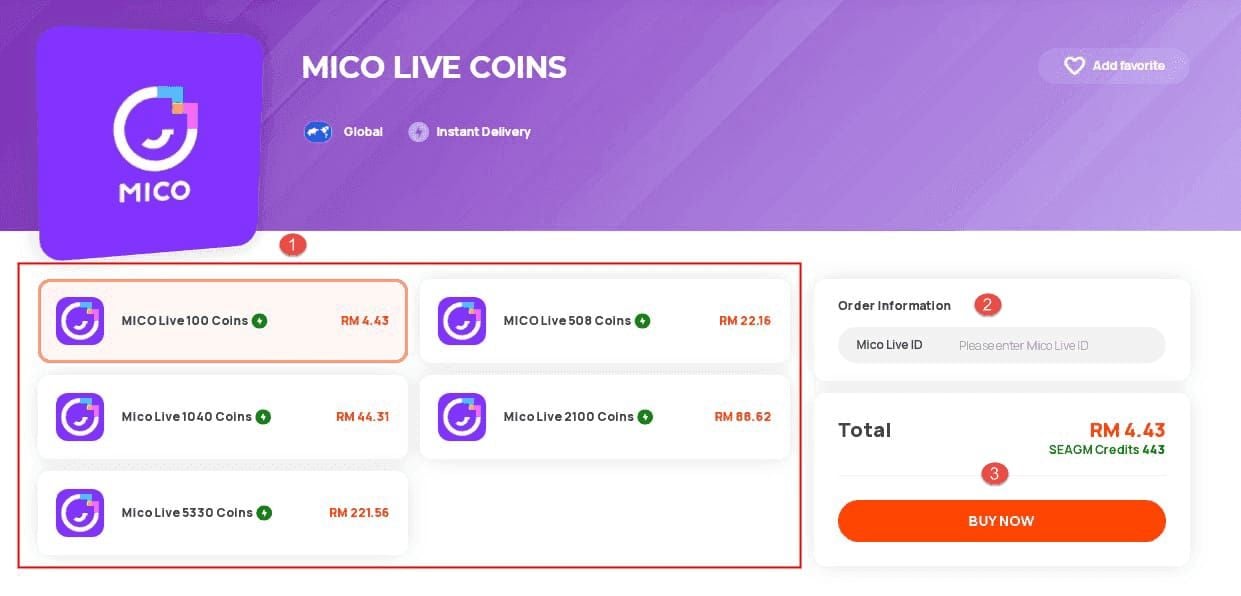
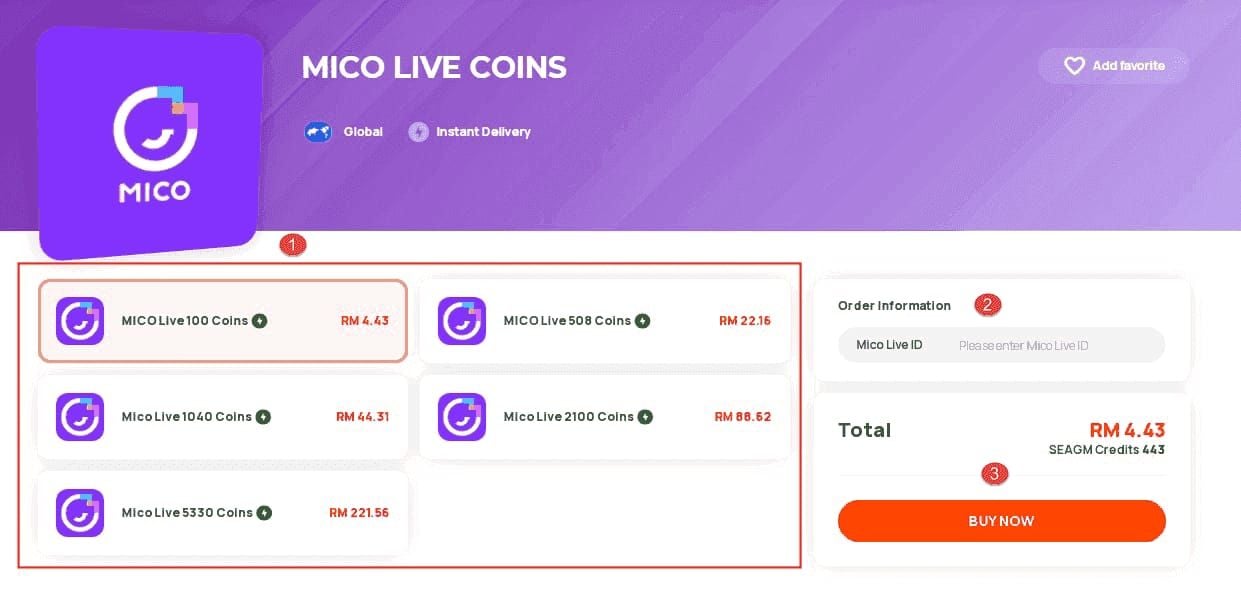
For smooth gifting without lag, MICO Live coins top up at BitTopup offers fast, secure transactions.
Why Busy Rooms Experience Lag
Performance degradation in crowded rooms stems from multiple simultaneous animation processes:
Animation rendering: Continuous GPU processing. Multiple concurrent gifts force your device to render overlapping animations while maintaining audio streaming, chat functionality, and UI responsiveness.
Viewer-triggered intensification: In 500+ participant rooms, standard animations extend duration and complexity. Diamond Rain extends from 7 to 10 seconds (43% increase), multiplying across dozens of concurrent gifts during peak moments.
Special animation triggers: Meteor Shower Spectacular (4500 coins, 11 seconds) adds aurora borealis effect between 8 PM-2 AM. Dragon Emperor's Blessing (6000 coins, 15 seconds) has four distinct phases. Celestial Palace Descent (7500 coins, 18 seconds) incorporates custom dedication messages for users with 100,000+ coin gifting history.
Performance Impact
Animations covering 80%+ screen space generate 3-4x more user reactions but consume proportionally more processing power. Mid-duration animations (8-12 seconds) cause 250-350% chat activity spikes. Long-duration animations (15-20 seconds) trigger 400-600% activity increases.
Universe Creation (10,000 coins) runs 20 seconds normally. Birthday activations unlock unique variants, while users who've sent 1000 gifts to a specific streamer unlock a 30-second version.
Animations vs. Notifications
Animations: Visual effects that play when gifts are sent.
Notifications: Alert system informing you about gift activity, particularly high-value VIP drops.
These operate on separate system processes. Disabling animations stops visual effects but maintains the notification pipeline. You eliminate performance-draining graphics while still receiving alerts about important gifts through banner notifications, sound alerts, or badge indicators.
VIP drop notifications track gifts meeting certain value thresholds, functioning independently of animation settings.
How to Turn Off Gift Animations
Disabling gift animations requires accessing specific settings within MICO Live. Ensure your app is updated to the latest version.
Accessing Settings Menu
Android:
- Open MICO Live and log in
- Tap profile icon (top-right corner)
- Select Settings (gear icon)
- Scroll to Performance & Display
- Locate Gift Animation Settings
iOS:
- Launch MICO Live, navigate to profile
- Tap settings icon (three lines or gear)
- Choose Preferences
- Find Visual Effects & Animations
- Access Gift Animation Controls
Animation Mode Options
Full Animations: Default setting displaying all gift effects at maximum quality and duration. Suits newer devices (released within 2 years) with robust processors and ample RAM.
Reduced Animations: Abbreviated versions running 40-60% shorter with simplified graphics. Golden Crown Cascade reduces from 6 to 3-4 seconds. Phoenix Rising's three phases condense into one streamlined sequence. Reduces processing demands by 50-60%.
Animations Off: Eliminates all gift visual effects, providing maximum performance optimization. Ideal for older devices, extremely busy rooms (500+ viewers), or anyone prioritizing audio quality and chat interaction. You'll still see gift badges, sender names, and receive all VIP drop notifications.
For users who frequently send gifts, buy MICO coins online through BitTopup's secure platform with competitive pricing and instant delivery.
Saving and Testing Settings
- Tap Apply or Save Changes
- Exit settings, return to main interface
- Join a moderately active voice room (20-50 participants)
- Observe interface when gifts are sent
Verification checklist:
- Gift sender names appear in chat feed
- Gift badges display next to user profiles
- Audio notifications (if enabled) sound for high-value gifts
- Screen remains clear of visual effects if Animations Off selected
- Reduced duration visible if Reduced Animations chosen
Verifying VIP Notifications
- Navigate to Settings > Notifications > VIP Alerts
- Ensure High-Value Gift Notifications toggle is enabled
- Check notification threshold (typically 2000+ coins for Guardian-tier gifts)
- Verify delivery method preferences (banner, sound, vibration)
- Test by asking a friend to send a premium gift
VIP notifications alert you to Guardian exclusive gifts starting at 2000 coins, appearing as banner alerts with distinctive sound effects.
Preserving VIP Drop Alerts
VIP drop notifications operate through a separate alert system ensuring you never miss significant gifts regardless of animation settings.
How VIP Notifications Work Independently
The notification system monitors gift values in real-time, triggering alerts when gifts exceed your configured threshold. This monitoring occurs at the backend level, independent of frontend animation rendering.
When someone sends Meteor Shower Spectacular (4500 coins), Dragon Emperor's Blessing (6000 coins), Celestial Palace Descent (7500 coins), or Universe Creation (10,000 coins), you receive:
- Banner notification displaying gift name and sender
- Distinctive audio alert
- Badge indicator showing gift tier
- Chat message highlighting the transaction
- Profile badge update if gift affects relationship status
Configuring Priority Notifications
Threshold configuration:
- Access Settings > Notifications > Gift Alerts
- Set VIP Notification Threshold to preferred minimum
- Recommended: 2000 coins for Guardian-tier awareness, 5000 coins for ultra-premium focus
- Enable Separate VIP Alert Sound
Delivery methods:
- Banner notifications: Display at screen top for 3-5 seconds, non-intrusive
- Full-screen alerts: Briefly overlay entire screen (recommended for hosts tracking top supporters)
- Sound-only: Audio cue without visual interruption
- Vibration patterns: Unique haptic feedback for VIP drops
Alert Types
Visual alerts: Banner notifications and badge indicators. Banners appear temporarily at screen top showing gift name, sender, and coin value. Badges persist next to sender profiles.
Audio alerts: Non-visual awareness, crucial when multitasking or running MICO Live in background. VIP drop sounds use distinct tones—higher-pitched chimes or musical flourishes. Configure volume independently.
Banner alerts: Combine visual and informational elements, displaying for 3-5 seconds at screen top. Show sender name, gift name, coin value, and sometimes custom messages.
Performance Improvements
Disabling gift animations produces measurable improvements across multiple metrics.
Lag Reduction
In moderately busy rooms (50-100 participants), disabling animations reduces interface lag by 60-75%:
- Smoother scrolling through user lists and chat
- Faster response to tap inputs
- Reduced delay between audio and visual elements
- Elimination of frame drops during gift rushes
In extremely busy rooms (500+ participants), improvements become more dramatic. Rooms at this scale experience 15-20 gifts per minute during peak activity. Disabling animations reduces CPU usage by 40-50% and GPU usage by 70-80%:
- Elimination of audio stuttering
- Consistent frame rates
- Immediate chat message delivery
- Reliable tap response
Frame Rate Improvements
Mid-range devices (2-4 years old, 4-6GB RAM) show dramatic improvements:
With animations enabled:
- 15-25 FPS during active gifting
- Severe stuttering when multiple premium gifts overlap
- Occasional 2-5 second freezes during Universe Creation
- Inconsistent touch response
With animations disabled:
- Consistent 50-60 FPS
- Smooth scrolling regardless of gift activity
- Immediate touch response
- Zero freezing or stuttering
Battery Life Extension
One-hour session:
- Animations enabled: 18-25% battery consumption
- Animations disabled: 12-16% battery consumption
- Net savings: 25-35% reduction
Three-hour session that would consume 60-70% battery with animations enabled consumes only 40-50% with animations disabled, extending participation time by 60-90 minutes.
Data Usage Reduction
Hourly data usage:
- Animations enabled: 85-110 MB
- Animations disabled: 70-85 MB
- Savings: 15-25 MB per hour (15-20% reduction)
Common Misconceptions
Myth: You Won't Know Who Sent Gifts
Reality: Gift sender information appears through multiple channels. You still see:
- Sender name in chat feed with gift badge
- Gift notification in message stream
- Sender profile badge indicating supporter tier
- VIP drop banner for high-value gifts (2000+ coins)
- Relationship status updates
You only lose the visual animation itself. All informational components remain fully visible.
Myth: Hosts Receive Fewer Gifts Without Animations
Reality: Gift-sending behavior correlates with host engagement, content quality, and community dynamics—not recipient animation settings. Senders see animations on their own devices regardless of recipient settings.
When you send any gift, the animation plays on your screen and on screens of other room participants who have animations enabled. The host's animation settings don't affect your visual experience or social recognition.
Myth: Disabling Animations Affects Account Status
Reality: Animation settings are personal preferences with zero impact on account standing, Guardian qualification, or platform privileges.
Guardian qualification requires accumulating 1,000 activity points (1 point per 100 coins spent). Tier 1 Guardian (2000-3000 coin gifts) requires 50,000 coins total spending. Tier 2 (3000-5000 coin gifts) needs 100,000 coins. Tier 3 (5000+ coin gifts) requires 200,000 coins.
These thresholds remain identical regardless of animation settings.
What Actually Changes
What changes:
- Visual effects no longer render on your screen
- GPU and CPU usage decreases substantially
- Battery consumption reduces by 25-35%
- Interface frame rate improves to 50-60 FPS
- Screen remains clear for chat and user list visibility
What stays the same:
- Gift sender identification through chat and badges
- VIP drop notifications for high-value gifts
- Your ability to send gifts with full animations visible to others
- Guardian status progression
- Host earning potential
- Relationship status updates
- All social features
Alternative Lag Reduction Methods
Adjusting Video Quality
Many voice rooms don't utilize video streaming, yet MICO Live may allocate resources for video processing:
- Navigate to Settings > Streaming Quality
- Select Audio Priority Mode
- Set video quality to Low or Off
- Enable Disable Video Preview
Reduces CPU usage by additional 15-20%.
Clearing Cache Regularly
Weekly maintenance:
- Access Settings > Storage & Cache
- Tap Clear Cache
- Review Temporary Files, remove items older than 7 days
- Restart application
Recovers 200-500 MB storage, improves app launch speed by 30-40%.
Managing Background Apps
Pre-session optimization:
- Close unused background applications
- Disable automatic app updates during sessions
- Pause cloud backup services temporarily
- Exit battery-intensive apps
- Enable Do Not Disturb
Frees 1-2 GB RAM, reduces CPU contention.
Network Optimization
WiFi:
- Position within 15-20 feet of router
- Connect to 5GHz band if available
- Disconnect other devices during peak sessions
- Restart router if experiencing persistent issues
Mobile data:
- Ensure strong signal (3+ bars)
- Disable background data for non-essential apps
- Enable Data Saver mode in MICO Live
- Consider upgrading to 4G/5G
Low Data Mode
Reduces bandwidth consumption by 40-50%. Activate when:
- Using mobile data with limited allowance
- Experiencing unstable connections
- Participating in voice-only rooms
- Traveling in areas with weak coverage
Best Practices by User Type
Active Voice Room Hosts
Recommended configuration:
- Animations: Off or Reduced
- VIP notification threshold: 2000 coins
- Notification delivery: Banner + Sound
- Video quality: Medium
- Cache clearing: Every 2-3 days
Ensures you never miss high-value gifts like Royal Carriage Entrance (4000 coins), Meteor Shower Spectacular (4500 coins), or Dragon Emperor's Blessing (6000 coins).
Frequent Listeners
Recommended configuration:
- Animations: Off
- VIP notification threshold: 5000 coins
- Notification delivery: Sound only
- Video quality: Low or Off
- Low Data Mode: Enabled on mobile networks
Extends participation time by 60-90 minutes per charge, reduces data consumption by 35-40%.
Users on Older Devices
Recommended configuration:
- Animations: Off (non-negotiable)
- VIP notifications: Banner only
- Video quality: Off
- Cache clearing: Daily
- Background apps: Closed before launching
- Low Data Mode: Always enabled
Power Users
Recommended configuration:
- Animations: Reduced
- VIP notifications: Full-screen for 5000+ coins, banner for 2000-4999 coins
- Video quality: High
- Custom notification sounds: Different tones for different tiers
- Scheduled cache clearing: Automated weekly
Troubleshooting Persistent Lag
Checking Internet Connection
Speed test requirements:
- Minimum download: 3 Mbps
- Recommended download: 5+ Mbps
- Upload: 1+ Mbps
- Ping/latency: Under 100ms
If your connection falls below these thresholds, network issues—not app settings—cause lag.
Verifying App Updates
- Open app store (Google Play or Apple App Store)
- Search MICO Live
- Check if Update button appears
- Install available updates
- Restart device
- Launch MICO Live and test
Device-Specific Issues
Android:
- Enable Developer Options, set Background Process Limit to 3-4
- Disable Animations in Developer Options
- Clear system cache through Recovery Mode
- Uninstall unused apps (performance degrades when storage exceeds 85% capacity)
iOS:
- Restart device
- Disable Background App Refresh for non-essential apps
- Check available storage (iOS requires 10-15% free space)
- Reset network settings if connection issues persist
Contacting Support
Information to provide:
- Device model and OS version
- MICO Live app version
- Specific rooms where lag occurs
- Time of day when problems are worst
- Screenshots or screen recordings
FAQ
How do I turn off gift animations in MICO Live?
Access Settings > Performance & Display > Gift Animation Settings (Android) or Settings > Preferences > Visual Effects & Animations (iOS). Select Animations Off, tap Apply, then exit. Changes take effect immediately.
Will I miss VIP drops if I disable gift animations?
No. VIP drop notifications operate independently through a separate alert system. You'll receive banner notifications, audio alerts, and badge indicators for high-value gifts starting at 2000 coins regardless of animation settings.
Why does MICO Live lag in busy voice rooms?
Multiple simultaneous gift animations overwhelm device processing capacity. In 500+ viewer rooms, animations intensify and extend duration—Diamond Rain increases from 7 to 10 seconds. Overlapping premium gifts compound GPU and CPU demands, creating frame drops and audio stuttering.
What's the difference between gift animations and notifications?
Animations are visual effects (5-20 seconds, 40-100% screen coverage). Notifications are the alert system (banners, sounds, badges) informing you about gift activity. They operate on separate processes—you can disable animations while maintaining notifications.
Does turning off animations save battery?
Yes. Disabling animations reduces battery consumption by 25-35%. One-hour session consumes 18-25% with animations enabled versus 12-16% disabled. During three-hour sessions, this extends participation time by 60-90 minutes.
Can I still see who sent gifts with animations disabled?
Absolutely. Sender information appears through: chat feed with gift badge, message stream notification, profile badge, VIP drop banners for 2000+ coin gifts, and relationship status updates. Only the visual animation is removed.
Experience lag-free MICO Live sessions! Top up your diamonds instantly at BitTopup and enjoy smooth gifting in even the busiest voice rooms. Fast, secure, and always ready. BitTopup offers competitive pricing, instant delivery, secure transactions, and excellent customer service for seamless MICO Live coin top-ups.