If your Nintendo Switch eShop keeps crashing on launch, follow this tested fix order to clear cache errors, fix DNS drops, and restore store access fast.
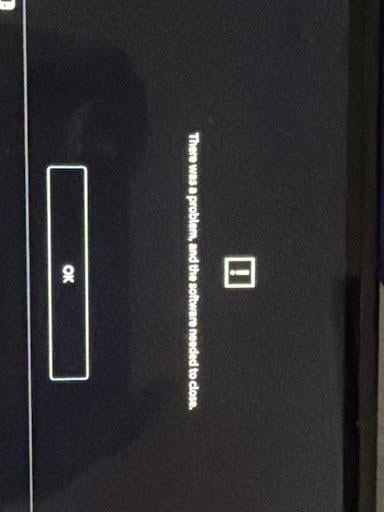
You tap the orange shopping bag icon, watch the loading spinner hang, and get dumped back to the home screen. Some crashes throw "The software was closed because an error occurred," while others lock the console on an orange screen or spit out an alphanumeric error code.
When the storefront fails, you lose access to your digital library, game updates, and wallet balance.
Re-downloading full game packages rarely fixes this—the issue usually sits in a corrupted web applet token, local DNS timeout, or regional account conflict. Work through the hardware, network, and profile checks below in order.
Why the Switch eShop Crashes or Freezes on Startup
The Nintendo Switch eShop is not a standard native game executable. It functions as a specialized, sandboxed web application that connects directly to Nintendo's web servers. Because it relies heavily on web rendering, stored authentication tokens, and local memory caches, minor file corruptions cause immediate crashes.
Three distinct bottlenecks cause almost every eShop startup crash:
- Corrupted Temporary Cache: The Switch stores session IDs, cookies, web history, and predictive text inputs. If a session token becomes invalid or half-written during a previous session shutdown, the eShop crashes the instant it tries to authenticate your profile.
- Network Handshake and DNS Failures: If your local network drops packets during the initial SSL handshake, the eShop times out. In severe cases, it crashes the applet instead of displaying a retry button.
- Account Region and Licensing Conflicts: The eShop queries your Nintendo Account's registered country rather than your physical IP address. If your account region points to an unsupported territory or carries incompatible pending transactions, the storefront shuts down upon launch.
Decoding the specific symptom or error code pinpoints whether the breakdown is local or server-side.
Decoding eShop Crash Error Codes and Blank Screens
Before changing hardware settings, identify the specific failure mode your console reports. The table below lists the most common eShop startup failures and their direct root causes.
| Error Code / Symptom | Technical Root Cause | Primary Fix Action |
|---|
| 2811-7503 | Server Outage, Traffic Surge, or Local DNS Drop | Power cycle router, verify server status, and reset console DNS. |
| 2813-0998 | Account Country/Region Not Supported by eShop | Update Nintendo Account country setting to an active market via web portal. |
| 2813-0999 | Regional Storefront Incompatibility | Switch account region or link a profile assigned to a supported territory. |
| Generic Software Crash | Corrupted Local Applet Cache or Stale Session Tokens | Clear profile web cache and reboot console via physical power menu. |
| Infinite Orange Screen | Unresponsive Web Applet Thread / RAM Hang | Execute 12-second physical power button hard reset. |
Reviewing your specific error code prevents unnecessary data wipes and pinpoints whether the breakdown is local or server-side.
Step 1: Force Reboot and Hardware Power Cycling
Putting your Nintendo Switch into Sleep Mode by pressing the power button once does not clear system RAM. If the eShop web applet encounters a memory leak or an unhandled exception, that corrupted state remains saved in memory across sleep cycles. You must execute a complete cold reboot.
The Standard 3-Second Clean Restart
- Hold down the physical Power button located on the top left of the console for 3 seconds.
- When the hardware menu appears on the screen, select Power Options.
- Select Restart.
- Allow the console to boot back to the main menu, select your profile, and attempt to launch the eShop.
The 12-Second Hard Forced Reset
If your Switch is completely frozen on a blank orange screen or refuses to respond to controller inputs, a standard software restart will not work.
1. Press and hold down the physical Power button continuously for 12 seconds.
2. The screen will cut to black as power is cut to the processor.
3. Release the button, wait roughly 10 seconds for internal capacitors to discharge, and press the Power button once to turn the console back on.
A 12-second hard reset clears volatile memory instantly and flushes unresponsive web threads before you modify any stored data.
Step 2: Clear Corrupted eShop and Keyboard Cache
Corrupted session tokens and cached cookies stay locked in the console's formatting partition even across reboots. The Switch stores individual web history and text cache files for each registered profile.
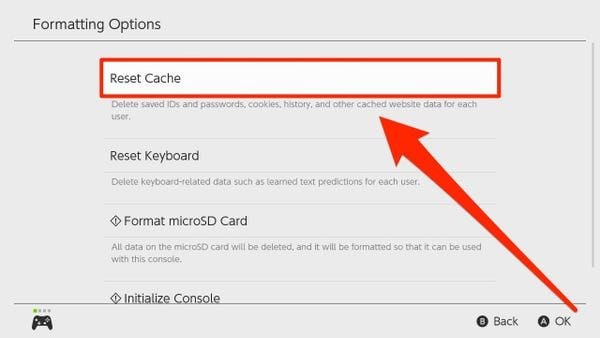
Some regional firmware releases label this menu option as Clear Cache, while other localizations list it as Reset Cache. Both perform the exact same operational task: removing temporary user IDs, passwords, web cookies, and stored page data without touching your game saves or downloaded titles.
Clearing the Profile Cache
- From the Switch home screen, open System Settings (the gear icon).
- Scroll down the left sidebar to the very bottom and select System.
- Scroll to the bottom of the System sub-menu and select Formatting Options.
- Select Clear Cache (or Reset Cache).
- Choose the specific user profile that is experiencing the eShop crash.
- Confirm by selecting Reset.
System Settings
 └── System
      └── Formatting Options
           ├── Clear Cache / Reset Cache  <-- Select your profile
           └── Reset Keyboard             <-- Fixes text-entry crashes
Resetting the Predictive Text Keyboard
If your eShop crashes specifically when you tap the search bar or enter text, your predictive dictionary may be damaged.
Under that same Formatting Options menu, select Reset Keyboard, choose your user profile, and confirm. This purges personalized text suggestions that can cause memory faults during storefront search queries.
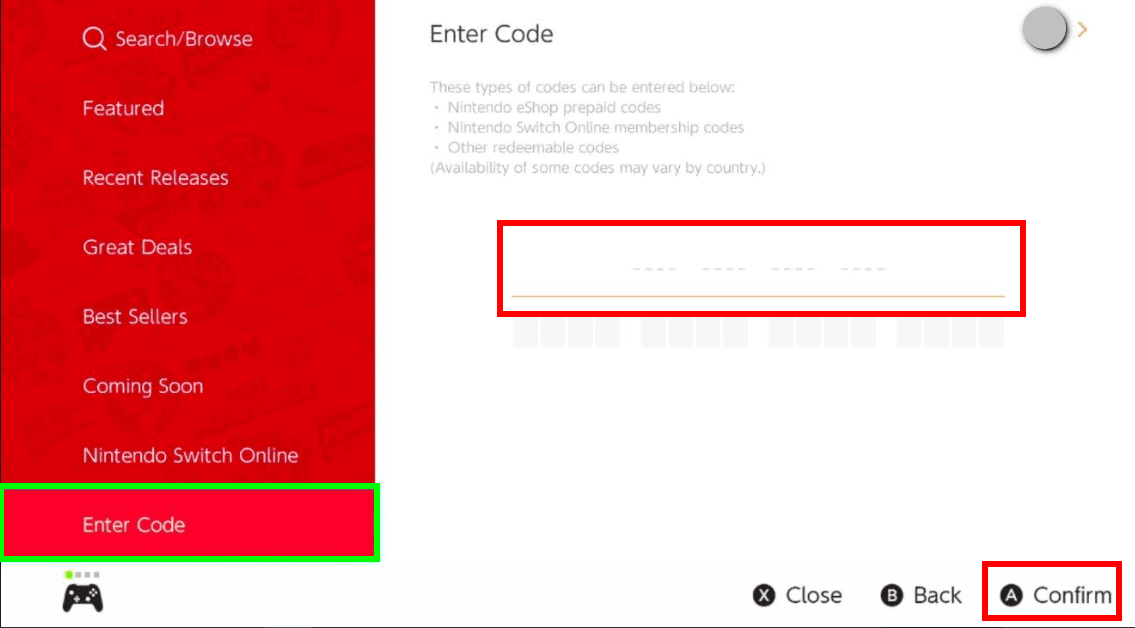
Once the cache is clear, re-enter your Nintendo Account password the next time you open the eShop. If you are stocking your balance for a sale, picking up Nintendo eShop balance cards allows you to top up your wallet smoothly once the login screen accepts your credentials.
Step 3: Resolve Network Handshakes and DNS Timeouts
Error code 2811-7503 points directly to an interrupted connection between your console and the eShop authentication servers. If the console cannot verify an encrypted SSL handshake within a strict timeframe, it terminates the eShop applet.
Network Power Cycle
- Unplug the power cable from your home modem and Wi-Fi router.
- Leave the network equipment unpowered for a full 30 seconds to flush the router's internal routing table and DNS cache.
- Plug the modem and router back in and wait until all connection lights stabilize.
Deleting Stale Wi-Fi Profiles on Switch
Outdated IP leases or mismatched network configurations frequently cause eShop timeouts. Wiping the connection profile forces a brand-new handshake.
- Open System Settings > Internet > Internet Settings.
- Locate your active Wi-Fi connection under Registered Networks.
- Select your network and click Delete Settings.
- Return to the network list, select your Wi-Fi SSID, enter your security key, and re-establish the connection.
Testing the connection after re-registering your network ensures your NAT type is open enough to sustain the store applet's secure web socket.
Step 4: Fix Regional Account Mismatches and Country Blocks
Error codes 2813-0998 and 2813-0999 signal an account-level restriction rather than a hardware breakdown.
The Nintendo eShop operates officially in 49 regional markets worldwide, including 32 countries across Europe (such as the Baltic states). However, territories without dedicated storefronts cannot open the applet. For example, the official Tencent Nintendo eShop service in mainland China shut down operations on March 31, 2026. If an account is set to an unsupported country, the eShop refuses to launch entirely.
Because the eShop verifies the account country rather than your physical IP address, you do not need proxy tools. You simply need to set your account to a supported region.
| Region / Account Parameter | Platform Rule / Constraint | Impact on eShop Access |
|---|
| Supported Market Count | 49 Official Global Markets | Full eShop browsing, purchasing, and redownload access. |
| European Coverage | 32 Supported Countries | Includes Western Europe, Nordics, and Baltic territories. |
| Unspent Wallet Funds | Must be strictly 0.00 to change region | Region change is hard-blocked until balance is depleted. |
| Active Subscriptions | Auto-renewal must be cancelled | Blocks region changes if NSO or Pokémon HOME renewals are active. |
| Child Accounts (Age ≤15) | Managed exclusively via Family Admin | Cannot independently adjust regional eShop settings. |
| Tencent China eShop | Terminated on March 31, 2026 | Hardware/accounts locked to this service cannot access global eShop. |
Account regional rules strictly enforce zero wallet balances and cancelled subscriptions before permitting a country switch.
How to Correct an Unsupported Region
- Open a web browser on your phone or PC and log in to your profile at
accounts.nintendo.com. - Select User Info > Profile.
- Change your Country/Region of Residence to a supported market (such as the United States, United Kingdom, or Brazil).
- Select Save Changes.
- Pick up your Switch, launch the eShop, and log in with your updated credentials.
If you have active auto-renewing subscriptions (like Nintendo Switch Online) or an unspent wallet balance, Nintendo's account portal will prevent you from changing your region. You must disable auto-renewal in your account settings and spend any remaining balance down to zero.
Players using international accounts often rely on digital Nintendo eShop card vouchers to fund regional wallets directly without running into cross-border credit card rejection errors.
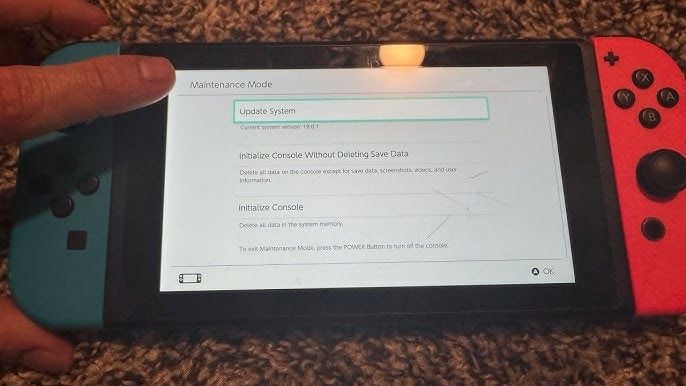
Step 5: Booting Maintenance Mode Without Losing Save Data
Persistent crashes that survive cache resets often indicate damaged system registry logs. You can repair these files without wiping your game progress by loading Maintenance Mode.
This recovery environment allows you to rebuild operating system configuration files while leaving all save data, user profiles, screenshots, and account links completely intact.
Step-by-Step Maintenance Mode Initialization
- Press and hold the physical Power button for 3 seconds, open Power Options, and choose Turn Off (do not use Sleep Mode).
- With the console completely powered down, press and hold both the Volume Up (+) and Volume Down (-) buttons simultaneously.
- While continuing to hold both volume buttons, press the physical Power button once.
- Keep holding the volume buttons until the dedicated Maintenance Mode recovery screen appears.
- Select Initialize Console Without Deleting Save Data.
- Read the confirmation prompt carefully, click Next, and confirm by selecting Initialize Console Without Deleting Save Data.
[Power Off Console Completely]
         │
         ▼
[Hold Vol (+) and Vol (-)] ──► [Press Power Button Once]
         │
         ▼
[Maintenance Mode Menu]
         │
         └──► Select: "Initialize Console Without Deleting Save Data"
The console will spend a few minutes verifying system integrity, purging damaged configuration logs, and rebuilding system libraries. Once it restarts, reconnect to Wi-Fi and launch the eShop.
Comparing Switch Storefront Access Across Platform Modes
Depending on how your system is configured, storefront interactions behave differently between local hardware execution, web account management, and offline states.
| System Environment | Storefront Capability | Crash Vulnerability | Resolution Method |
|---|
| Switch Native Applet | Full browsing, purchasing, and direct game downloading. | High (susceptible to cache leaks, RAM corruption, and DNS drops). | Clear cache, 12-second hard reboot, Maintenance Mode repair. |
| Web Account Portal | Account settings, region management, remote code redemption. | Zero console crash risk (executes on external browser). | Clear web browser cookies or switch device/browser. |
| Offline Hardware Mode | Library verification and local save execution only. | N/A (eShop blocked; cannot register/deregister console). | Connect to network before attempting store authorization. |
Managing your account parameters via a web browser bypasses local console software glitches entirely when fixing regional blocks.
Hardware Factory Reset as an Absolute Last Resort
If your eShop continues crashing after a Maintenance Mode rebuild, the internal flash memory partition has suffered a fatal corruption that only a full system formatting can resolve.
Before taking this step, understand that a full factory initialization permanently erases all internal data, including save files that are not backed up to the Nintendo Switch Online Cloud, local screenshots, and user accounts. It also invalidates all software data stored on your microSD card, meaning every game must be redownloaded.
| Recovery Method | Time Required | Data Preserved | System State Post-Fix |
|---|
| Cache Reset | ~30 seconds | All saves, games, accounts, and screenshots preserved. | Clears web session cookies and profile login tokens. |
| Maintenance Mode Init | 2–3 minutes | Preserves game saves, user links, captures, and downloads. | Rebuilds OS libraries and deletes damaged system settings. |
| Full Factory Initialization | Up to 5 minutes | Nothing preserved locally. Internal memory completely wiped. | Returns console to original out-of-box factory firmware state. |
A full factory format is a scorched-earth fix that takes up to 5 minutes and permanently deletes unbacked save files.
How to Perform a Full Factory Reset
- Ensure your console is connected to the internet. (Formatting offline delays console deregistration for eShop downloads until the first time the eShop is launched post-reset).
- Navigate to System Settings > System > Formatting Options.
- Scroll to the bottom and select Initialize Console.
- Review the warning screens, click Next, and select the red Initialize button.
- The process takes up to 5 minutes.
Once the reset completes, link your existing Nintendo Account during the initial setup wizard. Your purchased games, downloadable content, and remaining eShop funds remain safely tied to your Nintendo Account in the cloud.
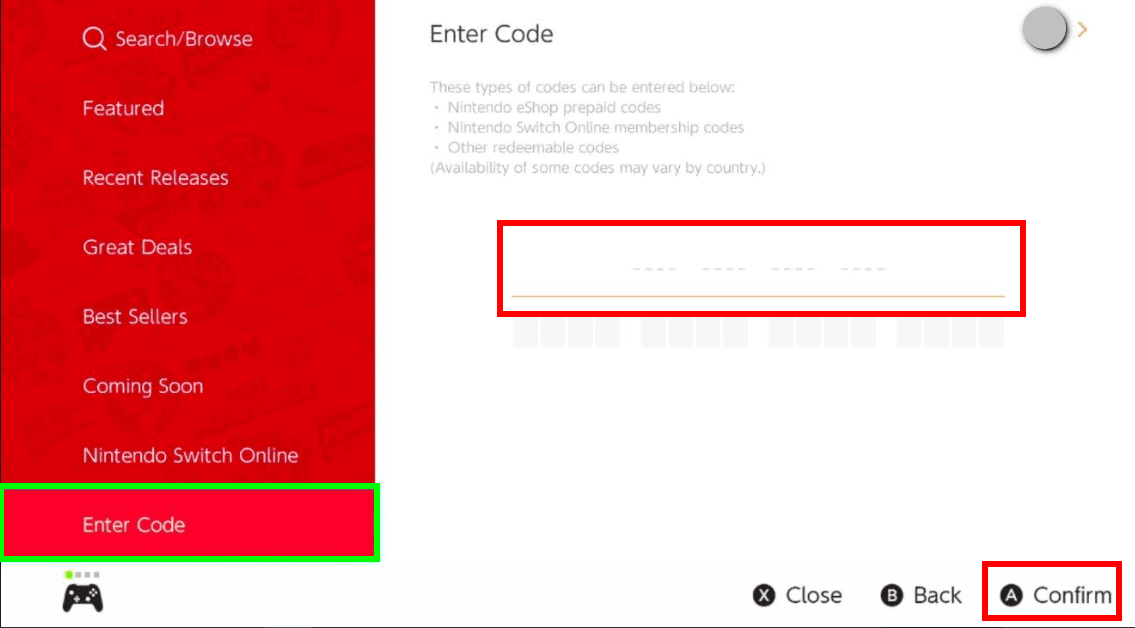
After re-linking your account and redeeming a Nintendo eShop gift card code, you can open the eShop, select your profile avatar in the upper right corner, navigate to the Redownload section, and queue up your entire library.
Troubleshooting Checklist for Persistent Launch Freezes
If you have completed the standard steps and still experience intermittent loading loops, run through this final operational checklist:
- [ ] Verify System Firmware Version: Go to System Settings > System > System Update to ensure your console is running the latest operating system build.
- [ ] Scan Software Data Integrity: If an error occurs when launching eShop-dependent software, navigate to System Settings > Data Management > Software, select the affected game, and choose Check for Corrupted Data.
- [ ] Check Server Status: Verify that Nintendo is not undergoing unannounced emergency maintenance by checking official service status pages.
- [ ] Remove Problematic MicroSD Cards: In rare cases, a failing microSD card with bad NAND sectors causes the OS to hang when allocating temporary storage for eShop downloads. Power off the console, remove the microSD card, and test launching the eShop on internal storage alone.
FAQ
Why does my Nintendo Switch eShop keep crashing immediately upon opening?
The eShop usually crashes due to corrupted temporary cache files, an unsupported account region, or temporary Nintendo server maintenance. You can resolve most startup crashes by clearing your user cache or performing a complete 12-second hardware restart.
How do I clear the eShop cache on Nintendo Switch?
Navigate to System Settings > System > Formatting Options > Clear Cache and choose your user profile. Follow the on-screen prompt to delete temporary cookies, stored IDs, and browser history.
What do error codes 2813-0998 and 2813-0999 mean when launching the eShop?
These error codes mean your Nintendo Account is currently set to a country that does not have an active Nintendo eShop storefront. Log into your account profile on Nintendo's website and switch your country to one of the 49 supported regional markets.
Will initializing my console delete my purchased eShop games and saves?
Initializing your console in Maintenance Mode preserves all game save data, screenshots, and account links while repairing system files. All purchased titles and balance funds remain permanently tied to your Nintendo Account and can be redownloaded freely.
How do I force restart a Nintendo Switch that is frozen on the eShop loading screen?
Hold down the physical Power button on top of the console for 12 continuous seconds until the screen goes black. Wait roughly 10 seconds, then press the Power button once to boot the system cleanly.
Why am I unable to change my Nintendo Account region to fix eShop access?
You cannot change your account region if you have an unspent wallet balance, active auto-renewing subscriptions, or pending pre-orders. Clear any remaining balance and disable auto-renewal in your account settings before switching regions.
Can a child account change its region if the eShop is blocked?
Child accounts aged 15 and under cannot independently change their eShop country setting. The family group administrator must update their primary account settings, which automatically updates linked child accounts.
Final Troubleshooting Verdict
Never jump straight to a full factory format when the eShop crashes. A 12-second hard reboot and clearing the user profile cache resolve the vast majority of local applet hang-ups.
If launch freezes continue, boot into Maintenance Mode to rebuild system configuration files without touching save files. Keep your account set to one of the 49 supported regional markets, flush stale DNS leases, and store access will restore cleanly.