Audio Latency Impact on Performance
Audio latency is the time gap between sound production and hearing it through your earbuds. In StarMaker's scoring system, this creates a critical problem: you hear the backing track later than the app receives your vocal input, causing off-beat singing even when you feel synchronized.
Bluetooth transmission delay ranges 150-300ms for most wireless earbuds, including AirPods. StarMaker's scoring algorithm operates within a 30ms tolerance window—delays under 30ms go unnoticed. Delays exceeding 100ms create obvious desync guaranteeing lower scores regardless of vocal quality. The marginal zone falls between 50-100ms, where timing accuracy becomes inconsistent.
Bluetooth Audio Delay Science
Bluetooth protocols prioritize connection stability over speed, creating unavoidable latency. AirPods use AAC codec transmission, compressing audio data for wireless transfer. This compression-transmission-decompression cycle adds processing time wired connections avoid.
The 50ms critical threshold is where human perception detects audio-visual misalignment. StarMaker's rhythm engine operates with 50ms input windows, evaluating whether vocal timing falls within acceptable ranges. When Bluetooth delay pushes your singing outside these windows, the app registers timing errors even when you're following the music.
Why StarMaker Requires Perfect Sync
StarMaker's scoring analyzes three components: pitch accuracy, rhythm timing, and vocal stability. Bluetooth latency specifically undermines rhythm timing scores, accounting for ~40% of total points. The Hit Points playlist's 294 songs demonstrates this—top performers on All Of Me achieve 786K points potential through precise timing alignment.
Network latency compounds Bluetooth delay. StarMaker requires network latency under 50ms for optimal real-time processing. Combined with wireless audio delay, total system latency can exceed 350ms, creating severe desynchronization that makes competitive scoring impossible without calibration.
AirPods Models and Latency Characteristics (Dec 2025)
Different AirPods generations exhibit varying latency profiles based on Bluetooth chipset and audio processing capabilities.
AirPods (3rd Generation)
Standard AirPods (3rd gen) produce 180-220ms latency when connected to iOS devices running iOS 13.0+ (minimum requirement for current StarMaker). This falls within the problematic range requiring manual offset adjustment.
AAC codec implementation prioritizes audio quality over speed, contributing to higher latency. When paired with Android devices, latency often increases 20-40ms due to less optimized codec handling versus Apple's native ecosystem.
AirPods Pro (2nd Generation)
AirPods Pro (2nd gen) demonstrate improved latency, typically 160-190ms under optimal conditions. The H2 chip provides faster audio processing, though improvement remains insufficient to eliminate calibration requirements for competitive StarMaker use.
These models benefit from adaptive EQ and active noise cancellation that don't significantly impact latency but can affect microphone input quality, requiring specific calibration adjustments.
AirPods Max: Wired vs Wireless
AirPods Max offer unique flexibility through optional wired connection via Lightning to 3.5mm cable. Wireless mode produces 170-200ms latency, while wired mode reduces this to 20-35ms—falling within StarMaker's acceptable tolerance without calibration.
Wired configuration essentially eliminates Bluetooth-related sync issues, making AirPods Max the most versatile option for wireless convenience in casual sessions but wired precision for competitive performances.
Codec Compatibility: AAC on iOS vs Android
AAC codec performance varies significantly between operating systems. iOS devices optimize AAC transmission for AirPods, achieving the lower latency range (150-180ms). Android devices often default to SBC codec when AAC isn't optimized, increasing latency to 200-300ms.
This platform difference means Android users with AirPods face more severe calibration challenges. The broader latency range also requires more frequent recalibration as connection quality fluctuates.
Pre-Calibration Checklist
Proper preparation ensures calibration accuracy and prevents variables that could skew offset settings.
Optimal Bluetooth Connection
- Restart your device completely before calibration to clear memory and reset Bluetooth stack
- Close background apps—each active app consumes processing resources adding 5-15ms to audio delays
- Turn off notifications to prevent system interruptions that spike latency
- Notification processing diverts CPU resources and causes audio buffer underruns
Update StarMaker (Dec 2025)
The October 10, 2025 update introduced enhanced calibration features in the ME tab, including improved waveform drag functionality and auto-denoise processing. Ensure your app version includes these tools.
Check device meets minimum specs:
- 4GB RAM minimum
- 2GB free storage minimum
Insufficient resources cause audio processing delays that vary unpredictably, making accurate calibration impossible.
AirPods Firmware Requirements
Verify AirPods run current firmware: Settings > Bluetooth > [Your AirPods] > Information on iOS. Outdated firmware introduces additional latency or connection stability issues calibration can't compensate for.
Unplugging and replugging earphones in the ME tab refreshes audio routing configuration, resolving many intermittent sync issues from stale connection parameters.
Close Background Apps
Audio-intensive apps like music streaming, video players, and voice assistants consume audio processing resources even when backgrounded. Force-close these apps through your device's app switcher before calibration.
System audio enhancements and equalizers add processing stages increasing latency. Disable these features temporarily during calibration to measure true Bluetooth delay without additional variables.
Step-by-Step AirPods Calibration
StarMaker provides built-in calibration tools designed specifically to compensate for Bluetooth latency.
Access Audio Calibration Settings
Navigate to the ME tab—StarMaker's comprehensive audio editing and calibration center. This interface provides waveform visualization, latency adjustment controls, and audio processing tools from the October 10, 2025 update.
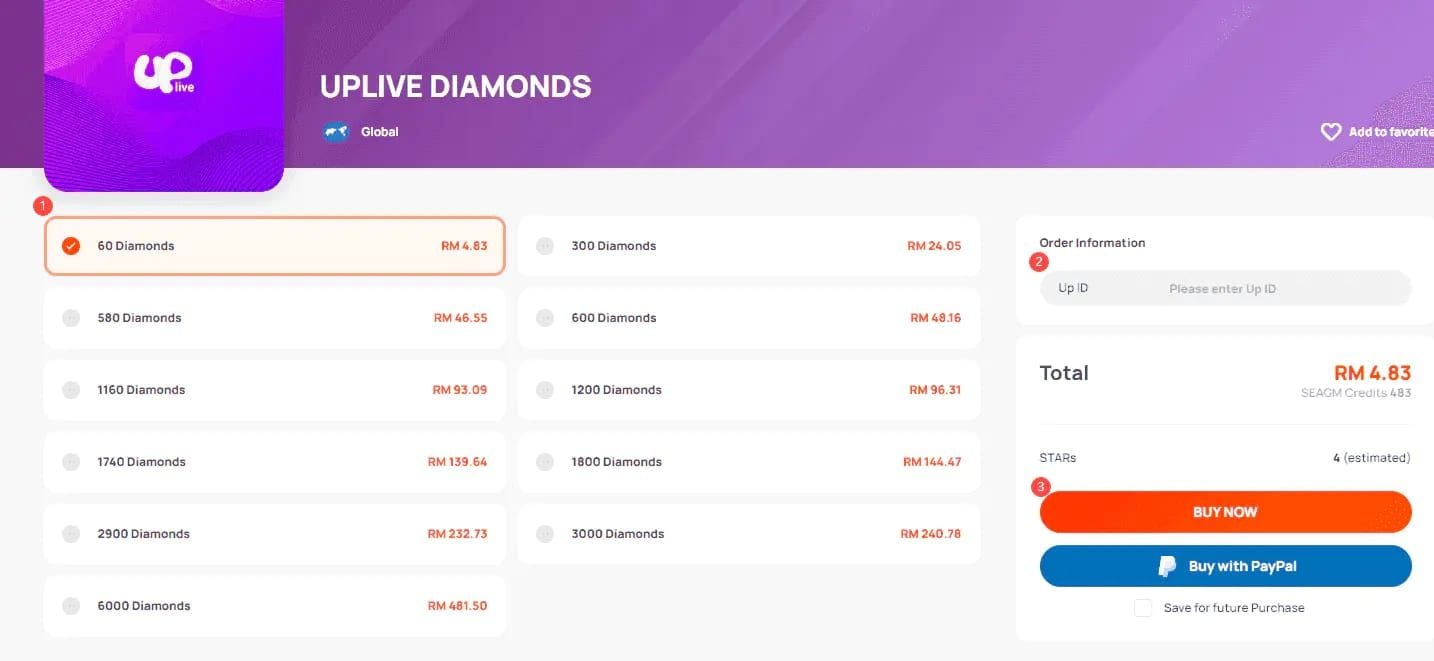
The latency calibration feature appears under audio settings, labeled Latency Adjust or similar depending on app version. This tool offers both automatic and manual adjustment options.
Built-In Latency Test
- Click Latency Adjust then select AUTO-ADJUST
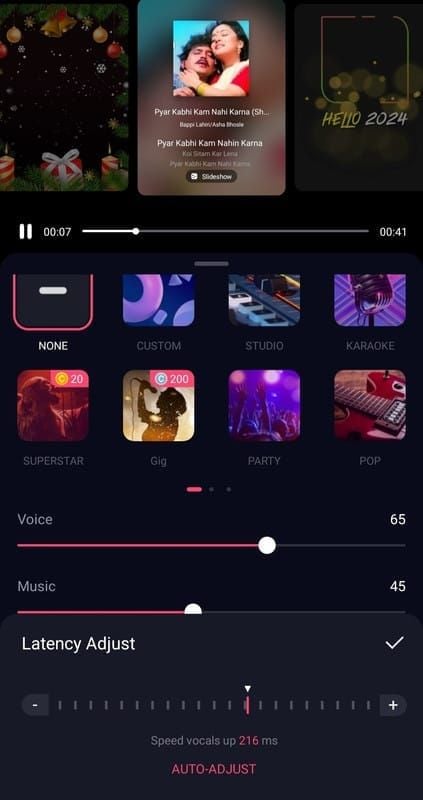
- StarMaker plays a test pattern while recording your device's audio output
- The feature measures round-trip delay automatically
- Record a 30-second test clip using a familiar song before and after calibration
The test should include varied rhythmic patterns—both sustained notes and rapid syllable changes—to evaluate timing accuracy across different vocal techniques.
Manual Audio Offset Adjustment
If automatic calibration produces unsatisfactory results, manual adjustment provides finer control.
Starting values by model:
- Standard AirPods: 200ms
- AirPods Pro: 175ms
- AirPods Max (wireless): 185ms
Adjust in 10ms increments initially, testing with short vocal phrases after each change. When you approach optimal sync (noticeable improvement in timing feel), switch to 5ms increments for precision tuning. The goal is finding the offset where your heard playback aligns with StarMaker's timing windows.
Verify Calibration with Test Songs
Select a song from the Hit Points playlist for verification—these tracks feature clear rhythmic markers making timing evaluation easier. Songs with prominent beat emphasis and varied tempo sections provide the most reliable calibration feedback.
Monitor your timing accuracy percentage during test performances. Properly calibrated settings should show immediate improvement in rhythm scores, typically 15-25% higher than uncalibrated sessions for the same song.
Save Custom Settings
StarMaker saves calibration settings per audio output device. When you switch between AirPods and other headphones, the app should automatically apply the appropriate offset. Verify this behavior by checking settings after device changes.
Run latency auto-adjust weekly to account for firmware updates, app changes, and environmental factors that gradually shift optimal offset values.
Advanced Calibration Techniques
Competitive StarMaker players require calibration precision beyond basic setup.
Fine-Tuning in 5ms Increments
After establishing baseline calibration, competitive players benefit from 5ms increment adjustments tailored to specific songs or genres. Fast-tempo tracks with rapid syllable changes may require slightly different offsets than slow ballads with sustained notes.
The 128-sample buffers standard in StarMaker's audio engine create quantization effects making certain offset values more stable than others. Test values in 5ms steps around your baseline, noting which settings produce the most consistent timing recognition across multiple takes.
Genre-Specific Adjustments
Hip-hop and rap tracks with precise rhythmic delivery often benefit from 5-10ms shorter offsets compared to ballads. This accounts for the perceptual difference in how we synchronize with percussive versus melodic timing cues.
Create mental notes or written records of optimal offsets for your most-played song categories. While StarMaker doesn't support multiple saved profiles natively, knowing your genre-specific adjustments enables quick manual changes before competitive sessions.
Environmental Factors
Bluetooth performance degrades in environments with high wireless interference—crowded venues, areas near Wi-Fi routers, or locations with multiple active Bluetooth devices. These conditions add 10-30ms variable latency calibration can't fully compensate for.
For critical performances:
- Minimize interference by disabling unused Bluetooth devices
- Move away from Wi-Fi access points
- Avoid crowded wireless environments when possible
Consistent environmental conditions produce more reliable calibration results.
Multiple Calibration Profiles
While StarMaker lacks built-in profile management, document optimal settings for different scenarios:
- Home practice (stable environment)
- Mobile use (variable conditions)
- Competitive sessions (maximum precision required)
Maintain a notes file with offset values, environmental conditions, and performance results. This data helps identify patterns in when recalibration becomes necessary and which settings work best for specific use cases.
Measuring Calibration Success
Objective metrics validate calibration effectiveness and identify areas requiring further adjustment.
Score Accuracy Improvement
Compare total scores on identical songs performed before and after calibration. Properly calibrated settings typically improve overall scores by 12-20% on rhythm-heavy tracks, with the most significant gains in timing-specific score components.
Track performance on the same 3-5 reference songs over multiple sessions. Consistent score improvement across different song types confirms calibration effectiveness rather than random variation or improved vocal technique.
Timing Precision Indicators
StarMaker's real-time feedback displays timing accuracy through visual indicators during performance. Calibrated settings should show more consistent Perfect or Great timing markers compared to frequent Good or Miss indicators from uncalibrated sessions.
The score breakdown screen reveals timing percentage separately from pitch accuracy. Monitor this specific metric:
- Timing scores above 85%: successful calibration
- Scores below 70%: further adjustment needed
Recording Quality Assessment
The ME tab's waveform visualization shows your vocal timing relative to the backing track. Properly calibrated recordings display vocal waveforms aligned with corresponding musical beats, while miscalibrated recordings show consistent offset patterns.

Apply auto-denoise in the ME tab before effects to clean up recordings without affecting timing analysis. This feature from the October 10, 2025 update improves waveform clarity for visual timing verification.
Real Player Results (Dec 2025)
Competitive players report 15-30% score improvements on timing-dependent songs after proper AirPods calibration. Players targeting the 786K points potential on All Of Me note that calibration moves timing scores from 65-75% range to 85-92% range—the difference between casual and competitive performance levels.
Players using voice volume settings at 50-70% over music volume report optimal balance for both hearing backing tracks clearly and maintaining strong vocal presence in recordings. This ratio works synergistically with proper latency calibration to maximize scoring potential.
Troubleshooting Common Sync Problems
Even with proper calibration, specific issues can emerge.
Persistent Delay Despite Calibration
If calibration fails to resolve sync issues, verify your device meets the 4GB RAM minimum requirement. Insufficient memory causes audio buffer underruns creating variable latency impossible to compensate through offset adjustment alone.
Check that network latency remains under 50ms required for optimal StarMaker performance. Test network speed and stability—high latency or packet loss creates additional delays beyond Bluetooth latency.
Intermittent Audio Stuttering
Audio stuttering indicates buffer management issues rather than simple latency offset problems. Clear cache to resolve corrupted temporary files causing playback irregularities:
- Android: Apps > StarMaker > Storage > Clear Cache
- iOS: General > iPhone Storage > StarMaker > Offload App
Ensure 2GB free storage minimum remains available. Insufficient storage causes the OS to aggressively manage memory, interrupting audio processing and creating stuttering calibration can't fix.
One Earbud Delay vs Both
If one earbud exhibits different latency than the other, this indicates hardware problems with your AirPods rather than calibration issues. Test your AirPods with other audio apps—if the problem persists across applications, the earbuds require service or replacement.
Unbalanced earbud delay sometimes results from partial connection issues. Reset your AirPods connection by forgetting the device in Bluetooth settings, then re-pairing from scratch.
When to Reset AirPods Connection
Complete AirPods reset resolves persistent connection quality issues affecting latency consistency:
- Place AirPods in their case
- Open the lid
- Press and hold the setup button for 15 seconds until the status light flashes amber then white
After reset, re-pair your AirPods and recalibrate StarMaker settings from scratch. Previous calibration values may not apply after connection reset due to changed Bluetooth pairing parameters.
Device-Specific Troubleshooting
iOS 13.0+ devices required for current StarMaker versions generally provide more consistent Bluetooth performance than Android devices. iPhone 15 and 16 models with updated Bluetooth 5.3 chipsets show 10-15ms lower latency than older iPhone models, potentially requiring recalibration if you upgrade devices.
Android 14 and 15 devices vary significantly in Bluetooth implementation quality. Grant microphone permissions properly:
- Android: Settings > Apps > StarMaker > Permissions
- iOS: Settings > Privacy > Microphone
Incorrect permissions cause audio routing issues that manifest as apparent latency problems.
Wired vs Wireless: Making the Right Choice
Understanding fundamental performance differences between wired and wireless audio helps you make informed decisions based on StarMaker objectives.
Latency Comparison
Wired earphones eliminate Bluetooth transmission delay entirely, producing latency under 20ms—well within StarMaker's 30ms tolerance window. This represents a 130-280ms improvement over AirPods' 150-300ms Bluetooth transmission delay.
Using wired earphones and disabling Bluetooth provides the most reliable solution for competitive play where maximum timing precision determines ranking outcomes. No amount of calibration can make wireless performance match wired latency characteristics.
Competitive Play Considerations
Players targeting top rankings on the Hit Points playlist or competing in timed challenges should strongly consider wired connections for critical performances. The 50ms critical threshold is where timing inconsistency begins affecting scores—wireless connections operate far above this threshold even with perfect calibration.
Casual players focused on enjoyment rather than leaderboard positions may find properly calibrated AirPods provide acceptable performance. The convenience of wireless audio often outweighs the scoring disadvantage for non-competitive use.
Casual vs Ranked Mode Requirements
Casual singing sessions tolerate the marginal performance zone of 50-100ms total latency, where calibrated AirPods typically operate. Ranked competitive modes demand the precision that only wired connections reliably provide, as delays exceeding 100ms guarantee desync preventing competitive scoring.
Consider maintaining both wired earphones for ranked sessions and calibrated AirPods for casual practice. This hybrid approach balances convenience with performance requirements based on session objectives.
Hybrid Setup Strategies
Keep wired earphones available for songs where you're pursuing high scores or competing in challenges. Use calibrated AirPods for practice sessions, vocal warm-ups, and casual singing where mobility and convenience matter more than maximum precision.
This strategy also helps preserve wired earphone lifespan by reducing wear from constant use, while maintaining the option for peak performance when needed. For players investing in their StarMaker experience, top up starmaker coins through BitTopup unlocks premium features that complement your optimized audio setup with exclusive content and advanced tools.
Maintaining Perfect Sync: When to Recalibrate
Calibration settings require periodic adjustment as system variables change over time.
Signs Calibration Needs Adjustment
Gradual score decline on familiar songs indicates calibration drift. If songs you previously scored 85%+ timing accuracy now consistently rate 75-80%, recalibration likely addresses the issue before technique degradation becomes the assumed cause.
Noticeable sync feeling changes—when the music suddenly feels slightly ahead or behind your singing despite using identical settings—signal that system updates, firmware changes, or environmental factors have shifted optimal offset values.
Recommended Recalibration Schedule
Enable auto-adjust latency weekly to maintain optimal settings as minor system variables fluctuate. This automated maintenance prevents gradual calibration drift from accumulating into noticeable performance degradation.
Perform manual recalibration after major events:
- iOS or Android system updates
- StarMaker app updates
- AirPods firmware updates
- Device upgrades
Each of these changes can alter audio processing pipelines enough to require offset adjustment.
Impact of Software Updates
The October 10, 2025 update modified StarMaker's audio processing engine, requiring many users to recalibrate despite previously optimal settings. Major updates often change buffer sizes, audio routing, or processing algorithms that affect total system latency.
Monitor StarMaker's update notes for mentions of audio engine changes. When updates specifically address audio processing, plan to recalibrate immediately after updating rather than discovering sync issues during important performances.
Quick Recalibration Process
Experienced players can complete recalibration in under 5 minutes:
- Run auto-adjust
- Perform one test song
- Make 5ms manual adjustment if needed
- Verify with second test song
- Save settings
This rapid workflow maintains optimal performance without significant time investment. Keep your reference test songs consistent—using the same 2-3 tracks for all calibration sessions provides reliable comparison data and faster identification of optimal settings.
Maximizing Your StarMaker Experience
Perfect audio sync forms the foundation for competitive performance, but additional optimizations compound your advantages.
Optimize Overall App Performance
Beyond latency calibration, optimize microphone positioning: maintain 6-8 inches distance at a 45-degree angle for optimal vocal capture without breath noise or proximity effect distortion. This positioning works synergistically with calibrated timing to maximize both technical and artistic score components.
Limit vocal layers to 2-4 maximum when using StarMaker's harmony features. Excessive layering creates phase interference and timing complexity that reduces clarity even with perfect sync. Record the base layer with effects at zero, then apply processing afterward for cleanest timing alignment.
Complementary Audio Enhancement
The ME tab's auto-denoise feature from the October 10, 2025 update removes background noise without affecting timing. Apply auto-denoise before adding effects to maintain calibrated timing while improving audio quality.
Drag the vocal waveform in the ME tab for fine-tuning timing on specific phrases after recording. This manual adjustment complements calibration by correcting individual timing variations that occur during performance, creating polished final recordings.
Build Your Song Library
Focus practice time on the Hit Points playlist's 294 songs, which offer optimized scoring potential when performed with proper timing. These tracks feature clear rhythmic structure that rewards calibrated performance more than songs with loose timing or rubato sections.
Master 10-15 songs thoroughly with calibrated settings before expanding your repertoire. Deep familiarity with specific tracks helps distinguish calibration issues from performance inconsistencies, making troubleshooting more efficient.
Access Premium Features Through BitTopup
Premium StarMaker features unlock additional tools that complement your calibrated audio setup. VIP membership provides access to exclusive songs, advanced audio effects, and priority processing that enhances the performance foundation created by proper calibration.
BitTopup offers secure, instant StarMaker coin top-ups with competitive pricing and reliable delivery. The platform's excellent customer service and high user ratings make it the trusted choice for players serious about maximizing their StarMaker experience through both technical optimization and premium feature access.
Frequently Asked Questions
How do I fix Bluetooth lag in StarMaker?
Access StarMaker's ME tab, select Latency Adjust, then click AUTO-ADJUST to automatically calibrate for your AirPods' Bluetooth delay. If automatic calibration proves insufficient, manually adjust the audio offset starting at 200ms for standard AirPods or 175ms for AirPods Pro, then fine-tune in 5ms increments until timing feels synchronized.
Why do my AirPods have delay in StarMaker?
AirPods introduce 150-300ms Bluetooth transmission delay due to wireless audio processing—encoding, transmission, and decoding stages each add latency. This delay exceeds StarMaker's 30ms tolerance window, causing timing desynchronization that affects scoring accuracy until properly calibrated through the app's offset adjustment tools.
What is the best audio offset for AirPods in StarMaker?
Optimal offset varies by AirPods model: standard AirPods typically require 180-220ms, AirPods Pro need 160-190ms, and AirPods Max in wireless mode perform best around 170-200ms. Start with these values, then adjust in 5ms increments based on your specific timing feel and score results.
Can I use AirPods Pro for competitive StarMaker singing?
AirPods Pro can work for competitive play with proper calibration, though they operate in the 50-100ms marginal performance zone even when optimized. Serious competitive players achieve better results with wired earphones, which eliminate Bluetooth delay entirely and provide the sub-30ms latency required for maximum timing precision.
How to test audio delay in StarMaker?
Record a 30-second test clip of a familiar song, then review the waveform in the ME tab. Compare your vocal timing against the backing track's beat markers—consistent offset patterns indicate calibration needs. Use StarMaker's built-in auto-adjust feature to measure delay automatically, or manually test different offset values while monitoring timing accuracy percentages.
Should I use wired or wireless headphones for StarMaker?
Use wired earphones for competitive sessions requiring maximum timing precision, as they provide under 20ms latency versus AirPods' 150-300ms delay. Wireless earphones work acceptably for casual singing after proper calibration. Consider a hybrid approach: calibrated AirPods for practice and convenience, wired connection for ranked performances and high-score attempts.