What Makes the Airport Outfit Drop Special

The MoreFun 15th Anniversary Full Set? It's the highest-tier cosmetic we've seen in Arena Breakout's Twitch Drops history. Unlike weapon skins that only show up occasionally or consumables you'll burn through, this complete outfit gives you comprehensive character customization that sticks with you across every match.
That 4-hour requirement isn't arbitrary—it positions this as premium content, accessible only to viewers who actually commit the time. And the limited-time availability creates real scarcity value. Once the event ends, these items become completely unobtainable. No second chances.
Why the S4 Test Reset Date Actually Matters
Season resets typically wipe progression data—we're talking levels, inventory, currency, the works. But cosmetic items from special events? They follow different retention rules.
In practice, Twitch Drops rewards claimed during official events transfer permanently. They survive those seasonal wipes that affect gameplay progression. That January 5 deadline likely references the test server reset, but experienced players know to claim all rewards before any announced dates to ensure delivery actually completes.
Here's something that trips people up: account linking auto-unlinks within 3 days post-event. If you delay claiming, delivery just won't happen.
Event Timeline: Start Date to Final Claim Window
The September 6, 2025 event kicked off at 2pm PDT, offering a Reinforced Case after just 15 minutes and Elite 3-day membership after 30 minutes. Quick wins for casual viewers.
Back in May 2025, beta testing distributed access through Twitch Drops differently. First wave (May 9-22) allocated 40,000 beta keys. Second wave ended May 11 after hitting 50,000 qualifications. Both required 60+ minutes on Drops-enabled streams, with keys appearing on the event page for manual redemption, followed by automatic activation within 1 business day.
The main September 16-October 12 event gave you four full weeks for accumulation. No late claims permitted after October 12—and they meant it.
Understanding Twitch Drops Mechanics
Twitch Drops track authenticated viewing sessions, verifying that linked accounts are accumulating legitimate watch time on eligible channels. The system benefits creators through increased viewership while rewarding players with exclusive items you can't get through standard gameplay.
It's a win-win, when it works properly.
How Integration Actually Works
Integration requires bidirectional authentication between your streaming and game accounts. When you're watching Drops-enabled streams while logged in, the platform backend communicates with Arena Breakout servers, recording your viewing progress in real-time.
Streams must display Drops Enabled tags—only authorized channels during active events count toward watch time. The streaming platform inventory serves as intermediary storage for unclaimed rewards, which is why you need to manually claim them there first.
Watch Time Requirements
The 1-hour threshold for the SKS Carbine offers immediate gratification. The 2-hour Jungle Camo rewards continued engagement. That 4-hour MoreFun Set? It requires substantial commitment.
The September 6, 2025 event compressed timelines significantly: 15-minute Reinforced Case and 30-minute Elite membership accommodated viewers who couldn't commit to multi-hour sessions. Smart move for broader accessibility.
What works best is understanding that watch time accumulates across multiple sessions and different eligible channels. Your progress carries over as long as you're watching Drops-enabled streams during active events. The system tracks cumulative time, not consecutive viewing—you can break it up however you need.
Difference from Traditional Rewards
Traditional rewards require direct gameplay: completing missions, racking up kill counts, hitting progression milestones. Twitch Drops completely decouple rewards from gameplay skill, making exclusive items accessible regardless of your tactical proficiency.
New players gain premium items without grinding. Experienced players earn rewards passively while studying high-level gameplay—watching streams becomes productive research time.
There's also subscription-based drops that grant exclusive stickers when you subscribe to specific streamers during live Arena Breakout broadcasts. One-time rewards per streamer, valid only during live game streams.
Step 1: Linking Your Arena Breakout Account to Twitch
Desktop Linking Process

Log into Twitch through your web browser. Navigate to the official Arena Breakout linking page (you'll find this in event announcements or your game account settings).
Click to log in with your game account, entering the credentials you use to access Arena Breakout. After authentication, click Link Twitch Account. A pop-up will request authorization—review the permissions (verifying viewing activity, delivering rewards), then approve the request.
Verify in your game account settings that your streaming username displays with Connected status. Test it by watching a Drops-enabled stream for a few minutes, then check your Twitch Drops inventory to confirm progress tracking has actually initiated.
Common Linking Errors and Fixes
Incorrect credentials cause most failures. Verify your username and password for both accounts before attempting to connect—seems obvious, but it's the most common issue.
Clear your browser cache and cookies, disable ad-blockers temporarily, use an updated browser. Some players succeed by switching browsers entirely (Chrome to Firefox, for example).
Email mismatches can prevent linking—using the same email for both accounts eliminates authentication conflicts. Network instability interrupts authorization, so ensure stable connectivity and disable VPNs temporarily during the linking process.
For efficient resource management, instant Arena Breakout bonds recharge through BitTopup eliminates waiting periods. BitTopup processes transactions immediately, ensuring bonds are available exactly when you need them.
Step 2: Finding Eligible Streams
Identifying Drop-Enabled Channels
Navigate to the Arena Breakout category on your streaming platform. During active events, eligible streams display a Drops Enabled tag below the video player or in the channel information. Can't miss it if you're looking.
The Twitch Drops page (accessible through your profile menu) lists active campaigns. Select the Arena Breakout campaign to view participating channels, your current progress toward reward tiers, and time remaining.
Not all Arena Breakout streams qualify simultaneously—streamers manually enable Drops. Always verify that Drops Enabled indicator before committing viewing time. Nothing worse than watching for hours only to realize it didn't count.
Watch Time Tracking
The Twitch Drops inventory page displays real-time progress toward reward tiers. The progress bar shows accumulated watch time and remaining time for the next reward, updating every few minutes.
Notifications appear when you've accumulated sufficient watch time for reward claims—both on-screen alerts and email notifications, depending on your settings. Periodic manual checks prevent missing claims during multi-tier events.
The inventory confirms both claimed rewards and available rewards, preventing confusion when you're juggling multiple tiers.
Muted/Background Watching
Here's something useful: watch time accumulates regardless of audio settings. Muting doesn't prevent progress tracking.
Background watching in minimized tabs or while using other applications continues counting. The stream doesn't need active window focus—as long as the video player loads and plays (even if it's not visible), progress accumulates.
However, pausing stops tracking. And extremely low quality settings or buffering may pause accumulation—maintain stable playback for consistent tracking.
Step 3: Claiming the Airport Outfit from Twitch Inventory
Accessing Drops Inventory
Log into your streaming account, navigate to Drops inventory (under the profile menu, labeled Drops or Drops and Rewards). The inventory displays available claims across all games—scroll to the Arena Breakout section.
Each claimable reward shows as a distinct item with a Claim button, displaying the reward name, description, and event. Rewards remain claimable until you manually claim them—they don't expire immediately, but event-specific deadlines absolutely apply.
The Claim Button
Clicking Claim initiates the transfer. The button changes to Claimed with a checkmark, confirming the successful action. This change happens immediately in the streaming interface, but game account delivery follows a separate timeline.
Some rewards display additional instructions post-claim (codes for manual entry, Steam keys, that sort of thing). The inventory retains a record of claimed items, which helps troubleshoot delivery issues by confirming you successfully claimed on the streaming platform side.
Post-Claim Delivery
Rewards deliver to your in-game mailbox within 24 hours—most arrive within 1 business day. The delay accounts for backend synchronization between streaming and game servers.
Weekend or holiday claims may experience longer delivery times. High-traffic events may extend delivery toward that 24-hour upper limit. The 30-day expiration timer on in-game mail begins when the reward arrives in your mailbox, not when you claimed it from the streaming platform.
Step 4: Receiving the Airport Outfit In-Game
Finding Claimed Rewards
Launch Arena Breakout, complete login. Navigate to the in-game mailbox (envelope icon or Mail menu). The mailbox displays pending deliveries including Twitch Drops rewards.
Rewards appear as distinct mail items labeled with the reward name and source. Click the mail item to view details and access the Collect button, which transfers the item from mail to your permanent inventory.
Some rewards auto-apply upon collection. Others require navigating to specific menus (character customization for outfits) to actually activate them.
Mailbox and Inventory System
The mailbox serves as temporary storage with that strict 30-day expiration—uncollected items get permanently deleted with no recovery option. Check your mailbox regularly during active events.
Inventory categorizes by type: cosmetics in the customization menu, weapons and gear in loadout, consumables in supplies. After collecting mail, navigate to the appropriate inventory section to verify the reward actually appeared.
The game may require a restart to display newly collected items—log out completely and back in to refresh your account data.
Equipping the Airport Outfit
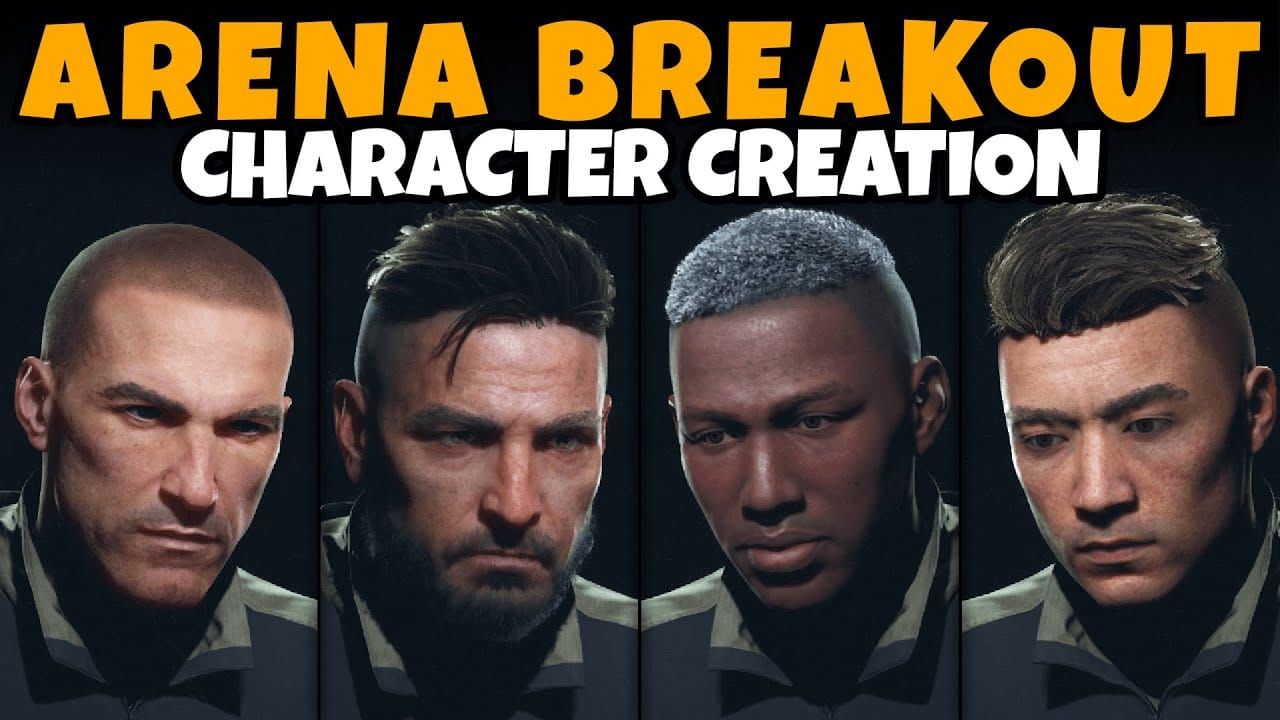
Access the character customization menu. The MoreFun 15th Anniversary Full Set appears in your available outfits, marked as a complete set.
Select the outfit to preview it on your character model. Full sets replace your current equipped cosmetics entirely when activated. Cosmetic items don't affect gameplay statistics—they're purely visual.
But visual profile matters for camouflage and recognition in tactical shooters. Don't underestimate the psychological impact of looking good.
Troubleshooting Common Issues
Drops Not Appearing: 5 Solutions
- Verify you're watching a genuinely Drops-enabled stream during an active event—check for the Drops Enabled tag and confirm the event hasn't ended
- Confirm your accounts remain linked—check game account settings for active streaming connection (auto-unlinking occurs 3 days post-event)
- Ensure you've met the minimum watch time threshold—the progress bar in Twitch Drops inventory provides the authoritative count
- Wait the full 24-hour to 1 business day delivery window before troubleshooting
- Check your in-game mailbox rather than expecting automatic inventory addition
Account Linking Failed
Unlink and relink your accounts from the official linking page—this resets authentication issues from cached credentials or interrupted attempts.
Verify you're using correct account credentials for both platforms. Players with multiple accounts sometimes link mismatched pairs, which obviously won't work.
Try different browsers or devices—some players succeed linking through mobile when desktop fails, or vice versa.
Watch Time Not Tracking
Refresh the Drops inventory page periodically to force progress updates—the interface doesn't update in real-time.
Verify the stream hasn't switched games or gone offline—watch time stops if the streamer changes games. Check that you're actually logged into the streaming platform—browsers and privacy settings may auto-logout.
Disable browser extensions that block tracking scripts (ad blockers, privacy tools, custom CSS). These can interfere with the Drops system.
Regional Restrictions and VPNs
Some campaigns implement regional restrictions limiting participation to specific countries. The May 2025 beta testing mentioned USA, Canada, Singapore, and UK as testing regions.
VPN usage triggers anti-fraud systems that block Drops progress—disable VPNs during events. Streaming platform servers may flag VPN traffic as suspicious, preventing tracking synchronization entirely.
Community-Reported Fixes
Completely close and restart both the streaming app and game client—this clears cached data and forces fresh authentication.
Disable overlays from Discord, OBS, and other applications during gameplay—these can create conflicts interfering with Drops delivery.
Update GPU and audio drivers. Outdated drivers cause client instability that can interrupt reward delivery.
Test with another Twitch Drops game—this isolates whether issues are Arena Breakout-specific or account-wide.
Maximizing Your Experience Beyond Free Drops
Why BitTopup for Arena Breakout Players
BitTopup specializes in secure, instant game currency delivery including Arena Breakout bonds. Competitive pricing ensures maximum value with transparent pricing and no hidden fees.
Unlike slower traditional methods, BitTopup processes transactions immediately—bonds delivered within minutes. Industry-standard encryption and secure payment gateways protect your financial information.
Thousands of verified reviews confirm reliability and trustworthiness. Responsive customer service resolves transaction issues quickly, ensuring smooth transactions even for first-time users.
Secure Top-Ups for Premium Content
Arena Breakout premium content—Battle Passes, exclusive weapon skins, advanced gear—requires bonds. While free Twitch Drops provide cosmetics, competitive players need consistent access to tactical advantages and progression accelerators.
BitTopup's wide game coverage lets you manage all your gaming currency through a single trusted platform. Fast delivery is critical during limited-time sales or new content releases—instant processing ensures you don't miss time-sensitive opportunities.
High user ratings reflect consistent delivery speed that actually meets player expectations.
FAQ: Airport Outfit Twitch Drops
How do I link my Arena Breakout account to Twitch?
Log into Twitch, visit the official Arena Breakout linking page, log in with your game credentials, click Link Twitch Account, authorize the connection, and verify the link in your game settings. Test it by watching a Drops-enabled stream and checking your Twitch inventory for progress.
How many hours are needed for the Airport Outfit?
The MoreFun 15th Anniversary Full Set requires 4 hours cumulative watch time on Drops-enabled streams during the active event. Time accumulates across multiple sessions and channels—you don't need to do it all at once.
Why aren't my Drops showing up?
Verify you're watching Drops-enabled streams during an active event, confirm your accounts are linked in game settings, ensure you've met the minimum watch time, wait the full 24-hour delivery window, and check your in-game mailbox. If issues persist, try unlinking and relinking your accounts.
Will I lose the Airport Outfit after the S4 Test Reset on January 5?
Cosmetic items from official Twitch Drops typically persist through seasonal resets, which target gameplay progression rather than special event rewards. Claim all rewards before announced reset dates to ensure delivery completes, as linking auto-disconnects 3 days post-event.
Can I claim Drops on mobile?
Yes, you can watch eligible streams and claim rewards through the mobile app or browser. Drops tracking functions identically on mobile and desktop. Some players report easier linking through desktop browsers initially, though.
What if I miss the January 5 deadline?
Rewards become unclaimable after event deadlines—no late claims permitted. Unclaimed rewards from your Twitch inventory expire. Claimed rewards not delivered before account unlinking (3 days post-event) may fail to arrive. Claim promptly and allow the full 24-hour delivery window before events conclude.