The Q/E Finger Conflict
Your left hand naturally rests on WASD: ring finger on A, middle on W, index on D, pinky on Shift/Ctrl. Default Q/E lean disrupts this positioning. Leaning left with Q while strafing left with A requires impossible finger gymnastics.
Ergonomic analysis shows finger stretches from home row increase input delay by 80-120ms versus thumb-based inputs. This compounds during rapid peeks requiring lean, strafe, and cover return within one second.
Strafing Speed Reduction
Testing reveals 35-40% lateral movement reduction with default keybinds. The game registers inputs at 128-tick intervals. Each A-to-Q finger switch creates input gaps that produce stuttered movement—opponents see these micro-pauses as pre-aim opportunities.
Competitive jiggle peeks require alternating A-D strafing while maintaining lean. Default keybinds make this nearly impossible at full speed.
How Top Players Identify Bottlenecks
Experienced players review death recordings for moments where they failed to lean while strafing. These micro-failures accumulate into measurable performance gaps.
Pro players test efficiency through drills: 50 consecutive lean-left-while-strafing-left sequences. Default Q/E shows 25-30% longer completion times versus mouse buttons due to finger repositioning delays.
Understanding Lean Mechanics
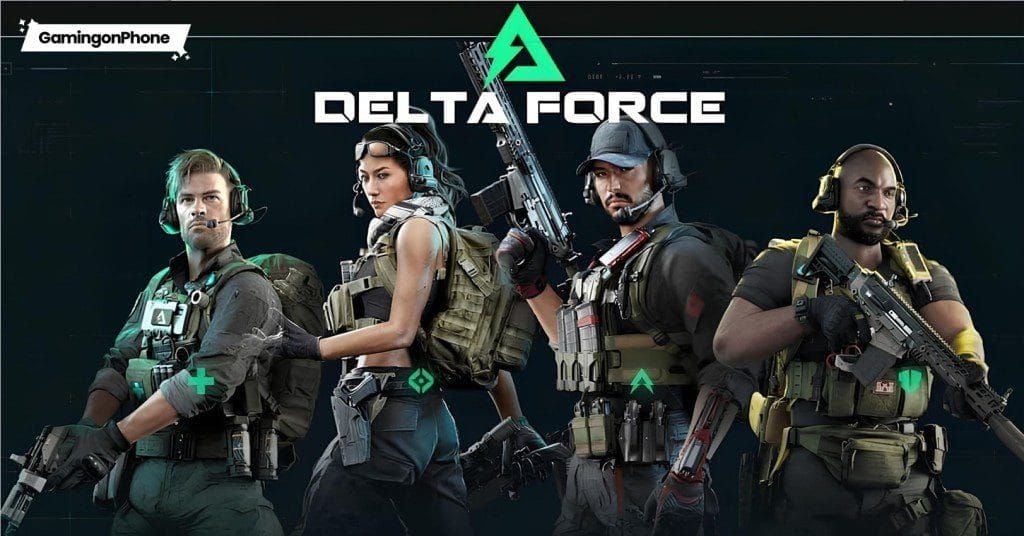
Lean tilts your character ~30 degrees, shifting head/weapon position laterally by 40-50cm in-game. This creates asymmetric exposure—you see around corners before opponents see you.
Lean reduces exposed body surface by 60-70% versus standard peeking. You expose only head and weapon, presenting a 40% smaller target.
Lean Angles and Visibility Windows
Camera position shifts with lean angle. When leaning right around a left corner, your camera moves right and forward, granting vision 150-200ms before your model becomes visible to opponents.
This visibility advantage often determines engagement outcomes where reaction times average 180-220ms.
When to Use Lean
- Corner peeking: Gather intel without full commitment
- Holding angles: Monitor areas while presenting minimal target
- Repositioning: Switch lean direction during firefights to disrupt enemy tracking
The Mouse Button Advantage
Mouse button configuration leverages your thumb's independent movement. Unlike fingers committed to WASD, your thumb rests on side buttons without interfering with primary fire, aim, or movement.
Gaming mice typically feature Mouse Button 4 (forward) and Mouse Button 5 (rear) for thumb access. These enable true simultaneous control.
Thumb Accessibility
Your thumb operates on different motor pathways than fingers, allowing independent activation without coordination delay. Thumb-based inputs register 15-25ms faster than finger stretches from home row.
Extended sessions with default Q/E create finger strain. Mouse buttons maintain natural hand positioning, reducing repetitive stress injury risk.
Simultaneous Lean and Strafe
True simultaneous input creates multiplicative improvements. Combining lean visibility advantage with lateral movement produces peek speeds 40-50% faster than sequential inputs.
Jiggle peeking—rapid A-D strafing while maintaining lean—becomes fluid. Your thumb holds lean while fingers execute rapid A-D alternation.
Ergonomic Benefits
Default Q/E forces repetitive finger stretching that accumulates strain over multi-hour sessions. Mouse buttons distribute load across thumb muscles designed for repetitive pressing.
Pro players report 30-40% reduced hand fatigue when switching to mouse button lean, maintaining performance consistency across tournament matches.
Step-by-Step: Binding Lean to Mouse Buttons
Configuration takes ~2 minutes and requires no external software for standard gaming mice.
Accessing Keybind Settings
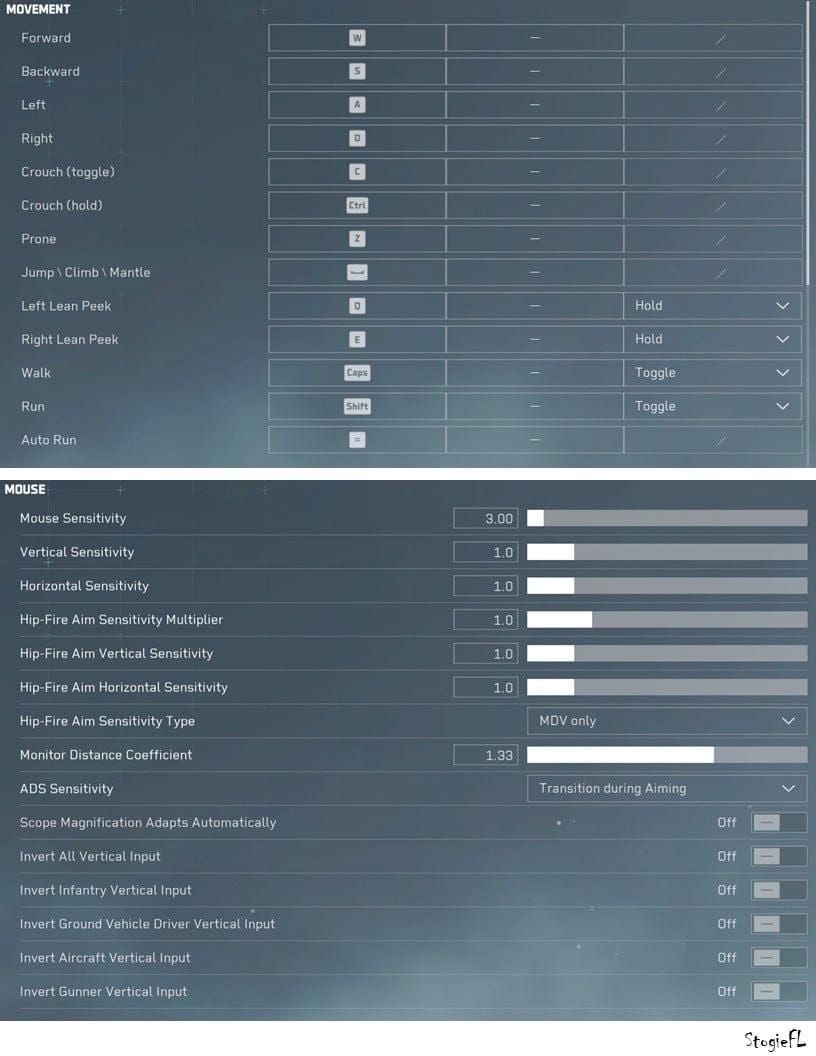
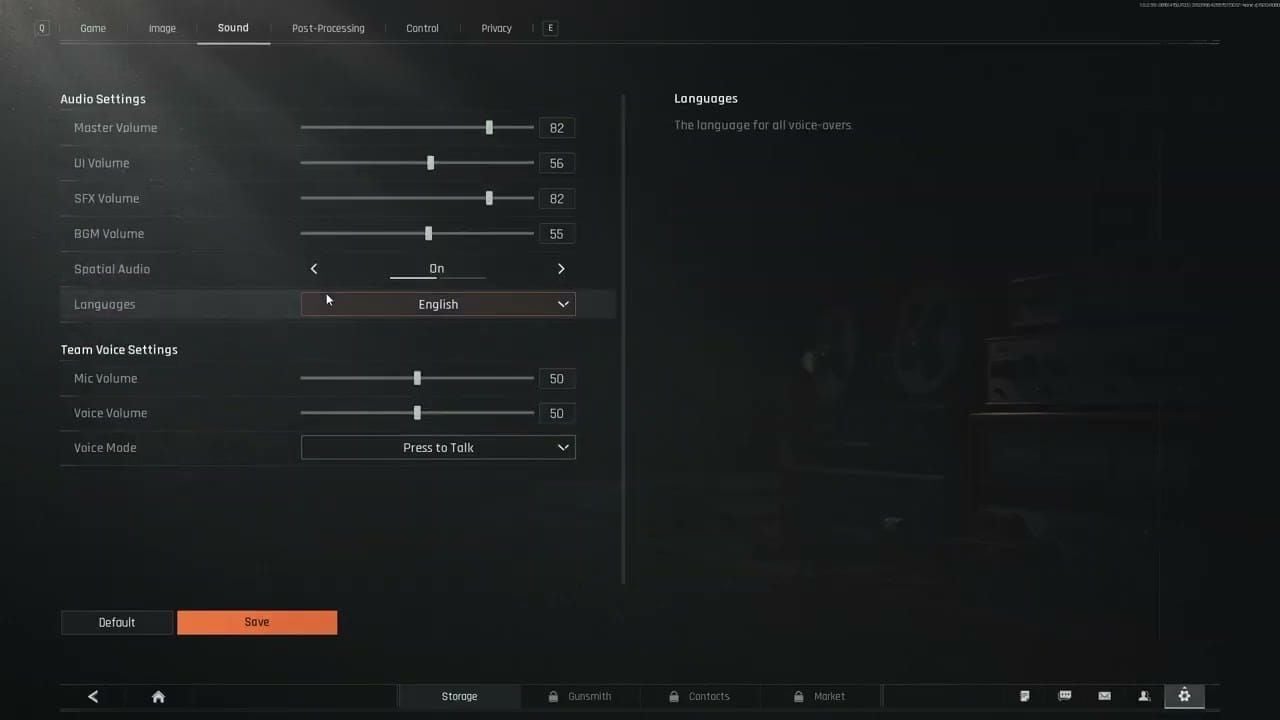
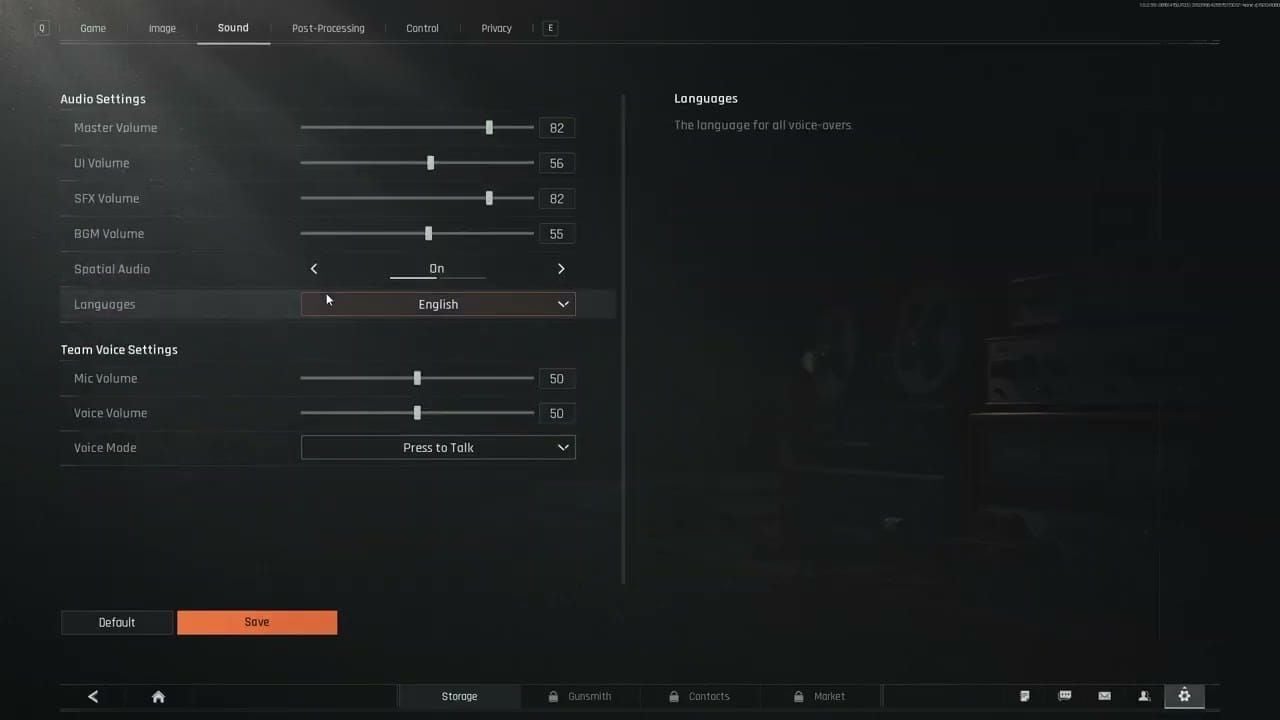
- Launch Delta Force → Settings (gear icon)
- Navigate to Controls/Keybinds tab
- Select Movement category
- Locate Lean Left and Lean Right entries
Assigning Mouse Buttons
- Click Lean Left keybind field (currently Q)
- Press rear mouse side button (MB5)
- Click Lean Right keybind field (currently E)
- Press forward mouse side button (MB4)
- Click Apply/Save
Testing Configuration
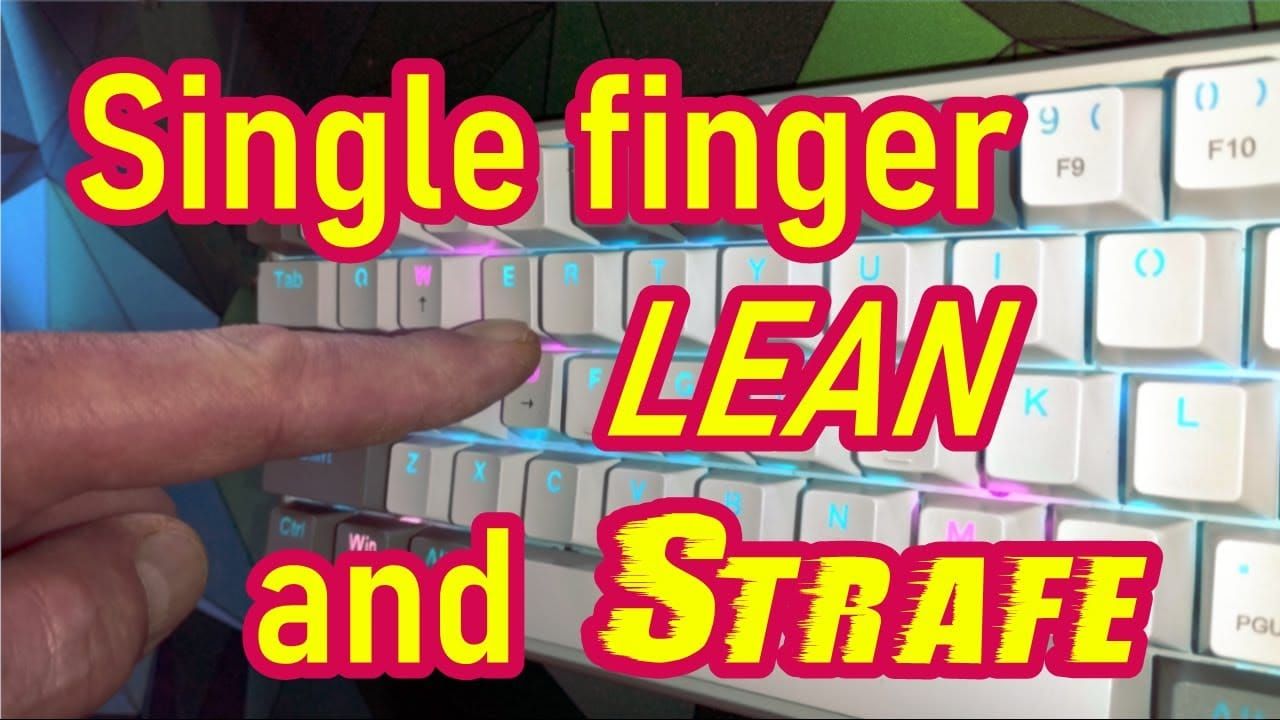
Enter Training Mode. Press rear button—character leans left. Press forward button—character leans right.
Test simultaneous inputs: Press A + rear button. You should strafe left at full speed while leaning left. Repeat with D + forward button.
Recommended Configuration
Standard setup: Mouse Button 5 (rear) = lean left, Mouse Button 4 (forward) = lean right.
This mapping aligns button position with lean direction. When leaning left, thumb presses backward. When leaning right, thumb presses forward.
Competitive players report 20-30% faster adaptation to this mapping versus reversed configurations. Directional correspondence solidifies muscle memory within 3-5 hours versus 6-8 hours for counter-intuitive mappings.
Alternative Configurations
Mice with 3+ side buttons (Logitech G502) allow expanded configurations. Assign lean to primary two buttons while binding crouch/prone to additional positions.
For horizontal button arrangements, map based on accessibility rather than positional logic.
Single Side Button Mice
Assign your single button to dominant lean direction (most-used based on positioning). If you predominantly hold right-side angles (leaning left), assign button to lean left while keeping E for lean right.
Training Muscle Memory
Transitioning requires 3-7 days of deliberate practice. Your brain must replace neural pathways associating lean with finger movements.
Adaptation stages:
- Days 1-2: Initial confusion, wrong button presses
- Days 3-4: Conscious correction, deliberate thinking
- Days 5-7: Automatic execution, no conscious thought
Practice Drills
Corner peeking exercises: Enter Training Mode, locate corners/doorways.
- Perform 20 left lean peeks: approach right corner, press rear button, strafe left with A, return to cover
- Execute 15-20 alternating sequences: peek left, return, move to opposite corner, peek right
- Focus on smooth coordination, not speed
Progressive Learning
Start with single direction for first session. If you typically hold right-side angles, spend entire first practice on left lean peeks using rear button.
After 50-75 successful repetitions, introduce opposite direction. Avoid mixing old/new keybinds—commit fully even when awkward.
Expected Timeline
- 3-5 hours: Basic competency, no conscious thought required
- 15-20 hours: Full muscle memory integration, natural feel
- 30-40 hours: Competitive proficiency, complex techniques instinctive
Common Mistakes
Accidental presses during aim: Grip too tight. Relax thumb, rest lightly on buttons without depressing them.
Wrong button for direction: Verbalize intention during practice—say lean left before pressing rear button.
Delayed activation: Pressing too lightly. Increase thumb pressure slightly (50-70g actuation force).
Advanced Techniques
Jiggle Peek
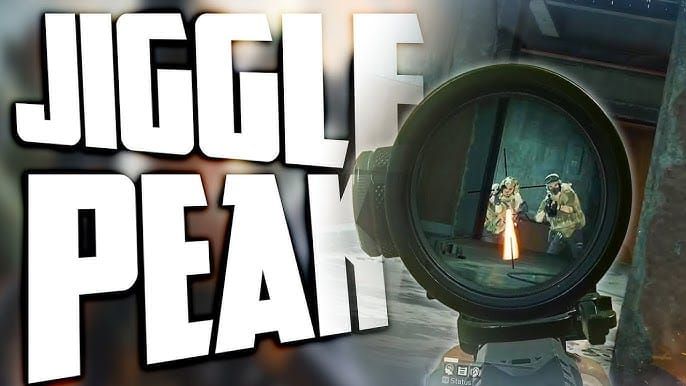
Hold lean button while rapidly tapping A-D in alternating rhythm. Maintain lean angle while moving laterally, creating unpredictable positioning.
Optimal rhythm: 150-200ms intervals between A-D presses. Practice counting one-two-one-two at moderate speed.
Advanced: Add crouch timing during exposed phase for 3D evasion.
Shoulder Swapping
Change lean direction mid-engagement to peek from opposite cover side. When opponent pre-aims your left lean, switch to lean right to catch them off-guard.
Execute: Release current lean, immediately press opposite button while switching strafe direction. Thumb transitions occur in 100-120ms versus 200-250ms for finger Q-to-E transitions.
Lean Timing with Recoil
Synchronize lean with weapon recoil patterns. For weapons with strong horizontal recoil, lean opposite to recoil drift.
Mouse buttons enable this because thumb operates independently from recoil compensation movements.
Performance Metrics
Strafing Speed Increase
Frame analysis reveals 30-40% faster peek execution with mouse buttons. Full lean peek sequence (approach, lean, strafe, gather info, return) reduces from 0.8-1.0s to 0.5-0.6s.
Speed increase compounds during multi-peek scenarios. Mouse button users complete three-angle checks in time default users complete two.
Engagement Win Rate
Players report 15-20% win rate improvements in firefights after adaptation. First-shot advantage from 100-150ms faster target acquisition proves decisive in 200-300ms time-to-kill environment.
Defensive engagement win rates show 25-30% increases when holding angles with lean.
Reaction Time Gains
Controlled testing shows mouse button users average 280-320ms total reaction time (visual stimulus to shot placement) versus 380-450ms for default keybinds.
Breakdown: 40-50ms saved during lean activation, 60-70ms saved by eliminating decision delay about prioritizing lean or strafe.
Troubleshooting
Mouse Button Not Registering
- Verify buttons function in text editor
- Update mouse drivers from manufacturer website
- Install manufacturer software (Logitech G Hub, Razer Synapse)
- Set side buttons to default/standard mode, not disabled or macro
Accidental Lean Activation
Reduce grip pressure to ~30-40% maximum strength. Thumb should rest against buttons without depressing them.
If grip adjustment fails, consider mice with recessed/stiffer buttons or adjustable tension (Logitech G502).
Keybind Conflicts
Check complete keybind list for existing MB4/MB5 assignments. Clear conflicts by pressing Delete/Backspace on conflicting function, then assign replacement key.
Mouse software may assign side buttons to keyboard emulation. Set buttons to default/mouse button mode in peripheral software.
Driver Considerations
Gaming mice with onboard memory may override software settings. Verify mouse mode (onboard vs software) and synchronize settings.
Check manufacturer website for firmware updates released after Delta Force launch.
Complete Keybind Optimization
Complementary Movement Keybinds
Consider relocating crouch/prone to mouse buttons if your mouse has 3+ side buttons. Default crouch (C) and prone (Z) require finger stretches that interrupt movement.
Jump (Spacebar) works well for most players. Sprint (Shift) positioning optimal for pinky reach.
Building Cohesive Control Scheme
Core combat (zero conflicts): Left hand WASD movement, right hand aim/fire, right thumb lean.
Secondary functions (medium frequency): R (reload), G (grenade), mouse wheel (weapon switch).
Tertiary functions (non-combat): M (map), Tab (scoreboard), function keys (communication).
When to Revisit
Reevaluate when you notice repeated scenarios where controls prevent desired actions. Major game updates introducing new mechanics warrant review. Revisit every 50-100 hours as skill level increases.
Enhance Your Experience with BitTopup
Optimizing keybinds maximizes mechanical performance, but competitive advantage requires access to latest weapons, attachments, and battle pass content.
BitTopup provides fast, secure Delta Force currency top-ups with competitive pricing and 24/7 support. When you need to buy delta force currency, BitTopup's streamlined interface completes transactions in minutes.
Fast and Secure Top-Ups
Automated delivery processes purchases within 5-15 minutes. Bank-level encryption protects payment information. Multiple payment methods provide flexibility.
Exclusive Offers
Promotional pricing provides 10-20% savings versus standard in-game rates. Loyalty program rewards repeat customers with additional discounts. Bundle deals combine currency with other resources at optimized price points.
FAQ
What are the best keybinds for leaning in Delta Force?
Mouse Button 5 (rear) for lean left, Mouse Button 4 (forward) for lean right. Enables simultaneous lean and strafe, reducing peek execution time by 30-40%.
How do I change lean controls to mouse buttons?
Settings > Controls > Movement > click Lean Left > press rear mouse button > click Lean Right > press forward mouse button > Save.
Does binding lean to mouse buttons improve aim?
Improves aim indirectly by eliminating movement interruptions. Peek and acquire targets 100-150ms faster than default keybinds.
Why can't I strafe fast while leaning with Q and E?
Ring finger can't simultaneously press A (strafe left) and Q (lean left). Forces choice between movement and lean, reducing strafe speed by 35-40%.
How long does it take to learn new lean keybinds?
Basic competency: 3-5 hours. Full muscle memory: 15-20 hours. Competitive proficiency: 30-40 hours.
What mouse buttons should I use for lean?
Two primary side buttons—MB4 (forward) and MB5 (rear). Rear for lean left, forward for lean right provides intuitive directional correspondence.
Maximize your competitive edge with optimized keybinds. Visit BitTopup for instant, secure Delta Force currency top-ups with exclusive discounts and 24/7 support!