What System Integrity verification checks
EasyAntiCheat loads a kernel driver, hashes local game files, then talks to its servers. NIKKE blocks launch if that chain fails. The popup can say "system integrity," or the process can die withUnexpectedFailureRetCode:-1. A black screen after the splash is a different class of failure: the service started, then graphics or a later check failed.
Windows 11 24H2 and 25H2 monthly security updates tighten Memory Integrity (HVCI), the vulnerable-driver blocklist, and Defender detections. Those policies can treat a signed anti-cheat driver as a blocked load. Any Patch Tuesday that changes kernel protections can trigger the same error.
Get the PC client from the official NIKKE PC page. Steam does not list Goddess of Victory: NIKKE.
Official PC requirements (still current)
Shift Up still publishes these figures. Microsoft ended Windows 7 support in 2020, so run the client on Windows 10 or 11 even though Windows 7 64-bit remains on the minimum line.
| Minimum | Recommended |
|---|
OS | Windows 7 64-bit (use Windows 10/11) | Windows 10 64-bit |
CPU | Intel Core i3 or equivalent | Intel Core i5 |
RAM | 8 GB | 8 GB |
GPU | NVIDIA GeForce GTX 750 Ti | GTX 1650 SUPER / GTX 1650 |
DirectX | 11 | 11 |
Storage | 10 GB | 20 GB |
The installer also writes cache under AppData on the C: drive. Leave extra free space there even if you installed the game on another disk.
Your Commander data stays on the server
A failed integrity check is local. Commander level, roster, equipment, story, and paid purchases live on Shift Up's servers and sync across PC, iOS, and Android on the same server. PC login methods: email through Level Infinite Pass, Apple, Google, Facebook, Twitter (X), and LINE. The PC client has no guest login. Use the same method and the same server you used on mobile.
5-minute checks
Restart Windows. Stale EasyAntiCheat processes and half-applied Defender policy often clear after a reboot.
Right-clicknikke_launcher.exe (or the desktop shortcut) and choose Run as administrator. That lets EAC register its driver.
PressWin+R, typeservices.msc, find EasyAntiCheat. Status should be Running. Startup type should be Automatic. If it is Stopped, open Properties, set Automatic, click Start. Error 1053 is a timeout. Error 5 is a permission block.
Check official notices for maintenance before you spend an hour on local repairs. Server downtime can look like a launch failure.
For a test only: Windows Security > Virus & threat protection > Manage settings > turn Real-time protection off, launch NIKKE, then turn it back on. If the game starts with protection off, skip to exclusions. Do not leave real-time protection off.
If Co-Op or Coordinated Operation later drops you with a network code, that is a different problem. Use the NIKKE Error 9001 fix.
Method 1: Windows Security exclusions
Open Windows Security (Windows 11: Settings > Privacy & security > Windows Security).
Virus & threat protection > Manage settings.
Exclusions > Add or remove exclusions.
Add an exclusion > Folder.
Find the install folder from the shortcut: right-click the NIKKE icon > Open file location. If that folder only holds a shortcut, open that shortcut's location too. Common paths areC:\ProgramFiles(x86)\NIKKE\ or the custom folder you picked at setup. Do not assumeC:\ProgramFiles\NIKKE.
Add the whole NIKKE folder. If anEasyAntiCheat subfolder exists, add that folder as a second exclusion. If Defender still quarantines files, add process exclusions fornikke_launcher.exe andEasyAntiCheat.exe.
If Controlled folder access is on: Virus & threat protection > Ransomware protection > Allow an app through Controlled folder access. Add the launcher and the game executable. Without that allow-list, Windows can block log writes and updates that EAC treats as tampering.
Restart, then launch NIKKE without administrator mode. If Windows still flags EAC, the files are damaged. Go to Method 3.
Method 2: Memory Integrity and Core Isolation
Windows 11 can turn Memory Integrity on after a feature update. That hypervisor check blocks some kernel anti-cheat drivers.
Windows Security > Device security > Core isolation details.
Note whether Memory integrity is on.
If it is on, turn it off, restart, and launch NIKKE.
If a Kernel-mode Hardware-enforced Stack Protection toggle is present, treat it the same way for this test.
If the game launches with Memory Integrity off, repair EasyAntiCheat (Method 3), update GPU and chipset drivers, then turn Memory Integrity back on and test again. Leaving it off lowers kernel protection. Use the off state as a diagnosis, not a permanent setup.
Method 3: Repair EasyAntiCheat
Open the NIKKE install folder and theEasyAntiCheat subfolder.
Right-clickEasyAntiCheat_Setup.exe > Run as administrator.
Select NIKKE.
Use Repair if the button is there. If not, Uninstall, restart Windows, run setup as administrator again, select NIKKE, Install.
Approve the Windows driver prompt. The installer finishes in under a minute.
Do not enable Windows test signing to force a driver load. If setup fails, open Event Viewer (Win + X) > Windows Logs > System and note EasyAntiCheat errors around that timestamp. Error 1053 and Error 5 are the usual pair. Another kernel anti-cheat on the same PC can hold the service name. Close those games, repair NIKKE's EAC, then launch the others.
Method 4: Windows Update rollback (last resort)
On Windows 11 the path is Settings > Windows Update > Update history, not the old Update & Security page.
Create a restore point: search Create a restore point, turn on protection for the system drive, click Create.
Update history > Uninstall updates.
Remove the quality or cumulative update that landed in the 48 hours before the error.
Restart and launch NIKKE.
If launch works, open Windows Update and Pause updates for 7 days (you can extend, up to 35). Use that window for exclusions and an EAC repair so you can take the next Patch Tuesday. Rollback cuts security patches. Use it when several EAC games fail after the same KB, not when only NIKKE fails.
Method 5: GPU driver, DirectX, Visual C++
A bad GPU driver or a missing DirectX library causes black screens and crash-on-launch. Players often file those as integrity errors. Treat this method as the graphics path, not as a file-hash repair.
Install the current Game Ready / Adrenalin / Intel Arc driver from the GPU vendor. If a recent driver update started the crash, use the vendor's clean-install option. Display Driver Uninstaller in Safe Mode is optional for a leftover driver stack. Restart before you launch NIKKE.
Run Microsoft's DirectX End-User Runtime Web Installer. Windows 10/11 already ship DirectX 12. The old runtime still restores missing D3DX and related libraries that DirectX 11 games call.
Install the current Visual C++ Redistributable 2015–2022 (x64). Add the x86 package if the NIKKE installer asks for it. You do not need every year from 2013.
Recommended spec (Core i5, 8 GB RAM, GTX 1650 SUPER) holds high settings at 1080p. Minimum spec should stay on Medium if you want a stable 60 FPS.
Method 6: Clean boot
Win+R >msconfig.
Services tab > Hide all Microsoft services > Disable all.
Startup tab > Open Task Manager > disable every enabled startup item.
OK, restart, launch NIKKE.
If the game starts, a third-party overlay, RGB suite, motherboard utility, or another anti-cheat was in the way. Re-enable items in small groups until you find the one that breaks launch. Discord overlay, GeForce Experience overlay, and iCUE or Armoury Crate show up often.
If NIKKE still fails in a clean boot, the problem is Windows, a driver, or the client. Go to Method 7.
To restore a normal boot: msconfig > uncheck Hide all Microsoft services > Enable all, then turn the wanted startup items back on.
Method 7: Clean official reinstall
Screenshot your Graphics and keybind pages. Most progress is server-side. Local settings can reset.
Confirm you know the login method and the server.
Settings > Apps > Installed apps > uninstall GODDESS OF VICTORY: NIKKE (the name can also appear as NIKKE).
Delete leftover folders: the install directory,%USERPROFILE%\AppData\LocalLow\com.proximabeta,%USERPROFILE%\AppData\LocalLow\com_proximabeta, and%APPDATA%\nikke_launcher.
Download a fresh Miniloader from the official NIKKE PC page. Run it as administrator. Keep 20 GB free if you can. Allow the EasyAntiCheat driver prompt.
Restart once, then launch. Sign in with the original method on the original server.
Roster, gems, Mission Pass, and story come back from the server. If a banner is live and you are short after the downtime, use a NIKKE gem top up. For free vouchers after you are in, use the NIKKE code redeem guide. If a code says Already Used, see the CDK error guide.
If the error is still there
Open Command Prompt as administrator.
sfc/scannow
If SFC finds files it cannot fix:DISM/Online/Cleanup-Image/RestoreHealth
Runsfc/scannow again, then restart.
Skip registry cleanup unless official support asks for a specific key. A bad delete underHKLM\SOFTWARE can break more than NIKKE.
On the Compatibility tab of the launcher, tick Run this program as an administrator. You can tick Disable fullscreen optimizations. Do not set Windows 7 or Windows 8 compatibility mode. Kernel anti-cheat and an old compatibility shim fight each other.
If every method fails, contact NIKKE support from the official site or the in-game help channel. Send Windows version (24H2 or 25H2), GPU, the exact error text, and the list of steps you already ran. Play on iOS or Android on the same bound account so daily rewards and events keep moving.
After you can launch
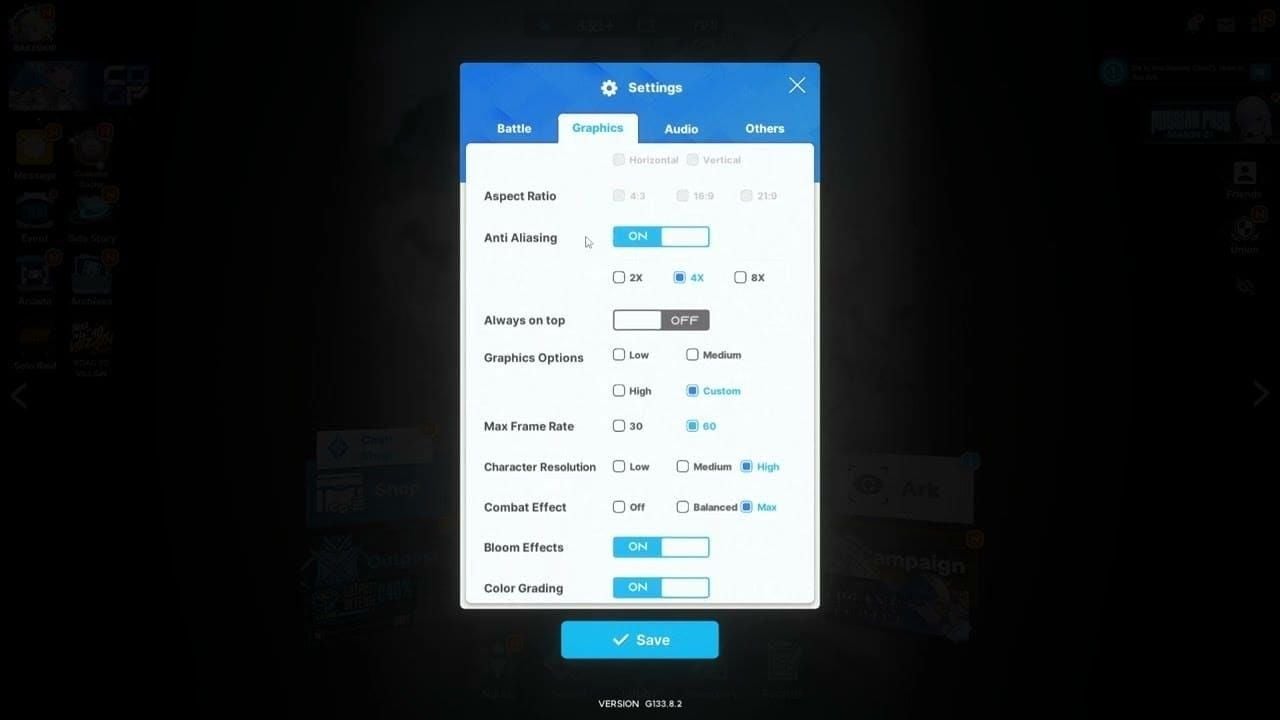
On recommended hardware, High at 1080p with Max Frame Rate 60 is a sane start. Turn VSync on if you see tearing. Drop Combat Effect and Character Resolution one step if Union Raid or Campaign hitch.
Close overlays before long raids. If matching fails or you disconnect mid-fight, go back to the Error 9001 guide. Mobile progress you made while the PC client was down appears after you log into the same server.
After a Windows feature update, open Windows Security and confirm the NIKKE folder exclusions are still listed. Create a restore point before you install a large cumulative update.
FAQ
Why does NIKKE PC show a System Integrity error after a Windows update?
The update changed kernel policy, Memory Integrity, or Defender detections. EasyAntiCheat needs a driver load and a file hash that Windows now blocks. The game refuses to start until that check passes.
Will a reinstall delete my progress?
No. Commander data is server-side. Reinstall the client, then log in with the same Level Infinite Pass or social account on the same server. Guest accounts exist on mobile only. Bind those before you rely on a PC reinstall.
How do I verify NIKKE game files on PC?
The official client has no Steam verify button. RunEasyAntiCheat_Setup.exe as administrator and use Repair, or uninstall and install again from the official PC page.
Does rolling back a Windows update fix it?
It can, when a specific quality update blocks the EAC driver. Try exclusions, Memory Integrity diagnosis, and EAC repair first. Rollback is a last resort because it removes security patches.
What are the NIKKE PC system requirements?
Minimum: Windows 7 64-bit (use 10/11), Core i3, 8 GB RAM, GTX 750 Ti, DirectX 11, 10 GB. Recommended: Windows 10 64-bit, Core i5, GTX 1650 SUPER, 20 GB.
How long does a NIKKE System Integrity fix take?
Admin mode, exclusions, and an EAC repair take 15 to 30 minutes. A clean official install is 45 to 60 minutes plus download time. SFC/DISM and a Windows rollback add another hour.
Conclusion
Start with administrator launch, Windows Security exclusions, and an EasyAntiCheat repair. Add a Memory Integrity test if the error followed a Windows 11 24H2 or 25H2 update. Reinstall only from the official PC client. Your roster is still on the server. Bookmark this page and check it after the next Patch Tuesday.
Need gems for the banner you missed while the client was down? Use BitTopup NIKKE top up for a Player ID recharge with instant delivery.