



NIKKE Error 9001 Fix: Stop Co-Op Raid Disconnects (2025)
Error 9001 in Goddess of Victory: NIKKE signals network synchronization failure during cross-platform Co-Op Raids when mobile and PC players team up. Root cause: platform-specific API conflicts and client version mismatches. Solutions include admin mode execution, EasyAntiCheat reconfiguration, Windows Defender exclusions, and network resets—30% of integrity errors resolve through proper permissions alone.


Technical Definition
Error 9001 = network communication breakdown when game client can't maintain stable synchronization with raid servers during cross-platform sessions. Unlike timeout errors (Error 1053) or permission issues (Error 5), this signals packet-level synchronization failures between platform builds. Appears most during Co-Op Raids, Special Interceptions, and Tribe Tower where real-time coordination between multiple clients is critical.
NIKKE's cross-platform architecture requires continuous data exchange between mobile (Android/iOS) and PC (Windows) clients. When platforms simultaneously communicate with game servers, differences in UDP protocol packet handling create desynchronization events triggering Error 9001. Particularly problematic during high-intensity raid moments when burst damage calculations and phase transitions demand precise timing.
For uninterrupted raids, maintain optimal resources. nikke gems top up through BitTopup ensures necessary resources without transaction delays during critical sessions.
Why PC-Mobile Cross-Play Is Targeted
PC client operates on different system requirements vs mobile:
- Minimum: Windows 7 64-bit, Intel Core i3, 8GB RAM, NVIDIA GTX 750 Ti, DirectX 11, 10GB storage
- Recommended: Windows 10 64-bit, Intel Core i5, NVIDIA GTX 1650 SUPER, 20GB storage
Hardware differences = distinct client behaviors during network operations. PC processes game state updates through Windows-specific APIs and EasyAntiCheat integrity verification that mobile doesn't use. When mobile session token validation occurs simultaneously with PC EasyAntiCheat authentication, timing mismatch causes server API gateway to reject synchronization requests, disconnecting players with Error 9001.
PC installation path (C:\Program Files\NIKKE) includes EasyAntiCheat subfolders actively monitoring game files during raids. If anti-cheat detects irregularities in cross-platform data packets—even false positives from legitimate mobile communications—it forces disconnection.
How Error 9001 Differs from Other Errors
Error 9001 = connection established but synchronization failed during active gameplay. Standard timeout errors = client couldn't reach server within expected timeframes.
- Error 5: Windows user account control restrictions
- Error 1053: Network latency or server unavailability
- Error 9001: Platform-level incompatibilities in game state data transmission during real-time multiplayer
Co-Op Forced Swap bug = character switching malfunctions, not complete disconnections. Understanding distinctions helps apply correct solutions.
Root Causes: Why Only with PC Users
Platform API Communication Conflicts
NIKKE's cross-platform architecture uses unified API gateways translating platform-specific requests into standardized server commands. Windows PC clients communicate through DirectX 11 rendering pipelines and Windows networking stacks processing data differently than Android/iOS frameworks. During rapid state updates (boss phase transitions, synchronized burst windows), platform APIs submit conflicting data packets to same server endpoint.
Conflict intensifies because PC EasyAntiCheat performs continuous integrity checks mobile doesn't execute. If anti-cheat flags discrepancies in cross-platform data timing, it interprets legitimate mobile actions as anomalies, triggering protective disconnection.
Client Version Synchronization Issues
Platform-specific update schedules create version mismatch vulnerabilities. PC clients (dedicated launchers) sometimes receive patches on different timelines than mobile (Google Play/App Store). Even minor version discrepancies (1.87.1 vs 1.87.2) cause session token validation failures when server expects identical builds for Co-Op synchronization.
Matchmaking attempts pairing compatible versions, but during high-traffic or limited player pools, may allow mismatched versions to connect. In-raid, version differences manifest as packet structure incompatibilities server can't reconcile = Error 9001.
Network Packet Handling Differences
PC network configurations involve complex routing through home routers, firewalls, Windows Defender. Mobile devices use simpler cellular/Wi-Fi pathways with fewer security layers. When raid servers receive PC packets traversed through multiple firewall inspections alongside mobile packets with direct routing, arrival timing differences exceed acceptable synchronization thresholds.
UDP protocol implementation expects packets within millisecond-level windows during critical raid moments. PC clients processing packets through Windows networking stacks with real-time antivirus scanning introduce latency mobile doesn't experience. Asymmetric latency creates desynchronization triggering Error 9001.
Session Token Validation Failures
Each client receives unique session token upon login validating all server communications. PC generates tokens through Windows-specific authentication with EasyAntiCheat verification; mobile uses platform-native authentication (Google Play Services/Apple Game Center). When differently-generated tokens attempt simultaneous validation during Co-Op matchmaking, server API gateway experiences race conditions where one platform's token processes before other completes verification.
Critical during raid initialization when all tokens must validate simultaneously to establish shared game state. If PC EasyAntiCheat verification takes 200ms longer while mobile tokens validate immediately, server may invalidate entire session and disconnect all participants.
Diagnosing Your Specific Situation
Confirming PC Cross-Play as Trigger
Document when disconnections occur: matchmaking, raid initialization, mid-combat, specific boss health percentages. Record platform composition—how many PC vs mobile players.
Conduct controlled tests: form raid teams exclusively with mobile players. Complete 5+ consecutive raids without PC participants. If Error 9001 disappears during mobile-only but reappears with PC players, cross-platform communication confirmed as root cause.
Check client version in settings, compare build numbers with teammates. Version mismatches between platforms often appear as subtle patch note differences.
Testing Mobile-Only vs PC-Inclusive Teams
Structured testing: 10 raid attempts—5 purely mobile, 5 with ≥1 PC player. Track success rates, disconnection timing, error codes. If mobile-only completes without interruption while PC-inclusive consistently fails at similar points, platform interaction confirmed.
Note which player disconnects first. PC player drops first = PC-side configurations (EasyAntiCheat conflicts, Windows Defender interference). Mobile players disconnect with PC users but PC stays connected = server processing mobile packets in cross-platform contexts.
Identifying Disconnect Timing Patterns
Error timing provides diagnostic clues:
- Matchmaking completion: Session token validation failures before gameplay
- Mid-raid boss phase transitions: Synchronization issues with state change packets
- High-damage burst windows: Packet overflow from simultaneous action data
For Coordinated Operation 2.0, note if errors appear more in Challenge Mode vs Normal Mode. Challenge Mode prohibits auto-battle and implements inactivity auto-removal creating additional synchronization checkpoints. Disconnections concentrating in Challenge Mode = stricter validation protocols exposing cross-platform timing issues.
7 Proven Solutions (Ranked by Success Rate)
Solution 1: Force Client Synchronization—Complete Restart (30% Success)
PC users: Close NIKKE and all processes via Task Manager. Right-click NIKKE executable → Run as administrator. Admin mode resolves ~30% of integrity errors by granting necessary system access.

Emulator users: Restart emulator twice consecutively, wait 2 full minutes after second startup before launching NIKKE. Allows all services to fully initialize.
Mobile players: Force-stop NIKKE through device settings (not app switcher). Clear app cache (not data) before restarting. Removes corrupted temporary files with outdated session tokens.
Solution 2: Clear Cache and Reset Network
PC: Open Command Prompt as admin, run sfc /scannow to verify Windows networking components (15-30 min). Restart router/modem by unplugging 30 seconds—clears routing table, forces fresh IP assignments.
Mobile: Toggle airplane mode on 10 seconds then off. Restart device completely to refresh network settings and clear DNS cache.
Solution 3: Configure Router Port Forwarding
Access router admin panel (192.168.1.1 or 192.168.0.1). Enable UPnP (Universal Plug and Play) for automatic port access. Set NAT type to Open/Type 1 if supported. Moderate/Strict NAT interferes with peer-to-peer Co-Op aspects.
Disable VPNs during raids. VPNs introduce routing hops exacerbating timing differences between PC and mobile packet delivery.
Solution 4: Adjust Firewall Permissions
Press Win+R, type services.msc, Enter. Locate EasyAntiCheat service, set Startup type to Automatic.
Toggle off Windows Defender Real-time protection temporarily during raids (re-enable after). Add NIKKE installation directory (C:\Program Files\NIKKE) and EasyAntiCheat subfolder to Windows Defender Exclusions.
Create inbound/outbound firewall rules allowing NIKKE.exe and all EasyAntiCheat executables. Prevents Windows Firewall from inspecting/delaying game packets.
Solution 5: Optimize DNS Settings
Change PC DNS from automatic to public servers. Access Network Adapter settings → Internet Protocol Version 4 (TCP/IPv4) → manually enter:
- Google DNS: 8.8.8.8 and 8.8.4.4
- Cloudflare DNS: 1.1.1.1 and 1.0.0.1
Faster DNS resolution reduces time to locate game servers, aligning connection timing with mobile players.
After changing DNS, flush cache: Command Prompt as admin → ipconfig /flushdns. Restart network adapter via Device Manager.
Solution 6: Disable Background Apps
Close Discord, streaming software, browsers, auto-updating apps before raids. These create unpredictable network traffic bursts delaying NIKKE packets.
PC: Task Manager → sort by network usage. Close unexpected bandwidth consumers. Check Startup tab, disable non-essential programs.
Mobile: Close all background apps, disable automatic app updates during raids. Cloud backup, photo syncing, social media create background transfers competing with NIKKE's network requirements.
Solution 7: Update Client and Verify File Integrity (45% Success)
Navigate to NIKKE installation directory, locate EasyAntiCheat_Setup.exe. Right-click → Run as administrator. Select NIKKE from game list → Uninstall EasyAntiCheat.

Restart computer completely after uninstalling. Clears residual anti-cheat processes from memory.
After reboot, run EasyAntiCheat_Setup.exe as admin again → select NIKKE → Install EasyAntiCheat. Fresh installation resolves corrupted anti-cheat files causing false positives during cross-platform sessions.
If errors persist, perform complete NIKKE uninstall/reinstall. Link account to social media/email before uninstalling to prevent progress loss. For quick team strength restoration, buy goddess of victory nikke gems from BitTopup—instant delivery, secure transactions, competitive pricing.
Platform-Specific Fixes
Mobile Players Joining PC-Led Raids
Disable battery optimization for NIKKE through device settings—prevents OS from throttling network activity during extended raids. Battery savers reduce background network refresh rates creating packet timing inconsistencies PC clients interpret as connection failures.
Switch from cellular to stable Wi-Fi. Cellular introduces variable latency conflicting with PC clients' consistent wired/wireless connections. Position close to router, ensure no other devices streaming/downloading during raids.
Before joining PC-inclusive raids, restart mobile device and launch NIKKE fresh. Avoid switching apps during matchmaking/raids—mobile OS may deprioritize NIKKE's network processes. Keep NIKKE in foreground throughout entire session.
PC Players Experiencing Mutual Disconnects
Ensure system meets recommended specs (Windows 10 64-bit, Intel Core i5, NVIDIA GTX 1650 SUPER, 20GB storage), not just minimum. Minimum may run NIKKE but lacks processing headroom for smooth cross-platform synchronization.
Verify Windows fully updated—outdated OS builds contain networking bugs since patched. Check graphics driver updates (NVIDIA/AMD)—GPU drivers handle DirectX 11 rendering affecting game state processing speed.
Monitor resource usage via Task Manager during raids. CPU >80% or RAM approaching max = system struggling to maintain consistent performance, leading to variable packet timing. Close background processes, upgrade hardware, or reduce graphics settings.
Coordinating Fixes with Raid Team
Establish communication through external platforms before raids. Confirm all completed basic troubleshooting: restarted clients, verified matching version numbers, confirmed stable connections. Designate one player to initiate matchmaking only after all confirm readiness.
Pre-raid checklist:
- All restart clients within same 5-minute window
- Verify same game version
- Confirm no background downloads active
- Test connections via quick solo stage before Co-Op
If disconnections occur despite preparation, systematically isolate problem player by rotating team composition. If errors stop when specific player excluded, that player's configuration requires focused troubleshooting.
Common Misconceptions Debunked
Myth: VPNs Always Fix Connection Errors
VPNs typically worsen Error 9001. VPNs add encryption overhead and routing hops increasing latency and packet timing variability—exactly what triggers cross-platform synchronization failures.
VPNs successfully resolve region-locked content or ISP throttling, but Error 9001 isn't caused by regional restrictions or bandwidth limitations—it's precise timing mismatches between platform-specific clients. VPN latency makes timing windows harder to maintain.
Disable VPN during Co-Op raids with PC players. Direct connections provide lowest, most consistent latency for cross-platform synchronization.
Myth: Server Region Selection Prevents Error 9001
Server region selection doesn't change how PC EasyAntiCheat validates packets from mobile teammates. Error 9001 stems from client-side platform incompatibilities, not server-side congestion.
Server region matters for latency to game server, but cross-platform synchronization failures occur in communication layer between client types before data reaches server. Server merely detects and reports synchronization failure; doesn't cause it.
Focus on client-side configurations—EasyAntiCheat settings, firewall rules, network optimization—not server regions.
Myth: Weak Internet Speed Causes Error 9001
Download/upload speeds have minimal impact. Error 9001 results from packet timing synchronization failures, not bandwidth insufficiency. 10 Mbps with consistent timing maintains perfect synchronization; 1 Gbps with variable latency causes constant Error 9001.
NIKKE's raid data requirements are modest—typically <1 Mbps sustained bandwidth. What matters: latency consistency and packet loss rate, not raw speed. Stable 20 Mbps with 30ms consistent latency outperforms unstable 100 Mbps with 20-80ms fluctuating latency.
Test connection quality using ping tests (consistent ping times = low jitter), not speed tests. High jitter signals network instability triggering Error 9001 regardless of download speed.
The Truth About Triggers
Error 9001 occurs when game server receives state update packets from PC and mobile clients that can't be reconciled into coherent shared game state. PC clients running Windows with EasyAntiCheat process and transmit game actions through different code paths than mobile clients using Android/iOS frameworks.
When raids require all players' actions to synchronize within millisecond-level windows (burst damage phases, boss transitions), even minor processing differences cause one client's packets to arrive outside acceptable timing window. Server detects desynchronization and disconnects clients to prevent state corruption.
Solution requires minimizing processing delays on both platforms: PC eliminates EasyAntiCheat conflicts and Windows networking interference; mobile prevents OS battery optimizations and background apps from delaying packet generation.
Real Gameplay Scenarios
Raid Boss Phase Transitions and High-Damage Bursts
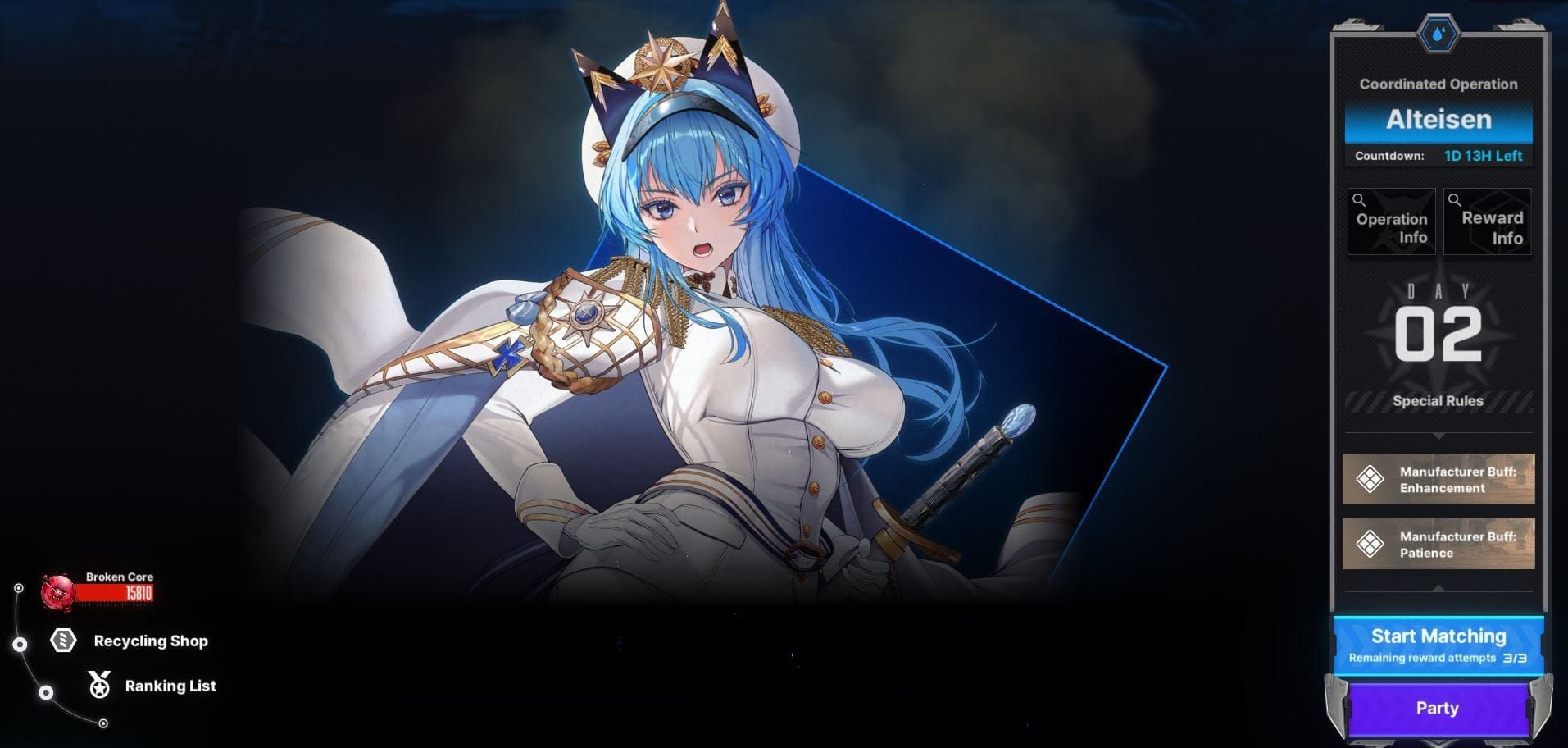
Error 9001 appears most during boss phase transitions when server must simultaneously update all clients with new boss behaviors, arena modifications, mechanic changes. All clients must acknowledge phase change within tight timing windows. If PC acknowledgment packet arrives 500ms late due to EasyAntiCheat scanning/Windows Defender interference, server rejects as out-of-sequence and disconnects.
High-damage burst windows create similar stress. Multiple players activating burst skills simultaneously = server processes damage calculations, animation triggers, health bar updates for all clients in real-time. PC clients rendering via DirectX 11 may generate confirmation packets at different rates than mobile platform-native rendering, creating timing mismatches.
Matchmaking Completion When Team Loads
Matchmaking completion = critical synchronization checkpoint where all session tokens must validate simultaneously. PC must complete EasyAntiCheat verification, Windows firewall checks, DirectX initialization before confirming readiness. Mobile completes through simpler platform-native processes finishing faster.
If PC initialization exceeds server timeout threshold while mobile players sit ready, server invalidates entire session and disconnects all with Error 9001. Explains disconnections before raids begin—cross-platform timing mismatch during loading phase.
Union Raid Hard Mode (unlocked all bosses May 30) intensified this by requiring more complex team composition data to synchronize during matchmaking. Additional validation for multiple available bosses increased likelihood of PC-mobile timing mismatches during loading.
Mid-Raid When PC Uses Specific Abilities
Certain NIKKE characters with particle-heavy abilities or complex buff/debuff interactions create processing spikes delaying PC clients' network updates. When PC activates these abilities, client processes visual effects, calculates stat modifications, transmits updated game state. If processing takes longer than expected (insufficient hardware/background interference), resulting packet delay desynchronizes PC from mobile teammates.
Coordinated Operation 2.0 Challenge Mode's auto-battle prohibition and inactivity auto-removal creates additional synchronization checkpoints. System continuously monitors all players' input activity, must verify all clients remain actively engaged. If PC input confirmation packets arrive late due to processing delays during ability animations, server interprets as inactivity and triggers disconnection.
Normal Mode's auto-battle allowance reduces this risk by removing manual input timing as synchronization factor. However, auto-battle introduces complication: instant death mechanics at Stage 9 require precise timing coordination exposing platform synchronization issues when PC and mobile auto-battle systems make decisions at slightly different moments.
Preventive Measures
Pre-Raid Checklist for Cross-Platform Teams
Mandatory protocol before matchmaking:
- All restart NIKKE clients within same 5-minute window (ensures session tokens generate from similar server states)
- PC players verify launched as administrator, EasyAntiCheat service running via services.msc
- Confirm all on identical game versions by comparing build numbers
- Communication check via external platforms—each reports current ping to game servers
- If any player shows ping >100ms or high jitter, postpone until network stabilizes
Optimal Network Configuration
PC:
- Network Adapter settings → disable Allow computer to turn off device to save power
- Enable QoS packet scheduling: gpedit.msc → Computer Configuration > Administrative Templates > Network > QoS Packet Scheduler → Limit reservable bandwidth set to 0%
Mobile:
- Android: Enable Developer Options → Mobile data always active
- iOS: Disable Wi-Fi Assist in Settings > Cellular (prevents automatic network switching)
Communication Protocols
Designate raid leader responsible for initiating matchmaking only after all confirm readiness. Use countdown timers so all enter matchmaking simultaneously.
Immediate reporting: if any player experiences lag spikes, frame drops, unusual delays during loading, communicate immediately. Allows team to abort before reaching critical synchronization points.
Troubleshooting escalation:
- Error 9001 once → all restart clients before retry
- Twice consecutively → PC players verify EasyAntiCheat status and firewall settings
- Three times → switch to platform-exclusive composition while investigating offline
Advanced Troubleshooting
Router QoS Settings
Access router QoS settings to prioritize NIKKE traffic. Modern routers offer application-based QoS—specify NIKKE.exe (PC) or assign priority to gaming device MAC address.
Configure QoS to prioritize UDP traffic (NIKKE's primary protocol for real-time updates). Set UDP to Highest Priority, TCP (web browsing/downloads) to lower tiers.
For multiple NIKKE players or heavy network usage, implement bandwidth reservation. Allocate guaranteed minimum 30-40% of total bandwidth to gaming device.
NAT Type Configuration
NAT type significantly affects cross-platform stability:
- Type 1 (Open): Best connectivity, unrestricted inbound/outbound
- Type 2 (Moderate): Works for most scenarios, can introduce delays
- Type 3 (Strict): Frequently causes synchronization issues
Achieve Open NAT: enable UPnP in router settings. UPnP allows NIKKE to automatically configure port forwarding. Alternatively, place gaming device in router DMZ (exposes directly to internet with minimal routing interference).
DMZ reduces network security—only use for dedicated gaming devices, never for banking/sensitive activities.
Monitoring Tools
PingPlotter: Real-time latency tracking, identifies where delays occur (router, ISP, game server). Consistent latency <50ms with minimal jitter = stable cross-platform conditions.
Windows Resource Monitor (resmon.exe): Track NIKKE network activity during raids. Network tab → filter NIKKE.exe → observe packet send/receive rates. Sudden drops or latency spikes predict imminent Error 9001.
Mobile: Network Analyzer apps monitor Wi-Fi signal strength and channel congestion. If Wi-Fi on crowded channels (common in apartments), switch to less congested channels via router settings.
Alternative Strategies
Platform-Exclusive Raid Teams
Form mobile-only or PC-only teams to eliminate Error 9001 entirely by removing platform synchronization variable. Create separate friend groups/guild channels for platform-specific raiding.
Platform-exclusive teams enable optimized strategies: mobile-only leverages touch control advantages; PC-only utilizes mouse precision for targeting. Can improve clear times beyond mixed-platform teams.
Maintain cross-platform friendships for non-raid content (Tribe Tower, solo challenges) where Error 9001 occurs less frequently.
Schedule Raids During Low-Traffic Hours
Server load indirectly affects Error 9001 frequency by influencing packet processing speed. During peak hours (thousands simultaneously raiding), server processing delays exacerbate timing mismatches. Schedule raids during off-peak—early morning/late night in server region.
Avoid raiding during new banner releases or limited-time events. Maximum server load amplifies minor cross-platform timing discrepancies into full Error 9001 disconnections.
Use time zone differences strategically. Playing on Asian server from North America = your evening corresponds to Asian off-peak times.
Communicate Error Patterns to Developer Support
Document Error 9001 systematically: exact timing, team platform composition, client versions, network configurations, troubleshooting attempted. Submit detailed reports to official support channels.
Participate in community forums/Discord where developers monitor feedback. Coordinate with affected players to submit corroborating reports demonstrating widespread impact.
Check official patch notes for acknowledgment of cross-platform stability issues. When developers confirm investigating Error 9001, share documented experiences to contribute to debugging.
Developer Status
Official Acknowledgment
NIKKE development team acknowledged general PC client stability concerns through patch notes/community communications, though specific Error 9001 cross-platform acknowledgment varies by region. PC client's EasyAntiCheat reliance identified as integrity error source, with gradual improvements to anti-cheat integration.
Union Raid Hard Mode update (May 30) unlocking all bosses simultaneously introduced additional synchronization complexity developers continue monitoring. Community feedback regarding increased disconnection rates documented, though official responses haven't specifically isolated Error 9001.
Coordinated Operation 2.0's Challenge Mode with inactivity auto-removal represents developers' awareness of synchronization challenges. Distinction between Normal Mode (auto-battle allowed) and Challenge Mode (prohibited) suggests experimenting with different synchronization models.
Patch History
Historical patch notes show periodic connection stability improvements and network optimization without specifying Error 9001. Generic descriptions often address underlying issues contributing to various error codes including 9001.
EasyAntiCheat updates show measurable impact on error rates. Major version updates cause temporary spikes in integrity errors until players perform uninstall-reinstall sequence. Suggests ongoing anti-cheat development sometimes introduces compatibility regressions requiring client-side reconfiguration.
Platform-specific patches released on different schedules created temporary version mismatch windows where Error 9001 becomes nearly universal in cross-platform teams. Developers gradually improved patch synchronization, reducing mismatch windows from days to hours.
Community-Reported Success Rates
Community data from forums/Discord:
- Admin mode execution (Solution 1): ~30% success rate (highest individual fix)
- EasyAntiCheat reinstallation (Solution 7): ~45% success when performed correctly with full restart between uninstall/reinstall
- Network solutions (2, 3, 5): 15-40% effectiveness depending on individual configurations
- Platform-exclusive teams: Near 100% Error 9001 elimination (workaround, not fix)
FAQ
What does Error 9001 mean in NIKKE? Network synchronization failure between platform clients during Co-Op Raids. Occurs when PC and mobile can't maintain consistent game state timing, causing server to disconnect players preventing state corruption. Differs from timeout errors or permission issues.
Why only with PC players in Co-Op? PC uses EasyAntiCheat verification and Windows-specific networking processing packets differently than mobile. When different processing speeds create timing mismatches during raids, server can't reconcile conflicting game states and triggers Error 9001. Mobile-only or PC-only teams avoid this platform synchronization conflict.
How to fix Error 9001 permanently? Run NIKKE as administrator (right-click executable → Run as administrator), add installation directory and EasyAntiCheat folder to Windows Defender exclusions, set EasyAntiCheat service to Automatic in services.msc, reinstall EasyAntiCheat by running EasyAntiCheat_Setup.exe as admin. ~30% resolve with admin mode alone.
Is Error 9001 caused by internet or game? Platform-level synchronization issues, not internet speed or general connection quality. Consistent packet timing matters more than bandwidth—stable 20 Mbps outperforms unstable 100 Mbps. Occurs when PC and mobile clients' different processing speeds create packet timing mismatches server can't reconcile.
Can I play Co-Op with PC users without disconnecting? Yes, implementing multiple fixes simultaneously: PC runs as admin with EasyAntiCheat configured and firewall exclusions set; mobile disables battery optimization for NIKKE and uses stable Wi-Fi. Both restart clients before raids and confirm matching versions. Platform-exclusive teams most reliable if technical fixes fail.
Difference between Error 9001 and 8001? Error 9001 = cross-platform synchronization failures during active gameplay when PC and mobile can't maintain timing alignment. Error 8001 = different connection issues unrelated to platform mixing. Error 1053 = timeout problems. Error 5 = permission issues. Each requires distinct troubleshooting.
Don't let technical errors ruin NIKKE raid progress. Ensure uninterrupted gameplay with secure, instant top-ups from BitTopup—trusted partner for all in-game currency needs. Fast delivery, competitive rates, 24/7 support keep you raid-ready anytime. Visit BitTopup now and power up your Commander account!
Recommended News




Recommend products




Table of Contents
- Understanding NIKKE Error 9001
- Technical Definition
- Why PC-Mobile Cross-Play Is Targeted
- How Error 9001 Differs from Other Errors
- Root Causes: Why Only with PC Users
- Platform API Communication Conflicts
- Client Version Synchronization Issues
- Network Packet Handling Differences
- Session Token Validation Failures
- Diagnosing Your Specific Situation
- Confirming PC Cross-Play as Trigger
- Testing Mobile-Only vs PC-Inclusive Teams
- Identifying Disconnect Timing Patterns
- 7 Proven Solutions (Ranked by Success Rate)
- Solution 1: Force Client Synchronization—Complete Restart (30% Success)
- Solution 2: Clear Cache and Reset Network
- Solution 3: Configure Router Port Forwarding
- Solution 4: Adjust Firewall Permissions
- Solution 5: Optimize DNS Settings
- Solution 6: Disable Background Apps
- Solution 7: Update Client and Verify File Integrity (45% Success)
- Platform-Specific Fixes
- Mobile Players Joining PC-Led Raids
- PC Players Experiencing Mutual Disconnects
- Coordinating Fixes with Raid Team
- Common Misconceptions Debunked
- Myth: VPNs Always Fix Connection Errors
- Myth: Server Region Selection Prevents Error 9001
- Myth: Weak Internet Speed Causes Error 9001
- The Truth About Triggers
- Real Gameplay Scenarios
- Raid Boss Phase Transitions and High-Damage Bursts
- Matchmaking Completion When Team Loads
- Mid-Raid When PC Uses Specific Abilities
- Preventive Measures
- Pre-Raid Checklist for Cross-Platform Teams
- Optimal Network Configuration
- Communication Protocols
- Advanced Troubleshooting
- Router QoS Settings
- NAT Type Configuration
- Monitoring Tools
- Alternative Strategies
- Platform-Exclusive Raid Teams
- Schedule Raids During Low-Traffic Hours
- Communicate Error Patterns to Developer Support
- Developer Status
- Official Acknowledgment
- Patch History
- Community-Reported Success Rates
- FAQ
Recommend products




Recommended News
Fix MLBB Payment Canceled by System Error on Android and iOS

Once Human Crystagin Not Received After Top Up: Fix Guide
How to Lower PS5 Ping Japan Servers for Smooth Online Play
Eggy Party Beginner Guide: Essential Skills and Traps to Avoid

How to Get Free Gems in Guild Wars 2 Without Heavy Grinding
How to Change Keybinds in Lineage W PC: Client Setup Guide

How to Fix Astra Knights of Veda Crashing on Startup PC in 2026

MLBB Tier List 2026: Best Heroes to Pick in Ranked Matches




























































































