Understanding Workshop Logic Components
Eggy Party Workshop uses Eggy Code for scripting, enabling interactive maps with sophisticated logic systems. Unlike simple drag-and-drop editors, Eggy Code provides genuine programming through variables, triggers, and event-driven logic blocks.
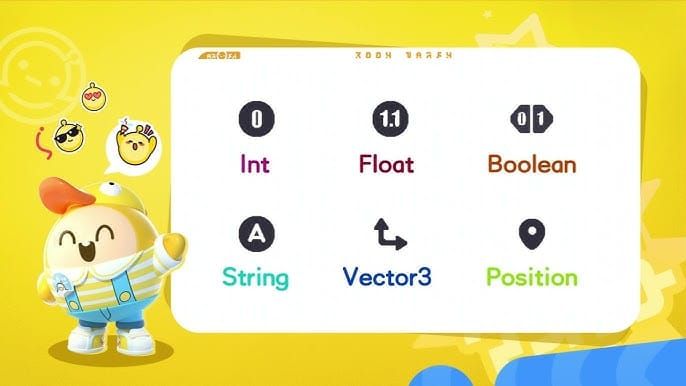
The Workshop supports six variable types: integer (whole numbers like countdown values), float (decimal precision), boolean (true/false states), string (text data), vector3 (3D coordinates), and position (spatial references). Integer variables are essential for countdown mechanics.
For premium items and decorations, eggy party coins top up through BitTopup provides fast, secure access to Eggy Coins with competitive pricing.
Variable Naming Conventions:
- Use only letters, digits, and underscores
- Can't contain special characters or spaces
- Can't start with digits or underscores
- Must be unique within each trigger or element scope
Essential Components for Timer Creation
Building a countdown timer requires three core components: variables to store time values, triggers to execute logic at intervals, and text widgets to display the countdown.
Event Trigger Volumes detect player presence and initiate events. Cone and Half Sphere trigger volumes work best. Set Detection Scope to Player entity type and position trigger centers 1 Eggy unit above ground for reliable activation.
Trigger Sizing Best Practices:
- Ground-based triggers: 2-3 Eggy units diameter
- Wall-mounted triggers: 1.5-2 Eggy units diameter
- Minimum 2 Eggy units spacing between triggers prevents overlap conflicts
Global variables remain available throughout all triggers in your map—ideal for countdown timers that multiple elements reference. Local variables exist only within their trigger group, useful for temporary calculations.
Building the Countdown Timer Script
Access Eggy Code through More menu > select target unit > Edit Eggy Code. This opens the visual scripting interface.
Creating Timer Variables:
- Set integer variable named timeRemaining with default value 30
- Configure as global scope for map-wide accessibility
- Add Sets Text Content block to text widget for display
- Use Converts to String block to transform integer into displayable text
Implementing Countdown Logic:
- Create repeating event trigger with 1-second intervals
- Add decrement block that subtracts 1 from timeRemaining
- Connect updated value to text widget using Converts to String
- Set up conditional check for when timeRemaining reaches zero
- Trigger celebration effects when countdown completes
Reference variables from the Variables category in the block menu. Each variable block can be dragged into logic sequences, mathematical operations, or display functions.
Configuring Display Components
Text widgets display countdown values. After adding Sets Text Content block, connect it to timeRemaining through Converts to String—mandatory since text widgets can't directly display integer values.

Position displays at eye level for standing players, typically 3-4 Eggy units above ground in central locations. High-traffic areas like spawn points ensure maximum visibility.
Display Customization:
- Layer multiple text widgets for shadow effects
- Use contrasting colors for readability against varied backgrounds
- Scale text size based on viewing distance
For additional Workshop resources, buy eggy coins cheap at BitTopup ensures access to all necessary items with fast delivery.
Advanced Timer Mechanics
Beyond basic countdowns, advanced implementations incorporate multiple timer states and conditional behaviors. A 30-second inactivity timer can reset player positions, while 60-second auto-reset returns the map to initial state.
Multi-Stage Countdown:
- Create separate integer variables for minutes and seconds
- Use modulo operations to convert total seconds into MM:SS format
- Implement color changes at critical thresholds (10 seconds = yellow, 5 seconds = red)
- Add pulsing effects by rapidly toggling text widget scale properties
The inputLocked duration of 0.5 seconds prevents rapid-fire trigger activations that could desynchronize your countdown. This lockout ensures each second decrements exactly once, maintaining accurate timekeeping across multiplayer sessions.
Increment operations work inversely—use increment integer variable by 1 on specific events to create stopwatches, score trackers, or elapsed time displays.
Managing Workshop Intensity Limits
Every Workshop element consumes intensity points from your budget. Base intensity limit starts at 18,000, increasing to 21,000 at 1,000 Craftsman Points and reaching maximum 25,000 at 10,000 Craftsman Points.
Basic Timer Intensity Usage:
- Integer variable: 50-100 points
- Repeating trigger: 200-300 points
- Text widget: 150-250 points
- Conditional logic blocks: 50-100 points each
Optimize intensity by consolidating triggers, reusing variables across multiple systems, and removing unused elements before publication. Monitor your intensity meter to prevent hitting limits.
Testing and Debugging
Solo testing reveals basic functionality: Does countdown start at correct value? Does it decrement smoothly every second? Does it trigger correct events at zero? Run complete countdown cycles multiple times to verify consistency.
Multiplayer synchronization requires testing with actual players. Countdown timers must display identical values for all players simultaneously.
Common Timer Errors:
- Countdown skips numbers: Repeating trigger interval incorrect; verify 1.0-second timing
- Display shows undefined: Missing Converts to String block between variable and text widget
- Timer doesn't start: Trigger activation conditions not met; check Detection Scope settings
- Multiple countdowns run simultaneously: Previous timer not properly reset; add cleanup logic
Eggy Code Tutorials provide official guidance: Tutorial 02 covers Value Blocks and Common Data Types, Tutorial 03 explains Control and Condition Blocks, Tutorial 04 details Variables, and Tutorial 05 introduces Triggers.
Optimizing Performance for Multiplayer
Network efficiency is critical in multiplayer environments. Minimize network traffic by updating displays only when values change rather than every frame.
Reduce script complexity by avoiding nested conditional statements beyond three levels deep. Each additional nesting layer increases processing overhead. Flatten logic structures using early returns or separate trigger groups.
Memory Management:
- Delete unused variables
- Remove disabled triggers completely
- Consolidate duplicate logic into reusable trigger groups
Load testing with maximum player counts reveals performance bottlenecks invisible in solo testing. The New Year Workshop Creation period runs from 1 Jan 00:00 to 31 Jan 23:59 UTC+8.
Real-World Implementation Patterns
Successful New Year countdown maps employ proven design patterns. The central plaza approach positions a massive countdown display as the map's focal point, with all players gathering for final seconds.
Distributed timer systems place smaller countdown displays throughout the map, ensuring visibility regardless of player position. This works well for large maps where players spread across multiple zones.
Interactive countdown elements let players trigger special effects at specific intervals—fireworks at 10 seconds, confetti at 5 seconds, celebration animations at zero. These staged effects build anticipation.
Popular creators combine countdown timers with progressive difficulty systems: obstacles appear or disappear at specific time thresholds, transforming passive timekeeping into active gameplay mechanics.
Publishing Your Countdown Timer Map
Pre-Publication Checklist:
- Verify all variables initialize with correct default values
- Confirm triggers activate reliably across multiple test runs
- Ensure text displays remain readable on all device screen sizes
- Validate zero-countdown events execute properly
Workshop map submission requires your creation to function within intensity limits and comply with community guidelines. Maps exceeding 25,000 intensity maximum will fail validation.
Promote your creation through in-game sharing, community forums, and social channels. Descriptive titles like New Year Countdown Party Plaza or 2025 Celebration Timer Challenge communicate your map's purpose immediately.
Gather feedback by observing player behavior during test sessions, reading comments on your published map, and noting which features generate positive reactions. Iterate based on feedback to refine your countdown implementation.
FAQ
How do you create a countdown timer in Eggy Party Workshop?
Create an integer variable named timeRemaining with default value 30, set up a repeating trigger that decrements it by 1 every second, and display the value using a text widget with a Converts to String block. Access Eggy Code through More menu > Edit Eggy Code.
What logic components are needed for a New Year countdown?
You need an integer variable for storing time, a repeating event trigger set to 1-second intervals, a text widget for display, a Converts to String block for value conversion, and conditional logic to trigger celebration effects when countdown reaches zero.
How do you display countdown numbers in Eggy Party Workshop?
Add a Sets Text Content block to your text widget, then connect your integer variable through a Converts to String block. Text widgets can't directly display integer values—string conversion is mandatory.
What variables are required for a countdown timer script?
A single integer variable suffices for basic countdowns. Set its default value to your desired starting time (typically 30 or 60 seconds), configure it as global variable for map-wide access, and reference it from the Variables category.
How do you troubleshoot timer errors in Workshop mode?
Check that repeating trigger uses exactly 1.0-second intervals, verify Converts to String block connects variable to text widget, confirm Detection Scope is set to Player entity type, and ensure trigger positioning follows 1 Eggy unit above ground standard.
Can you sync countdown timers across multiple players in Eggy Party?
Yes—global variables automatically synchronize across all players in the map. Using global scope for timeRemaining ensures all connected clients see identical countdown values, maintaining synchronized New Year celebrations.
Ready to create amazing Workshop maps? Power up your Eggy Party experience with exclusive items from BitTopup—your trusted partner for game top-ups. Visit BitTopup today for special offers!