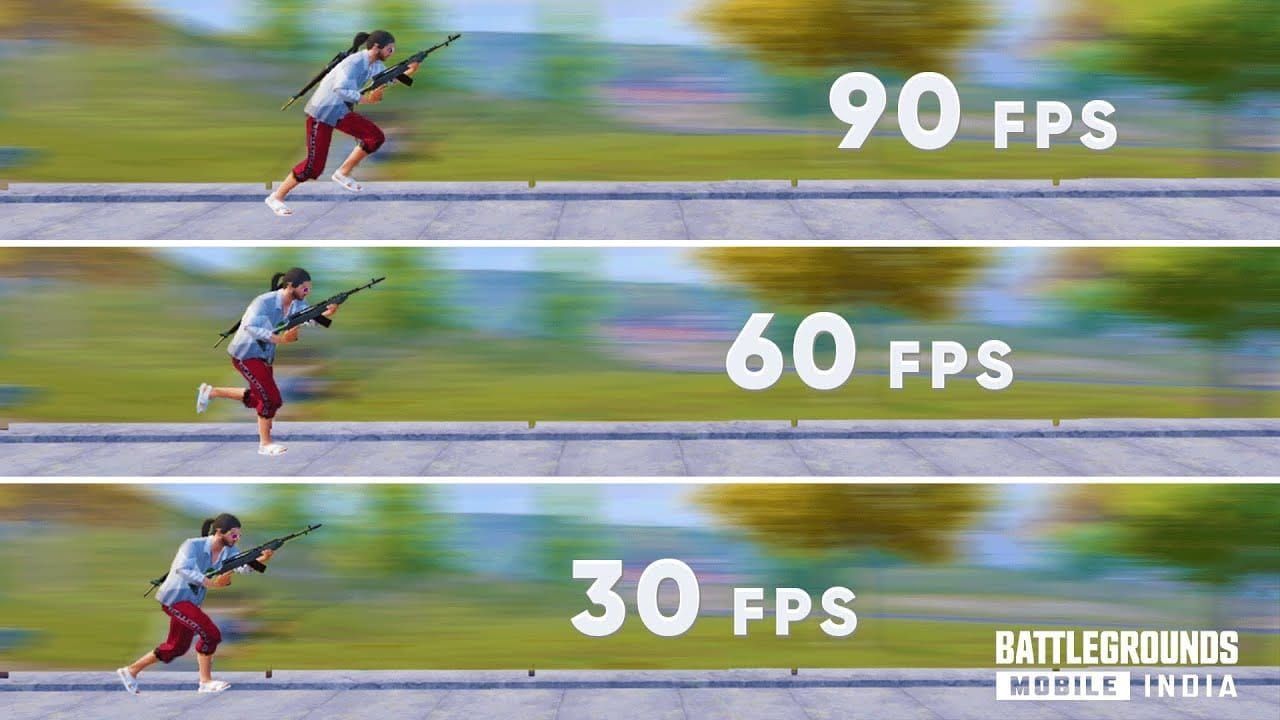
What Changed in Version 4.1 FPS Limitations
4.1 expanded native 90 FPS to 100+ devices, including mid-range phones with Snapdragon 870 and Dimensity 1200+. Previous versions restricted 90 FPS to flagships only, creating artificial ceilings regardless of hardware capability.
Automatic hardware detection evaluates processor generation, RAM, display refresh rate, and thermal management. Devices meeting minimums—Snapdragon 855+, 6GB+ RAM, 90Hz+ displays, 180Hz+ touch sampling, UFS 3.0+ storage—unlock Extreme+ frame rates. Native support eliminates risky config modifications.
iOS devices (iPhone 13 Pro+, iPad Pro 2020+ with M1) gained native support on iOS 17+. Update prioritizes stability over raw performance, implementing dynamic scaling to prevent thermal throttling during extended sessions.
Competitive Advantages of Higher Frame Rates
98.5% frame consistency at 90 FPS creates predictable visual feedback. Unlike fluctuating rates causing stuttering, stable 90 FPS maintains uniform pacing. Critical for spray transfers—additional frames provide clearer bullet impact and enemy movement confirmation.
5-8ms input lag reduction operates within millisecond margins. Faster touch-to-screen response improves quickscoping and hip-fire accuracy. Players report tighter control over movements, especially during jump-shots and drop-shots.
Battery drain increases 40-60% vs 60 FPS, requiring power management. Competitive players reduce brightness to 70% and disable background processes. Despite higher consumption, performance advantages justify the trade-off for ranked play.
Device Capability vs Artificial Restrictions
Many mid-range devices have 90 FPS-capable hardware but faced software limits. Manufacturers include 90Hz/120Hz displays below flagship prices, yet developers restricted rates by model vs actual performance. 4.1 shifted to performance-based qualification.
ASUS ROG Phone 6-8 averages 118.2 FPS in 90 FPS mode, showing hardware overhead ensuring consistency during intensive scenarios. Gaming phones with active cooling maintain <42°C, preventing thermal throttling.
Standard phones without cooling need conservative settings. Devices approaching thermal limits auto-reduce frame rates to prevent damage, creating inconsistency. Test 90 FPS in Training for 45-60 minutes before ranked use.
Method 1: Config File Editing for 90 FPS Unlock
Config editing modifies UserCustom.ini parameters to force higher rates on unsupported devices. Directly alters game files in internal storage, bypassing graphics limits. Carries significant ban risk—anti-cheat monitors file integrity.
UserCustom.ini contains graphics parameters: r.PUBGMobileFrameRate and r.UserQualitySetting. Setting r.PUBGMobileFrameRate=90 and r.UserQualitySetting=0 attempts forcing 90 FPS with lowest quality. Modifying app files triggers permanent bans per terms of service—anti-cheat detects unauthorized changes during integrity checks.
Any performance gains come with account termination risk. Game compares local files against server-approved values, flagging discrepancies. Single-match usage can trigger detection—system logs unusual metrics not matching device capabilities.
Locating UserCustom.ini and Configuration Files
Android: Android/data/com.tencent.ig/files/UE4Game/ShadowTrackerExtra/ShadowTrackerExtra/Saved/Config/Android/. Requires file manager with hidden folder permissions. Some manufacturers restrict Android/data access in recent OS versions, requiring USB debugging and computer transfer.
iOS stores configs in encrypted containers inaccessible without jailbreaking. File system prevents direct editing through standard managers, making config-based unlocking impractical. Jailbreaking voids warranties and exposes devices to malware.
Backup creation doesn't prevent ban detection—anti-cheat logs modification attempts regardless of restoration. Safest approach: avoid config editing entirely, use native settings.
Step-by-Step Editing Process with Exact Values
Theoretical process: open UserCustom.ini in text editor, locate graphics parameters. Change r.PUBGMobileFrameRate to 90, adjust r.UserQualitySetting to 0. r.MobileContentScaleFactor affects resolution scaling—lower values reduce rendering resolution.
After saving, set file to read-only to prevent overwrites. Read-only attribute itself flags anti-cheat—legitimate files should remain writable for updates. Integrity verification compares attributes against expected values, detecting read-only flags.
Testing in Training doesn't reduce risk—anti-cheat monitors all modes equally. Successful higher rates often face delayed bans—system queues suspicious accounts for manual review. Temporary boost isn't worth permanent loss, especially for accounts with purchases and progression.
Backup and Restoration Procedures
Backups: copy entire Config/Android directory to external storage before changes. Preserve original timestamps and attributes. Restoring after detection doesn't reverse bans—anti-cheat maintains permanent server-side logs.
Reinstalling doesn't clear server records. Account flagging occurs server-level, tied to device IDs and credentials. Switching devices doesn't prevent bans if account is marked.
Only safe backup: never modify files. Use native settings and official optimization for performance within approved parameters. For competitive advantages, invest in supported hardware for sustainable improvements without account risks.
Compatibility with Different Android Versions
Android 11+ implements scoped storage restricting app access to system directories. Security enhancements make editing harder, requiring ADB commands or root. Rooted devices face additional ban risks—PUBG detects root and may restrict gameplay or ban accounts.
Manufacturers vary in file protection. Samsung Knox and Xiaomi MIUI add integrity monitoring conflicting with modifications. Players on these devices report higher detection rates—manufacturer security flags unauthorized changes independently.
Older Android (8.0-10) provides easier access but lacks performance optimizations in newer releases. Vulkan API in Android 8+ improves rendering efficiency, making native 90 FPS more achievable. Prioritize OS updates and official settings over risky hacks.
Method 2: GFX Tools for PUBG Mobile FPS Unlock
GFX tools are third-party apps modifying graphics via memory injection and runtime patching. Intercept graphics API calls, forcing higher rates and unlocking restricted combinations. Popular: GFX Tool, GLTools, region-specific variants promising low-end improvements.
Work by modifying game memory during runtime, changing quality flags and rate limiters without altering permanent files. Require accessibility/overlay permissions to inject code into running process. Real-time modification attempts evading file checks by leaving configs unchanged.
Illegal software use = permanent bans per enforcement policies. Anti-cheat detects memory manipulation through runtime checks, process monitoring, behavioral analysis. GFX Tools and GLTools carry significant risk—detection rates increase as anti-cheat evolves.
How Graphics Tools Modify Game Parameters
Inject code into process memory, hooking graphics API functions to override settings. When game requests 60 FPS, tool intercepts and substitutes 90 FPS parameters. Can force HDR + Extreme rates—normally restricted combinations.
Modifications occur in volatile memory vs permanent storage, harder to detect via file checks. Modern anti-cheat monitors process memory for unauthorized changes, comparing runtime values against expected parameters. Discrepancies trigger investigation flags.
Tools modify resolution scaling, shadow quality, texture detail independently of official settings. Creates visual inconsistencies experienced players recognize. Opponents notice unusual quality combinations indicating tool usage, leading to manual reports supplementing automated detection.
Installation and Configuration Process
Require installation from third-party sources outside official stores—Google Play/App Store prohibit game modification apps. Must enable Install from Unknown Sources, exposing devices to malware. Many downloads contain adware or malicious code disguised as utilities.
After install, grant extensive permissions: accessibility, overlay, storage. Allow monitoring/modifying other apps, creating security vulnerabilities beyond PUBG. Malicious versions capture credentials, inject ads, install unwanted software.
Configuration: select target rates, quality presets, resolution through tool interface. Launch PUBG through tool vs directly, allowing modification injection during startup. Launch method itself = detection vector—anti-cheat monitors parent processes and parameters.
Supported Features Beyond FPS Unlocking
Offer resolution scaling, shadow removal, fog reduction. Improve visibility in scenarios but constitute unfair advantages violating competitive integrity. Removing environmental effects provides clearer sightlines legitimate players lack, creating imbalance.
Some include aim assist, recoil reduction, other blatant cheats alongside graphics mods. Even FPS-only users risk association—anti-cheat may flag all tool users regardless of enabled features. Cheat capabilities increase ban severity and reduce appeal success.
Color saturation/brightness boosting attempts improving enemy visibility in dark areas. Less egregious than wallhacks/aimbots but still provide unavailable advantages. Competitive integrity requires identical visual parameters—any modification is problematic.
Version Compatibility with PUBG Mobile 4.1
Tools frequently break after major updates as developers change code structures and API implementations. November 6, 2025 4.1 release included anti-cheat improvements targeting memory injection. Many functional tools stopped working or triggered immediate bans post-update.
Tool developers engage in cat-and-mouse with anti-cheat, releasing updated bypass versions. Creates instability—users serve as test subjects for evasion techniques. Ban waves often follow tool updates by days/weeks, catching users assuming new versions are safe.
Native 90 FPS expansion in 4.1 reduces legitimate tool use cases. Compatible hardware achieves high rates through official settings, eliminating performance justifications. Incompatible devices face choice: accept limitations or risk permanent bans for marginal gains.
Safety Analysis: Ban Risks and Detection Mechanisms
Anti-cheat employs multiple layers: file integrity verification, memory scanning, behavioral analysis, server-side performance validation. Compares device capabilities against reported metrics, flagging impossible achievements. Multi-layered approach catches file-based mods and runtime injection.
Modifying app files triggers permanent bans via integrity checks during launch and periodically during gameplay. System maintains cryptographic hashes of critical files, comparing current vs expected baselines. Discrepancies = immediate flagging, bans typically within 24-72 hours.
GFX tools face detection through process monitoring and memory scanning. Anti-cheat identifies known signatures, monitors suspicious parent processes, detects unauthorized memory mods. Even tools bypassing initial checks fail behavioral analysis—90 FPS on incapable devices receives manual review.
How PUBG Mobile Anti-Cheat Detects Modifications
Integrity verification calculates checksums for critical files each launch, comparing against server values. Modified UserCustom.ini produces different checksums, immediately identifying tampering. Monitors file attributes: modification timestamps, read-only flags, permissions differing from defaults.
Memory scanning detects injected code and modified runtime values. Periodically reads process memory, searching known tool signatures and unexpected patterns. Tools hooking graphics functions leave detectable traces—hooking requires modifications to function pointer tables and call stacks.
Behavioral analysis examines gameplay patterns and performance metrics for anomalies. 90 FPS on Snapdragon 720G (lacks native support) triggers investigation regardless of modification method. Correlates device model from hardware IDs with reported rates, flagging impossible combinations.
Config Files vs GFX Tools: Which is Safer?
Neither is safe—both violate TOS and carry permanent ban risks. Config editing faces integrity verification detection, GFX tools trigger memory scanning and process monitoring. Question isn't which is safer, but why risk permanent loss for temporary gains.
Config mods leave permanent evidence in file metadata: modification timestamps, checksum mismatches. Even restoring before launch, forensic analysis detects previous tampering through file system journals and backup metadata. Anti-cheat may implement delayed bans to obscure detection methods.
GFX tools create runtime evidence through process relationships and memory states. Must remain active during gameplay to maintain mods, providing continuous detection opportunities. Evasion techniques (process spoofing, memory obfuscation) themselves constitute detectable patterns anti-cheat recognizes.
Real Ban Cases and Pattern Analysis
Ban waves post-major updates consistently target mod tool users—thousands of permanent bans within weeks of releases. November 6, 2025 4.1 update preceded significant wave affecting GFX users—anti-cheat implemented new detection signatures.
Players report bans during matches, immediately after high kills or wins—suggesting performance-based triggers activating when modified accounts demonstrate advantages. System prioritizes banning accounts combining mods with high-skill gameplay, as these most impact competitive integrity.
Some banned players never used tools themselves but played on devices where tools were installed for other games. Suggests anti-cheat flags devices with known mod tools present, regardless of PUBG-specific usage. Safest: avoid modification tools entirely, even for unrelated apps.
Risk Mitigation Strategies for Each Method
Only effective mitigation: avoid unauthorized mods completely. Use native settings, upgrade to supported hardware, or accept device limitations vs risking permanent loss. For accounts with significant skin/battle pass/progression investment, no performance gain justifies ban risk.
Previous mod users should immediately cease, restore original configs, uninstall GFX tools. Doesn't guarantee avoiding bans for past violations but prevents accumulating additional evidence. Some report successful appeals after extended clean gameplay, though success rates remain low.
Creating new accounts to test mods is equally risky—anti-cheat links accounts via device IDs, IPs, behavioral patterns. Secondary account bans can extend to primary accounts on same device, making throwaway testing dangerous for all accounts.
Device Requirements for Stable 90 FPS Gameplay
Stable 90 FPS requires: Snapdragon 855+ or Dimensity 1200+, 6GB+ RAM, 90Hz+ display, 180Hz+ touch sampling, UFS 3.0+ storage. Ensures device renders frames quickly, displays smoothly, registers inputs responsively, loads assets without bottlenecks.
Processor generation matters more than core count/clock speed. Snapdragon 855+ includes GPU architectures optimized for sustained high-rate rendering with improved thermal efficiency preventing throttling. Older processors may hit 90 FPS momentarily but can't maintain consistency during intensive scenarios (smoke grenades, vehicle explosions).
Display refresh rate creates hard ceiling—90 FPS on 60Hz display still shows only 60 unique frames/second, wasting processing without visual benefit. Verify device's actual refresh rate through specs vs assuming support based on model year—manufacturers sometimes use different panels within same product line.
Minimum Processor and RAM Specifications
Snapdragon 855+ provides baseline GPU performance for 90 FPS at Smooth quality. Adreno 640 (855) delivers sufficient rendering throughput for consistent rates; newer Adreno 650 (865) and 660 (888) add thermal headroom for sustained performance. Implement tile-based rendering optimizations reducing memory bandwidth during complex scenes.
Dimensity 1200+ offers comparable performance through Mali-G77+ architectures. Achieve similar rates to Snapdragon equivalents but may exhibit different thermal characteristics depending on manufacturer implementation. Devices with active cooling/vapor chambers maintain performance better than passive cooling.
RAM capacity affects multitasking and asset caching. 6GB = minimum for stable 90 FPS; 8GB+ recommended for devices running background services or multiple apps. Insufficient RAM forces frequent texture/asset reloading, causing frame time spikes manifesting as stuttering despite high average rates.
Snapdragon vs MediaTek Performance Comparison

Snapdragon demonstrates more consistent frame pacing via mature GPU drivers and extensive game optimization partnerships. Qualcomm works directly with developers optimizing rendering for Adreno GPUs, resulting in smoother delivery and fewer frame time outliers. Consistency proves more valuable than raw peak performance—stuttering from inconsistent times disrupts aim more than slightly lower average FPS.
MediaTek Dimensity offers competitive peak performance but historically suffered from less optimized drivers and thermal management. Recent generations (8000/9000 series) significantly improved both areas, achieving consistency approaching Snapdragon equivalents. Research specific device implementations vs judging solely by processor model—thermal solutions vary widely between manufacturers.
Both support Vulkan API rendering, improving efficiency vs older OpenGL ES. PUBG 4.1 defaults to Vulkan on compatible devices, reducing CPU overhead and improving consistency. Verify active API through developer options or monitoring apps, though forcing selection risks stability issues.
Storage Speed Impact on Frame Stability
UFS 3.0+ provides read speeds for streaming high-res textures and map assets without frame time spikes. Slower eMMC creates loading delays manifesting as stuttering when entering new areas or during asset-intensive moments (airdrops, care packages). Difference particularly noticeable in hot-drop locations where dozens of players/items load simultaneously.
Storage speed affects initial load times and match loading, but also runtime performance through texture streaming. PUBG loads detailed textures progressively as players approach objects, requiring sustained read performance throughout matches. Insufficient speed forces lower-res textures or visible pop-in as higher-quality assets load late.
Verify storage type through device specs or benchmark apps. Upgrading storage isn't possible on most smartphones—fixed hardware limitation. Slower storage users should reduce texture quality to minimize streaming requirements, trading visual fidelity for frame consistency.
Testing Your Device's Actual Capability
Training mode = ideal for testing 90 FPS stability without risking ranked performance. Enable Smooth + Extreme+, play 45-60 minutes while monitoring frame rates and temperature. Sustained performance throughout indicates device handles 90 FPS in actual matches.
Frame rate monitoring requires third-party apps or built-in overlays on gaming devices. Display real-time FPS, frame time graphs, temperature readings. Watch for drops below 80 FPS or temperature spikes above 42°C—both indicate device struggles to maintain 90 FPS sustainably.
Thermal throttling typically begins 15-30 minutes into gameplay as temperature rises. Initial performance may appear excellent, degrading significantly during extended matches. Test worst-case scenarios: prolonged firefights, vehicle driving, smoke grenades—all stress GPU performance.
Performance Impact Comparison: Battery, Heat, Smoothness
90 FPS increases battery consumption 40-60% vs 60 FPS, significantly reducing gameplay duration per charge. Higher rate requires increased GPU clocks and more frequent screen refreshes—both major power consumers. Expect 2-3 hours continuous at 90 FPS vs 4-5 hours at 60 FPS on typical devices.
Temperature rises proportionally with GPU workload—90 FPS generates 8-12°C higher temps than 60 FPS under identical conditions. Maintaining <42°C prevents thermal throttling causing rate drops and degradation. Excessive heat accelerates battery wear, reducing long-term capacity and device lifespan.
Frame consistency at 90 FPS achieves 98.5% stability on properly configured devices—frame times remain within 1-2ms of target values. Creates smooth visual motion without judder from fluctuating rates. Players perceive as improved responsiveness, even though actual input lag reduction measures only 5-8ms vs stable 60 FPS.
Battery Consumption at Different FPS Levels
Baseline 30 FPS consumes ~3-4 watts on mid-range devices, providing 5-6 hours continuous play. 60 FPS raises to 5-7 watts, reducing to 4-5 hours. 90 FPS pushes to 8-10 watts, limiting to 2-3 hours before recharge.
Figures vary based on brightness, network connectivity, background processes. Reducing brightness to 70% saves 1-2 watts, partially offsetting increased consumption from higher rates. Disabling mobile data for WiFi reduces consumption 0.5-1 watt—cellular radios consume more than WiFi adapters.
Carry portable battery packs for extended 90 FPS sessions—mid-match depletion forces emergency rate reductions disrupting muscle memory and aim consistency. Some gaming phones include bypass charging powering device directly from charger while preserving battery health, enabling unlimited duration without degradation.
Thermal Management and Overheating Prevention
Active cooling accessories (clip-on fans, Peltier coolers) reduce temperature 10-15°C, enabling sustained 90 FPS on devices that otherwise throttle. Attach to back panel, drawing heat from processor and allowing higher sustained clocks. Gaming phones with built-in fans achieve similar results without external accessories.
Passive strategies: remove cases during gameplay, play in air-conditioned environments, take 5-10 minute breaks between matches for temperature normalization. Cases trap heat against device, preventing natural convection and accelerating throttling. Even thin cases raise operating temp 3-5°C.
Software-based management: reduce animation scales to 0.5x in Developer Options, limit background processes to 2-4 apps, close unnecessary services. Reduce CPU workload, allowing more thermal headroom for GPU-intensive gaming. Disable automatic app updates and cloud sync consuming resources during gameplay.
Frame Stability: Locked vs Fluctuating FPS
Locked 90 FPS with 98.5% consistency provides superior experience vs fluctuating 60-120 FPS with high variance. Frame time consistency affects aim muscle memory and visual prediction—players subconsciously learn tracking based on frame-to-frame motion; inconsistent delivery disrupts learned patterns. Competitive players prioritize stability over peak performance.
Frame time graphs reveal quality better than average FPS numbers. Device averaging 85 FPS with frequent drops to 60 performs worse than locked 75 FPS consistently. Monitor frame time variance through overlay tools, targeting standard deviations <2ms for optimal consistency.
Dynamic frame rate scaling in 4.1 automatically reduces quality when detecting throttling or degradation. Maintains playable rates but causes visual quality fluctuations distracting during combat. Players preferring consistent visuals should manually select conservative settings their device maintains reliably vs relying on automatic adjustments.
Real-World Gaming Experience Differences
Perceptual difference between 60/90 FPS varies by individual sensitivity and gameplay style. Close-range combat and quick movement players notice improvements more than long-range sniping and positional players. Reduced motion blur and improved clarity during rapid camera movements benefit aggressive players frequently checking multiple angles.
Competitive advantages manifest in specific scenarios: tracking moving vehicles, controlling spray during sustained fire, acquiring targets during quick-peeks. 5-8ms input lag reduction combines with smoother visual feedback improving success rates in these situations by measurable margins. Tournament players report 10-15% improvement in close-range duels after switching to 90 FPS.
Casual players may not notice significant differences, particularly if reaction times and decision-making represent larger performance bottlenecks than frame rate. Competitive advantage exists objectively through reduced lag and increased visual information, but translating technical improvements into better outcomes requires skill to capitalize on enhanced responsiveness. Maximize gaming experience with premium items—pubg mobile uc global purchases through BitTopup provide instant delivery with secure transactions and competitive pricing.
Optimal Graphics Settings for 90 FPS on Low-End Devices
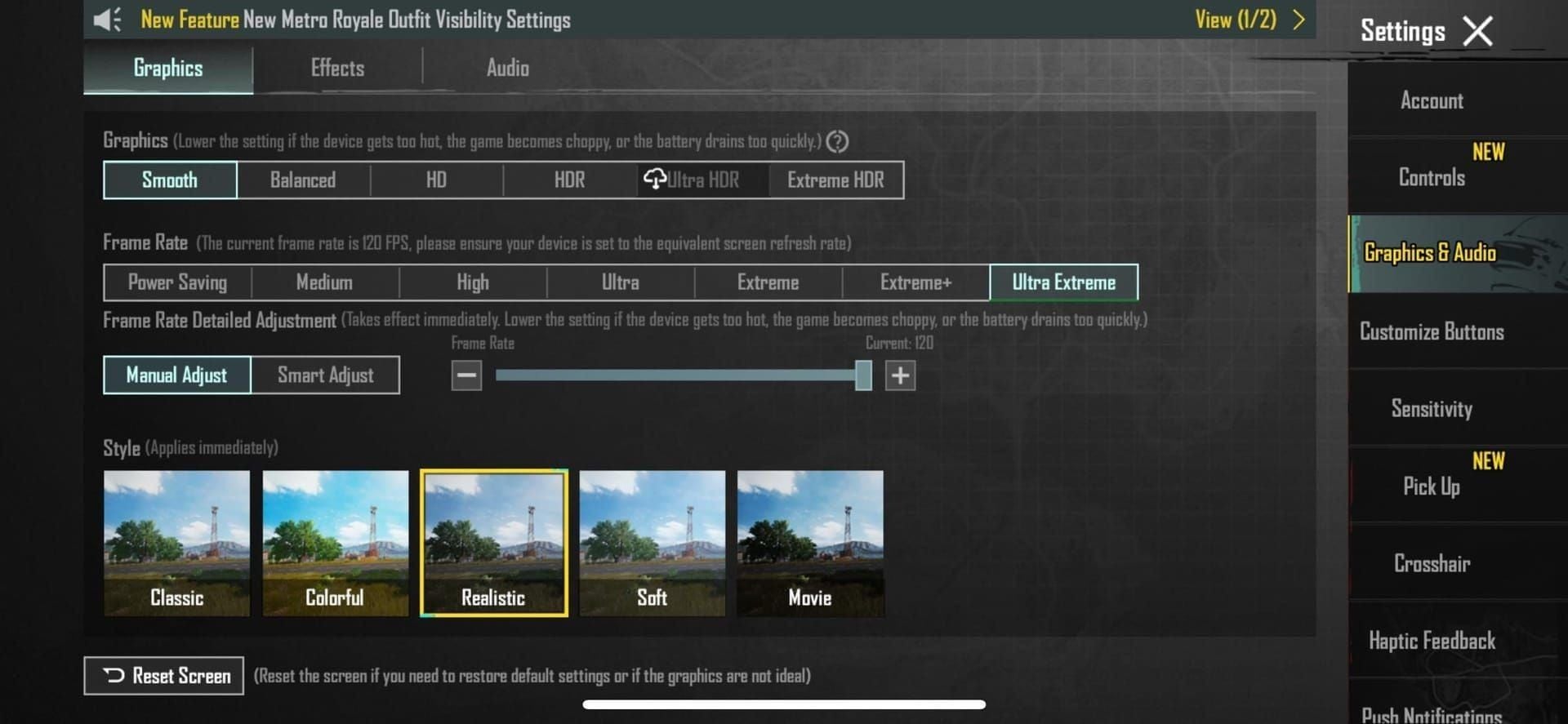
Achieving 90 FPS near minimum specs requires aggressive graphics compromises. Smooth + Extreme+ combination provides best performance, reducing texture detail, shadow quality, effects complexity to minimize GPU workload. Prioritizes frame rate over visual fidelity—competitive-focused experience maximizing responsiveness.
Disable Anti-Aliasing, Shadows, Auto-adjust Graphics in advanced settings. Anti-aliasing smooths jagged edges but consumes significant GPU resources through multi-sample rendering. Shadows require additional passes and complex calculations reducing rates 10-15% when enabled. Auto-adjust causes mid-match quality changes disrupting visual consistency.
Resolution scaling offers additional headroom on devices struggling to maintain 90 FPS. Reducing rendering to 90% or 85% native decreases pixel count, allowing higher rates with minimal visual impact. Slight softness from upscaling proves less disruptive than rate inconsistency during combat.
Best Combinations: Smooth + Extreme vs Balanced + High
Smooth + Extreme+ = optimal for 90 FPS, minimizing quality to maximize rate headroom. Reduces texture resolution, eliminates dynamic shadows, simplifies particle effects, lowers draw distance for distant objects. Visual compromises worthwhile for competitive players prioritizing performance over aesthetics.
Balanced + High attempts compromising between visuals and performance but rarely achieves stable 90 FPS on minimum-spec devices. Increased texture quality and shadow rendering consume GPU resources that could maintain higher rates. Avoid middle-ground settings providing neither excellent visuals nor optimal performance.
HDR + Ultra remains incompatible with 90 FPS even on flagships—quality demands exceed rendering capabilities at high rates. Selecting these options faces automatic caps at 60 FPS or lower. Enhanced lighting and textures provide superior visuals but sacrifice competitive responsiveness.
Shadow, Anti-Aliasing, and Effects Adjustments
Disabling shadows eliminates most GPU-intensive rendering feature, improving rates 10-15% while reducing visual clutter. Shadows provide tactical info about enemy positions in some scenarios, but performance cost outweighs benefits for players prioritizing frame rate. Competitive players adapt to shadow-free gameplay, relying on sound cues and direct visual contact.
Anti-aliasing smooths jagged edges through multi-sample rendering or post-processing filters—both consuming significant resources. Disabling causes more visible aliasing on edges and thin objects (wires, railings), but performance gain enables higher rates. Modern high-res displays minimize aliasing visibility, making trade-off more acceptable than on older low-res screens.
Effects quality controls particle density for smoke, explosions, muzzle flashes. Lower settings reduce particle counts, improving rates during intensive moments (grenade explosions, vehicle destruction). Reduced effects also improve visibility through smoke and explosions, providing competitive advantages beyond pure performance.
Resolution Scaling for Performance Gains
Rendering at 90% native reduces pixel count ~19%, providing proportional performance improvements. Upscaling to native display introduces slight softness but maintains overall clarity. Trade-off worthwhile on devices achieving 75-85 FPS at native—reduced load enables stable 90 FPS.
Aggressive scaling to 80-85% creates more noticeable softness but enables 90 FPS on devices otherwise limited to 60-70 FPS. Test different levels to find optimal balance between clarity and performance. Some devices implement better upscaling algorithms—visual quality at reduced resolutions is device-dependent.
Resolution scaling affects UI differently than gameplay visuals. Some implementations maintain native UI while reducing only 3D rendering, preserving text clarity and menu sharpness. Verify how specific device handles scaling before committing to reduced settings for competitive play.
Visibility vs Performance Trade-offs
Maximum visibility requires HDR for enhanced contrast and shadow detail, but prevents 90 FPS even on flagships. Competitive players choose between seeing enemies clearer in shadows or reacting faster through higher rates. Most pros prioritize frame rate, compensating for reduced visibility through game sense and positioning.
Smooth graphics with disabled shadows creates flat, high-contrast visual style some find easier for spotting enemies. Reduced complexity eliminates distracting shadows and effects obscuring enemies during combat. Minimalist aesthetic proves polarizing—some prefer for competitive clarity, others find visually unappealing.
Color saturation and brightness adjustments through device display settings improve enemy visibility without impacting performance. Increasing saturation makes player models stand out more against backgrounds; brightness helps in dark indoor areas. Display-level changes don't affect game rendering workload, providing free visibility improvements.
Troubleshooting Common 90 FPS Unlock Issues
Game crashes after enabling 90 FPS typically indicate insufficient device capabilities or thermal throttling. Device may technically support 90 FPS but lack thermal headroom for sustained performance, causing instability. Reduce graphics quality further, ensure adequate cooling, verify device meets minimum specs before attempting 90 FPS.
Settings reverting to 60 FPS after updates occurs when PUBG resets graphics during version installations. Verify frame rate settings after each update—game may default to conservative options preventing crashes on marginal devices. Screenshot preferred settings for quick reconfiguration post-updates.
FPS counters showing 90 while gameplay feels choppy indicates frame time inconsistency vs average rate issues. Device may achieve 90 average while experiencing frequent time spikes causing stuttering. Monitor frame time graphs vs average FPS to diagnose these issues.
Game Crashes After Configuration Changes
Crashes immediately upon match loading suggest graphics settings exceed device capabilities. 90 FPS with higher quality may demand more resources than available, causing out-of-memory errors or GPU driver crashes. Reset to defaults, then incrementally enable 90 FPS with Smooth before attempting quality increases.
Mid-match crashes during intense combat indicate thermal throttling or memory pressure. Device may handle 90 FPS during calm moments but fail rendering complex scenes with multiple players, effects, explosions. Reducing effects quality and ensuring adequate cooling prevents scenario-specific crashes.
Persistent crashes across all settings suggest deeper issues: corrupted game files, outdated system software, hardware defects. Verify file integrity through app store repair functions, update to latest Android/iOS, test device stability through benchmark apps. Hardware failures require professional repair or replacement.
FPS Not Actually Reaching 90 (Verification Methods)
Built-in FPS counters on gaming phones provide real-time monitoring, displaying current FPS in screen corner overlay. Reveal whether game actually achieves 90 or remains capped at lower values despite settings. Enable counters during Training testing to verify performance.
Third-party monitoring apps (GameBench, similar tools) provide detailed frame time analysis and performance logging. Record data throughout sessions, generating graphs revealing performance patterns and inconsistencies. Data helps identify whether issues stem from thermal throttling, memory pressure, or insufficient GPU performance.
Visual verification through slow-motion video confirms frame rate differences. Recording gameplay at 240+ FPS, then playing back in slow motion, reveals unique frames rendered per second. Particularly useful when software counters provide questionable readings or comparing different settings.
Settings Reverting After Game Updates
PUBG updates often reset graphics to defaults, requiring manual reconfiguration. Document preferred settings through screenshots or notes, enabling quick restoration post-updates. Some devices support configuration profiles reapplied quickly through game launcher apps.
Automatic graphics adjustment may override manual settings, particularly after updates introducing new optimization algorithms. Verify Auto-adjust Graphics remains disabled post-updates—feature can reduce rates or quality based on device temperature and performance metrics.
Cloud save features sometimes restore old configurations after updates, overwriting current settings with previously saved values. Check cloud save timestamps and manually configure vs relying on automatic restoration. Disabling cloud save for graphics prevents unwanted changes.
Compatibility Issues with Specific Device Models
Some models receive delayed 90 FPS support despite meeting hardware specs—PUBG developers test and whitelist devices gradually. Capable hardware may find Extreme+ unavailable until specific model receives official support. Check official compatibility lists for realistic expectations.
Regional variations of same model sometimes feature different hardware components, particularly display panels and processors. Model supporting 90 FPS in one region may lack support in another due to hardware differences. Verify specific device variant vs assuming support based on model name alone.
Manufacturer-specific Android customizations can interfere with 90 FPS through aggressive battery optimization or thermal management. Disable battery optimization for PUBG, enable performance modes in manufacturer game launchers, adjust thermal policies to prioritize performance over temperature limits.
Official Alternatives and Safe Performance Optimization
PUBG 4.1 provides native 90 FPS on 100+ devices, eliminating need for risky tools. Verify device compatibility through in-game graphics—if Extreme+ frame rate appears, device supports 90 FPS officially. Native support provides safest path to high-rate gameplay without ban risks.
Device-level optimizations including Developer Options tweaks improve performance without modifying game files. Forcing 90Hz+ refresh rate system-wide ensures display operates at maximum capability. Setting animation scales to 0.5x reduces UI animation overhead, freeing resources for game rendering. Limiting background processes to 2-4 apps prevents resource competition during gameplay.
Manufacturer game modes and performance boosters allocate additional system resources to games, improving frame consistency and reducing background interruptions. Features typically disable notifications, optimize CPU/GPU scheduling, prevent thermal throttling during gameplay. Enable these modes before launching PUBG for optimal performance.
Legitimate In-Game Settings for Maximum FPS
Smooth + Extreme+ represents highest official frame rate configuration, providing 90 FPS on supported devices. Requires no modifications or third-party tools, operating entirely within approved parameters. Select this configuration, disable all visual enhancements, test in Training before ranked use.
Disabling Auto-adjust Graphics prevents mid-match quality changes disrupting visual consistency. Feature automatically reduces quality when detecting performance issues, but sudden changes prove more disruptive than slightly lower consistent quality. Manual configuration provides predictable performance throughout matches.
Clearing cache before sessions removes temporary files causing performance degradation over time. Game accumulates cached data including downloaded resources and temporary textures, slowing loading and causing stuttering. Regular cache clearing maintains optimal performance without affecting saved settings or account data.
Device-Level Optimizations (Game Mode, Performance Settings)
Developer Options provides advanced controls: GPU rendering profile, hardware overlay disabling, process limit configuration. Forcing GPU rendering for 2D elements reduces CPU workload; disabling hardware overlays eliminates visual compositing overhead. Optimizations provide measurable improvements on some devices.
Background process limits prevent resource competition from other apps during gameplay. Setting limit to 2-4 processes ensures sufficient resources for PUBG while maintaining essential system services. Aggressive limits <2 processes can cause system instability or prevent notifications functioning properly.
Manufacturer performance modes (Samsung Game Launcher, Xiaomi Game Turbo, ASUS X Mode) allocate additional thermal headroom and processing priority to games. May increase fan speeds on devices with active cooling, raise thermal throttling thresholds, disable battery-saving features reducing performance. Enable for competitive matches; use standard modes for casual play preserving battery health.
When to Choose Safety Over Maximum Performance
Account value should guide risk assessment—accounts with purchased skins, battle passes, years of progression represent significant investments no performance gain justifies risking. Substantial account value demands exclusively using official settings and supported hardware, accepting performance limitations vs risking permanent bans.
Competitive integrity considerations extend beyond personal account safety. Unauthorized mods create unfair advantages undermining competitive balance, even if detection risk were zero. Ethical players prioritize fair competition over marginal advantages, recognizing skill development provides more sustainable improvement than technical exploits.
Long-term sustainability favors official methods over temporary hacks. Modification tools break with each update, requiring constant maintenance and increasing detection risk over time. Native 90 FPS continues functioning across updates without intervention, providing reliable performance without ongoing risk management.
Future Updates: Will Official 90 FPS Support Expand?
PUBG developers continue expanding 90 FPS support to additional devices with each major update. Trend toward including mid-range devices with 90Hz displays suggests future updates will further democratize high-refresh gaming. Borderline hardware users should monitor update notes for compatibility expansions vs resorting to risky mods.
Hardware advancement makes 90 FPS increasingly accessible as mid-range processors approach previous-gen flagship performance. Devices releasing 2025-2026 with Snapdragon 7-series and Dimensity 8000-series will likely include native support, making high-rate gaming standard vs premium. Patient players can wait for natural hardware upgrade cycles vs forcing current devices beyond capabilities.
Display technology improvements including widespread 120Hz adoption may shift focus toward 120 FPS on flagships. PUBG already supports 120 FPS on select devices—capability will likely expand similarly to 90 FPS growth. Investing in new hardware should prioritize 120Hz displays for future-proofing beyond current 90 FPS capabilities.
Expert Recommendations: Config Files vs GFX Tools Verdict
Neither config editing nor GFX tools represent acceptable methods—both carry permanent ban risks outweighing any performance benefits. Exclusively use native in-game settings on supported devices or accept current hardware limitations until upgrading to compatible devices. Temporary performance gains from mods don't justify permanent account loss.
Devices meeting minimum specs—Snapdragon 855+, 6GB+ RAM, 90Hz+ displays—should enable 90 FPS through official Smooth + Extreme+ settings. Configuration provides stable performance without ban risks, achieving 98.5% frame consistency and 5-8ms input lag reduction. Optimize device-level settings including Developer Options tweaks and manufacturer game modes to maximize performance within approved parameters.
Incompatible hardware users face choice between accepting 60 FPS limitations or upgrading devices. Mid-range phones with 90Hz displays and Snapdragon 870 cost significantly less than flagships while providing native 90 FPS support. Investment provides sustainable performance improvements without ongoing ban risks or maintenance requirements.
Best Method for Different User Profiles
Competitive players with compatible hardware should use native Smooth + Extreme+, disable all visual enhancements, optimize device-level performance settings. Configuration maximizes frame rate and consistency while maintaining account safety. Invest in cooling accessories and portable battery packs to sustain performance during extended tournament sessions.
Casual players on incompatible devices should prioritize account safety over marginal performance improvements. Competitive advantages of 90 FPS matter less in casual play where positioning, game sense, decision-making outweigh reaction time differences. Focus on skill development vs technical optimizations.
Budget-conscious players considering upgrades should target mid-range phones with 90Hz displays and Snapdragon 870 or Dimensity 1200. Devices provide native 90 FPS at fraction of flagship prices, offering better value than expensive mods or risky software tools. Investment provides benefits across all mobile gaming, not just PUBG.
Long-Term Sustainability Considerations
Native 90 FPS continues functioning across game updates without requiring reconfiguration or risking detection. Official settings users enjoy stable performance without monitoring anti-cheat developments or worrying about ban waves. Peace of mind proves valuable for players with significant account investments.
Modification tools require constant updates to bypass evolving anti-cheat, creating ongoing maintenance burdens and increasing cumulative ban risk. Each tool update represents another detection opportunity—anti-cheat specifically targets new bypass techniques. Cat-and-mouse game between tool developers and anti-cheat inevitably favors the latter.
Hardware upgrades provide permanent solutions improving performance across all games and applications, not just PUBG. Device supporting native 90 FPS delivers benefits in other mobile games, general UI responsiveness, media consumption. Broad utility justifies investment more than single-purpose modification tools.
Maintaining Performance After Updates
Verify graphics settings after each PUBG update—major versions sometimes reset configurations to defaults. Screenshot preferred settings for quick reconfiguration. Some gaming phones support configuration profiles reapplied instantly post-updates.
Monitoring official announcements helps anticipate compatibility changes and performance optimizations. PUBG developers occasionally expand device support or introduce new graphics options benefiting specific hardware. Staying informed enables leveraging new features as they become available.
Regular device maintenance including cache clearing, storage optimization, system updates maintains optimal performance over time. Accumulated temporary files and outdated system software can degrade performance gradually, making periodic maintenance essential for sustained 90 FPS stability.
Enhancing Your Gaming Experience with BitTopup
Maximizing PUBG performance extends beyond frame rates to premium content enhancing gameplay enjoyment. BitTopup provides secure, instant UC top-ups at competitive prices, enabling access to battle passes, premium skins, exclusive items. Platform's fast delivery ensures immediate content enjoyment without delays.
BitTopup's secure transaction system protects payment information and account credentials, providing peace of mind during purchases. Excellent customer service addresses issues promptly, ensuring smooth purchasing experiences. High user ratings reflect consistent reliability and customer satisfaction across thousands of transactions.
Players investing in performance optimization through proper hardware and settings should complement technical advantages with premium content enhancing enjoyment. Battle passes provide progression goals and exclusive rewards; premium skins allow personal expression and visual customization. BitTopup makes enhancements accessible through competitive pricing and reliable service.
Frequently Asked Questions
Is it safe to unlock 90 FPS in PUBG Mobile 4.1?
Native in-game settings on supported devices are completely safe. PUBG 4.1 officially supports 90 FPS on 100+ devices through Smooth + Extreme+ configuration. Config file editing and GFX tools violate TOS and trigger permanent bans via anti-cheat detection.
What is the difference between config files and GFX tools for PUBG Mobile?
Config editing modifies UserCustom.ini parameters in device storage; GFX tools inject code into game memory during runtime. Both bypass official frame rate restrictions but face detection through different mechanisms—file integrity checks for configs, memory scanning for GFX tools. Neither is safe.
Can I get banned for using 90 FPS unlock in PUBG Mobile?
Yes, unauthorized modifications including config editing and GFX tools result in permanent account bans. Anti-cheat detects through file integrity verification, memory scanning, behavioral analysis. Even single-use instances can trigger bans—system logs modification attempts for delayed enforcement.
Which low-end devices support 90 FPS in PUBG Mobile?
Devices with Snapdragon 870, Dimensity 1200+, 6GB+ RAM, 90Hz+ displays, UFS 3.0+ storage support native 90 FPS. Mid-range phones meeting these specs can enable Smooth + Extreme+ officially. Below these specs cannot achieve stable 90 FPS without mods risking permanent bans.
Does 90 FPS drain battery faster in PUBG Mobile?
Yes, 90 FPS increases battery consumption 40-60% vs 60 FPS, reducing gameplay duration from 4-5 hours to 2-3 hours on typical devices. Higher rate requires increased GPU clocks and more frequent display refreshes. Reduce brightness to 70% and use portable battery packs for extended sessions.
How do I safely enable 90 FPS in PUBG Mobile 4.1?
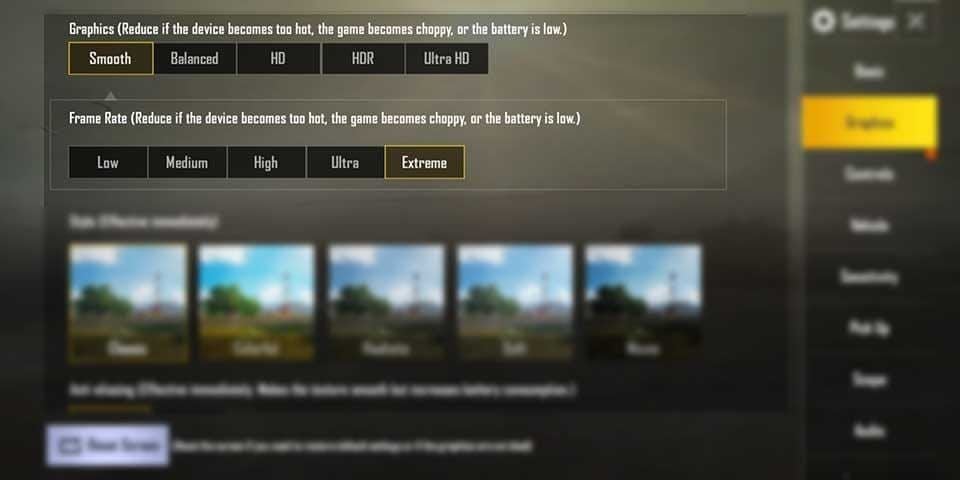
On supported devices: open Settings > Graphics > select Smooth quality + Extreme+ frame rate. Disable Auto-adjust Graphics, Anti-Aliasing, Shadows. Test in Training for 45-60 minutes to verify stability before ranked use. Never use config edits or GFX tools—permanent ban risk.