Tweak the best Enstars Music graphics settings to lock 60 FPS, eliminate input stutter, and sync note timing for smooth Full Combos on any mobile device.
Dropping a combo in Ensemble Stars!! Music because your screen hitched for a millisecond is infuriating. On expert beatmaps with dense note patterns, a tiny frame dip turns a Perfect into a combo-shattering Miss. The game's 3D stage choreography and dynamic lighting look great, but they hammer mobile hardware.
Consistent Perfect Combos require locked frame pacing and zero touch lag over visual flair. Here is how to configure your display settings, eliminate input lag, and stop hardware stutters.
Why 3D Live Music Videos Kill Your Frame Rate
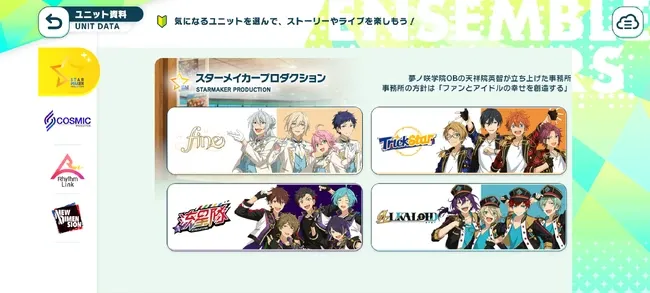
Ensemble Stars!! Music—developed by Happy Elements—relies on real-time 3D Music Videos (MVs) for its idol stage performances. Those dynamic MVs are also why your phone drops frames.
In 3D Mode, the mobile system-on-chip (SoC) renders detailed character models, dynamic lighting, custom outfits, and rapid camera tracking simultaneously. Sustained GPU load causes thermal saturation within minutes. Once heat spikes, the processor throttles clock speeds to cool down. A phone rendering a smooth 60 FPS during the opening verse can plummet to 20–30 FPS—or bottom out at 10 FPS—during a high-intensity chorus.
Visual clutter makes it worse. With over 300 songs in the catalog, many charts demand rapid reading. Breakthrough packs nearly 1,000 notes into a 2:27 runtime, while Fallin' In Love = It's Wonderland runs at 169 BPM with erratic speed shifts. Background spotlights, explosive pyrotechnics, and camera pivots obscure falling note targets. When gold notes blend into bright stage backgrounds, reaction windows collapse.
2D Simple vs 3D Mode: The Real Performance Cost
Switching modes forces a direct trade-off between visual spectacle and timing precision.
| Live Display Mode |
Target Frame Rate |
GPU Load & Thermal Risk |
Full Combo Viability |
| 2D Simple / Static Background |
Locked 60 FPS |
Minimal load; zero thermal throttling risk |
Highest; eliminates background distractions entirely |
| 3D Standard Mode |
Target 60 FPS |
Moderate to high load; prone to mid-song thermal dips |
Medium; stage lighting and choreographies can mask notes |
| 3D Dynamic Mode / Full MV |
Variable 30–60 FPS |
Severe load; high probability of micro-stutters |
Lowest; complex camera angles and extra effects increase input latency |
Running 2D Simple mode strips out real-time polygon rendering, providing a flat visual plane that keeps input latency to an absolute minimum.
For clearing Expert charts or grinding event tiers efficiently, 2D Simple is the only sensible choice. Keep 3D Dynamic mode strictly in the MV viewer to admire unit outfits without dropping combo multipliers.
Complete Step-by-Step Display and Live Settings Setup
Configure these options before loading into your next stage:
1. Switch to 2D Simple Live Mode
Open the Live Settings menu and select 2D Simple. Disabling real-time 3D polygon rendering eliminates GPU overhead, dedicating all processing power to touch polling and 60 FPS judgment line updates.
2. Increase Your Note Size
In display customization, nudge the note size slider up. Small notes easily blur together during fast bursts on phone screens. A larger note profile gives your eyes a clear target track as notes drop toward the baseline.
3. Dial in Note Speed
Default speeds compress beatmaps into unreadable clumps. Raising note speed spreads incoming notes vertically across the lanes. A setting between 7.0 and 9.5 keeps high-density streams distinct without outpacing your reflexes.
4. Turn Off High-Load Visual Effects
Disable cut-in skill activations, heavy stage dimming, and extra tap particles. Card skill pop-ups cause micro-hitches right when abilities activate during dense clusters. Clean lanes keep your visual feed uninterrupted.
5. Calibrate Audio DSP Latency
Open sound settings to align the audio feed with visual contact points. Any delay between the percussive hit and the judgment line means your buffer needs recalibrating.
Consistent timing pays off when tiering in events. Building a competitive lineup or replenishing live stamina with Ensemble Stars Music ES Points helps you secure high-scoring cards and keep farming uninterrupted.
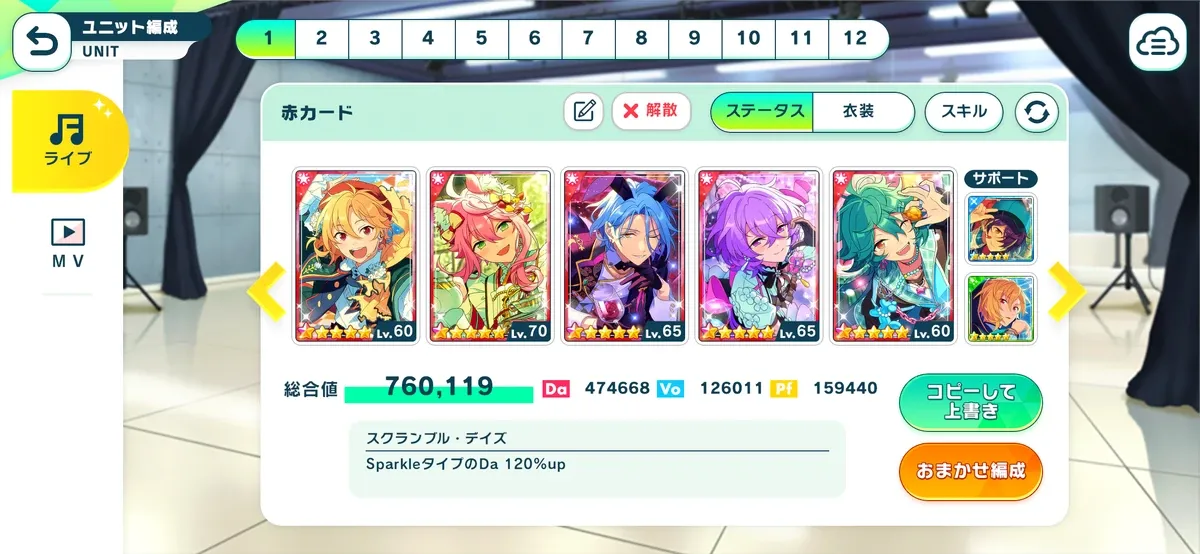
Audio DSP Timing and Note Offset Calibration
Rhythm engines track track progression via Digital Signal Processing (DSP) audio clocks. Tap accuracy is evaluated against frame timestamps, but hardware DACs and display panels introduce 15ms to 50ms of physical delay.
Ensemble Stars!! Music uses a semi-circular curved judgment bar. Unlike games requiring strict release timing on long holds, hold notes here register continuously until the end unless intermediate tick markers appear. Flick notes register via directional swipes across the curved arcs.
[ Audio Output Buffer (15-50ms) ] ---> [ Hardware Display Lag ]
                                              │
                                              ▼
[ In-Game Millisecond Offset Calibration ] ───► [ Perfect Sync at Target Line ]
When your offset is misaligned, on-beat taps trigger frustrating Great or Good ratings. Calibrate with these steps:
- Connect wired headphones or use device speakers (Bluetooth codecs inject 100–200ms of latency).
- Tap the calibration node along with the metronome.
- If taps register late (red markers behind the bar), adjust the offset negative.
- If taps register early (blue markers ahead of the bar), adjust the offset positive.
- Test your setting on a familiar Hard chart to confirm Perfects match the percussive beat.
Mobile OS Tweaks for Android and iOS Devices
In-game menus cannot fix background OS interference. If system power daemons or background tasks run unchecked, frame pacing degrades regardless of your settings.
| OS Feature / Setting |
Android Configuration |
iOS / iPadOS Configuration |
Performance Benefit |
| Game Mode Frame Throttling |
Set Game Mode to 60 FPS cap |
Enable Guided Access |
Reduces GPU power draw by up to 50% and stops thermal drops |
| Storage Overhead |
Keep 5–6 GB free space |
Keep 10% storage free |
Prevents flash memory write-throttling during asset caching |
| Background Task Allocation |
Limit to 4 processes in Developer Options |
Disable Background App Refresh |
Frees system RAM and stops CPU spikes during live stages |
| Hardware UI Acceleration |
Enable Force GPU Rendering |
Automatic (Metal API) |
Lowers touch input latency across 2D UI elements |
System-level power and memory tweaks keep background sync services from stealing CPU cycles during live performances.
On Android 13+, Game Mode frame rate throttling evens out frame pacing. Capping the game to a steady 60 FPS prevents unnecessary frame over-rendering, cutting power draw by 20% to 50% and delaying thermal throttling.
Keep at least 5 to 6 GB of internal storage unallocated. When flash storage runs near capacity, I/O cache writes bog down, causing brief asset-loading freezes mid-song.
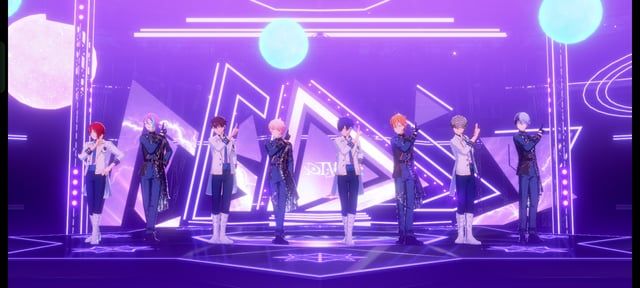
Managing System Demands for Demanding Songs and Events
Major in-game celebrations push mobile hardware hard. The 4th Anniversary in June 2026 introduced massive 3D concert spectacles, song voting tickets distributed every 4 hours, and 12 ten-scout tickets via login campaigns—features that demand significant memory bandwidth.
Select 5-star idol cards include Dynamic Mode visuals. For example, 5-star Tsukasa Suou unlocks custom stage flair powered by Dynamic Coins. While visually impressive in the MV player, triggering Dynamic Mode during a rapid 169 BPM live stage increases touch latency noticeably.
Preparing for grueling ranking events requires a solid foundation. Securing ES Points for Ensemble Stars Music lets you scout high-tier support units and stockpile resources before the marathon begins.
Support Cards and Gameplay Buffers for Lag Spikes
Even on optimized devices, stray OS popups or thermal spikes can cause a split-second stutter. Equipping specific support cards provides a mechanical safety net.
Key support skills include:
- Judgment Conversion: Converts up to 3 Great or Good ratings into Perfects automatically.
- Miss Protection: Converts up to 1 Bad or Miss judgment into a Great, preserving your combo chain.
Ranking milestones demand extreme consistency. Standard featured 5-star event cards require 3,500,000 event points (though certain promotional tracks list lower brackets between 1.1M and 1.5M). Sustaining high combo multipliers across hundreds of consecutive song clears minimizes stamina waste.
| Configuration Element |
Without Optimization |
With Graphics & Support Optimization |
Impact on Live Score |
| Background Graphics |
3D Dynamic (High GPU draw) |
2D Simple (Zero GPU overhead) |
Stable 60 FPS prevents missed inputs |
| Lane Visibility |
Stage lasers and dynamic MVs |
High-contrast static background |
Immediate note recognition on dense bursts |
| Input Buffer Offset |
Default factory 0ms |
Custom ±ms DSP calibrated |
Converts borderline Greats into Perfects |
| Support Skill Slots |
Raw score stat cards |
1 Miss-to-Great + 3 Great-to-Perfect |
Prevents combo loss from random lag hitches |
Pairing a 2D Simple background with judgment-assist support cards creates the most reliable setup for hitting Full Combos consistently.
When grinding for top ranks, picking up ES Points supplies the Diamonds and scout pulls needed to reinforce your support bench.
Troubleshooting OS Requirements and Version Updates
Client patches routinely adjust the underlying engine. Version 4.1 overhauled the user interface, refreshed Note Sound Effect configurations, and reworked stage display pipelines to resolve persistent latency bottlenecks.
System requirements show a slight discrepancy across storefront releases: legacy packages cite Android 6.0 compatibility, while current builds require Android 7.0+ for modern 3D rendering libraries. Upgrading your device's OS ensures touch driver stability and API support.
If tap lag persists, clear the app cache from the title screen. This cleans out bloated audio buffers and corrupted texture files without touching your account data.
Frequently Asked Questions
What is the best graphics setting for hitting Full Combos in Enstars Music?
Switching your live background to 2D Simple mode is the single most effective setting. It completely eliminates heavy 3D GPU loads and clears distracting stage lighting from behind the notes.
Why is my 3D Live MV lagging or dropping frames during songs?
Real-time 3D character and lighting rendering places heavy demand on your mobile processor, triggering thermal throttling after a few minutes of play. Lowering background visuals or playing in 2D Simple mode eliminates these frame drops.
How does changing note size affect gameplay performance?
Increasing note size improves visual readability on fast, dense charts without placing any extra rendering burden on your device. It makes incoming notes easier to track and time accurately.
How can I fix audio and visual timing desync in Ensemble Stars Music?
Use the in-game latency calibration tool to adjust your audio offset in milliseconds. This compensates for your device's internal audio buffer delays and aligns note strikes perfectly with song beats.
Do Android Developer Options help reduce rhythm game input lag?
Yes, enabling Force GPU Rendering and limiting background processes to 4 tasks can noticeably reduce touch latency. These tweaks allocate hardware resources directly to the active game process.
Can support idol cards prevent combo breaks when frame drops happen?
Equipping support cards with timing-assist skills will automatically turn up to 3 Greats or Goods into Perfects and convert 1 Bad or Miss into a Great. This gives you a built-in safety net if a random lag spike occurs mid-song.
Final Verdict on Hitting Clean Full Combos
Flawless rhythm execution in Ensemble Stars!! Music comes down to eliminating visual clutter and hardware drag. Switch your stage background to 2D Simple, expand your note size, calibrate audio latency via wired headphones, and lock your refresh rate to 60 FPS. Keep 3D MVs in the theater viewer, slot judgment support cards on your team, and enjoy lag-free Full Combos on every beatmap.