Master your document workflow with our complete guide on how to change custom keyboard shortcuts in Microsoft Word to fix conflicts and boost typing speed.
Reaching for a mouse to apply a heading, strip unwanted formatting, or drop in a recurring symbol interrupts your typing flow. Awkward hotkeys drag down hourly output. If you write, format, or review thousands of words a day, custom keybindings keep your hands on the keyboard.
Word carries dozens of legacy hotkeys. Some clash with international keyboard layouts; others require awkward finger gymnastics. Remapping these commands resolves collisions, fixes template inheritance, and builds a personalized layout.
Treating Microsoft Word Keybinds Like a Pro Gaming Loadout
Competitive players never leave core actions on default keys if reaching them pulls hands off the home row. Word demands that same discipline.
The software uses two distinct keyboard control layers: sequential ribbon access keys (triggered in order via the Alt key) and direct action hotkeys (pressed simultaneously using Ctrl, Alt, and Shift modifiers). Direct action hotkeys execute commands instantly without flashing ribbon menus across your screen. Customizing them on modern installations of the Microsoft 365 suite subscription happens directly through Word's built-in options interface.

Opening the Microsoft Word Customize Keyboard Shortcuts Menu
Word for Windows hides its shortcut customization dialog inside backstage options.
- Open Microsoft Word and launch any blank document.
- Click File in the top-left corner and select Options at the bottom of the sidebar.
- In the Word Options window, click Customize Ribbon in the left navigation pane.
- Locate the label Keyboard shortcuts: near the bottom left, then click the Customize... button.
The resulting Customize Keyboard window lists every command, macro, style, font, building block, and symbol available in Word.
The Hidden ToolsCustomizeKeyboard Binding Hack
Digging through Options every time you need to map a command wastes time. While Word lacks a default hotkey for the customization dialog, you can create one in seconds.
Inside the Customize Keyboard window, pick All Commands from the Categories list on the left. Scroll down the Commands box and select ToolsCustomizeKeyboard. Place your cursor in the Press new shortcut key field, type a dedicated combination like Ctrl + Alt + Shift + K, and click Assign. Pressing that combination from any document now opens the keybind menu immediately.
How to Assign New Shortcut Key in Word 365 Step-by-Step
Assigning a new key combination requires selecting the precise command category, picking the action, checking for existing conflicts, and choosing the template scope.
- Select the Category: Under Categories, choose the tab or functional area your command belongs to (such as Home Tab, Review Tab, or All Commands for deep system actions).
- Pick the Target Command: Click the exact command inside the Commands box. For instance, choose
EditPasteSpecial if you want a dedicated hotkey to paste unformatted text. - Inspect Current Keys: Look at the Current keys box to see what combinations are already mapped to that command.
- Input the New Combination: Click inside the Press new shortcut key field. Press the physical keys simultaneously on your keyboard (for example,
Alt + Ctrl + V). The text box will display the names of the keys you pressed. - Check the Assignment Status: Look directly beneath the Current keys box at the line marked Currently assigned to:. If it says
[unassigned], your combination is clear. If it lists an existing command, your new bind will overwrite it. - Confirm the Mapping: Click the Assign button in the lower-left corner of the dialog box.
Global Template (Normal.dotm) vs Single Document Scope
Before clicking Assign, verify the Save changes in dropdown. This setting governs shortcut scope across your machine.
Selecting Normal.dotm stores the binding in your global base template, applying it to all current and future documents on that PC. Selecting the active document name (such as Proposal_Draft.docx) isolates the hotkey to that individual file. Use Normal.dotm for daily writing and editing tools; isolate document-level bindings for custom project macros or client templates.
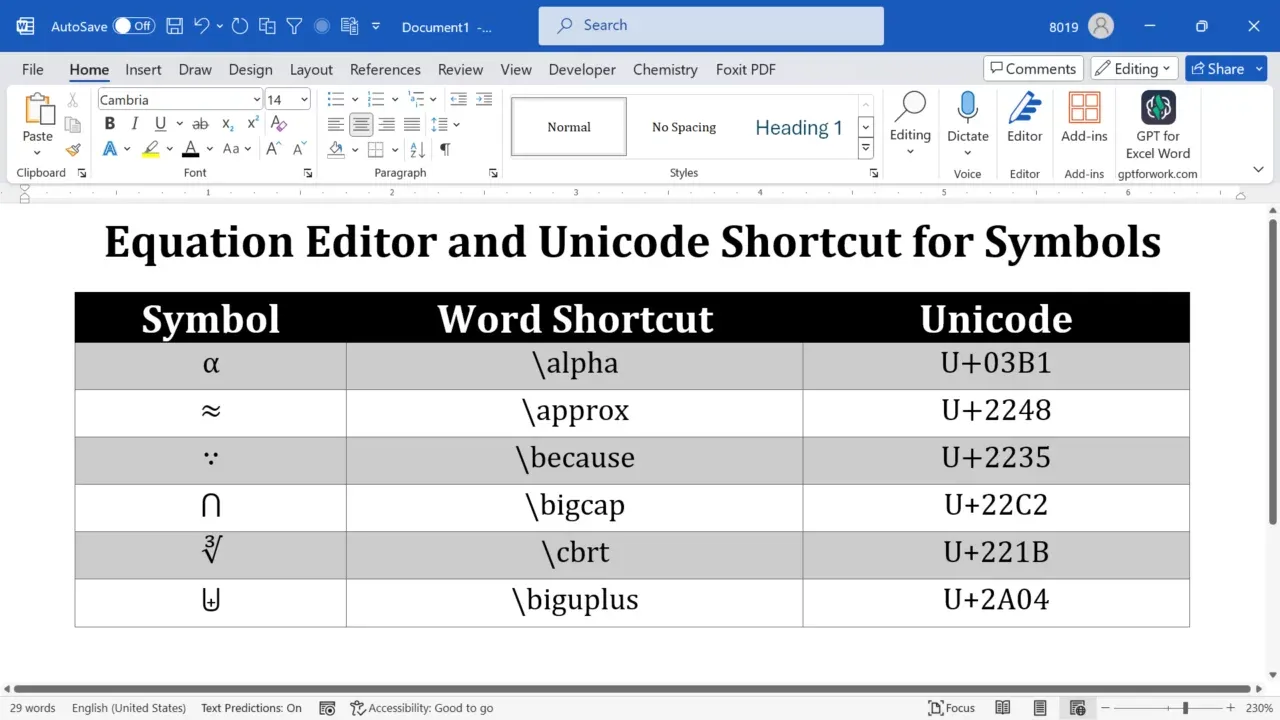
Essential Productivity Hotkeys and Built-In Formatting Binds
Word comes equipped with pre-assigned baseline shortcuts that reset formatting layers instantly. Knowing these native combinations saves you from having to create unnecessary custom hotkeys.
The following table outlines the core formatting, resetting, and structural shortcuts built directly into Word:
| Shortcut Keybind | Action Performed | Functional Note |
|---|
Ctrl + Spacebar | Reset Character Formatting | Clears manual font, bold, color, and size overrides while preserving paragraphs |
Ctrl + Q | Reset Paragraph Formatting | Reverts manual indents, margins, and line spacing back to the base style definition |
Ctrl + Shift + N | Apply Normal Style | Resets selected text completely back to the default Normal style configuration |
Ctrl + Shift + 8 | Toggle Non-Printing Characters | Shows or hides hidden formatting marks such as spaces, paragraph returns, and tabs |
Alt + Ctrl + 1 | Apply Heading 1 | Instantly styles the active paragraph with the top-level document heading |
Alt + Ctrl + 2 | Apply Heading 2 | Applies secondary subsection heading attributes to the current line |
Alt + Ctrl + 3 | Apply Heading 3 | Applies tertiary sub-heading styles to the current block |
Alt + Shift + Left Arrow | Promote Paragraph Level | Shifts the current outline or heading level one step up the document hierarchy |
Alt + Shift + Right Arrow | Demote Paragraph Level | Shifts the current outline or heading level one step down the hierarchy |
Mastering Ctrl + Spacebar and Ctrl + Q eliminates the need to manually highlight messy imported text and click through ribbon font boxes.
Mapping Symbols, Structural Headings, and Review Commands
Standard typing keys do not cover special punctuation, symbols, or editorial commands. Word allows you to attach rapid-fire triggers to symbols and proofreading features.
Symbol Inserters and Outlining Shortcuts
If your writing requires em-dashes, section symbols (§), copyright marks, or foreign currency signs, do not click through the symbol palette every time:
- Go to the Insert tab on the Ribbon.
- Click Symbol on the far right, then select More Symbols....
- Highlight the character you need from the grid.
- Click the Shortcut Key... button at the bottom of the window.
- Press your desired key combination in the Press new shortcut key box (such as
Alt + Ctrl + S for a section mark) and click Assign.
For structured documents, use outline navigation commands. While Alt + Ctrl + 1, 2, and 3 handle top-tier headings, pressing Alt + Shift + Left Arrow or Alt + Shift + Right Arrow promotes or demotes outline levels on the fly without touching your mouse.
Streamlining Proofreading and Review Markup
Editors and reviewers frequently jump between clean reading layouts and granular change tracking. You can map dedicated shortcuts directly to commands in the Review category:
- Toggle Markup Views: Map
ShowInsertionsAndDeletions to an easy trigger like Alt + Shift + M to flip between raw editing markup and the final clean layout. - Accept or Reject Changes: Map
NextTrackedChange, AcceptChangesSelected, and RejectChangesSelected to quick keys on your number pad for lightning-fast editorial reviews.
Running high-volume editing tasks on an authenticated genuine Microsoft 365 (AE) license ensures your custom macro routines, cloud sync settings, and reviewing bindings remain active across every connected workstation.

Quick Access Toolbar and Ribbon KeyTip Combos
Not every command requires a complex Ctrl + Alt + Shift keybind. Word features built-in sequential key combinations called KeyTips, alongside sequential hotkeys generated by the Quick Access Toolbar (QAT).
Pressing the Alt key displays letters over every Ribbon tab. Pressing Alt, releasing it, and then pressing H opens the Home tab. Pressing Alt then N opens Insert. Pressing Alt then P selects Layout, and Alt followed by R jumps straight to Review.
Even better, any command pinned to your Quick Access Toolbar automatically receives an index hotkey corresponding to its position from left to right:
| Sequential Trigger | Target Action / Location | Mechanism |
|---|
Alt + 1 | 1st Icon on Quick Access Toolbar | Direct execution based on toolbar slot position |
Alt + 2 | 2nd Icon on Quick Access Toolbar | Direct execution based on toolbar slot position |
Alt + 3 | 3rd Icon on Quick Access Toolbar | Direct execution based on toolbar slot position |
Alt + H | Home Tab KeyTip | Activates ribbon letter-badges for clipboard, font, and style commands |
Alt + N | Insert Tab KeyTip | Activates ribbon letter-badges for tables, symbols, and illustrations |
Alt + P | Layout Tab KeyTip | Activates ribbon letter-badges for margins, orientation, and spacing |
Alt + R | Review Tab KeyTip | Activates ribbon letter-badges for spelling, word count, and tracked changes |
Win + Ctrl + Alt + Shift + W | Direct Microsoft Word Launch | Windows global hotkey to launch Word instantly from any screen |
Placing your top three daily formatting macros in the first three slots of your Quick Access Toolbar gives you instantaneous Alt + 1, Alt + 2, and Alt + 3 execution with zero configuration conflicts.
How to Fix Custom Shortcut Conflict in Microsoft Word
Keybind conflicts happen when you map a combination that Word or Windows already relies on for another critical operation.
The "Currently Assigned To" Overwrite Trap
When entering a key combination in the Press new shortcut key field, always look at the Currently assigned to: indicator.
If you type Ctrl + C, the prompt warns you that it is assigned to Copy. If you proceed and click Assign, Word strips Ctrl + C from the Copy command and binds it to your new target. Accidentally overwriting universal commands like Undo (Ctrl + Z), Select All (Ctrl + A), or Save (Ctrl + S) causes major disruptions to your daily muscle memory. If you overwrite a critical key by mistake, select the command in the Customize Keyboard window, highlight the erroneous entry in Current keys, and click Remove.
Safe Mode Isolation for Third-Party Add-Ins
If you press a configured hotkey and nothing happens—or an external application intercepts the command—a third-party COM add-in is likely overriding Word's internal key listeners.
To isolate the issue:
- Press
Windows Key + R to open the Run dialog box. - Type
winword /safe and press Enter. - Test your shortcut key inside Safe Mode.
If the shortcut works properly in Safe Mode, one of your active add-ins (such as a PDF utility, reference manager, or macro toolbar) is hijacking the keypress. Disable add-ins one by one under File > Options > Add-ins to locate the conflicting software.
Platform Comparison: Windows vs Mac Shortcut Architecture
Customizing shortcuts on Windows differs noticeably from Word for Mac. Mac users have built-in menu tools for Word, but external Office apps behave differently.
| Operating Feature | Word for Windows (Microsoft 365) | Word for Mac (Microsoft 365) |
|---|
| Access Menu | File > Options > Customize Ribbon > Customize | Tools > Customize Keyboard from top menu bar |
| Removing Default Keys | Direct removal via the 'Remove' button | Built-in default key 'Remove' button is grayed out |
| Conflict Override Rule | Replaces target assignment upon clicking 'Assign' | Stacks new assignment; overrides default command |
| Symbol Customization | Insert > Symbol > More Symbols > Shortcut Key | Tools > Customize Keyboard > Category: Common Symbols |
| External Suite Apps | Excel/PPT support distinct internal ribbon customization | PPT/OneNote/Outlook require macOS System Settings |
| Modifier Swapping | Requires third-party keyboard utilities | Native support via macOS Keyboard Modifier Settings |
Word for Windows allows users to remove keybindings from default commands directly in the Customize dialog. Word for Mac grays out the Remove button for built-in default shortcuts, allowing only override additions or a full Reset All.
For cross-platform users jumping between Mac and PC, adjusting modifier keys inside macOS System Settings (mapping the Command key to Control) helps align your physical muscle memory across both desktop operating systems.
How to Reset Default Keyboard Shortcuts Microsoft 365 Word
If your hotkeys become hopelessly tangled, you can wipe the slate clean and revert to factory defaults.
Open Word -> File -> Options -> Customize Ribbon -> Keyboard: Customize -> Click 'Reset All'
Clicking Reset All in the Customize Keyboard dialog erases all custom shortcut keys saved in the currently selected template or document and restores Word's original defaults.
The Clean Rebuild: Purging Corrupted Normal.dotm Templates
When customized keys fail to persist between restarts, or if recent Microsoft 365 updates have corrupted your layout definitions, template inheritance is failing. Document settings inherit missing definitions directly from Normal.dotm. If that global template file becomes damaged, you must rebuild it:
- Close Microsoft Word completely.
- Press
Windows Key + R to bring up the Run box. - Paste the following path and press Enter:
%appdata%\Microsoft\Templates - Locate the file named Normal.dotm.
- Rename the file to Normal.old.
- Relaunch Microsoft Word.
Word automatically generates a clean, factory-fresh Normal.dotm file with pristine default key bindings, clearing out broken registry references and damaged macro binds.
Maintaining a verified Microsoft 365 cloud environment ensures that when you update or rebuild your local template files, your core license configurations and cloud-stored document styles download cleanly without version mismatches.
Troubleshooting Workflow: Step-by-Step Recovery Checklist
When a shortcut fails to fire during a critical editing session, run through this troubleshooting sequence:
- Check Template Scope: Open the Customize Keyboard menu and verify whether your shortcut is saved in
Normal.dotm or restricted to a single, isolated .docx file. - Inspect for OS-Level Interceptions: Ensure Windows, your graphics driver software, or desktop shortcuts do not share the hotkey. Application shortcuts on Windows desktop icons can bind
Ctrl + Alt + Key combinations globally across the entire operating system. - Launch in Safe Mode: Execute
winword /safe from the Windows Run prompt to check whether third-party COM add-ins are blocking keypress triggers. - Check for Recent Updates: Periodic Microsoft 365 updates can alter default key mappings for functions like zoom and formatting. Re-assign your preferred combination if a patch altered default behaviors.
- Perform a Clean Reset: Use the Reset All button in the Customize Keyboard dialog box, or rename
Normal.dotm to clear corrupted configurations.
Final Verdict: Building an Unbeatable Keybind Setup
Do not try to remap thirty commands in a single afternoon. Overhauling your entire keyboard map at once leads to confusion and accidental keystrokes.
Start by remapping the three commands you execute most frequently each day. Map unformatted paste, special characters, and primary heading tags to accessible combinations that do not conflict with universal operations like Ctrl + C or Ctrl + S. Once those keys become second nature, expand your layout into outline controls and proofreading toggles. Taking control of your keybindings turns Microsoft Word from a point-and-click editor into a fast, fluid typing environment.
Frequently Asked Questions
How do I open the Customize Keyboard dialog in Microsoft Word?
Go to File > Options > Customize Ribbon and click the Customize button next to Keyboard shortcuts. You can also assign a custom shortcut to the ToolsCustomizeKeyboard command for one-touch access.
Will changing a shortcut affect all my Microsoft Word documents?
It depends on the Save changes in setting selected when assigning the shortcut. Selecting Normal.dotm applies the change to all documents, while choosing the active document filename restricts the mapping to that file only.
Can I assign custom shortcuts to special symbols or characters?
Yes, you can assign custom shortcuts by opening Insert > Symbol > More Symbols and clicking Shortcut Key. Type your desired key combination and click Assign to save it.
How do I change keyboard shortcuts in Word for Mac?
Open the Tools menu from the top menu bar and click Customize Keyboard. Select the command category, press your new shortcut combination, and click Add.
What should I do if my custom Word shortcuts stop working?
Test Word in Safe Mode using winword /safe to check for add-in conflicts. If the issue persists, reset shortcuts in File > Options > Customize Ribbon > Customize or rebuild your Normal.dotm template.
How do I restore Word's default factory keyboard shortcuts?
Open the Customize Keyboard dialog box and click the Reset All button at the bottom. This clears custom assignments and restores Microsoft's original default shortcuts.